1 Introduction
1.1 Overview
eCASE Alternative Dispute Resolution (ADR) is an eCASE Application that assists ADR Case Managers with reaching an agreement between involved parties. This manual provides an overview of the Case Folder where work is performed, an example workflow including the major work phases (Information Gathering, Mediation, and ADR Closure), and the application configuration.
NOTE: The eCASE ADR User Manual uses an out of the box configuration, and may not represent the end users experience due to the configurability of the application.
1.2 Scope
This manual provides instructions for using ADR, including the following procedures:
Getting Started: Using the ADR Dashboard, creating a new ADR case folder, the ADR Intake Folder sections, and Contact Management.
ADR Intake Folder Interface: The ADR case folder tabs, and their respective interfaces/actions.
Workflow Example: How the ADR Ad Hoc workflow progresses through the three workflow sections using the Next Action drop-down list.
eCASE ADR Configuration: The ADR Configuration folder and how to complete the ADR Application to match your organizations specific workflow.
1.3 Accessing the Application
Access eCASE ADR from your preferred web browser. A link to the application is included in the email you received when your account was first created. You can also ask for assistance in accessing eCASE ADR from your system administrator.
1.3.1 Sign In
When you access the application link, the Sign In screen appears as shown below:

Enter your (A) Username and (B) Password, then click (C) Sign In to access the application.
1.3.2 Sign Out
To sign out of the application, select the (A) User Drop-Down Menu then click (B) Sign Out:

1.4 Using eCASE
The following table describes the basic eCASE user interface, and the terminology is helpful for understanding the steps and directions in this document.
Term | Example |
Home Screen: The interface displayed when you first log in. In the center Dashboard you’ll find information relevant to your role, office or set preferences. |
|
Launch Pad: Where you create cases, search, and access Administration. Access the Launch Pad from the left side of the ADR UI. |
|
Tabs: Tabs are located above the workspace within a case folder. Access different information on these folder tabs. See the ADR Intake Folder Interface section for more information. |
|
Top Menu Bar: The Top Menu Bar is located above the tabs within a Case folder. You can perform actions on the Case folder from the Top Menu Bar. |
|
Case Folder ID: The Case Folder ID is the identifying number for each Case folder. The ID is located above the Top Menu Bar in a Case folder. |
|
App Logo: Your application logo (eCASE in this example) appears in the top-left corner of the screen. Click this at any time to return to the Home Screen |
|
Bread Crumbs: When in a case folder accessed via Folder Search Results, you can click on the breadcrumbs above the Top Menu Bar to return to the search results or the home screen. If you open a Case folder via the inbox, click the corresponding breadcrumb to return to the inbox. |
|


2 Getting Started
This section includes procedures for creating and saving new ADR cases, as well as detailed descriptions of the various elements in the ADR Case Folder interface.
2.1 ADR Dashboard
After logging into eCASE ADR, the landing page is the eCASE Home Screen. The Home Screen contains widgets and inboxes relevant to the logged in user’s role and group. In the example below, the My Open Cases, Resolve Open Cases, and Unassigned Cases inboxes are highlighted:

The annotations in the image above are described in the table below:
Ref | Inbox | Description |
A | Launch Pad | Where you create cases, search, and access Administration. Access the Launch Pad from the left side of any eCASE page. |
B | Logo | Your application logo (eCASE in this example) appears in the topleft corner of the screen. Click this at any time to return to the Home Screen. |
C | Inbox | Case Folders currently in the workflow process appear in the Inbox. You can also access the Inbox by clicking Inbox from the Launch Pad. |
D | Quick Search Bar | You can configure and execute quick searches using this widget, from any page in the application. |
E | User Name Drop-down and Help | Here you can access the Help Menu and the User Name drop-down list. |
2.2 Create New ADR Intake Case Folder
The New ADR Intake Form captures information about the complainant and allows you to assign a Case Manager to handle the complaint. Follow the steps below to create a new ADR Intake Folder:
Using the Launch Pad, select Main Menu > New > ADR Intake.

The page refreshes to display a blank New ADR Intake form.

Click the Complainant lookup. The Search for Contact pop up window appears. The Complainant can be a party (individual) or a group. Party and Group Complainants are further explained in the Party and Group Complainants subsection.
Enter the complainant contact information into the search fields and click Search.

The system returns search results matching the criteria. Click the desired Complainant from the search results and click Select.

NOTE: You also have the option to create a new contact from the Lookup screen. See the Contact Management section for steps to create a new contact.
The contact’s details populate on the form using information from their profile. The more information in their profile, the more detail will be added to this form.
NOTE: Group and Party complaints have slightly different fields available. The example below is a Party complaint.

If a Party is selected as the complainant, the Is this a Coaching Case? field appears to determine if this is a Coaching case. Select Yes or No.
NOTE: Coaching Cases enter a simplified coaching workflow.
You are required to enter the complainant’s District, Organizational Office, and Geographic Office. If this information was not imported from the contact’s profile, use the drop-downs to select these now.
NOTE: The selection in the District drop-down list features determines the set of values available in the Geographic Office drop-down list.
Scroll down to the Date Information section and use the date picker to select the Date of Initial Contact.

Use the date picker to select the Referral Date.
NOTE: The Referral Date cannot be before the Date of Initial Contact.
Select the Case Manager from the drop-down list.
Click Save. The workspace refreshes to display the newly created ADR Intake case folder. See Section 3 for information about the ADR Intake Case Folder interface.

2.3 ADR Intake Form Details
The ADR Intake Form features additional fields to capture information beyond what is required to create the case folder. These sections are separated into the following subsections:
Complainant and Phase Information
Addresses
Date Information
Staff Assigned
Issues
2.3.1 Complainant and Phase Information
The Complainant and Phase Information section is used to capture information about the complainant (Contact), office, and position.
NOTE: Selecting a complainant may auto-complete fields with information if that information was previously associated with the Contact entry.

The fields in this section of the form are described in the following table.
Field | Description |
Complainant | The system contact named as the complainant in this dispute. This can be a party (individual) or a group. Use the Lookup field to open the Search for Contact pop up window and select a system contact as the complainant. You also have the option to create a new contact from the Search for Contact pop up window. See the Contact Management section for steps to create a new contact. |
Organizational Office | The chief executive office with which the complainant is associated with. Use the drop-down list to select the office of the complainant. |
District | The district that the complaint is associated with. Use the drop-down list to select the district of the complainant. This selection determines the selections available in Geographic Office drop-down list. |
Geographic Office | The geographic office associated with the dispute resolution case folder. The selections available in this drop-down list are determined by the selection in the District drop-down list, and as such this cannot be selected until after a District has been selected. |
Grade | The Grade associated with the complainant. |
Steps | The Steps that correspond to the Grade of the complainant. This cannot be selected until a Grade has been selected. |
Cell Phone Number | The cell phone number associated with the complainant. |
Hours of Work | Enter the number of hours worked by the complainant on the dispute resolution. |
Position | Use this drop-down list to select the position of the complainant. |
2.3.2 Date Information & Staff Assigned
This section of the intake form includes fields to capture important dates for this dispute, as well as the Case Manager assigned to the dispute resolution.

The fields in this section of the form are described in the following table.
Field | Description |
Date of Initial Contact | The date that contact was first made in regards to the dispute resolution. Click the field to expand the date picker and select the initial contact date. |
Referral Date | The date the referral was submitted. Click the field to expand the date picker and select the date the referral was received. |
Scheduled Intake Date | The date the intake was scheduled. Click the field to expand the date picker and select the date the intake was scheduled. |
Scheduled Discussion Date | The date the dispute resolution was scheduled to be discussed. Click the field to expand the date picker and select the date of the scheduled discussion. |
Case Manager | The Case Manager assigned to the dispute resolution case folder. Use this drop-down list to select the Case Manager assigned to this dispute resolution case folder. |
2.3.3 Issues
The Issues section of the Intake form includes fields to capture information surrounding the issue entering dispute resolution.

Field | Description |
Issues | The Issues that being settled via dispute resolution. Click the (A) lookup field to select the (B) Issues relevant to the dispute resolution case, then click (C) OK to add these to the Issues field:
|
Employment Discrimination | The potential basis of employment discrimination. Click the Employment Discrimination checkbox to enable the Bases checkboxes to the right. Select Bases that are relevant to the dispute resolution. |
Reasonable Accommodations | Select this checkbox to indicate that the dispute resolution is in regards to a Reasonable Accommodations request. |
Harassment | Select this checkbox if this is a harassment-related complaint. If selected, additional checkboxes appear to determine if the harassment was Sexual, Non-Sexual or both:
|
Previous ADR Attempts? | Use the Yes/No Radio buttons to indicate if there have been previous dispute resolution attempts. If (A) Yes is selected, fields appear to capture the (B) Date of the previous ADR, as well as any (C) Comments:
|
EEO Complaint? | Use the Yes/No Radio Buttons to indicate if the dispute resolution is in regards to an EEO Complaint. Selecting Yes prompts the tab to refresh and display additional EEO Complaint Details fields. |
EEO Complaint Details | If this is designated as an EEO Complaint, use these fields to capture the complaint details. There are fields to capture the (A) EEO Case Number, (B) Notice of Right to File date, and if this is a (C) Formal complaint:
If Yes is selected for Formal? additional fields appear to capture the Formal Complaint details. |
Formal Complaint | If this is designated as a Formal complaint, use these fields to capture the complaint details. There are fields to capture the (A) Formal Complaint Filed date, (B) ROI Issued date, and whether there was a (C) Hearing Requested or (D) FAD Requested.
|
Hearing Requested | Select Yes if the complainant has requested a hearing. If selected, fields appear to capture the (A) Hearing Request Date, and you can indicate if there is a (B) Hearing Scheduled:
|
FAD Requested | Select Yes if the complainant has requested a FAD. If selected, fields appear to capture the (A) FAD Requested Date, and you can indicate if there is a FAD Issued:
|
Reasonable Accommodation Request | Use the Yes/No Radio Buttons to indicate if the dispute resolution is a Reasonable Accommodation Request. |
Negotiated Grievance? | Use the Yes/No Radio Buttons to indicate if the dispute resolution is in regards to a previously negotiated grievance. Selecting Yes prompts the tab to refresh and display the Negotiated Grievance Status drop-down list:
|
Harassment Complaint | Use the Yes/No Radio Buttons to indicate if the dispute resolution is in regards to a Harassment Complaint. |
Administrative Grievance? | Use the Yes/No Radio Buttons to indicate if the dispute resolution is in regards to an Administrative Grievance. Selecting Yes prompts the tab to refresh and display the Administrative Grievance Status drop-down list:
|
MSPB Case? | Use the Yes/No Radio Buttons to indicate if this is a Merit System Protections Board (MSPB) Case. Selecting Yes prompts the tab to refresh and display the MSPB Case Number field:
|
Unfair Labor Practice Charge? | Use the Yes/No Radio Buttons to indicate if this is in relation to an Unfair Labor Practice Charge. Selecting Yes prompts the tab to refresh and display the FLRA Case Number field:
|
Arbitration Case? | Use the Yes/No Radio Buttons to indicate if the dispute resolution is in regards to an Arbitration Case. Selecting Yes prompts the tab to refresh and display the Arbitration Case Number field:
|
Lawsuit? | Use the Yes/No Radio Buttons to indicate if the dispute resolution is in regards to a lawsuit. Selecting Yes prompts the tab to refresh and display the Lawsuit Case Number field:
|
Referred From | The source of referral for the administrative grievance. Select the source of the referral from the drop-down list. |
Status | This drop-down list is inactive during form completion, but is populated as the case folder moves through the workflow. |


 If selecting Yes for Hearing Requested or FAD Requested, additional fields appear to capture these details

 If selecting Yes under FAD Issued? An additional field appears to capture the Hearing Scheduled Date:


2.4 Contact Management
2.4.1 Create New Party or Group (New ADR Intake Form)
You can create a new contact (Party) directly from the ADR Intake form:
Open a New ADR Intake form, and click the Complainant Lookup.

The Search for Contact window appears. Select Party from the New drop-down list.

The pop-up window refreshes to display the New Contact screen. Enter the Contacts First Name in the field.
Enter the Contacts Last Name in the field.
Enter any additional information about the contact in the fields provided.

Click Save.

A confirmation window appears, indicating that the contact was successfully created. Click OK.

The confirmation window closes, and the New Contact window refreshes. Click Close.

The newly created contact can now be searched for and selected by clicking the Complainant lookup field and performing a search for the contact.

2.4.2 Create New Contact (Group, Neutral, Party, Respondent)
You can create a new contact (Group, Neutral, Party or Respondent) directly from the ADR Intake form:
Within the Launch Pad, click Contacts > New. Options appear to select a new Contact Type.

Select a new Contact Type to create, either Group, Neutral, Party or Respondent. In this example, we will create a new Group.
The New Contact screen appears. Some fields are required based on the selected contact type. In this example we are creating a new Group, and you are required to enter an Organization Name:

Complete in all required fields on the form.
NOTE: Required fields are denoted with the red asterisk (*) in the form.
Enter any additional information about the contact in the fields provided. Add as much information as possible, these details are automatically imported into relevant fields when this contact is used in dispute processing.
When you’ve added all details to the contact profile, click Save.

A confirmation window appears, indicating that the new contact was successfully created. Click OK.

The confirmation window closes, and the New Contact window refreshes. The contact is now available for assignment in dispute processing.
3 ADR Intake Folder Interface
After an ADR Intake is created and saved, Tabs appear in the interface which allow you to work with the ADR case. Each of these tabs are detailed in the following subsections:
3.1 Intake Tab
After a new ADR Intake is created and saved, the Intake tab becomes the primary workspace for processing ADR cases. The sections below provide an overview of the Intake tab, and descriptions of all the actions you can take on this form.
3.1.1 Intake Tab Interface
An example Intake tab is shown below. This is an example of a Party (Individual) complaint:
Feature | Reference |
Complainant Role and Contact fields.
|
|

3.1.2 Party and Group Complaints
There are a few differences on the Intake tab depending on whether this is a Party or a Group compliant. As a rule, a Party is an individual complainant with whom the ADR is being adjudicated, where a Group is a collection of individuals engaged with the ADR. A group contact may be previously configured, but if it not, it can be created by clicking the New dropdown list within the Search for Contacts window.
The EEOC governs how Party and Group complaints are adjudicated, however, your organizations workflow and data capture may be different from our example workflow and application. If the Complainant selected is a group, then the case folder after creation will include several different features from a Party Complainant. In our sample application, once a group is selected, the District and Geographic Office fields are automatically populated with content previously associated with the group.

Party and group complainants are separate, and the specifics of the complainant types are dependent upon your organization’s configuration. Some fields may or may not be available depending upon this configuration. Consult the screenshots below for an example of additional fields which may appear depending upon type of Complainant:

The above screenshot depicts an additional field which appears when a Party is selected. The highlighted Y/N radio button field appears only for Party cases, and drives the workflow. The screenshot below depicts the same section when a Group is selected.

3.1.3 Next Action
3.1.3.1 About the Next Action Menu
The Dispute Resolution is progressed through a workflow using the Next Action drop-down list. The Next Action drop-down list, located prominently at the top-right of the Intake tab workspace, is the primary driver for moving through your dispute resolution process. This menu lists all potential avenues of action, depending on where the dispute resolution is in your organization’s configured workflow.
The selections present in the Next Action drop-down list are dependent upon your organization’s configuration, however, Next Actions generally follow the same steps and the available selections are made active/inactive by completing work within the dispute resolution case folder. In the example below, the Next Action drop-down list is expanded and sufficient steps have been taken to make available a number of potential actions.

3.1.3.2 Sample Steps to Complete Next Action
This subsection provides sample steps for how to use the Next Action drop-down list. Next Action selections are made available by performing work within the case folder, and these selections drive the workflow. In the procedure below, we’ll show an example next action: Send email to Management with scheduled discussion date.
To complete a next action:
Open the desired case folder, and complete any assigned updates.
Navigate to the Intake tab.
Select the desired Next Action from the Next Action drop-down list.
NOTE: In the example below Send email to Management with scheduled discussion date is highlighted.

Click the green arrow. The screen refreshes and displays a confirmation window, asking if you want to save the changes. Click Yes to save the changes and perform the selected action.
The workspace refreshes to display a log activity window. Complete the required fields and enter any relevant information in the Event Note field.
If required, click Send Notification. The Send Email Favorite window appears.
.jpg?sv=2026-02-06&spr=https&st=2026-10-10T09%3A30%3A50Z&se=2026-10-10T10%3A41%3A50Z&sr=c&sp=r&sig=Tuh9c%2BVw5fsivkZrM568pvu3QX9V4v3yAdO8UvQ2Wd4%3D)
Configure the email message and click Send. The Send Email Favorite window closes and the message is sent.
The Log Activity screen is displayed. Click the Is Email sent? checkbox. The workspace refreshes and the OK button is now activated.
NOTE: Any entries made within the Log Activity workspace are recorded in the Event Log tab, which is detailed in Section 3.6 Event Log tab. The Event Log provides you with a complete history of the case folder, and any workflow changes that have occurred.
Click OK.

A confirmation window appears. Click Yes.

The workspace refreshes and displays the updated Case Folder. The Next Action drop-down list now automatically defaults to the next step in the workflow, which in the example application is Conduct Discussion with Management.

NOTE: For additional information on how to use the Next Action drop-down list to drive the workflow, please see the examples in the Workflow Example section.
3.1.4 Send Notification
You can send notifications using the Send Notification button on the Intake tab:

Consult the following subsections for more information about the Notification interface, as well as steps to send a notification.
3.1.4.1 Notifications Interface
Click Send Notification to open the Send Attachment by Email screen. An example is shown below:

On this screen, there are areas to configure the (A) Sender and recipient information (some of the fields in this window may be prepopulated in your application). There is also space to select an (B) Email Template. Selecting an email template automatically populates the Subject and Message fields with the preconfigured email template information.
You can add attachments using the (C) Attach From Disk and Attach From buttons. Send the notification using the (D) Send button.
3.1.4.2 Steps to Send a Notification
Follow the steps below to send an email notification from the Intake tab.
Click Send Notification from the Intake tab. The Send Attachment by Email screen appears as shown below:

NOTE: The From and To fields automatically populate based on the configuration. In the example above, the logged in user appears in the From* and Cc fields, and the previously selected Case Manager appears in the To* field. You can change these fields manually, if desired.
Select an Email Template from the Email Template drop-down list. These templates are preconfigured with case data and highlighted information to update in the message body.
a. After selecting a template, the Subject and Message fields auto-populate with the selected template data, as shown below:

The highlighted information in the template is meant to be updated manually. Make these changes in the Message Editor prior to sending the notification.
Select the Return Receipt or Case Report checkboxes to include these with the notification.

To add attachments to the message, click the Attach from Disk button to add an attachment from your local disk, or Attach From to add an attachment from the Documents tab of this ADR Intake case folder.

In this example, click Attach From to add an attachment from this case. The Attach From interface appears as shown below:

Any attachments already uploaded to this case are listed in the Select Attachments field. Select an attachment and click Select to add it to the notification. Attachments on this notification are visible on the Documents tab.

When the notification is fully configured click Send to send the notification.
After clicking Send the Intake refreshes. You can view the sent email message within the Event Log tab as shown in the following example:

3.1.5 Add Other Complaint
During the course of the dispute resolution, it may become necessary to add another complainant to the Dispute Resolution case folder. To add other complainant to the case folder:
Within the desired case folder, navigate to the Other Complainant section of the Intake tab.
Click Add Other Complainant.

The tab refreshes to display the Add Other Complainant workspace. Select the role from the Other Complainant Role drop-down list.

Click the Other Complainant Contact lookup. The Search for Contact pop up window appears.
Configure the search parameters and click Search.

The system executes the search and displays the search results. Select the desired contact and click Select.

The selected contact appears in the Other Complainant Contact field. Click Save.

The tab refreshes and displays the selected complainant in the Other Complainant section. The case folder now features multiple complainants.

3.1.6 Stop Clock
During the course of the case lifecycle, it may become necessary to stop tracking case milestones. This is called “Stopping the Clock”. Follow the steps below to stop the clock:
Within the desired case folder, navigate to the Date Information section of the Intake tab.
Click Stop Clock.

The tab refreshes to display the Stop Clock workspace.

Select the Clock stop date using the Date Picker.
Enter any relevant comments into the Comments field.
Click Stop Clock. The tab refreshes to display the full Intake tab of the case folder, and the clock has been stopped.
NOTE: The clock will not resume tracking case milestones until you return to the case folder and click Restart Clock.

3.1.7 Modify Case Manager
During the course of the case lifecycle, it may become necessary to change the case manager assigned to the case folder. After the case manager is modified, the newly selected case manager is responsible for moving the case folder through to completion. Follow the steps below to modify the case manager:
Within the desired case folder, navigate to the Staff Assigned section of the Intake tab.
Click Modify Case Manager.

A confirmation window appears. Click Yes.

The tab refreshes to display the Modify Case Manager workspace. Select the desired user from the Case Manager drop-down list and click OK.

The Intake tab refreshes to display the full Intake tab, and the newly selected user now occupies the Case Manager drop-down list.
3.1.8 Add Respondent
During the course of the case lifecycle, it may become necessary to add a Respondent to the case folder. During an arbitration proceeding, the respondent is a party who responds to an arbitration demand. The respondent is equivalent to a defendant in a lawsuit. In court, the respondent can also be a party against whom an appeal or a motion is filed. Respondents are captured in the case folder after communications with them have begun. It is recommended to add summaries after these discussions take place. Follow the steps below to add a respondent:
Within the desired case folder, navigate to the Respondent section of the Intake tab.
Click Add Respondent.

The Intake tab refreshes to display the Add Respondent Official workspace. Select the Respondent Role from the Respondent Role drop-down list.

Click the Respondent Contact lookup field. The Search for Contact pop up window appears.
Configure the search parameters and click Search.
The system executes the search and displays the search results. Select the desired contact and click Select.

3.1.9 Issues Management
During the course of the case lifecycle, it will become necessary to add additional information regarding the dispute resolution to the case folder. Follow the steps below to complete Issues Management fields:
Within the desired case folder, navigate to the Issues section of the Intake tab.
NOTE: Due to the highly configurable nature of the application, your layout and application behavior will vary. The fields and behaviors captured below are intended to convey how your application may function.
Complete as many Issues fields as possible. Example fields within the Issues section are captured in the table below.
Field | Description |
Issues | The Issues that are being settled via dispute resolution. Click the lookup field to select the issues relevant to the dispute resolution. |
Employment Discrimination | The potential basis of employment discrimination. Click the checkbox in the left column to enable the checkboxes in the right column. After enabled, select only the checkboxes that are relevant to the dispute resolution.
|
Reasonable Accommodations | Select this checkbox to indicate that the dispute resolution is in regards to a Reasonable Accommodations request. |
Harassment | Select this checkbox if this is a harassment-related complaint. If selected, additional checkboxes appear to indicate if the harassment was Sexual or Non-Sexual:
|
Previous ADR Attempts? | Use the Y/N Radio Buttons to indicate if there have been previous dispute resolution attempts. Selecting Yes adds additional fields to capture the date and information about the ADR attempt.
|
EEO Complaint? | Use the Y/N Radio Buttons to indicate if the dispute resolution is in regard to an EEO Complaint. Selecting Yes prompts the tab to refresh and display additional EEO Complaint Details fields, which capture the date and case number of the previous EEO. |
Reasonable Accommodation Request | Use the Y/N Radio Buttons to indicate if the dispute resolution is in regard to an EEO Complaint. |
Negotiated Grievance? | Use the Y/N Radio Buttons to indicate if the dispute resolution is in regard to a previously negotiated grievance. Selecting Yes prompts the tab to refresh and display the Negotiated Grievance Status drop-down list. |
Harassment Complaint | Use the Y/N Radio Buttons to indicate if the dispute resolution is in regard to a Harassment Complaint. |
Administrative Grievance? | Use the Y/N Radio Buttons to indicate if the dispute resolution is in regard to an Administrative Grievance. Selecting Yes prompts the tab to refresh and display the Administrative Grievance Status drop-down list. |
MSPB Case? | Use the Y/N Radio Buttons to indicate if this is a MSPB Case. Selecting Yes prompts the tab to refresh and display the MSPB Case Number field. |
Unfair Labor Practice Charge? | Use the Y/N Radio Buttons to indicate if this is in relation to an Unfair Labor Practice Charge. Selecting Yes prompts the tab to refresh and display the FLRA Case Number field.
|
Arbitration Case? | Use the Y/N Radio Buttons to indicate if the dispute resolution is in regard to an Arbitration Case. Selecting Yes prompts the tab to refresh and display the Arbitration Case Number field. |
Lawsuit? | Use the Y/N Radio Buttons to indicate if the dispute resolution is in regard to a lawsuit. Selecting Yes prompts the tab to refresh and display the Lawsuit Case Number field.
|
Preferred From | The source of referral for the administrative grievance. Select the source of the referral from the drop-down list. |
Status | Drop-down List, inactive in screen shot. |








Click Save.
3.2 Case Summaries Tab
The Case Summaries tab allows you to add case summaries to the case folder after discussions are conducted with any Individuals/Groups/Management/Settlement Judges/etc. related to the case. The Organizational Office drop-down list contains the selection made when the case folder was created. Within the example below, you have options to: (A) select a different Organizational Office, (B) view/edit case summaries, and (C) Add Case Summary. Additionally, the example below has two case summaries added, displayed in the View/Edit Case Summaries workspace.

3.2.1 Add Case Summary
Follow the steps below to manually add a case summary to the Case Summaries tab.
Navigate to the Case Summaries tab. An example tab is shown below. Click Add Case Summary.

The tab refreshes and the Select Involved Party Contact button appears. Click Select Involved Party Contact:

The Involved Party Information screen appears, as shown in the example below. Any contacts added to the Involved Party Information tab are listed here. There is the option to Add Involved Party Information to add a new involved party. See the Add Involved Party Information section for steps.

Select at least one Involved Party and click Select to continue.

The Case Summaries tab refreshes to display an Edit button now present on the UI. Click Save to save the newly created summary.

Click Edit to open the case summary.
The Case Summary pop up window appears. Click within the text editor and enter information about the case summary in the workspace.

After adding any text within the Text Editor, the Save button becomes enabled. Click Save to save the Case Summary.

After clicking Save, the pop-up window closes and the Case Summary is added to the case folder. Within the Case Summaries workspace, there are options to (A) Edit an existing Case Summary, and (B) Delete a Case Summary.

3.2.2 Edit Case Summary
Follow the steps below to edit an existing case summary:
Navigate to the Case Summaries tab. Any previously created Case Summaries appear within the Case Summaries workspace. Click Edit in the desired case summary row.

The Case Summary pop up window appears. Click within the text editor and enter any updates to the case summary.

After adding any text within the Text Editor, the Save button becomes enabled. Click Save to save changes to the case summary.

After clicking Save, the pop-up window closes and the changes to the case summary entry are recorded.
3.3 Case At-a-Glance Tab
The Case at a Glance tab is where you can assign additional roles, Respondents, Other Complainants, etc.

3.3.1 Case At-a-Glance Tab Interface
The Case-At-A Glance tab features three separate areas in the workspace:
(A) Case-At-a-Glance information: Displays Complainant, Organizational Office, and Geographic Office information.
(B) Respondent information: Lists Respondent contacts, with options to add and remove respondents.
(C) Other Complainant information: Lists Complainants, and includes options to add or remove complainants.

3.3.2 Add Respondent
While processing a Dispute Resolution, it may become necessary to add a respondent. To add a respondent:
Navigate to the Case At-a-Glance tab. Any previously added respondents are listed in the workspace. Click Add Respondent.

The tab displays the Add Respondent workspace, where the new respondent role and contact are selected. Select the Role from the drop-down list.

Click the Respondent Contact lookup. The Search for Contact pop up window appears.
Configure the search parameters and click Search.

eCASE returns a list of search results which meet the search parameters. Select the desired contact and click Select.

The pop-up window closes, and the workspace refreshes to display the selected contact in the Respondent Contact field. Click Save.

The full Case At-a-Glance tab reappears, and the selected Respondent now appears in the Respondent workspace.

3.3.3 Add Other Complainant
While processing a Dispute Resolution case folder, it may become necessary to add a complainant. To add a complainant:
Navigate to the Case At-a-Glance tab. Any previously added respondents are listed in the workspace. Click Add Other Complainant.

The tab refreshes to display the Add Other Complainant workspace. This is where the new complainant role and contact are selected. Select the Role from the Other Complainant Role drop-down list.

Click the Other Complainant Contact lookup. The Search for Contact pop up window appears.
Configure the search parameters and click Search.

eCASE returns a list of search results which meet the search parameters. Select the desired contact and click Select.

The pop-up window closes, and the workspace refreshes to display the selected contact in the Other Complainant Contact field. Click Save.

The full Case At-a-Glance tab reappears, and the selected Respondent now appears in the Respondent workspace.

3.4 Involved Party Information Tab
The Involved Party Information tab automatically grows as contacts are added to the Case At-aGlance tab, but you can also manually expand/record entries, if desired.
3.4.1 Involved Party Information Tab Interface
An example Involved Party Information tab is displayed below. You can manually add an entry to the tab by clicking (A) Add Involved Party Information, and all existing Involved Party Entries are displayed in the (B) workspace. Additionally, entries in the workspace can be deleted by clicking the red X in the desired Party row.

3.4.2 Add Involved Party Information
To manually add involved party information:
Navigate to the Involved Party Information tab. Any previously added respondents are listed in the workspace. Click Add Involved Party Information.

The workspace refreshes and displays a blank Add Involved Party form. Select the role from the Involved Party Role drop-down list. Selecting in this drop-down list activates the Involved Party Contact lookup field.

Click the Involved Party Contact lookup. The Search for Contact window appears.
Configure the search parameters and click Search.

eCASE returns a list of search results which meet the search parameters. Select the desired contact and click Select.

The pop-up window closes, and the workspace displays the selected contact in the Involved Party Contact field. Click Save.

The full Case At-a-Glance tab reappears, and the selected contact now appears in the Involved Party Information workspace.

3.5 Settlement Terms Tab
Use the Settlement Terms tab to record any agreed-upon settlement information. Settlement terms include Monetary, Non-Monetary, as well as any follow up or verification required terms. The following subsections provide information about the settlement terms interface, and steps to capture settlement terms.
3.5.1 Settlement Terms Tab Interface
The Settlement Terms tab features areas to capture the following settlement related information: (A) Core Settlement Terms and Dates, (B) Monetary Settlement Terms, (C) Follow up and Verification information, and (D) Non-Monetary terms. All settlement term fields feature a checkbox to indicate if the settlement terms were completed, except for the fields in section C (Follow up required and verification). Selections in Section C prompt additional fields to appear, typically a free text field and date picker.

3.5.2 Capturing Settlement Terms
The image below includes examples of fields enabled by clicking the checkbox. The (A)
Allegation of Non-Compliance field has been selected and displays additional fields for capture. The (B) Completed Column features checkboxes that you can select to indicate that the agreed upon settlement terms have been met. The (C) Sick Leave, with number of hours fields have all been completed, including the Completed checkbox, indicating that these terms have been resolved.
NOTE: Always click Save after completing any settlement term entries within this tab.

3.6 Event Log Tab
The Event Log tab tracks all workflow events as they occur. Log Activity entries are manually created or populated based on choice selections or activities in other tabs, and notes are stored here as well.
3.6.1 Event Log Tab Interface
The Event Log tab interface consists of two separate features, (A) a button to manually Add Log Activity, and (B) a list of Events that have been logged as the case folder has progressed through its workflow. These events can be recorded manually or are completed automatically.

3.6.2 Add Log Activity
To manually add an event to the event log:
Navigate to the Involved Party Information tab. Any previously added respondents are listed in the workspace. Click Add Log Activity.

A blank Log Activity form appears in the workspace. Click the date picker to select the Event Date.

Select the Event Type from the drop-down list. Some selections may prompt additional fields to appear.
Enter event information in the Event Note field.
Click OK. A confirmation window appears. Click Yes.

The full Event Log tab reappears, with the newly created event in the workspace.
3.7 Documents Tab
The Documents tab contains a list of all attachments associated with the case, with options for adding, editing, and managing attachments.
3.7.1 Documents Tab Interface
Attachments are included in the (A) Attachments List, including identifying the Attachment Type (indicating where in the process this attachment was added). There are (B) Actions you can take on this tab, including using the Add From and Add Child From buttons to add parent and child attachments, respectively:

3.7.2 Add Documents
The Add From feature allows the user to add attachments to the Attachments Workspace from the following locations:

My Computer: Add an attachment from the local desktop.
Default Attachments: Add an attachment from the default attachments if default attachments are configured.
Letter Template: Add an attachment to the case folder using a preconfigured attachment template. These letter templates are unique to your organization.
Case: Add an attachment from another dispute resolution case folder.
Barcode Page: Add attachments via bulk scanning, when licensed to use the bulk scanning module.
NOTE: Child attachments are attachments underneath or supporting an existing higher level attachment. The upload process is similar to uploading a parent attachment.
3.7.2.1 Add From My Computer
Follow the steps below to add an attachment from a local or network drive:
Within the Documents Workspace, click the Add From drop-down list and select My Computer.

After clicking My Computer, the Add New Attachment pop up window appears:

Locate the File(s) to be Attached field and click Select:
.jpg?sv=2026-02-06&spr=https&st=2026-10-10T09%3A30%3A50Z&se=2026-10-10T10%3A41%3A50Z&sr=c&sp=r&sig=Tuh9c%2BVw5fsivkZrM568pvu3QX9V4v3yAdO8UvQ2Wd4%3D)
The Open window appears. Select the attachment(s) to upload and click Open.
The Add New Attachment screen displays the added attachment above the Select field.

Complete the remaining fields within the Add New Attachment window. Descriptions of each field are provided below.
Field | Description |
Attachment Name | Enter the file name for the attachment. Any content entered into this field takes precedent over the filename at upload. |
Attachment Type | Select the type of attachment from the drop-down list. This selection determines the attachments location within the Attachments Workspace. |
Description | Enter a detailed description of the attachment. |
Keywords | Include any keywords for search capabilities. |
Comments | Enter any relevant comments about the attachment. |
When all required fields are completed, click Add.

After clicking Add, the Documents tab refreshes and displays the added attachment in the selected section of the Documents Workspace.
3.7.3 Check In/Check Out
The Check In and Check Out features are used restrict access to attachments while those attachments are being updated. Additionally, these can actions provide an audit trail for an attachments.
3.7.3.1 Check Out
Users can check out a document to restrict access while they perform any necessary edits. To check out a document:
Navigate to the Documents Workspace and select the attachment to check out.

Click the Edit drop-down list and select Check Out.

The Check Out pop-up window appears. Enter a comment regarding the edits to be performed in the Comments field.

Click Check Out. The attachment is now locked within the Attachment Workspace, as indicated by the green arrow icon below. You can now perform any necessary edits to the attachment.

NOTE: In order for edits to an attachment to be accepted, a checked-out attachment must be checked back into eCASE.
3.7.3.2 Check In
Users can check in an attachment after the attachment no longer requires editing. To check in an attachment:
Within the Documents Workspace, select the attachment to check in.

NOTE: An attachment must be checked out before it can be checked in. Documents which are checked out feature a green arrow next to the document name.

Click the Edit drop-down list and select Check In.

The Check In pop up window appears. Enter a comment regarding the edits that were performed in the Comments field.

Click Check In. The attachment is now available within the Documents Workspace.
NOTE: Every Check In action creates a new version of an attachment (not a duplicate).
3.7.4 Version History
The Version History menu option allows users to view a record of the changes that have been made to a document. If Comments were entered when the attachment was checked back in, users are able to view them here. Additionally, changes to the Name, Version Number, User, Modified Date, and File Size are displayed in this window. Authorized users can delete selected portions of the Version History by clicking the Remove button.
NOTE: Not all attachment activities appear in this pop-up window.

3.8 Notes Tab
The Notes tab allows for users to add notes related to the dispute resolution case folder. Click the Add button to open the Journal Entry Details pop up window, where you can complete a new Journal Entry (including attachments, if needed):

3.8.1 Notes Tab Interface
Notes are included in the (A) Notes List, including identifying the Attachment Type (indicating where in the process this attachment was added). There are a set of (B) Actions you can take within this tab, including adding or editing notes.

3.8.2 Add New Note
Follow the steps below to add Note to the dispute resolution:
Navigate to the Notes tab of the desired dispute resolution case folder.
Click Add. The Journal Entry Details pop up window appears. This pop-up window features (A) a text editor to record the journal entry, (B) a Choose Files attachment upload button, (C) and buttons to Save the note, or Close the note without saving.

Within the text editor, enter the note information.
NOTE: You can paste images directly from the clipboard into text editor fields. For example, capture a screenshot using the Windows Snipping Tool or press Windows + Shift + S, then press Ctrl + V inside the text editor to insert the image inline. The pasted image is saved with the record when you save or submit the form.
Click Choose Files to upload any relevant attachments, if desired.
Click Save to record the note. The pop-up window closes and the Notes tab refreshes to display the newly added note.

3.9 Portal Messages Tab
The Portal Messages tab appears in the Case Folder after the Transfer to Neutral next action is performed. You can compose and receive portal messages within this tab.
3.9.1 Portal Messages Tab Interface
The Portal Messages tab interface consists of three separate features, (A) the View drop-down list to change the workspace display (Inbox, Outbox, etc.), (B) a set of Action buttons used to perform work using the messages, and (C) the Messages Workspace, which can be changed by making a different selection from the View drop-down list.

3.9.2 Portal Message Actions
Prior to performing most actions within the Portal Messages tab, the desired message must first be selected. You do not need to select a message from the workspace prior to clicking Compose.
3.9.2.1 Compose
Click this button to create a message and send it to the portal user. Click Compose to open the Portal Message (Email) pop up window. Configure the (A) Subject and Due Date fields, compose the message using the (B) Text Editor,
NOTE: You can paste images directly from the clipboard into text editor fields. For example, capture a screenshot using the Windows Snipping Tool or press Windows + Shift + S, then press Ctrl + V inside the text editor to insert the image inline. The pasted image is saved with the record when you save or submit the form.
(C) add any attachments if desired, and then click (D) Send to send the message to the portal user.
.jpg?sv=2026-02-06&spr=https&st=2026-10-10T09%3A30%3A50Z&se=2026-10-10T10%3A41%3A50Z&sr=c&sp=r&sig=Tuh9c%2BVw5fsivkZrM568pvu3QX9V4v3yAdO8UvQ2Wd4%3D)
3.9.2.2 Reply
The Reply button is used to directly reply to a message in the Inbox. Select the desired message and click Reply. The Portal Message (Email) pop up window appears. Configure the (A) Subject and Due Date fields, compose the message using the (B) Text Editor,
NOTE: You can paste images directly from the clipboard into text editor fields. For example, capture a screenshot using the Windows Snipping Tool or press Windows + Shift + S, then press Ctrl + V inside the text editor to insert the image inline. The pasted image is saved with the record when you save or submit the form.
(C) Add any attachments if required, and click (D) Send to send the message to the portal user.
.jpg?sv=2026-02-06&spr=https&st=2026-10-10T09%3A30%3A50Z&se=2026-10-10T10%3A41%3A50Z&sr=c&sp=r&sig=Tuh9c%2BVw5fsivkZrM568pvu3QX9V4v3yAdO8UvQ2Wd4%3D)
3.9.2.3 View
The View button is used to open a message in a separate pop-up window, where the content of the message and further actions can be performed. Select the desired message and click View. The Portal Message pop up window appears, displaying the content of the message sent to the user from the Portal. Within the Portal Message pop up window, there are buttons to (A) Reply to the Message via the Portal Message window, and (B) Delete the message.
.jpg?sv=2026-02-06&spr=https&st=2026-10-10T09%3A30%3A50Z&se=2026-10-10T10%3A41%3A50Z&sr=c&sp=r&sig=Tuh9c%2BVw5fsivkZrM568pvu3QX9V4v3yAdO8UvQ2Wd4%3D)
3.9.2.4 Delete
The Delete button is used to delete a message directly and permanently in the Portal Messages workspace, Select the desired message and click Delete. The Workspace refreshes and the selected message is removed.
3.10 Portal Forms Tab
The Portal Forms tab is used to send items or forms from the case folder to the portal user, who then must complete the requested form or action. Actions executed via the Portal Forms tab appear within the Event Log tab.
3.10.1 Portal Forms Tab Interface
The Portal Forms tab interface consists of two separate features, (A) a set of Action buttons used to perform actions with forms in the workspace (View Form, Version History, Request More Info), (B) the Workspace, is used to select the form that the actions will interact with.
.jpg?sv=2026-02-06&spr=https&st=2026-10-10T09%3A30%3A50Z&se=2026-10-10T10%3A41%3A50Z&sr=c&sp=r&sig=Tuh9c%2BVw5fsivkZrM568pvu3QX9V4v3yAdO8UvQ2Wd4%3D)
3.10.2 Portal Form Actions
Actions can be performed upon a form by selecting form and clicking the desired button.
Alternatively, some additional actions can be performed within the View Form window.
3.10.2.1 View Form
The View Form button opens the Form Window, where the form information is visible in the (A) Complaint Information section, an (B) Events list is visible, and further actions can be performed within the window.

The Send button within the form window opens an Email Message pop up window, allowing communication between the Portal User and the eCASE ADR user. Configure the message using the (A) text editor and click (B) Portal Update to send the message. Portal Users can view the message by clicking the Messages button in the portal.

The Add Event button allows you to directly add an event to communicate between the Portal and eCASE ADR. Clicking Add Event opens new fields allowing you to complete and communicate event information with the Portal User.

3.10.2.2 Version History
Select the Portal Form and click Version History to view a complete history of the interaction between the ADR Intake case folder and the Portal User. The Version History pop up window appears and displays a table containing all portal/application interactions. Select an event in the version history and click View to view the event, or Remove to remove the event, respectively.

4 Workflow Example
In this chapter we explain how to use the Next Actions drop-down list to move a case folder through a sample workflow. Due to the highly configurable nature of the ADR application, your specific process may not follow along precisely with the one outlined below. It is only intended as an example, to help demonstrate how the system works so you can apply the same functionality to your organization’s ADR environment.
4.1 Information Gathering
The initial phase in ADR processing is generally the Information Gathering phase. In this phase, the ADR Intake is created, necessary steps are taken to schedule and conduct discussions, the process is determined, and a package is sent to the customer.
Some of these steps are described in the following sections. Your experience may vary depending on your configuration, these are only intended as examples of one way a dispute could be processed.
4.1.1 New ADR Intake Creation
The initial step in any ADR resolution is to create the intake folder. Please refer to this section for a full walkthrough of creating a New ADR Intake Case Folder.
4.1.2 Conduct Intake with Customer
After the new ADR Case Folder is created, it is necessary to continue information gathering and conduct the intake with the customer.
Within the Intake tab of the case folder, select Conduct Intake with Customer from the Next Action drop-down list and click the green arrow.

The tab refreshes and displays the Event workspace, with Conduct Intake with Customer selected and locked within the Event Type drop-down list.

Use the date picker to select the Event Date.
Use the date picker to select the Scheduled Intake Date.
Enter the relevant event information within the Event Note field.
Click OK.

A confirmation window appears, asking you to confirm that you would like to add an event. Click Yes.
The event is added to the Event Log tab, and the Intake tab refreshes to display the full tab, with the next configured step in the workflow displayed in the Next Action drop-down list.
In the example below, Track customer permission to speak with management is selected.
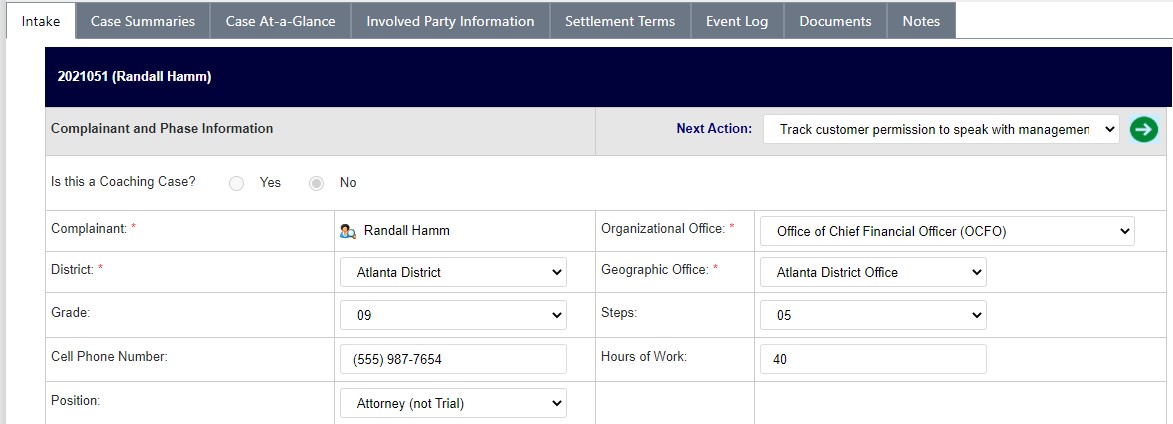
4.1.3 Conduct Discussions with Customer/Management
During the ADR workflow, it may be required to conduct a discussion with the customer/management parties involved in the dispute. To conduct and log these discussions:
Within the Intake tab of the desired case folder, select Conduct additional discussion(s) with… from the Next Action drop-down list and click the green arrow.

The tab refreshes and displays the Event workspace, with Conduct additional discussion(s)… selected and locked within the Event Type drop-down list.

Use the date picker to select the Event Date.
Enter the relevant event information within the Event Note field.
Click Send Notification. The Send Email Favorite window appears.

Configure the email message and click Send. The Send Email Favorite window closes and the message is distributed.
The Log Activity screen is displayed. Click the Is Email sent? checkbox. The workspace refreshes and the OK button is now activated. Click OK.

A confirmation window appears, asking you to confirm that you would like to add an event. Click Yes.
The event is added to the Event Log tab, and the Intake tab refreshes to display the full tab, with the next configured step in the workflow displayed in the Next Action drop-down list. In the example below, Track customer permission to speak with management is selected.

4.1.4 Determine Process for Case
At this point in the information gathering stage, it becomes necessary to determine the process for the ADR case. To determine the process for case:
Within the Intake tab of the case folder, select Determine Process for Case from the Next Action drop-down list and click the green arrow.

The tab refreshes and displays the Event workspace, with Determine Process for Case selected and locked within the Event Type drop-down list.

Use the date picker to select the Event Date.
Select the desired case type from the Case Type drop-down list.
NOTE: The selection made in the Case Type drop-down list governs how the case folder progresses through the remaining workflow. This Case Type selection is the “compromise” that the involved parties (potentially including Judge and/or Neutral) agreed upon.
Enter the relevant Event information within the Event Note field.
Click OK.

A confirmation window appears, asking you to confirm that you would like to add an event. Click Yes.
The event is added to the Event Log tab, and the Intake tab refreshes to display the full tab.
4.1.5 Send Package to Customer
After the process is determined, it may become necessary to send the ADR Package information to the customer. This is intended to provide the complainant with information about the available options, and how the ADR process will progress from this point.
Within the Intake tab of the desired case folder, select Send Package to Customer from the Next Action drop-down list and click the green arrow.

The tab refreshes and displays the Event workspace, with Send Package to Customer selected and locked within the Event Type drop-down list.

Use the date picker to select the Event Date.
Enter the relevant Event Information within the Event Note field.
Click Send Notification. The Send Email Favorite window appears.

Configure the email message and click Send. The Send Email Favorite window closes and the message is distributed.
The Log Activity screen is displayed. Click the Is Email sent? checkbox. The workspace refreshes and the OK button is now activated.
Click OK.

A confirmation window appears, asking you to confirm that you would like to add an event. Click Yes. The event is added to the Event Log tab, and the Intake tab refreshes to display the full tab.
4.2 Mediation
The Mediation phase allows for a neutral party to attempt to mediate the dispute. The following subsections provide some of the steps you may take in the Mediation phase.
4.2.1 Add Netural
Navigate to the Case At-a-Glance tab within the desired case folder and click the Neutral field lookup.

The Search for Contact pop up window appears. Execute a search for the desired contact and click the desired user from the Search Results. Click Select.

Tab refreshes, and selected contact appears in the Neutral field. Click Save.

4.2.2 Add Scheduled Mediation Date
After the case folder has been transferred to the Neutral Party, you must add the scheduled mediation date:
Navigate to the Intake tab of the desired case folder. Select Add Schedule Mediation Date from the Next Action drop-down list and click the green arrow.

The page refreshes to display the Log Activity workspace. Use the date picker to select the Event Date.

Enter a brief description of the event in the Event Note field.
Click Send Notification. The Send Email Favorite window appears.

Configure the message and add any attachments, if required. Click Send.
Click the Is Email sent? checkbox. The OK button is enabled.
Click OK.
The Add Event confirmation window appears. Click Yes.
4.2.3 Prepare Scheduling Notice
After the scheduled mediation date has been entered into the case folder, eCASE prompts you to Prepare Scheduling Notice. To prepare the scheduling notice:
Navigate to the Intake tab of the desired case folder. Select Prepare Scheduling Notice from the Next Action drop-down list and click the green arrow.

The page refreshes to display the Log Activity workspace. Use the date picker to select the Event Date.
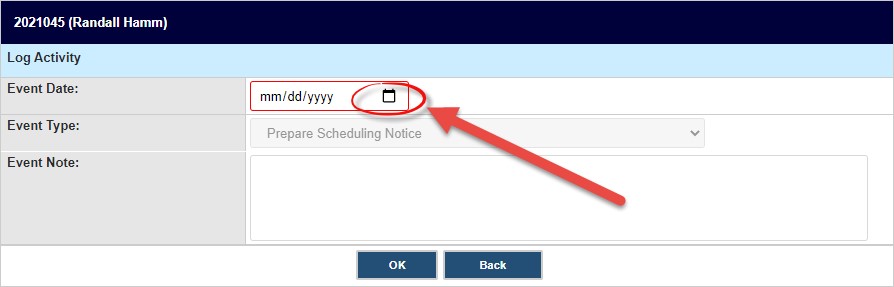
Enter a brief description of the event in the Event Note field.
Click OK.
A confirmation window appears. Click Yes.
4.3 ADR Closure
After mediation, the next major phase in the ADR Process is ADR Closure. The decisions made during Mediation will govern how the case folder progresses through ADR Closure. The subsections below provide an example of how an ADR Case Folder might progress through to closure.
NOTE: The subsections below do not constitute the full ADR Closure Workflow, and instead are only intended to provide an example of how a user might progress the ADR Case Folder through to closure.
4.3.1 Create Draft Settlement Agreement
After mediation has determined how the ADR will resolve and close, the involved parties working with a Neutral must create a draft version of the final settlement agreement, during which the details of the settlement are agreed upon and finalized. To create draft settlement agreement:
Navigate to the Intake tab within the desired case folder and select Create Draft Settlement Agreement from the Next Action drop-down list.

The tab refreshes and displays the Event workspace, with Create Draft Settlement Agreement selected and locked within the Event Type drop-down list.

Use the date picker to select the Event Date.
Enter a brief description within the Event Note field.
Click OK.

A confirmation window appears, asking you to confirm that you would like to add an event. Click Yes.
The event is added to the Event Log tab, and eCASE refreshes to display the Settlement Terms tab. Update any relevant fields and click Save.

4.3.2 Circulate Settlement Agreement and Obtain Signatures
After the draft settlement agreement has been created, it must be distributed to all involved parties for them to review and provide approval signatures. To circulate and obtain signatures:
Navigate to the Intake tab within the desired case folder and select Create Draft Settlement Agreement from the Next Action drop-down list.

The tab refreshes and displays the Event workspace, with Circulate Settlement Agreement and Obtain Signatures from Parties selected and locked within the Event Type drop-down list.

Use the date picker to select the Event Date.
Enter a brief description within the Event Note field.
Click OK.

A confirmation window appears, asking you to confirm that you would like to add an event. Click Yes.
The event is added to the Event Log tab, and eCASE refreshes to display the full Intake tab.
4.3.3 Prepare ADR Outcome Form
After the settlement agreement has been finalized and signed, the judge will submit the finalized agreement for the Case Manager to log. The Case Manager must prepare and submit the ADR Outcome Form, to formally submit the final outcome of the ADR. To prepare ADR Outcome Form:
Navigate to the Intake tab within the desired case folder, and select Prepare the ADR Outcome form from the Next Action drop-down list.

The tab refreshes and displays the Event workspace, with Prepare the ADR Outcome Form selected and locked within the Event Type drop-down list.

Use the date picker to select the Event Date.
Enter the relevant event information within the Event Note field.
Click OK.

A confirmation window appears, asking you to confirm that you would like to add an event. Click Yes.
The event is added to the Event Log tab, and eCASE refreshes to display the Documents tab. Upload the ADR Outcome Form and any Final Documentation to the Documents tab.
4.3.4 Close Case: Settled with Agreement
After the settlement agreement has been agreed upon and signed, the settlement terms will be logged, and monitored until completion. Once terms have been met the case folder can be closed. To Close the Case: Settled with Agreement:
Navigate to the Intake tab within the desired case folder and select Close Case with Appropriate Outcome – Settled with an agreement from the Next Action drop-down list.

The tab refreshes and displays the Event workspace, with Prepare the ADR Outcome Form selected and locked within the Event Type drop-down list.

Use the date picker to select the Event Date.
Enter a brief description within the Event Note field.
Click OK.

A confirmation window appears, asking you to confirm that you would like to add an event. Click Yes.
The event is added to the Event Log tab, and eCASE refreshes to display the Intake tab. The case is now in Closed status, and the Next Action drop-down list is locked.

5 eCASE ADR Configuration
5.1 ADR Configuration Overview
The eCASE ADR Configuration folder allows administrators to fully configure the ADR workflow, including creating and ordering the events and notification emails that are central to performing tasks within the application. The Configuration folder consists of three tabs:
Event Configuration: Use this tab to configure the sequence of events that link to automated emails within the application.
Email Notification Configuration: Use this tab to create email notifications that are sent in correlation with events.
Configuration: Use this tab to configure the ADR settings outside the scope of the Event and Email Configuration tabs.
5.1.1 Accessing ADR Configuration
To access the Configuration folder, select Main Menu > View > Configuration.

eCASE ADR refreshes and displays the Configuration folder, with the Event Configuration tab selected. Within this folder, the eCASE ADR Configuration settings can be completed or updated.

5.1.2 Configuration Functionality
This subsection provides a basic overview on how to complete the fields available within the eCASE ADR Configuration folder. These functions are consistent across the Event Configuration, Email Notification Configuration, and Configuration Tabs.
Feature | Description |
Drop-down List | Some configuration columns are populated via drop-down lists. Click the field to expand the drop-down list and make a selection from the listed options. The drop-down list collapses, and the selected option populates the field. An expanded drop-down list is pictured below:
|
Checkbox | Some configuration columns are populated via checkboxes. Click the checkbox to select the field. After clicking the box, it displays a check to indicate that it has been selected. Additional fields may appear after clicking a checkbox.
|
Button | Some configuration columns are populated via buttons. Click the button to expand the configuration selection option. After clicking the button, the workspace refreshes to display the selected value.
|
Delete Row | Any configuration row can be deleted by clicking the red X button.
|


5.2 Event Configuration Tab
The Event Configuration tab is the workspace in which the events are ordered and separated into phases, and structured into the order the events appear as selections in the Next Action drop-down list.
5.2.1 Event Configuration Interface
The Event Configuration tab must be completed before eCASE ADR can function according to your organizational needs. A sample Event Configuration tab is pictured below:

The columns in this tab include:
Field | Description |
Phase | The workflow phase where this event occurs. There are options to select Information Gathering, Mediation, or ADR Closure. |
Event | The predefined event, describing the actions taking place in this workflow step. Select an Event from the drop-down list. This description is visible to end users when selecting an option from the Next Action drop-down in the ADR Case Folder. |
Case Type | The Case Type to which this event can be applied. This action will only be available during the specific Phase for this selected Case Type. |
Enable for Portal? | Events with this checkbox selected are present in the Portal dropdown list, and are available for the portal users to select based on the previously selected process. This selection creates the ad hoc workflow for Portal users to complete. |
Phase Change? | Use this configuration option to set the phase that occurs after this step is executed. The phase sets the overall case status based on the event chosen. Phases include: Information Gathering, ADR Processing, or Closure. |
Is Milestone? | Use this checkbox to indicate that this event is considered a milestone for workflow purposes. Events that are marked as Milestones are recorded in the Event Log tab. |
Email Event? | Use this checkbox to automatically open the Send Email Favorite pop up window when the event is reached. An event with this configuration option enabled requires that the Email Sent Requirement be satisfied before the step can proceed. |
Email Template | If this is an Email Event (see Email Event? above), select the desired preconfigured email template which will automatically populate the Send Email Favorite pop up window when this action is taken. |
Involved Party Role | Use this configuration option to display the Involved Party Role workspace in the Event Configuration tab. This is where you can select the desired user roles who must be captured in order to complete this step. |
Intake Tab | This selection determines the tab wherein the event begins |
Is Permission Required? | Enabling this configuration option requires that users completing the event must possess sufficient permissions. |
Hide for Group? | Enabling this configuration option prevents user groups from viewing the event. |
Is Future Date? | Enabling this configuration option requires the user to submit a date in the future for the event |
Active? | Enabling this configuration option makes the event active. Event rows without a check in this box are inactive. |
Sequence | The number entered in this field determines the guided order the user completes the event within the ad hoc workflow. The numbers entered in this column are separate by phase, and as a result this column can have multiple entries with the same number. |
Date | Clicking this button to deletes the event row. |
5.2.2 Create an Event
Follow the steps below to add a new Event. You can sequence multiple events to create a defined workflow.
Access Event Configuration by selecting Main Menu > View > Configuration. The Event Configuration tab appears.
Scroll to the bottom of the tab and click Add Event. A row of blank fields appear to capture the new event, as shown below:

Select the Phase from the drop-down list. This is the workflow phase that the event occurs within.
Select the Event to configure from the Event drop-down list.
NOTE: Previously configured events still appear in the drop-down list and can be selected. eCASE ADR prevents duplicate events from being saved. The system will highlight duplicate events by outlining the Phase field in red and preventing you from saving the changes to the folder.
Select the Case Type from the drop-down list.
Click the Enable for Portal checkbox, if portal users perform the action.
Click the Phase Change checkbox, if the event begins a new workflow phase.
Click the Is Milestone checkbox, to record the event in the Event Log tab.
Click the Email Event checkbox to require an email message prior to the event completion. After the Email Event checkbox is clicked, the Email Template drop-down list activates, as shown below. Select the desired email template from the drop-down list:

NOTE: See the Email Notification Configuration Tab section for information on creating Email Notifications.
Click the Add/View Role button to select the Involved Party Roles for the event. After clicking the button, the workspace refreshes to display the Involved Party Role workspace.
Here you can edit existing information by selecting new menu options from the drop-down list, or click the Red X to delete an existing entry.
Click Add Role to add a new entry.

The workspace refreshes to display a new blank row. Select the desired role from the drop-down list.

Click Save to record the new role.
.jpg?sv=2026-02-06&spr=https&st=2026-10-10T09%3A30%3A50Z&se=2026-10-10T10%3A41%3A50Z&sr=c&sp=r&sig=Tuh9c%2BVw5fsivkZrM568pvu3QX9V4v3yAdO8UvQ2Wd4%3D)
Click Back to return to the full Event Configuration workspace.
.jpg?sv=2026-02-06&spr=https&st=2026-10-10T09%3A30%3A50Z&se=2026-10-10T10%3A41%3A50Z&sr=c&sp=r&sig=Tuh9c%2BVw5fsivkZrM568pvu3QX9V4v3yAdO8UvQ2Wd4%3D)
Select the Intake tab from the drop-down list.
Click the Is Permission Required checkbox, if sufficient privileges are required to complete the event.
Click the Hide for Group checkbox, if the event will not be visible to groups.
Click the Is Future Date checkbox, if the date selected must be in the future.
Click the Active checkbox to make the event active.
Select the Sequence Number from the drop-down list, to determine the order of the event in the event sequence.
Click Save.

5.3 Email Notification Configuration Tab
The Email Notification Configuration Tab is the workspace in which the automated emails that ADR distributes are selected and linked to events.
5.3.1 Email Configuration Interface
The Email Configuration tab must be completed before eCASE ADR can function according to your organizational needs. A sample Email Configuration tab is pictured below:

Email Configuration Columns in this tab include:
Field | Description |
Involved Date | The involved date is the date that corresponds to the date of an event or a milestone. |
Days | This field determines the number of days after the initial message that the system will send a notification to prompt the user to complete the action. |
Email Template | This selection determines the email template which will populates the email message editor for the event. |
To List | This is the role/user/group which will populate the To: field in the Send Email pop up window. |
CC List | This is the role/user/group which will populate the CC: field in the Send Email pop up window. |
From | This is the role/user/group which will populate the From: field in the Send Email pop up window. |
Attempt | This is how many times the system can reach out to the recipient. eCASE ADR logs each attempt, and the drop-down list limits the notifications to three attempts. |
Business Days? | This checkbox modifies the Days column value to be business days. |
Recurring? | This checkbox enables the Recurring Days field. The number in the Recurring Days field sets the number of days where the email is sent. |
Active? | This checkbox make the email notification active/inactive. |
Delete | This button deletes the row. |
5.3.2 Create an Email Notification
The Event Configuration Tab is the workspace in which the workflow events are selected and configured. To configure an event:
Navigate to the Configuration folder and click the Email Notification Configuration tab.
Scroll to the bottom of the tab and click Insert. Fields appear to capture the new email configuration.

NOTE: Required fields are outlined in red.

Select the event from the Involved Date drop-down list. This selection determines the date to which all the remaining fields in the row correspond.
Enter the number of days after the event that the follow up reminder email will be sent.
Select the Email Template from the drop-down list.
Enter the default recipient in brackets within the To List field.
If required, enter the CC Recipient in brackets in the CC List field.
Enter the sender email address in brackets in the From field.
Select the number of attempts from the Attempt drop-down list.
Click the Recurring? checkbox to indicate that the email prompt is to be resent until it is completed.
After clicking this checkbox, the workspace refreshes to display an additional Days field underneath the Recurring? checkbox. Enter the number of days the email will be sent in this field.
.jpg?sv=2026-02-06&spr=https&st=2026-10-10T09%3A30%3A50Z&se=2026-10-10T10%3A41%3A50Z&sr=c&sp=r&sig=Tuh9c%2BVw5fsivkZrM568pvu3QX9V4v3yAdO8UvQ2Wd4%3D)
Click the Active checkbox to activate the newly configured Email Notification.
Click Save to record the newly configured Email Notification.

5.4 Configuration Tab

To access the Configuration tab, navigate to the Configuration folder and click Configuration.
The first field is the (A) Number of Days to mark a case as New since Case Manager has changed field. This field determines when the clock will restart after a new case manager is assigned.
Enter a number in the field.
You can also select the checkbox to (B) Enable Search in Active Directory. Lastly, you can set the (C) Provider Portal URL.
When you’re finishing making changes to the Configuration tab, click Save.

5.5 eComplaint – ADR Configuration
The eComplaint – ADR Configuration tab allows you to configure field mappings and email notifications for ADR cases created from eComplaint. It will display if the integration is implemented in your environment and stay hidden if it is not implemented.

You can configure field mapping for core fields, including Case Manager, Case Type, Current
Phase, and more. Use the (A) drop-down menus to select a field to display in eComplaint. Click (B) Add ADR Field to add another field to the list. Use the (C) delete button to remove a field.

You can also configure email notifications in the Email Configuration section. There is a default Email Template available, or you can select your own. Then, add the Send To email recipients.

Click Save when you’re finished making changes.