Using This Manual
The following formatting conventions are used in this manual to highlight important information:
Italicized text indicates a location, for example a particular Folder, Tab, or Window.
Bold text indicates a specific user action, such as clicking a button.
Acronyms
All acronyms used in this document are defined in the following table:
Acronym | Definition |
COTS | Commercial Off the Shelf |
ER/LR | Employee Relations Labor Relations |
ER | Employee Relations |
FLRA | Federal Labor Relations Authority |
LR | Labor Relations |
OOTB | Out of the box |
PDI | Pre-Decisional Involvement |
SCD | Service Computation Date |
UI | User Interface |
ULP | Unfair Labor Practice |
1 ER/LR Overview
1.1 eCASE Employee Relations/Labor Relations
The eCASE Employee Relations (ER) Labor Relations (LR) system consolidates ER/LR activities under a single application, allowing you to log grievances, track arbitration and information requests, as well as employee-focused activities such as performance improvement plans and conducting reviews.
All ER and LR Module case forms can be accessed via a single location in the Launch Pad. All
Employee Relations forms are contained in the Employee Relations Menu, while Labor Relations are contained in the Labor Relations Menu. Each module is described at a high level below:
Employee Relations: ER Forms allows ER/LR specialists to file cases on specific employees. These cases include Administrative Grievances, Conduct Action, Counseling, Performance Action, Performance Improvement Plans, and Third Party Proceedings.
Labor Relations: LR Forms track issues with the labor workforce and the relationship between employees and management. These cases include Arbitration, Request to Bargain, Information Requests, Unfair Labor Practice, and Grievance.
Investigation Inquiries: This menu option allows authorized users to initiate an investigation inquiry, and capture information about this case as the inquiry progresses into an Anti-Harassment case, Management Inquiry, or an Administrative Investigation.
Configuration: The Configuration menu option is available only to Administrators. This is not a conventional case form, and instead allows authorized users to change the terminology of fields within case folders. Additionally, it allows authorized users to hide/show fields on the case form and to make required fields, as desired.
The eCASE ER/LR Home Page is shown below. You’ll find a deeper UI breakdown in the eCASE UI section of this document.
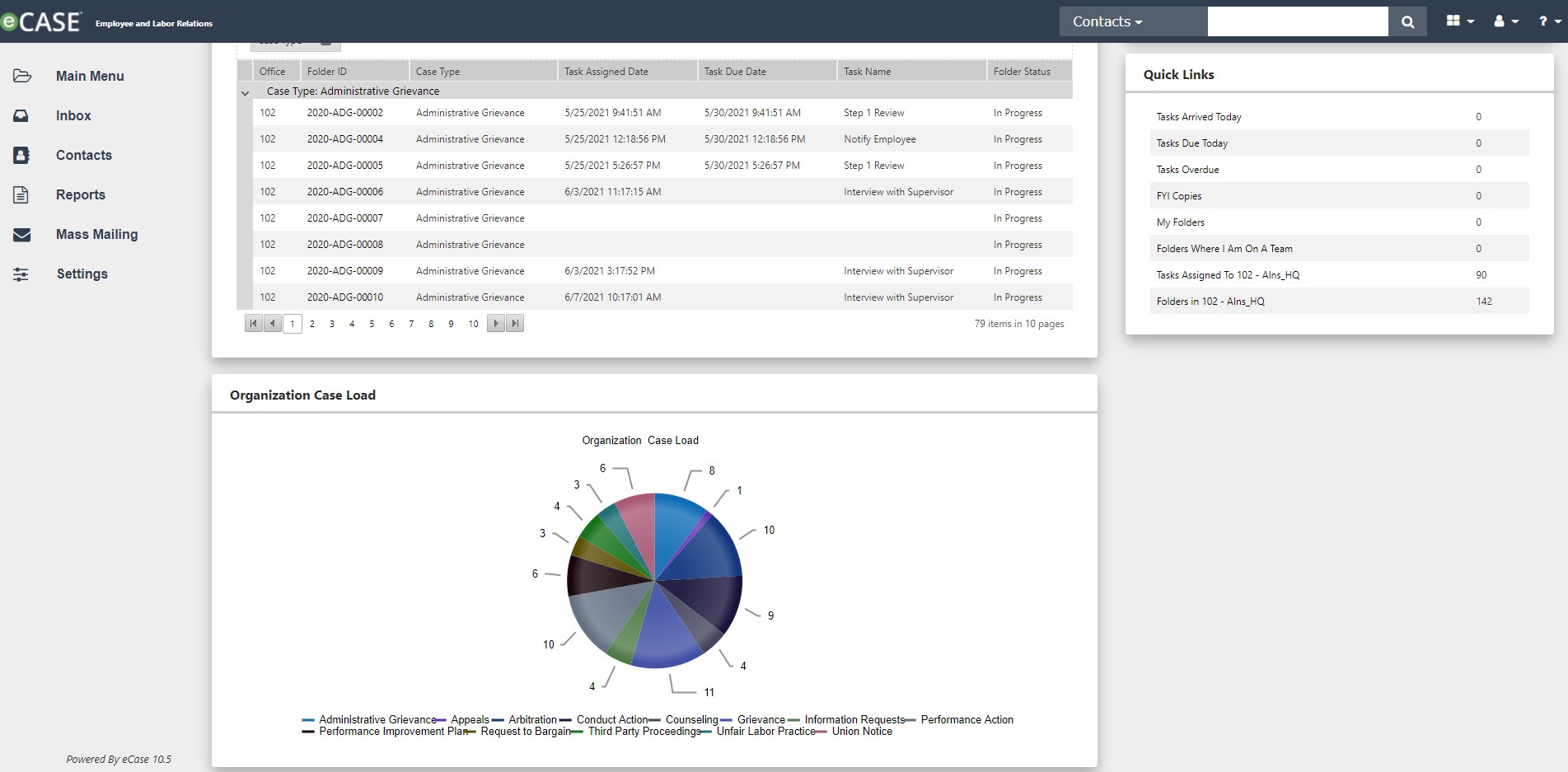
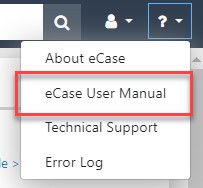
The Home Page serves as a jump-off point for using the eCASE ER/LR features. For information about the general eCASE interface, please refer to the eCASE User Manual (accessible under Help in the upper-right of the eCASE dashboard).
1.2 User Manual
This User Manual is divided into the following topics:
ER/LR Overview: An overview of the ER/LR System, eCASE, and this User Manual.
Getting Started: Information on getting started using eCASE ER/LR.
Employee Relations: All about the ER module, case types and actions.
Labor Relations: All about the LR module, case types and actions.
Investigation Inquiry: The Investigation Inquiry case folder and its lifecycle within ER/LR.
ER/LR Configuration: Configure settings specific to the ER/LR application.
Administration: A brief look at relevant Administration features in ER/LR.
1.2.1 Scope
The purpose of this manual is to introduce the user to eCASE ER/LR application, including all major functionalities and processes, to gain familiarity with the software and integrate it effectively into daily activities.
1.2.2 Disclaimer
This manual is designed to support the Commercial Off-the-Shelf (COTS) version of eCASE ER/LR. Due to the configurable nature of the application, the user experience may vary from what is presented within this manual. These instructions are intended as a guide for the general application concepts, which can generally be applied across all instances regardless of the actual page content.
In addition, the screens presented in this manual are from the perspective of an Admin user. This serves the purpose of showing the full breadth of available options. Due to permissions structuring, most users are not able to see all the options and settings presented in this manual. What a user can see and do in the application depends on the configuration set by the system administrator. For questions about a specific instance of eCASE ER/LR, please contact your organization’s eCASE ER/LR System.
2 Getting Started
This section walks you through the standard eCASE UI, including the dashboard and folder pages where you will spend the most of your time. Actions and buttons that are common across the system are described to help build familiarity with the system.
2.1 Login
To log in to eCASE, navigate to the eCASE Login screen. Your system administrator will provide you a hyperlink to access the eCASE Login screen. Enter your (1) Username and (2) Password in the Login screen and click (3) Sign In.
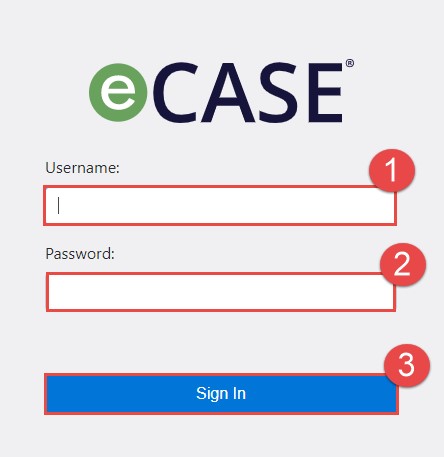
After login, the eCASE ER/LR Home Page appears. A breakdown of the Home Page UI is contained in the eCASE UI section.
2.2 eCASE UI
eCASE ER/LR is built on the core eCASE platform that underpins multiple powerful task management solutions. Therefore, it shares certain elements of the basic eCASE platform that
should be familiar to anyone who has used any other eCASE-based tools. An example of the eCASE ER/LR UI is shown below:
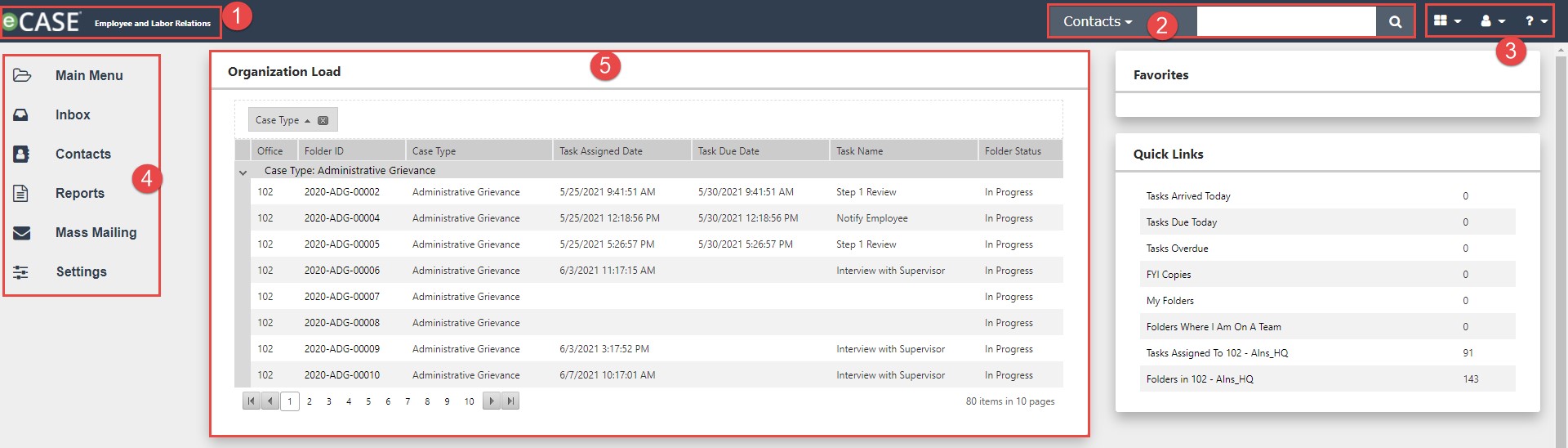
NOTE: The image above is provided as a sample and some aspects may not reflect yourspecific eCASE environment.
The eCASE ER/LR Home Page displayed above is annotated to indicate features native to the Home Page:
The Application Title. You can click this icon to return to the Home Page from any window.
A Quick Search bar, where you can perform quick searches on Case Folders, Documents or Contacts using a word search or an attribute search.
The Application Selector icon, User menu, and Help links.
The Launch Pad, containing options to create a new contract file, search, inbox, and vendors.
A Dashboard displaying open case folders and workflow tasks assigned to the user.
2.2.1 Contacts
Contacts are an important part of eCASE ER/LR. Employees and Representatives must exist as a Contact in eCASE ER/LR to be added to Employee Relations and Labor Relations case folder activities.
2.2.1.1 Search Contacts
Search existing eCASE ER/LR Contacts in one of two ways:
Via the (1) Launch Pad.
Via the (2) Quick Search bar.
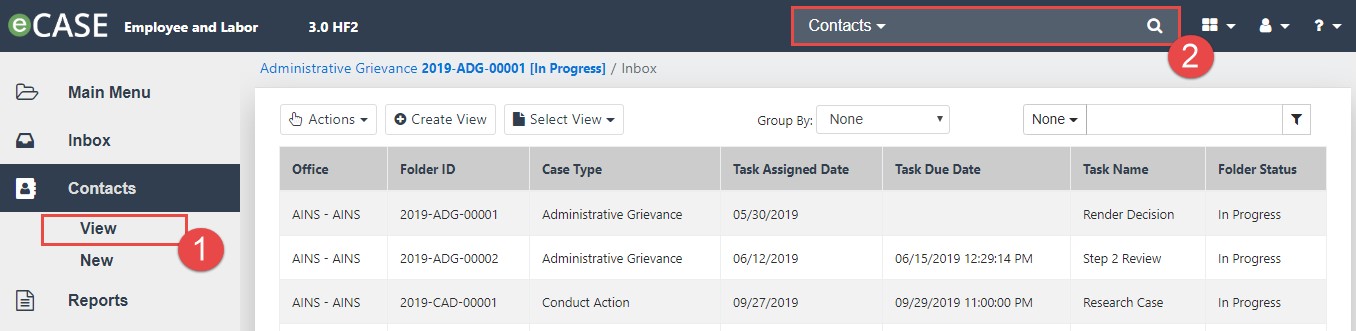
The (1) Launch Pad provides more robust search options, while the (2) Quick Search bar allows you to execute quick searches of existing system contacts, within any eCASE page. See the Quick Search section for instructions on using Quick Search. To search using the Launch Pad Contacts feature:
From the Launch Pad, click Contacts > View > Search Contacts. The Search Contact screen appears.
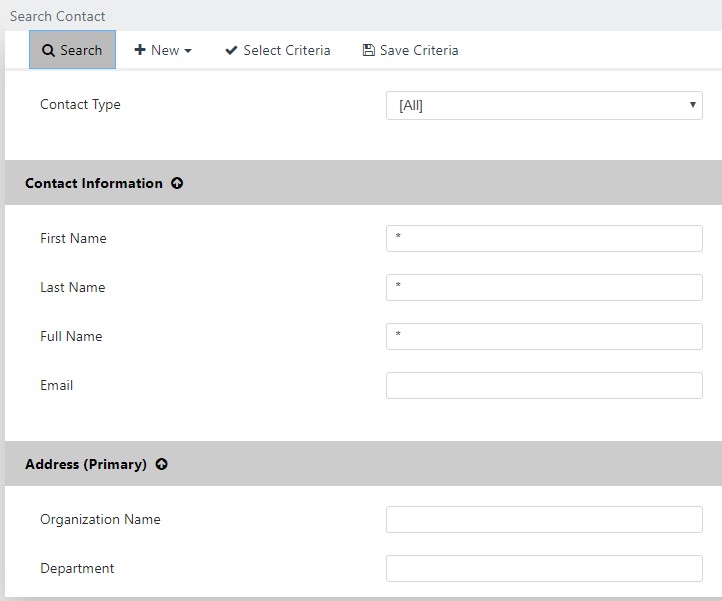
Enter information into the fields in this window to create the search parameters. See Wildcard Search for information on using wildcards in search fields.
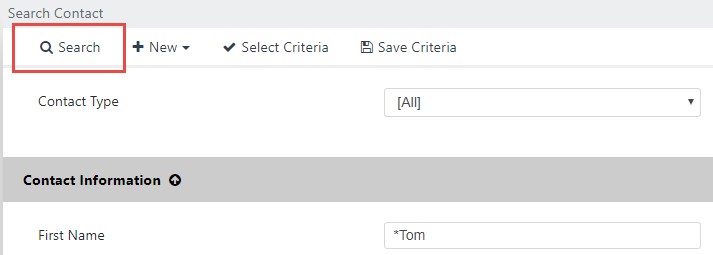
After entering search criteria, click Search to execute the search and return a list of matching Contacts.
NOTE: Alternatively, you can click Search with all fields blank to return a list of all Contacts.
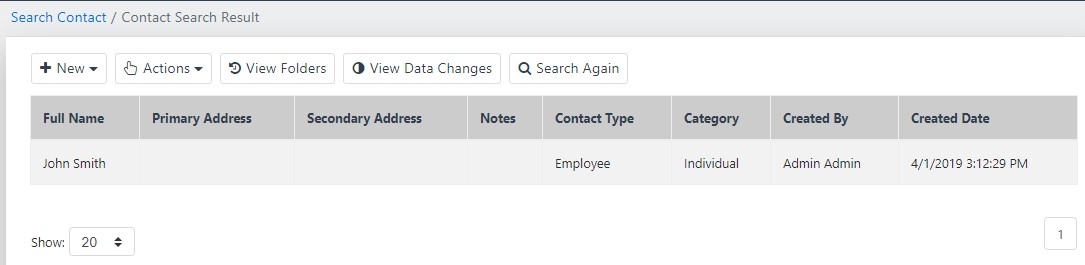
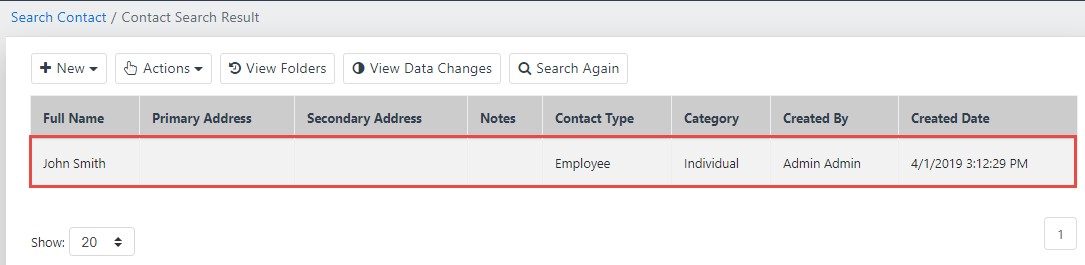
eCASE executes the search, and the Contact Search Results screen displays all matching Contacts, as shown in the example below:
2.2.1.2 Create Contacts
Contacts can be created in one of two ways:
▪ From the Launch Pad.
▪ During case initiation.
NOTE: It is recommended that contacts be created via the Launch Pad rather than within the case folder.
To create a contact from the Launch Pad:
Click Contacts > New, then select a Contact Type.
.jpg?sv=2026-02-06&spr=https&st=2026-10-10T13%3A35%3A34Z&se=2026-10-10T15%3A20%3A34Z&sr=c&sp=r&sig=SjZcCtD%2BH59GYrHoudoXZM%2BwbnMN6uGgUZx7vx9MYyc%3D)
In this example, Employee is selected. After clicking Employee, the Employee Information screen appears.
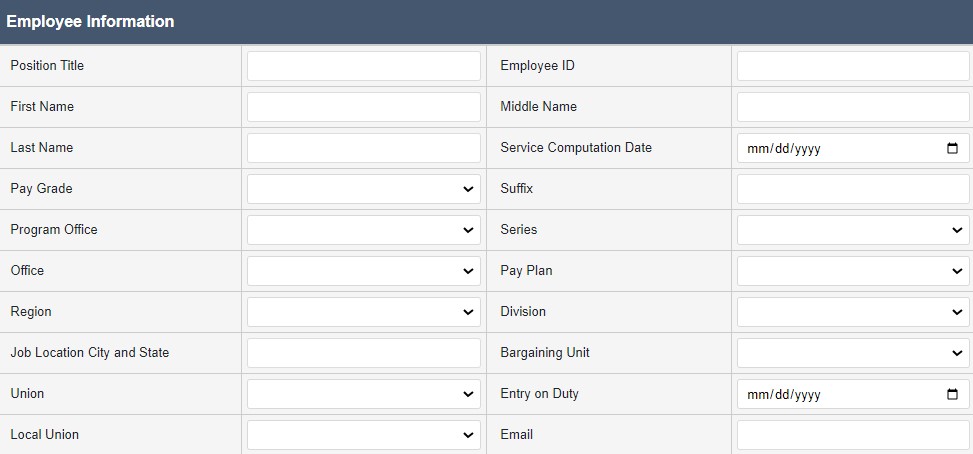
Complete the fields on this page, providing as much detail as possible. Click Save to save the new contact.
NOTE: Contact details are automatically transferred to new case forms when creating cases, so providing information here can save time later.
The contact is now saved, and can be searched for and added to cases as needed.
2.2.2 Search Features
This section details some basic eCASE search features to assist in using the application.
2.2.2.1 Quick Search
The Quick Search feature, located at the top of the screen in the Navigation bar, allows you to quickly search and access documents or contacts from anywhere within eCASE.

Using the drop-down list within the Search field, select a category to quickly narrow down search results.
NOTE: The values present in this drop-down are configurable, and this field can be populated with the most frequently searched fields, as needed.
As an example, to search for a specific contact, select Contacts from the drop-down list. This confines the search to the Contacts section.

In the Search field, type a search term for eCASE to use when looking within Contacts. When this field is populated, click the Magnifying Glass icon to process the search. The Contacts screen appears, which displays the search results, as shown below:
2.2.2.2 Wildcard Search
eCASE provides a way to explore the contents of the Case Folder and Case Folder attachments utilizing user-defined queries. For example, you can search for the word "AINS" in every case and attachment that contains it. After searching, all references to the word are listed in the search results.
Search for a case by entering a key word or description related to the case, then click Search. The Search screen displays every case matching the search criteria. Wild Card Searches can also be used to search for a complete phrase. For example, the query *test case* finds the case that exclusively contain the phrase "test case." Alternatively, the following search combination can be used to find the same phrase:
The search format “test case*” returns all results matching the terms starting with “test case”.
The search format “*test case” returns all results matching the terms ending with “test case”.
The search format “*test case *” returns all results exactly matching the term “test case”.
2.3 Form Selection
eCASE ER/LR has consolidated the ER and LR Modules into a single application, and all forms can be accessed via a single location in the Launch Pad. Click Main Menu to expand the selection options, and then click either Employee Relations or Labor Relations. Either selection will open a list of forms to select. Each form within these lists is described in later sections.
2.4 Advancing the Workflow
Case folder workflows are dependent upon your configuration, however workflows follow the same basic steps. To advance a case folder through the workflow:
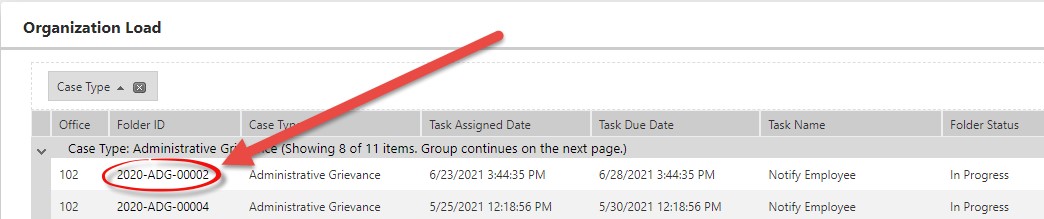
Login to eCASE. Any case folders assigned to you appear in your Inbox widget. Click the Folder ID to open the case folder.
The case folder appears. Click the Assignments tab.

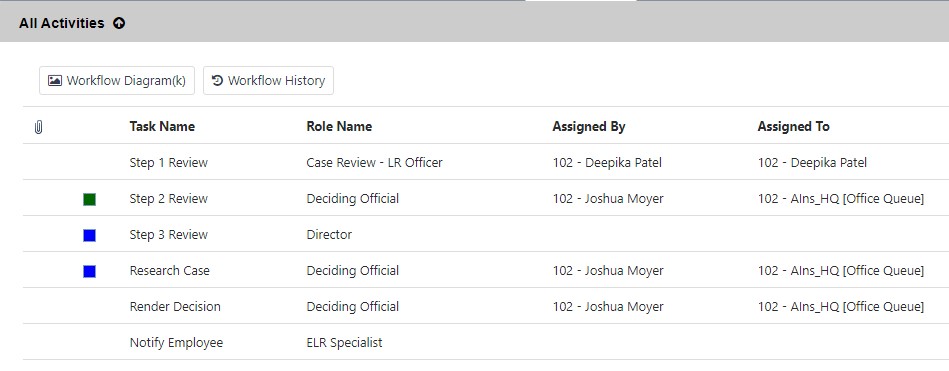
Workflow tasks assigned to you feature a green square adjacent the task name. Perform the assigned task and then click the task. Select Continue from the Actions drop-down list.
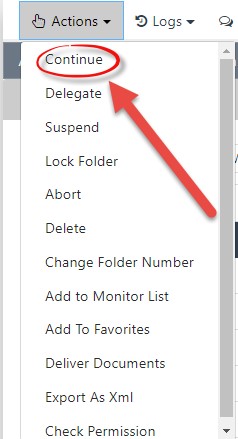
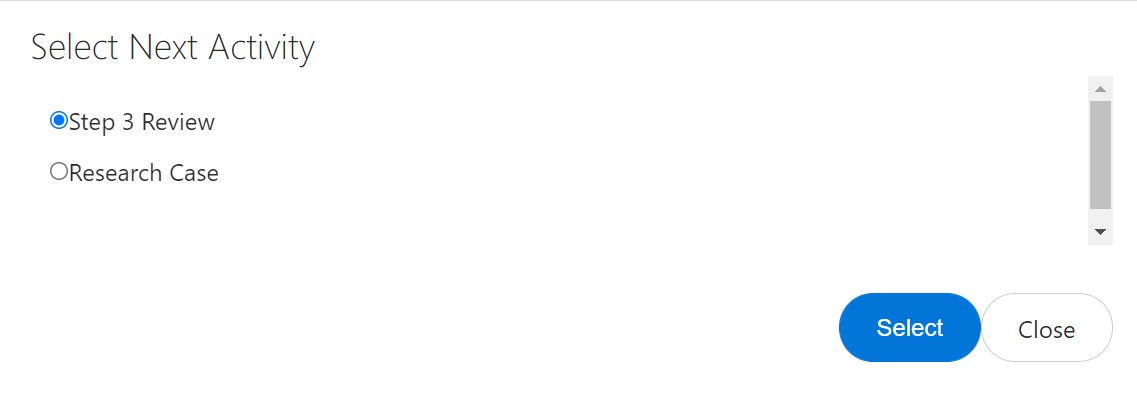
The Select Next Task pop up window appears. Select the Next Activity radio button and click Select.
The Assign Task pop up window appears. Select the Assignee Type from the drop-down list.
NOTE: This example will utilize the User Assignee Type.
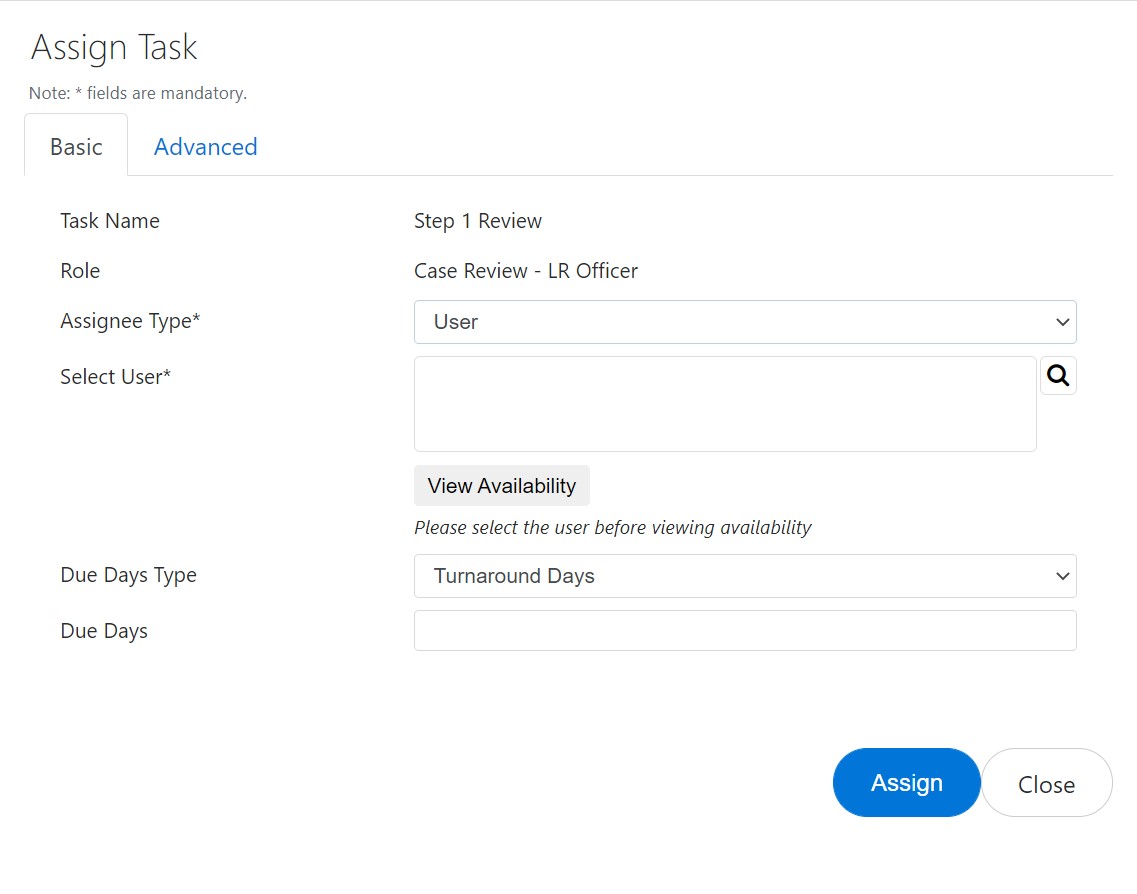
Click the lookup and select the assigned User.
Select the Due Days Type from the drop-down list.
Enter the number of Due Days in the field.
Configure any assignment settings in the Advanced tab, if desired.
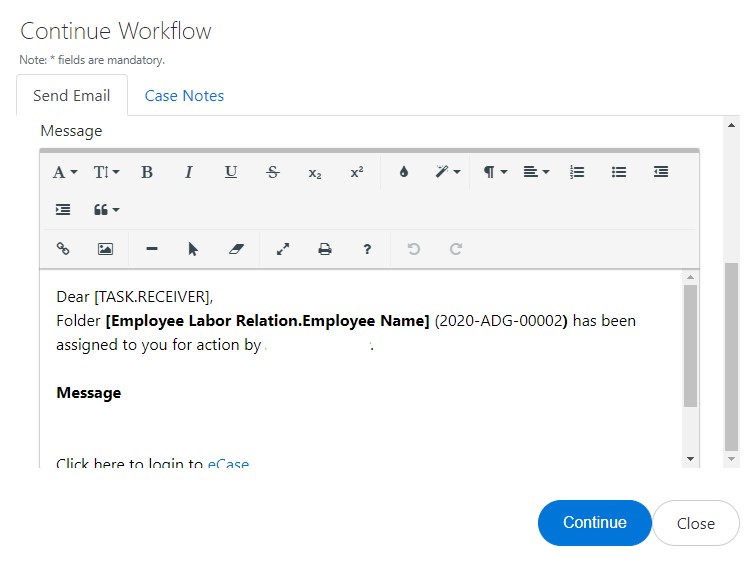
Click Assign. The pop up window updates to display the Send Email workspace.
Update the information in the Message workspace to reflect the details of the task assigned.
Click Continue.
The pop up window closes, and the Assignments tab refreshes to display the updated assignments.
2.5 Closing a Case Folder
Once a case reaches the last task in the workflow, the task can be completed, and the case folder can be closed. To close a case folder:
Login to eCASE. Any assigned case folders appear in your Inbox widget. Click the Folder ID to open the case folder.
The case folder appears. Click the Assignments tab.

Workflow tasks assigned to you feature a green square adjacent the task name. Perform the required task and then click the assigned task. Select Close from the Actions dropdown list.
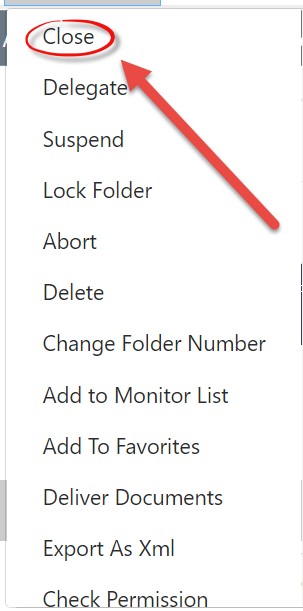
If the case folder features attachments or documents, a pop up window appears and prompt you to deliver the documents before closing. Click OK.
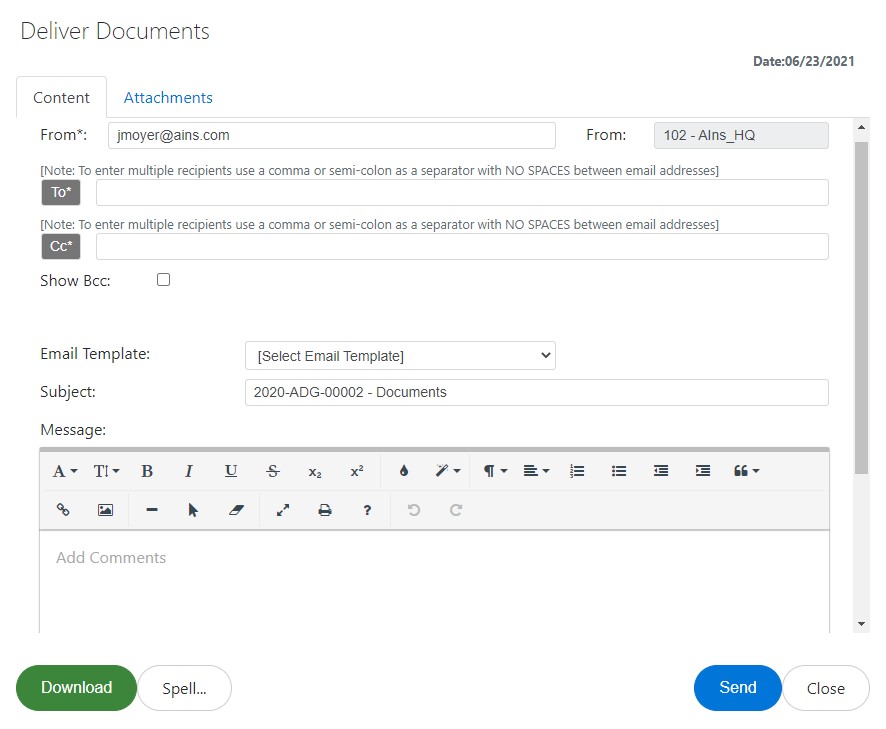
The Deliver Documents pop up window appears. Configure the message details and click Send.
A pop up window appears, asking if you want to close the folder. Click OK. The case folder is now closed.
3 Employee Relations
The Employee Relations menu allows ER Specialists and ER Managers to file ER-related forms. The Employee Relations menu employs six out-of-the-box (OOTB) Case Types for filing ERrelated forms. These ER Case Types include:
Administrative Grievance
Conduct Action
Counseling
Performance Action
Performance Improvement Plan ▪ Third Party Proceedings
3.1 Administrative Grievance
An Administrative Grievance case type is typically used to capture grievances filed by employees who are not a part of a union.
3.1.1 Create an Administrative Grievance
Follow the steps below to create a new Administrative Grievance:
Within the Launch Pad, click Main Menu > Employee Relations > Administrative Grievance. The New Folder screen appears.
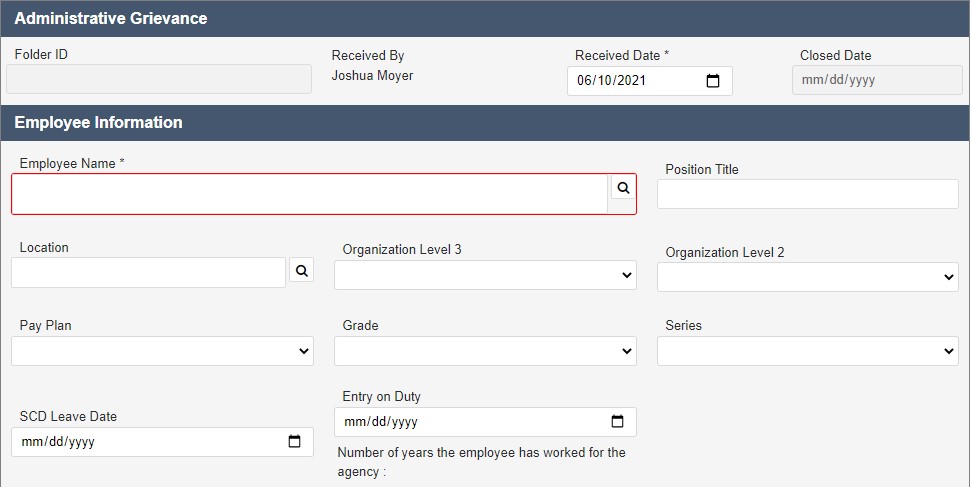
Click the Employee Name lookup.
NOTE: The Employee Name lookup is a Contact Search. Users must exist as a Contact before they can be selected in a case folder.
The Search for Contact screen appears. Enter any relevant search data in the available search fields.
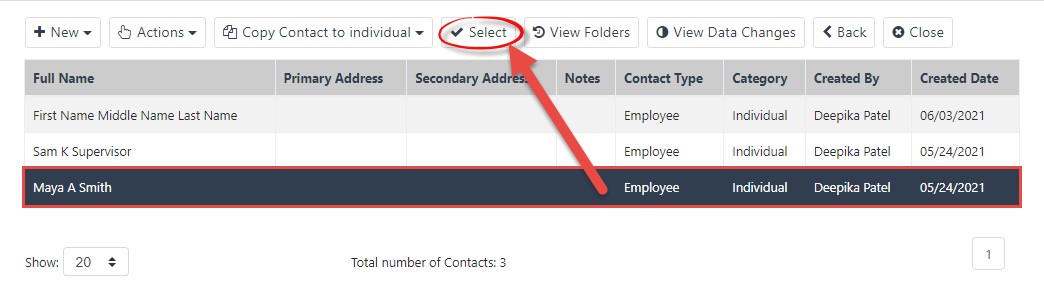
Click Search. The Select Contact screen appears, listing search results which meet the entered criteria.
Select the employee for whom to file Administrative Grievance, and then click Select. The Search Contact pop up window closes, and the selected Contact populates the Employee Name field. In addition, the contact’s details are automatically populated into the corresponding fields.
Click Save. The Administrative Grievance folder appears.
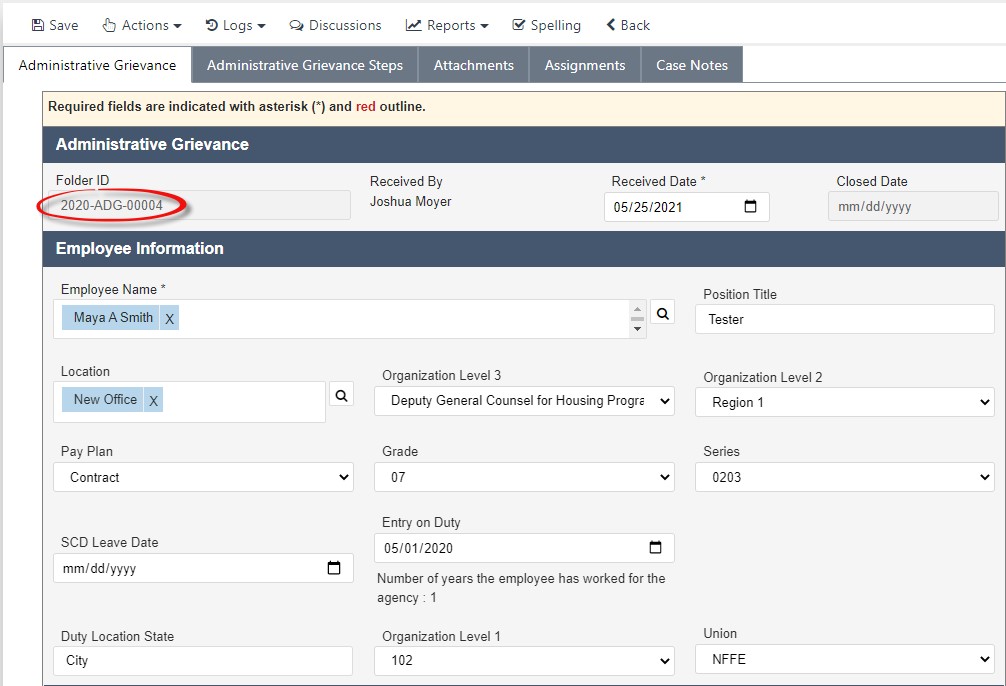
NOTE: For Contacts with prior Administrative Grievance records, these appear within the Prior Disciplines section and feature links to the other associated Conduct Actions.
The folder is assigned a Folder ID, as highlighted above. The folder is now ready for further action. See the next sections for more information about completing an Administrative Grievance.
3.1.2 Filing an Administrative Grievance
In addition to contact-related fields, the Administrative Grievance form has fields to capture additional case folder information. Complete these fields as the case folder progresses through the workflow. These fields are described in the following table:
Field | Description | Data Type |
Position Title | The employee’s professional title. | Free text field. |
Location | Use the lookup to select the location where the employee works. | Lookup field. Select one. |
Organization Level 3 | Select the location/code associated with organizational level 3. | Drop-down list. Select one. |
Organization Level 2 | Select the location/code associated with organizational level 2. | Drop-down list. Select one. |
Pay Plan | The pay plan associated with the government employee. | Drop-down list. Select one. |
Grade | The grade associated with the government employee. | Drop-down list. Select one. |
Series | The series associated with the government employee. | Drop-down list. Select one. |
SCD Leave Date | Service Computation Date | Calendar select. Choose one day. |
Entry on Duty | The start date at the employee’s current agency. | Calendar select. Choose one day. |
Duty Location State | The state containing the employee’s duty location. | Free text field. |
Organization Level 1 | Select the location/code associated with organizational level 1. | Drop-down list. Select one. |
Union | Use the drop-down list to select the union. | Drop-down list. Select one. |
Representative Name | The name of the representation of the employee, typically legal representation. | Free text field. |
Representative Phone Number | The representative’s contact number. | Free text field. |
Representative Street Address | The representative’s street address. | Free text field. |
City | The representative’s city. | Free text field. |
State | The representative’s state. | Selected from drop-down list. |
ZIP Code | The representative’s ZIP Code. | Free text field. |
Alternative Dispute Resolution? | Does the employee desire to engage in Alternative Dispute Resolution? | Radio buttons, select either Yes or No. |
Has employee filed an EEO Complaint? | Does the employee want to file an EEO Complaint? This disqualifies the employee from submitting a grievance. | Radio buttons, select either Yes or No. |
Is issue Grievable? | Does the issue qualify for a Grievance submission? | Radio buttons, select either Yes or No. |
Reasons for Denial | Enter information about the reasons given for denial. | Free text field. |
Date(s) of Issue | Select the date associated with the issue being grieved. | Calendar select. Choose one day. |
Issue being Grieved | Enter information about the issue that is being grieved. | Free text field. |
Date Employee Became Aware of Issue | Select the date that the employee was informed of the issue being grieved. | Calendar select. Choose one day. |
Timely | Was the issue grieved in a timely fashion? | Radio buttons, select either Yes or No. |
Relief Being Sought | What kind of remedy is being requested? | Free text field. |
Other Persons | Persons other than the employee and representative involved. | Free text field. Free text field. |
Other relevant information to clarify grievance issue(s) | Include any other information relative the grievance. |
NOTE: After making any changes to the details on this tab, click Save to save the updated case folder before navigating away from the page.
3.1.3 Administrative Grievance Steps
The Administrative Grievance Steps tab is present within each Administrative Grievance folder, allowing you to log steps in a multi-part Administrative Grievance filing process. These steps account for actions, meetings, and decisions in the filing process.
To access the Administrative Grievance Steps, open an existing Administrative Grievance case folder and navigate to the Administrative Grievance Steps tab, highlighted below:

The Administrative Grievance Steps tab appears. This tab allows you to log up to three Administrative Grievance Steps. Each Grievance Step will be completed by a different member of management. The fields under Step 1 are described in the table below.
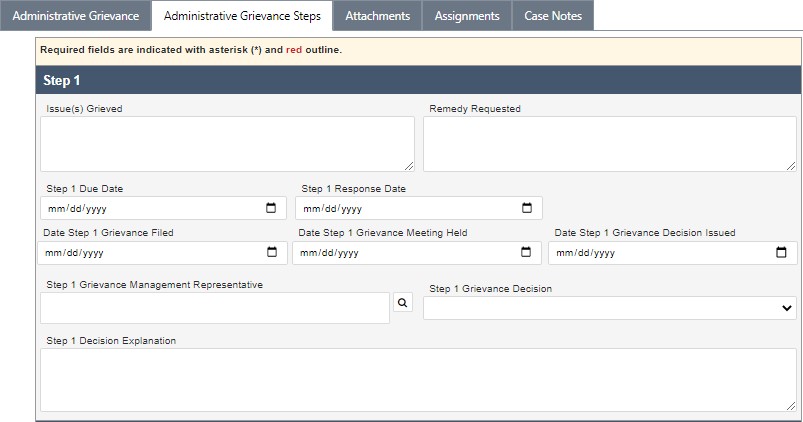
NOTE: You can paste images directly from the clipboard into text editor fields. For example, capture a screenshot using the Windows Snipping Tool or press Windows + Shift + S, then press Ctrl + V inside the text editor to insert the image inline. The pasted image is saved with the record when you save or submit the form.
The following table displays a list of fields available within the tab:
Field | Description | Data Type |
Issue(s) Grieved | Describe the issue(s) that are at the focus of the grievance. | Free text field. |
Remedy Requested | Describe the resolution requested by the aggrieved party. | Free text field. |
Step 1 Due Date | Date that step 1 is due. | Calendar select. Choose one day. |
Date Step 1 Grievance Filed | Date the first Grievance step is filed. | Calendar select. Choose one day. |
Step 1 Management Response Due Date | Date that management is required to respond to the grievance. | Calendar select. Choose one day. |
Step 1 Management Response Date | Date that management responds to the grievance. | Calendar select. Choose one day. |
Date Step 1 Grievance Meeting Held | Date of meeting to address the first Grievance Step 1. | Calendar select. Choose one day. |
Date Step 1 Grievance Decision Issued | Date a decision was issued in response to Grievance Step 1 | Calendar select. Choose one day. |
Date Step 1 Grievance Deciding Official | Management representative involved in Grievance Step 1. | Contact search. Click the Lookup icon to search for a system Contact. |
Step 1 Grievance Decision | Decision reached in response to Grievance Step 1. | Drop-down list. Select one. |
Step 1 Decision Explanation | Explanation of the results of the grievance. | Free text field. |
In addition to Step 1, there are sections to file Step 2 and Step 3. Fields under these steps have the same attributes as Step 1, however are applied to the second and third Administrative Grievance Steps, respectively, which are completed by other supervisors.
NOTE: The Issue(s) Grieved and Remedy Requested fields are only located under Step 1, as these selections apply to all Grievance Steps in the tab.
Click Save.
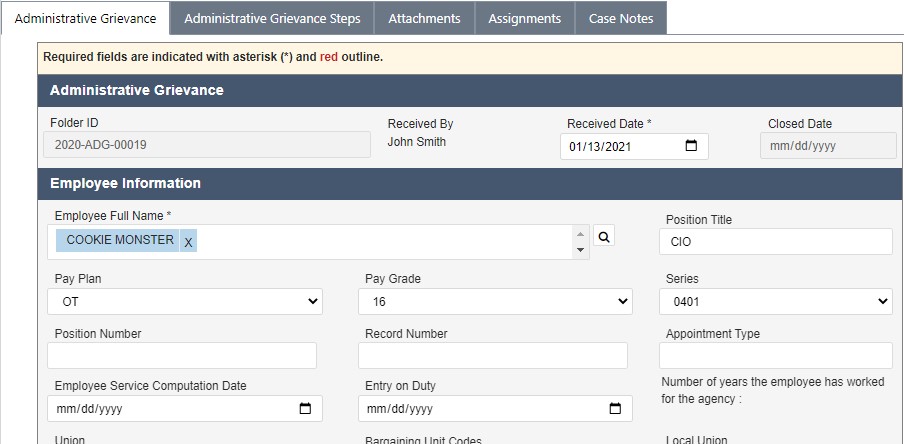
3.1.4 Administrative Grievance UI
The primary tab for capturing Administrative Grievance details. The standard eCASE Attachments, Assignments, and Case Notes tabs are also provided.
3.2 Conduct Action
Employee conduct may sometimes require responsive actions, referred to in the ER/LR system as Conduct Action Cases.
3.2.1 Create a Conduct Action
Follow the steps below to create a new Conduct Actions:
Within the Launch Pad click Main Menu > Employee Relations > Conduct Action. The New Folder screen appears.
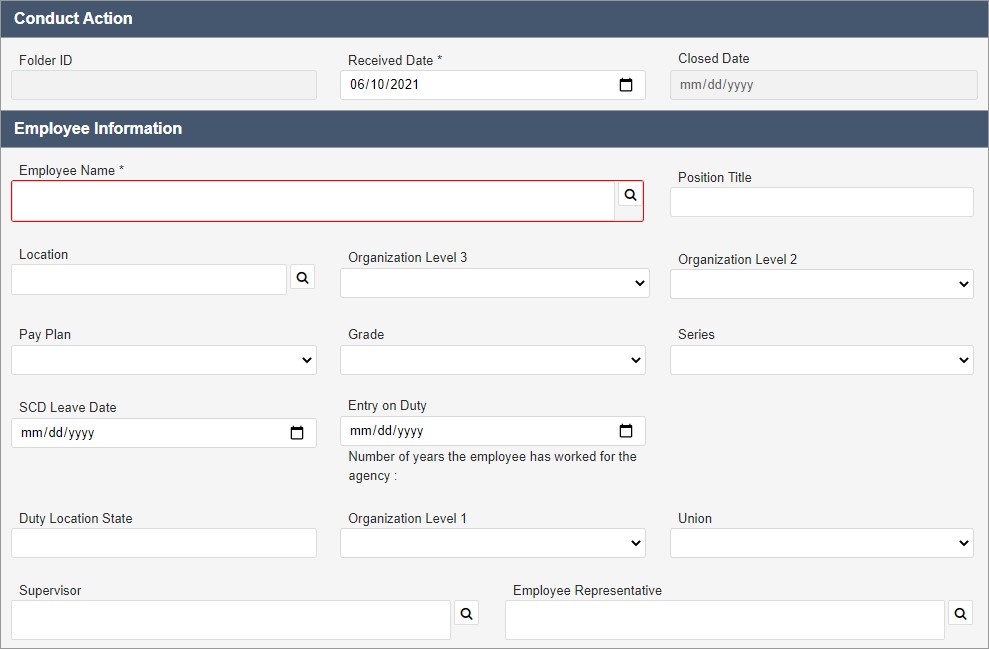
The New Folder screen includes various data fields, both required and optional. For the purpose of initiating the Conduct Action, only the required fields must be completed. These are denoted with a red outline, for example on Employee Name in the example above. Click Lookup.
NOTE: The Employee Name lookup is a Contact search. Users must exist as a Contact to be selected.
The Search for Contact screen appears. Enter any relevant data in the available search fields.
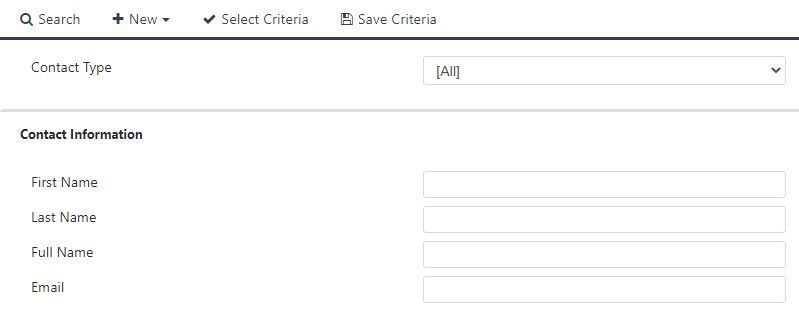
Click Search. The Select Contact screen appears, listing search results which meet the entered criteria.
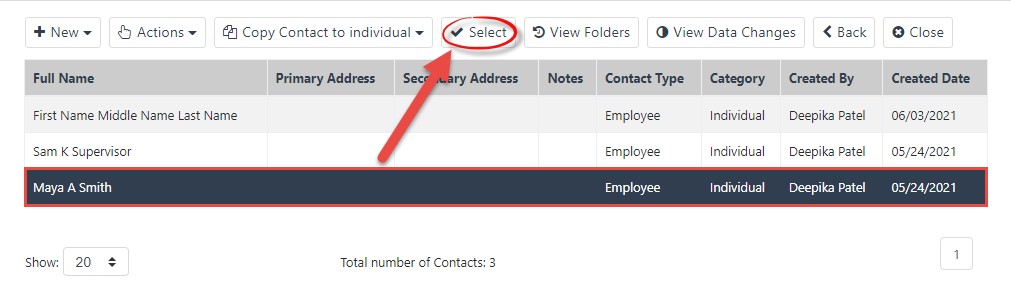
Select the employee for whom to file Conduct Action, then click Select. The Conduct Action screen reappears with the selected Contact populating the Employee Name field. In addition, the contact’s details are automatically populated.
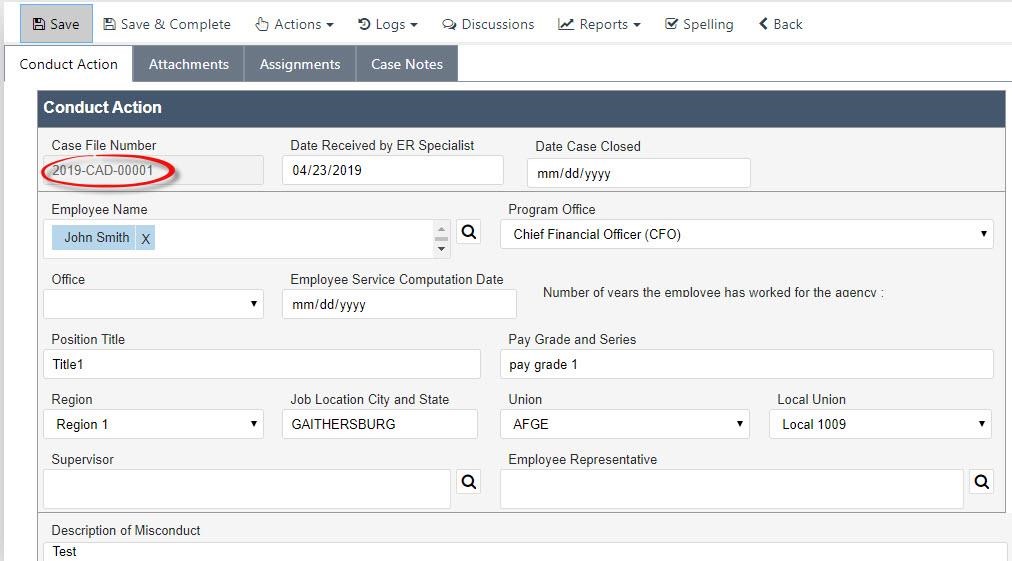
Click Save. The Conduct Action folder appears.
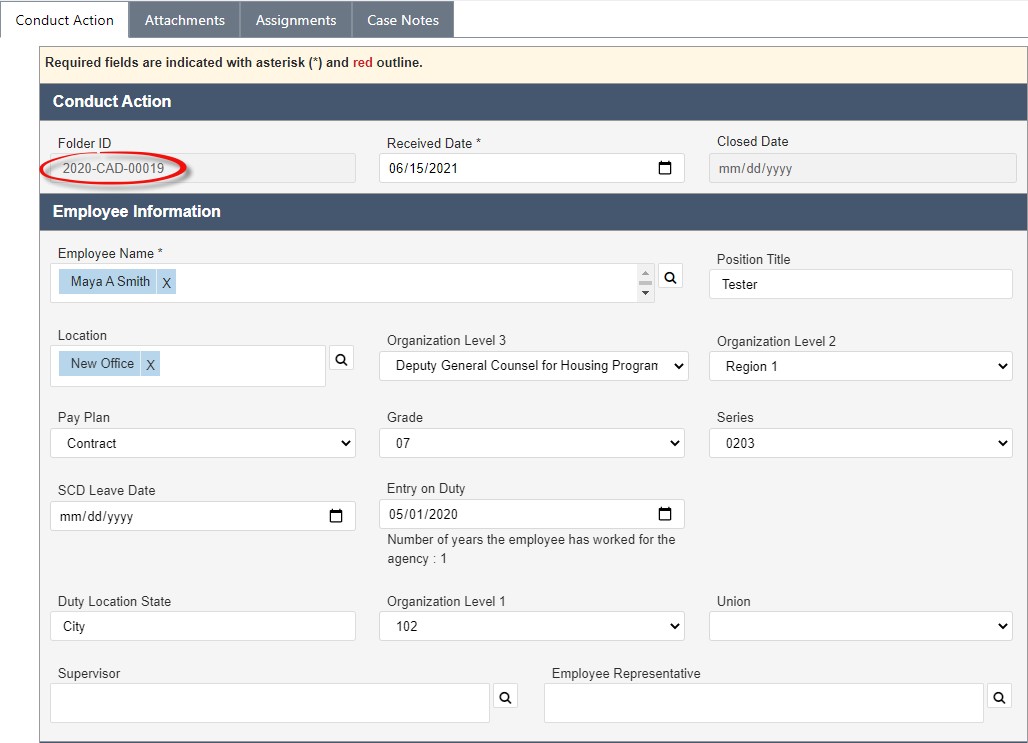
The folder is assigned a Folder ID, as highlighted above. The folder is now ready for further action. See the following section for more details.
3.2.2 Filing a Conduct Action
In addition to contact-related fields, the Conduct Action form has fields to capture additional case folder information. Complete these fields as the case folder progresses through the workflow. These fields are described in the following table:
Field | Description | Data Type |
Charge(s) | Charges proposed to be filed against the employee. | Lookup field, with selections for multiple charges. Select as many as apply. |
Description of Misconduct | Provide a description of the employee misconduct being documented in this Conduct Action. | Free text field. |
Date(s) of Incident(s) | Select the date(s) that the conduct action incident occurred. | Calendar select. Choose one day. |
Incident | Indicate the nature of the incident. | Free text field. |
Was a letter of reprimand issued | Indicate if a letter of reprimand was issued to the offending party. | Radio buttons, select either Yes or No. |
Date Letter of Reprimand was Issued | Select the date that the letter of reprimand was issued. | Calendar select. Choose one day. |
Was a letter of Counseling Issued | Indicate if a letter of counseling was issued to the offending party. | Radio buttons, select either Yes or No. |
Date Letter of Counseling Issued | Select the date that the letter of counseling was issued. | Calendar select. Choose one day. |
Was Action Proposed? | Certain actions which are severe enough must be proposed prior to action. This varies from agency to agency. | Free text field. |
Final Decision | Select the nature of the final decision. | Drop-down list. Select one. |
Action Taken | The action that was ultimately taken. | Selected from drop-down list. |
Discipline Explanation | An explanation of the rationale behind the recommended disciplinary action. | Free text field. |
Date Decision Issued | Date the disciplinary decision was issued. | Calendar select. Choose one day. |
Date Employee Received Action | Date the employee is notified that the action is being taken against them. | Calendar select. Choose one day. |
Effective Date of Discipline | Date the disciplinary action takes effect. | Calendar select. Choose one day. |
Length of Suspension | Enter the length of the suspension and specify the time interval i.e. (Days, Weeks, etc.) | Free text field. |
Was Final Decision different than Proposed? | Use the radio buttons to indicate if the final decision that was rendered was different than the final decision that was proposed. | Radio buttons, select either Yes or No. |
Decision Explanation | Use the drop-down list to select the nature of the final decision (Mitigated, Rescinded, Upheld). | Drop-down list. Select one. |
Decision Explanation Details | Use this field to enter additional information regarding the decision. Use this space for information that is not captured elsewhere in the case folder. | Free text field. |
Comments | Additional comments regarding the final decision for the Conduct Action case. | Free text field. |
Was this action appealed/grieved? | Has the employee opted to appeal or grieved the action. Additional qualifying fields appear if Yes is selected. | Radio buttons, select either Yes or No. |
Type of Appeal | If the action is appealed, specify the nature of the appeal. | Drop-down list. Select one. |
Issue Category | The issue category for the conduct action. | Free text field. |
Was Final Decision Overturned | Use the radio buttons to indicate if the final decision was overturned under appeal. | Radio buttons, select either Yes or No. |
Date Decision Was Overturned | Use the date picker to indicate the date that the decision was overturned. | Calendar select. Choose one day. |
Date Employee Was Reinstated | Use the date picker to indicate the date that the employee was reinstated. | Calendar select. Choose one day. |
Party Responsible for Overturning the Decision | Enter the party that was responsible for overturning the decision. | Free text field. |
Reason Decision Was Overturned | Specify why the decision was overturned. | Free text field. |
Final Decision Comments | Enter any additional information about the Final Decision that was not captured in other fields. | Free text field. |
NOTE: After making any changes to the details on this tab, click Save to save the updated case folder before navigating away from the page.
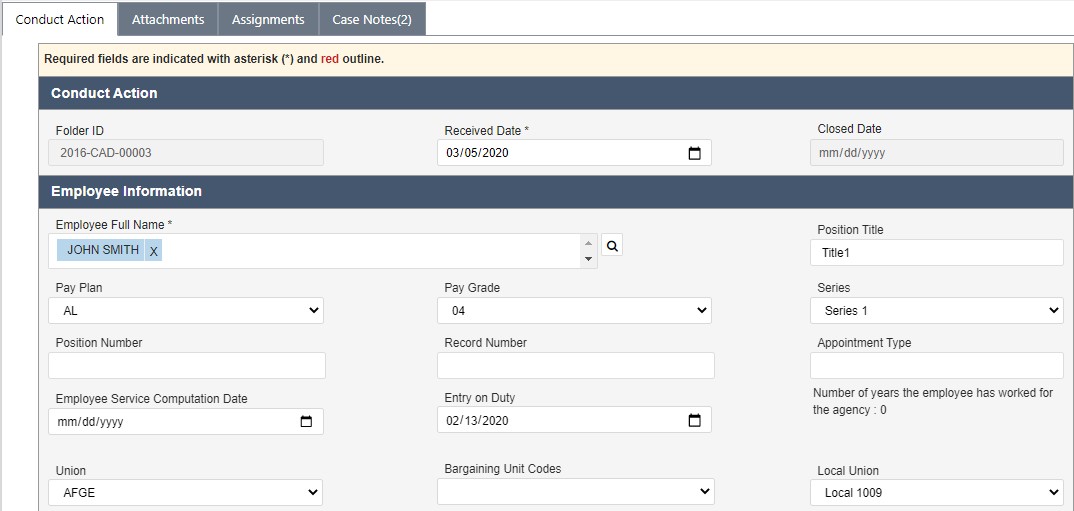
3.2.3 Conduct Action UI
The Conduct Action tab is used to capture Conduct Action details. The standard eCASE Attachments, Assignments, and Case Notes tabs are also provided.
3.3 Counseling
The Counseling Case Type is used to track employees who had been counselled verbally or whose leave has been restricted. Leave Restriction is a status that results from suspected leave abuse.
3.3.1 Create a Counseling Case
Follow the steps below to create a new Counseling:
Within the Launch Pad, click Main Menu > Employee Relations > Counseling. The New Folder screen appears.
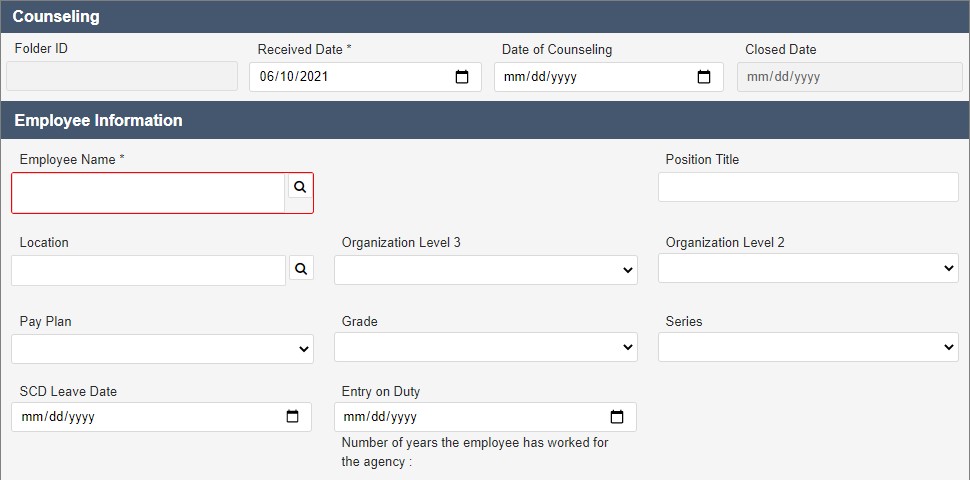
The New Folder screen includes various data fields, both required and optional. For the purpose of initiating the Counseling, only the required fields must be completed. These are denoted with a red outline, for example on Employee Name in the example above. Click the Employee Name Lookup.
NOTE: The Employee Name lookup is a Contact search. Users must exist as a Contact to be selected.
The Search for Contact screen appears. Enter any relevant data in the available search fields.
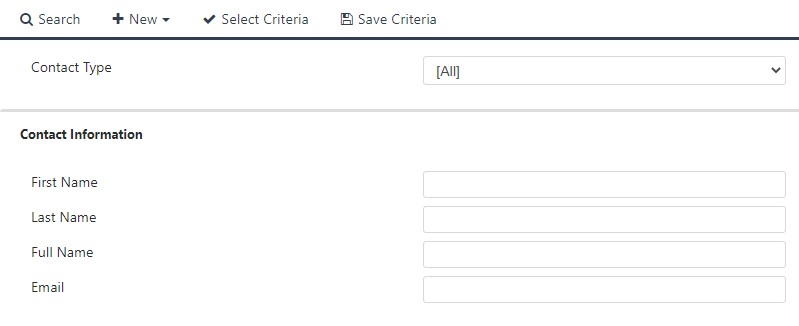
Click Search. The Select Contact screen appears, listing search results which meet the entered criteria.
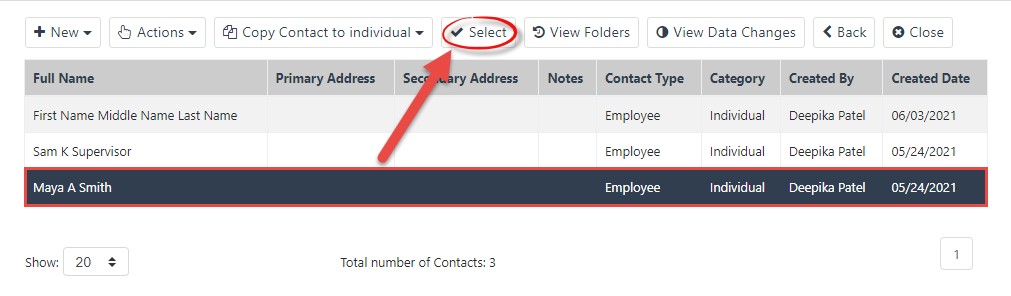
Select the employee for whom to file Counseling, then click Select. The Counseling screen reappears with the selected Contact populating the Employee Name field. In addition, the contact’s details may be automatically populated.
Complete any additional fields.
Click Save. The Counseling folder appears.
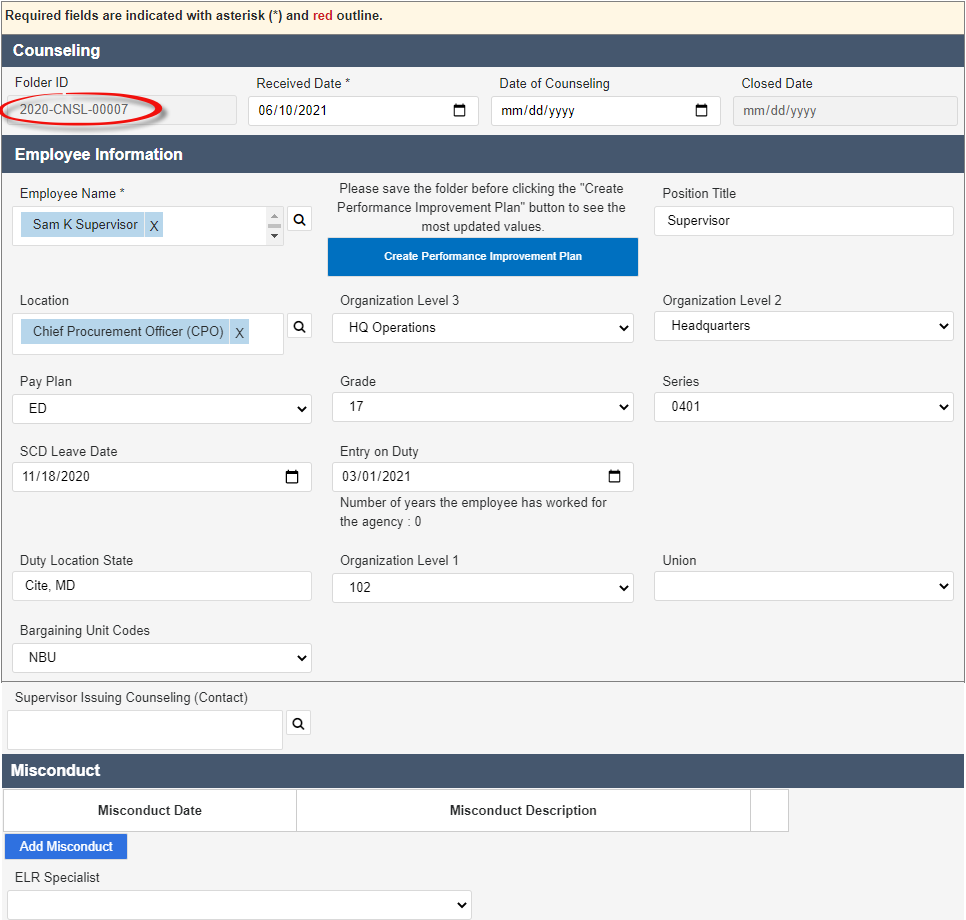
The folder is assigned a Folder ID, as highlighted above. The folder is now ready for further action. See the following section for more details.
3.3.2 Filing a Counseling Case
NOTE: The majority of the fields in a counseling case folder are Contact related fields, and may be automatically populated after selecting the Employee.
In addition to contact-related fields, the Counseling form has fields to capture more case folder information. Complete these fields as the case folder progresses through the workflow.
These fields are described in the following table:
Field | Description | Data Type |
Supervisor Issuing Counseling | Name of the supervisor. | Lookup field, with selections for multiple charges. Select as many as apply. |
Counseling/Leave Restriction | Indicate whether the submission is for counseling or leave restriction. | Selected from drop-down list. |
Misconduct Date | Date the incident(s) occurred. | Calendar select. Choose one day. |
Misconduct Description | Information regarding the incident(s) prompting counseling or leave restriction. | Free text field. |
ER/LR Specialist | Name of the ER/LR specialist assigned to the case. | Selected from drop-down list. |
Deciding Official | Name of the person who renders the final determination for this case. | Lookup field. |
NOTE: After making any changes to the details on this tab, click Save to save the updated case folder before navigating away from the page.
3.3.3 Counseling UI
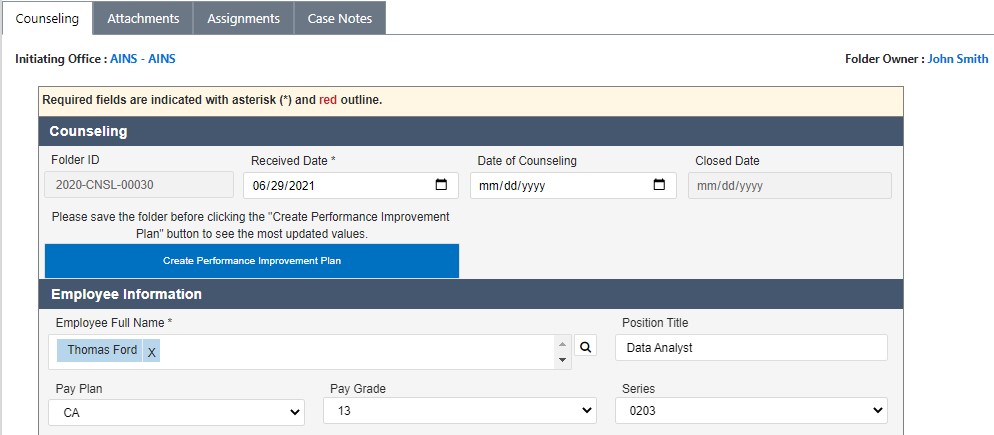
The Counseling tab is used to capture Counseling details. The standard eCASE Attachments, Assignments, and Case Notes tabs are also provided.
3.4 Performance Action
The Performance Action (432) form is used to document employees who do not meet performance expectations, and to document proposed and recommended actions in response.
3.4.1 Create a Performance Action
To create a new Performance Action:
Within the Launch Pad, select Main Menu > Employee Relations > Performance Action. The New Folder screen appears.
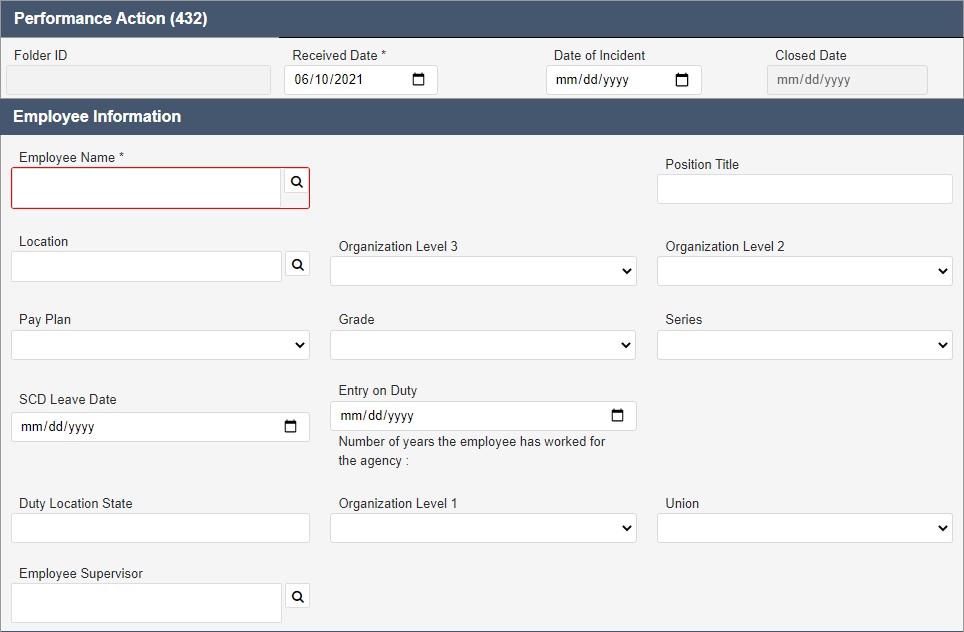
The New Folder screen includes various data fields, both required and optional. For the purpose of initiating the Performance Action form, only the required fields must be completed. These are denoted with a red outline, for example on Employee Name in the example above. Click Lookup.
NOTE: The Employee Name lookup is a Contact search. Users must exist as a Contact to be selected.
The Search for Contact screen appears. Enter any relevant data in the available search fields.
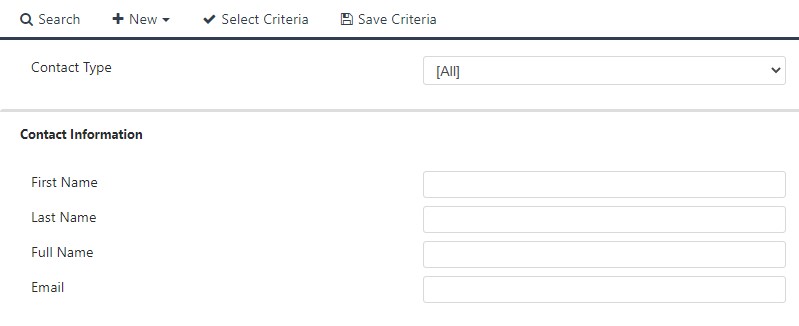
Click Search. The Select Contact screen appears, listing search results which meet the entered criteria.
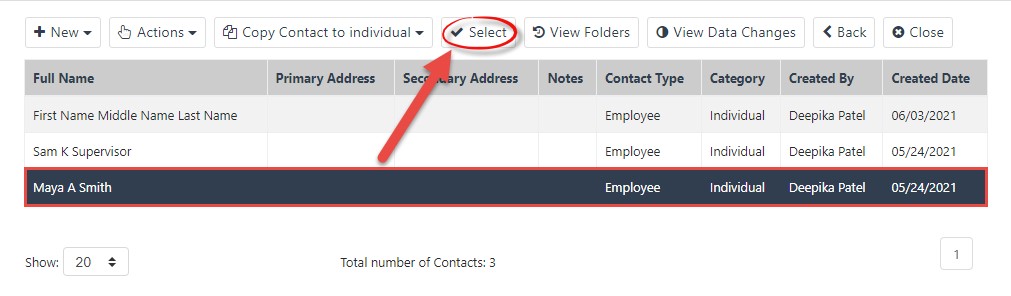
Select the employee for whom to file the Performance Action, and click Select. The Conduct Action screen reappears with the selected Contact populating the Employee Name field. In addition, the contact’s details are automatically populated.
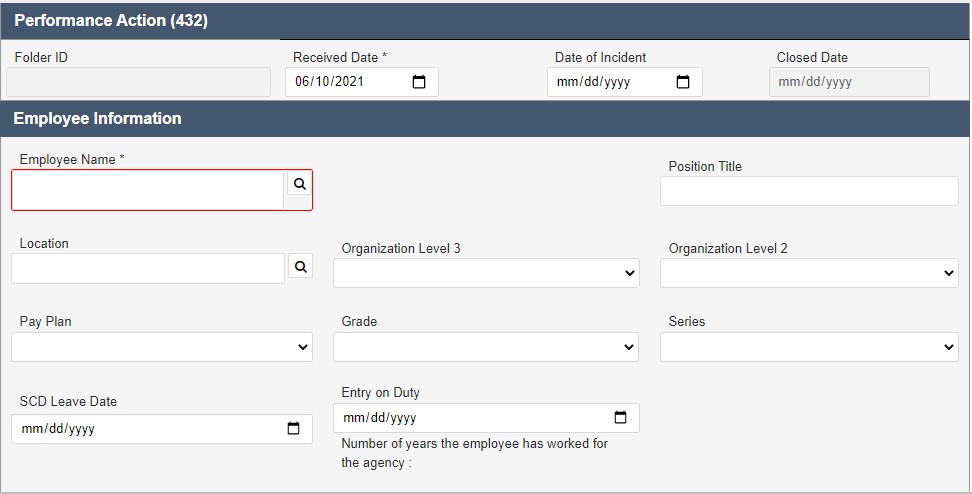
Complete any additional fields.
Click Save. The Performance Action folder appears.
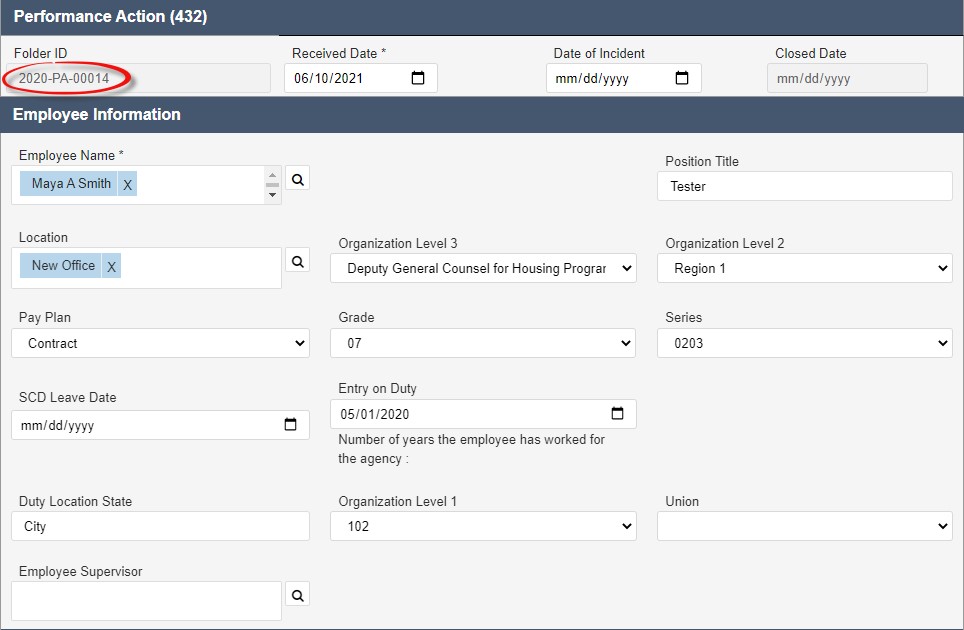
The folder is assigned a Folder ID, as highlighted above. The folder is now ready for further action. See the following section for more details.
3.4.2 Filing Performance Action
In addition to contact-related fields, the Performance Action form has fields to capture additional case folder information. Complete these fields as the case folder progresses through the workflow. The Performance Action Details fields are described in the following table:
Field | Description | Data Type |
Union | Select the union associated with the employee. | Drop-down list. |
Employee Supervisor | Select the employee’s supervisor. | Lookup field. |
Employee Representative | Select the employee representative. | Lookup field. |
Employee Rep Email | Enter the email address associated with the employee representative. | Free text field. |
Employee Rep Phone | Enter the phone number by which the employee representative can be contacted. | Free text field. |
Critical Elements Failed | The critical element(s) in the performance evaluation which have triggered the performance action. | Free text field. |
Proposed Action | Disciplinary action proposed in response to performance issues. | Drop-down list. |
Decision | Final decision regarding actions in response to performance issues. | Free text field. |
Score System Used | Import the score from the performance evaluation if applicable. | Checkbox. |
Performance Standard Score | Enter the graded score of the employee’s work performance. | Numeric field. |
Out of | Enter the highest ranking score for employee work performance. | Numeric field. |
PIP Number | The number for the associated Performance Improvement Plan. | Lookup field. |
Date Proposal Issued | Date the proposed action is issued for review. | Calendar select. |
Response Due Date | Date the employee must respond to the performance action. | Calendar select. |
Date of Response | Date the recommended action is issued. | Calendar select. |
Employee Replied? | Has the employee replied to the Conduct Action response? | Radio button. |
Recommended Action | Recommended disciplinary action after case review. | Drop-down list. |
Effective Date of Decision | Date the disciplinary action takes effect. | Calendar select. |
Employee Response | The written response from the employee. | Free text field. |
Was this action appealed? | Did the employee opt to appeal or grieve the action? | Radio button. |
Costs (Appeal/Grievance Costs) | Enter the cost incurred due to the performance action. | Drop-down list. |
Amount (Appeal/Grievance Costs) | Enter the numeric amount of the performance action cost. | Numeric field. |
NOTE: After making any changes to the details on this tab, click Save to save the updated case folder before navigating away from the page.
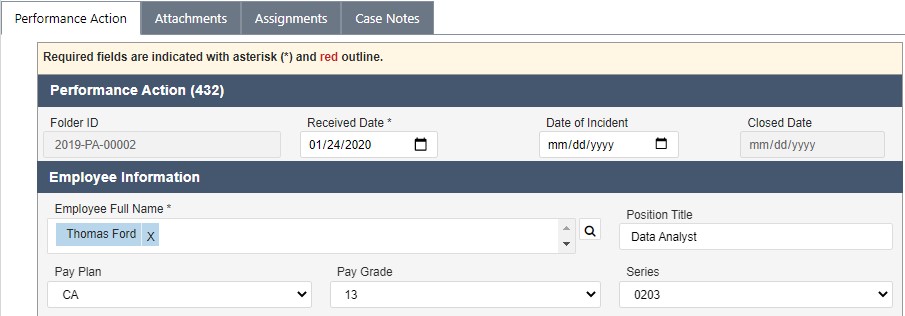
3.4.3 Performance Action UI
The Performance Action tab is used to capture Performance Action details. The standard eCASE Attachments, Assignments, and Case Notes tabs are also provided.
3.5 Performance Improvement Plan
Some employees may be placed on a Performance Improvement Plan (PIP) to assist in raising employee performance to the required standard. This section includes details on creating and working with PIPs.
3.5.1 Create Performance Improvement Plan
To create a new Performance Improvement:
Within the Launch Pad, select Main Menu > Employee Relations > Performance Improvement Plan. The New Folder screen appears.
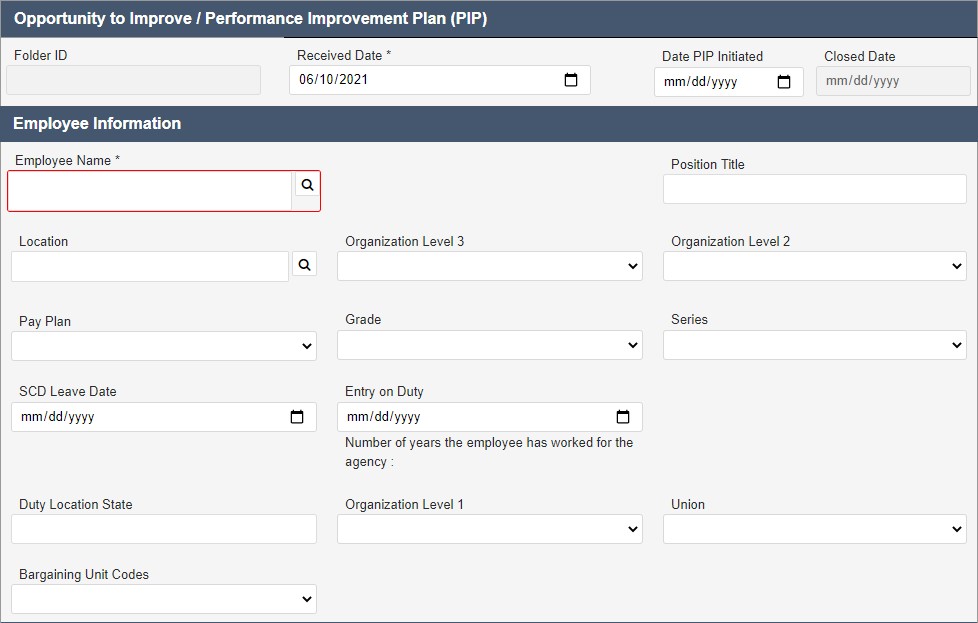
The New Folder screen includes various data fields, both required and optional. For the purpose of initiating the Performance Action Plan only the required fields must be completed. These are denoted with a red outline, for example on Employee Name in the screen above. Click Lookup.
NOTE: The Employee Name lookup is a Contact search. Users must exist as a Contact to be selected.
The Search for Contact screen appears. Enter any relevant data in the available search fields.
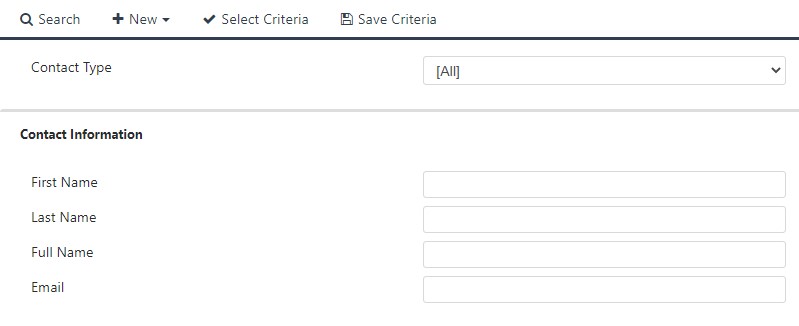
Click Search. The Select Contact screen appears, listing search results which meet the entered criteria.
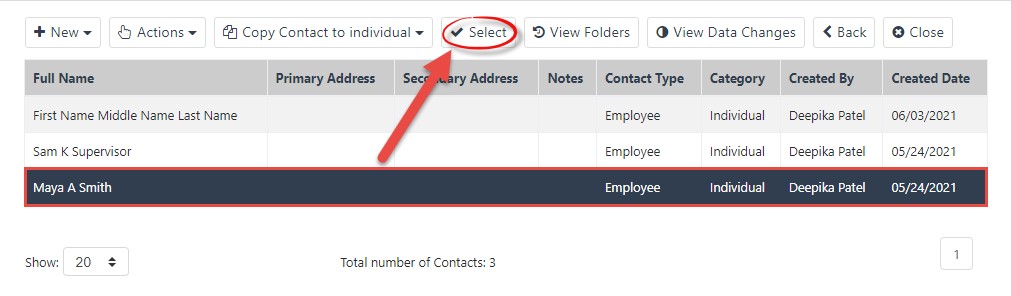
Select the employee for whom to file the Performance Action, and click Select. The Conduct Action screen reappears with the selected Contact populating the Employee Name field. In addition, the contact’s details are automatically populated.
Click Save. The Performance Improvement Plan folder appears.
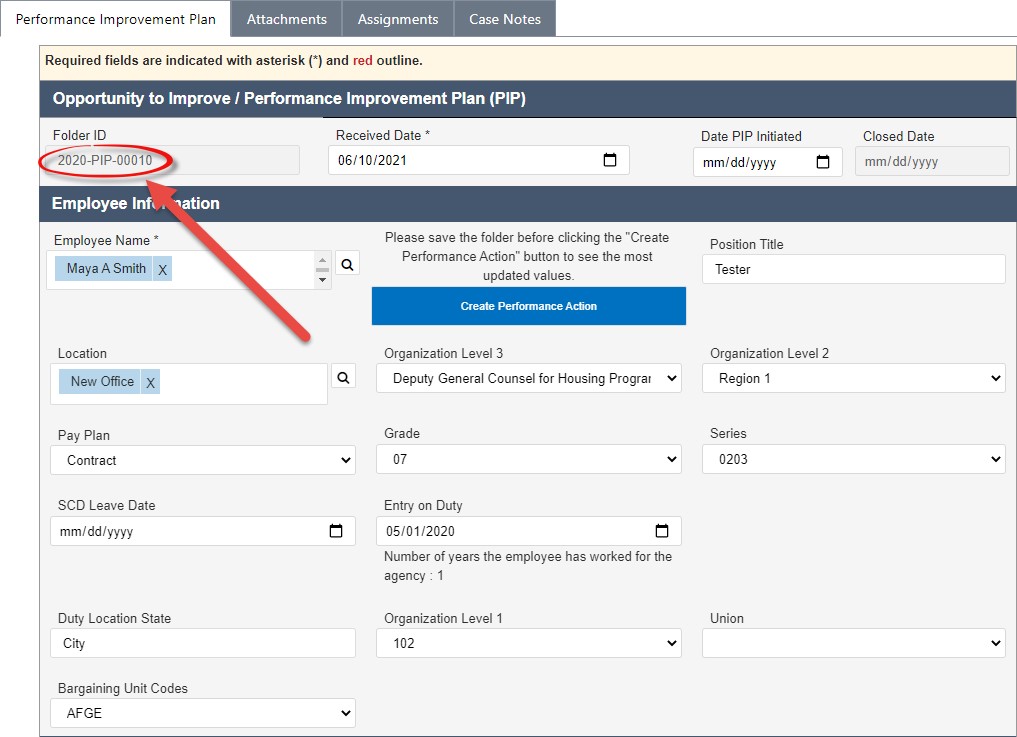
The folder is assigned a Folder ID, as highlighted above. The folder is now ready for further action.
3.5.2 Filing Performance Improvement Plan
In addition to contact-related fields, the Performance Improvement Plan form has fields to capture additional case folder information. Complete these fields as the case folder progresses through the workflow. The PIP Details fields are described in the following table:
Field | Description | Data Type |
Employee Supervisor | Name of the supervisor. | Free text field. |
Date Notice Issued | Date the employee was formally notified of the performance improvement plan. | Calendar select. Choose one day. |
Date PIP Issued | Date PIP is issued to the employee. | Calendar select. Choose one day. |
Date PIP Extended | Date PIP is extended, if an extension is granted. | Calendar select. Choose one day. |
Reason for PIP Extension | Justification given for extending the PIP timeline. | Selected from drop-down list. |
Description of Deficient Performance and Related Critical Elements | A detailed description of the elements of the employee’s performance determined to be deficient. | Free text field. |
Date PIP Completed | Date the PIP was completed by the employee. | Calendar select. Choose one day. |
Outcome of PIP | Date the recommended action is issued. | Calendar select. Choose one day. |
Score System Used | Import the score from the performance evaluation, if applicable. Prompts additional fields. | Checkbox. |
Description of Performance after PIP | Description of employee job performance after performance improvement plan. | Free text field. |
Reasonable Accommodation Information may be available for Performance Improvement Plan case folders, depending upon your organizations configuration. If desired, the ability to capture basic information on a Reasonable Accommodation can be captured by enabling the RA fields during configuration.
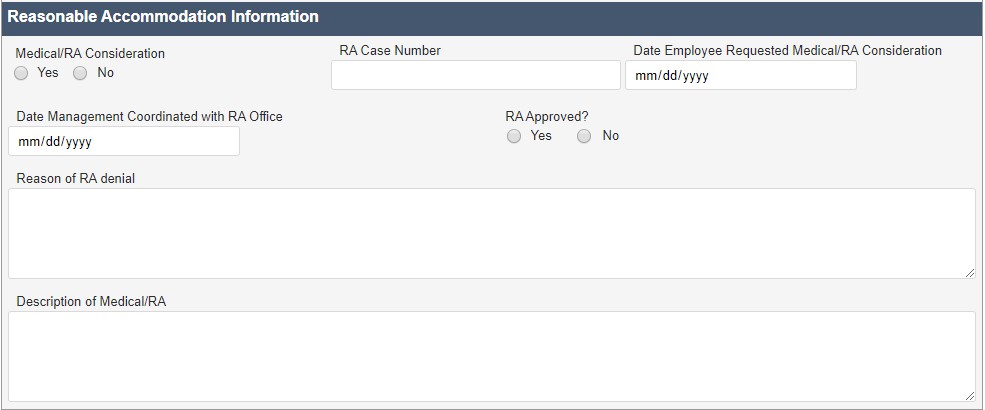
After making any changes to the details on this tab, click Save to save the changes before navigating away from the page.
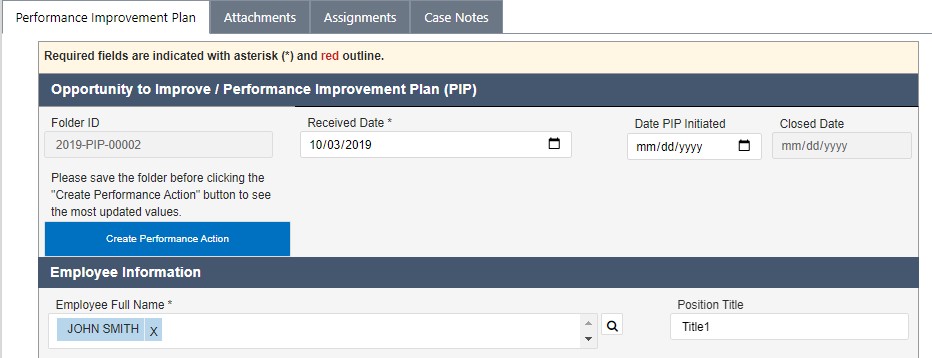
3.5.3 Performance Improvement Plan UI
The Performance Improvement Plan UI tab is used to capture Performance Improvement Plan and Reasonable Accommodation details. The standard eCASE Attachments, Assignments, and Case Notes tabs are also provided.
3.6 Third Party Proceedings
The Third Party Proceedings Case Type captures information for representatives of an agency or an employee which is also linked to proceedings outside of the ER/LR system. The Third Party Proceedings case type resides within the ER Menu, however it can be used for Labor Relations cases as well.
3.6.1 Create a Third Party Proceeding
Follow the steps below to create a new Third Party Proceeding:
Within the Launch Pad, click Main Menu > Employee Relations > Third Party Proceedings. The New Folder screen appears.
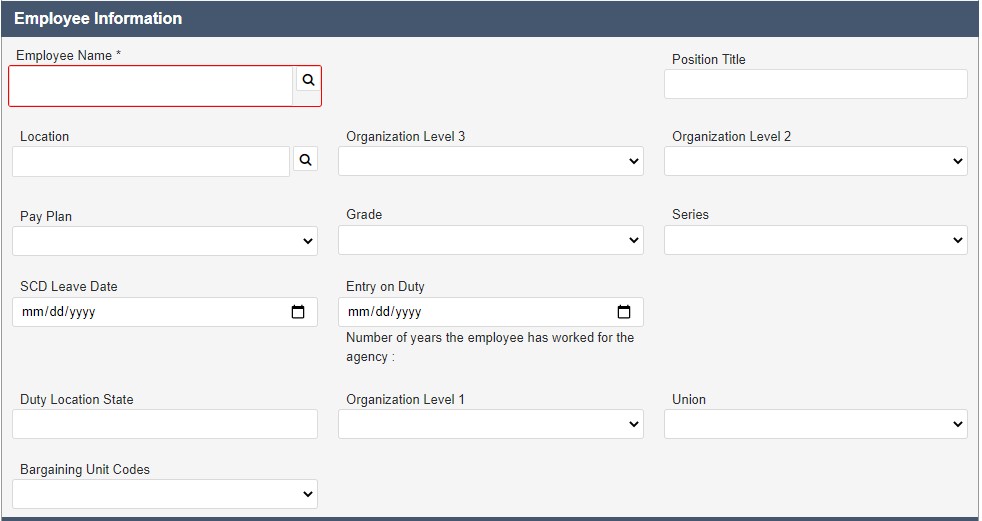
The New Folder screen includes various data fields, both required and optional. For the purpose of initiating the Third Party Proceeding only the required fields must be completed. These are denoted with a red outline, for example on Employee Name in the screen above. Click Lookup.
NOTE: The Employee Name lookup is a Contact Search. Users must exist as a Contact to be selected.
The Search for Contact screen appears. Enter any relevant data in the available search fields.
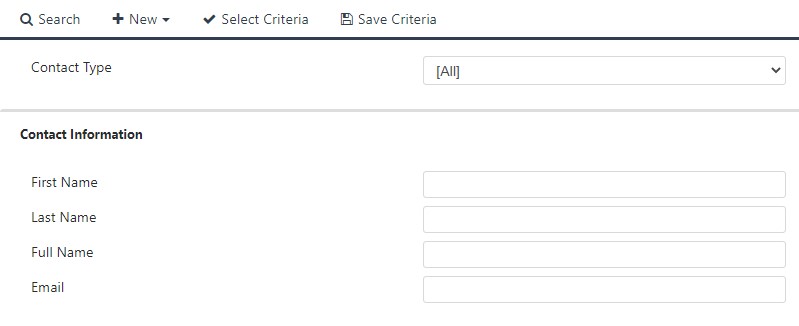
Click Search. The Select Contact screen appears, listing search results which meet the entered criteria.
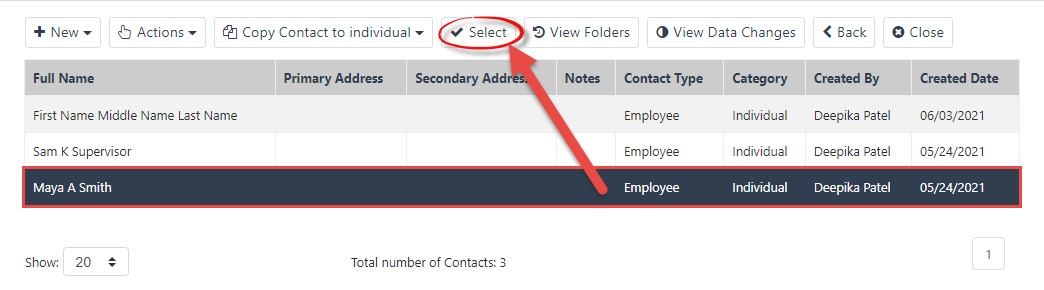
Select the employee for whom to file Third Party Proceeding, and click Select. The Conduct Action screen reappears with the selected Contact populating the Employee Name field. In addition, the contact’s details are automatically populated.
Click Save. The Third Party Proceeding folder appears.
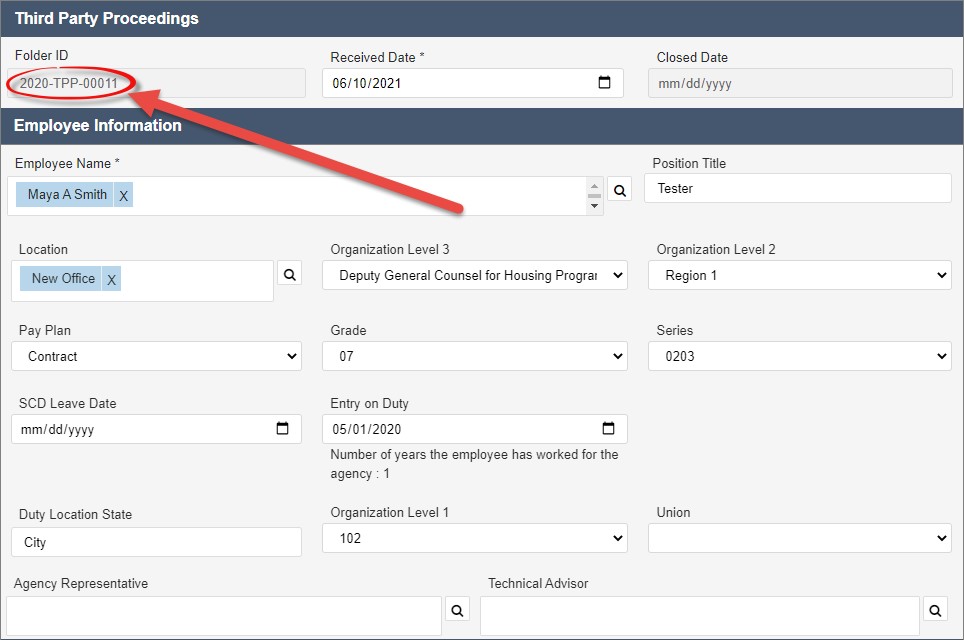
The folder is assigned a Folder ID, as highlighted above. The folder is now ready for further action. See the following section for more details.
3.6.2 Filing a Third Party Proceeding
In addition to contact-related fields, the Third Party Proceeding form has fields to capture additional case folder information. Complete these fields as the case folder progresses through the workflow. These fields are described in the following table:
Field | Description | Data Type |
Union | The union associated with the employee with whom the Third Party Proceedings are being adjudicated. | Drop-down list. |
Agency Representative | The name of the representation of the agency. | Lookup field. |
Technical Advisor | Name of the HR Specialist assisting the case. | Lookup field. |
Employee Representative Name | The name of the representation of the employee, typically legal representation. | Lookup field. |
Employee Representative Email | The email address of the employee representation. | Free text field. |
Employee Representative Phone | The contact number of the employee representative. | Free text field. |
Administrative Hearing Officer | Name of the arbitrator ultimately selected to review the case. | Lookup field. |
Date of Decision | Date the decision was rendered. | Calendar select. Choose one day. |
Outcome | Outcome of the hearing. | Selected from drop-down list. |
Date of Hearing | Date the hearing occurred. | Calendar select. Choose one day. |
Hearing Comments | Enter information about the hearing. | Free text field. |
After making any changes to the details on this tab, click Save to save the changes before navigating away from the page.
3.6.3 Third Party Proceedings UI
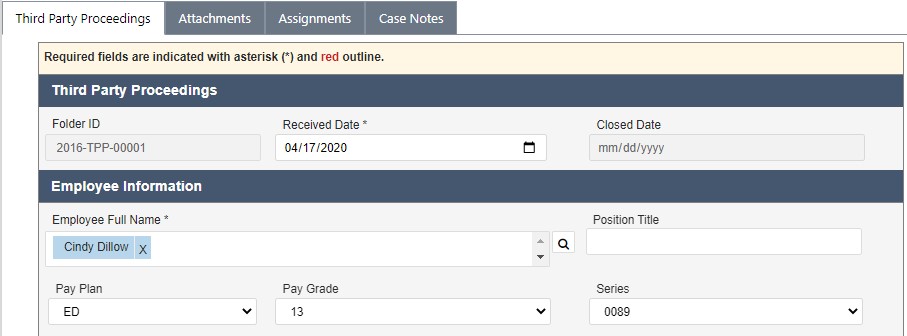
The Third Part Proceedings tab is used to capture Third Party Proceedings details. The standard eCASE Attachments, Assignments, and Case Notes tabs are also provided.
3.7 Appeals
The Appeals case type is used to document and manage cases in which an employee formally contests a personnel action, adverse decision, or other agency determination through an established appellate process. The Appeals form captures comprehensive employee information alongside the specific details of each appeal filed, enabling HR practitioners to maintain a complete record of all appellate activity associated with the case.
3.7.1 Create an Appeals Case
Follow the steps below to create a new Appeals case:
1. Within the Launch Pad, click Main Menu > Employee Relations > Appeals. The New Folder screen appears.
2. The New Folder screen presents both required and optional data fields. To initiate the Appeals case, only the required fields must be completed. Required fields are denoted with a red outline. Click the Lookup icon adjacent to the Full Name field.
NOTE: The employee must exist as a Contact in eCASE ER/LR prior to selection.
The Search for Contact screen is displayed. Enter any relevant identifying data into the available search fields.
Click Search. The Select Contact screen appears, displaying all results that satisfy the entered criteria.
Select the applicable employee and click Select. The Appeals form reappears with the selected Contact populating the Full Name field. All available contact details are automatically populated into the corresponding fields.
Complete any additional required or applicable fields.
Click Save. The Appeals case folder appears and is assigned a unique Folder ID. The folder is now ready for further action. Refer to the following sections for additional detail.
3.7.2 Filing an Appeals Case
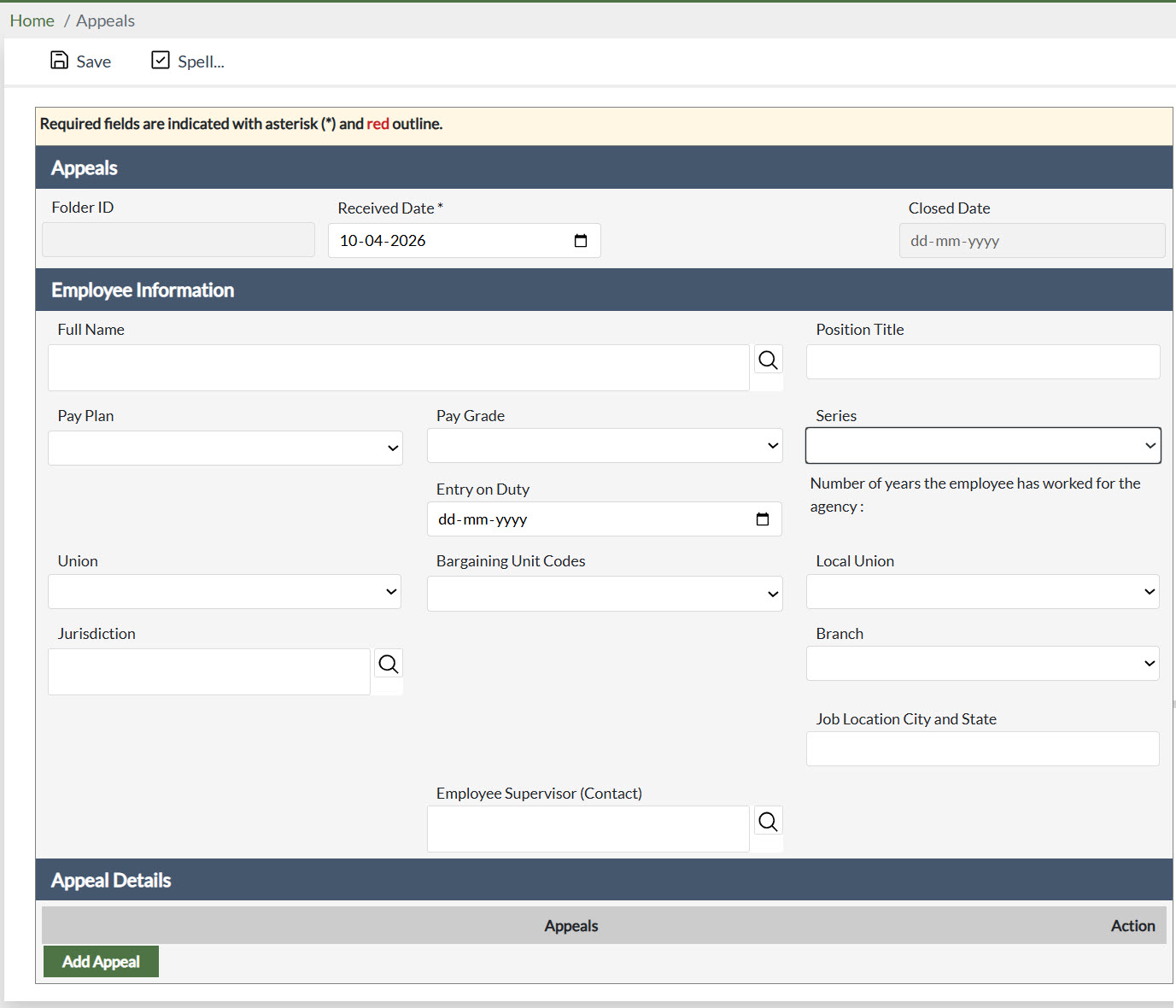
NOTE: The majority of the fields within the Employee Information section are Contact-related fields and may be automatically populated upon selecting the employee from the system Contact directory.
In addition to the Contact-related fields, you can capture additional case-specific information. Complete these fields as the case folder progresses through the workflow.
The fields are described in the tables below.
Employee Information
Field | Description |
Full Name | The legal full name of the employee. Click the Lookup icon to search for and select an existing system Contact. |
Position Title | The employee's official position title within the agency. |
Pay Plan | The pay plan associated with the government employee. |
Pay Grade | The grade level associated with the government employee. |
Series | The occupational series associated with the employee's position. |
Entry on Duty | The date on which the employee commenced duty at the current agency. |
Number of Years the Employee Has Worked for the Agency | The total number of years the employee has been continuously employed by the agency. |
Union | The labor union to which the employee belongs, if applicable. |
Bargaining Unit Codes | The bargaining unit code(s) applicable to the employee's position. |
Local Union | The local chapter of the union representing the employee, if applicable. |
Jurisdiction | The jurisdictional office responsible for the employee's position. Use the Lookup icon to search for a Jurisdiction. |
Branch | The branch within the agency to which the employee is assigned. |
Job Location City and State | The city and state of the employee's official duty station. |
The Appeal Details section provides a dynamic table for recording one or more formal appeals associated with the case folder.
Field | Description |
Appeals | A structured description of the formal appeal being filed, including the nature of the contested action and the relief being sought. |
Action | Allows the user to manage individual appeal entries within the table, including the ability to edit or remove a specific record. |
Click Add Appeal to insert a new entry into the Appeals table. Each entry must be saved individually before proceeding.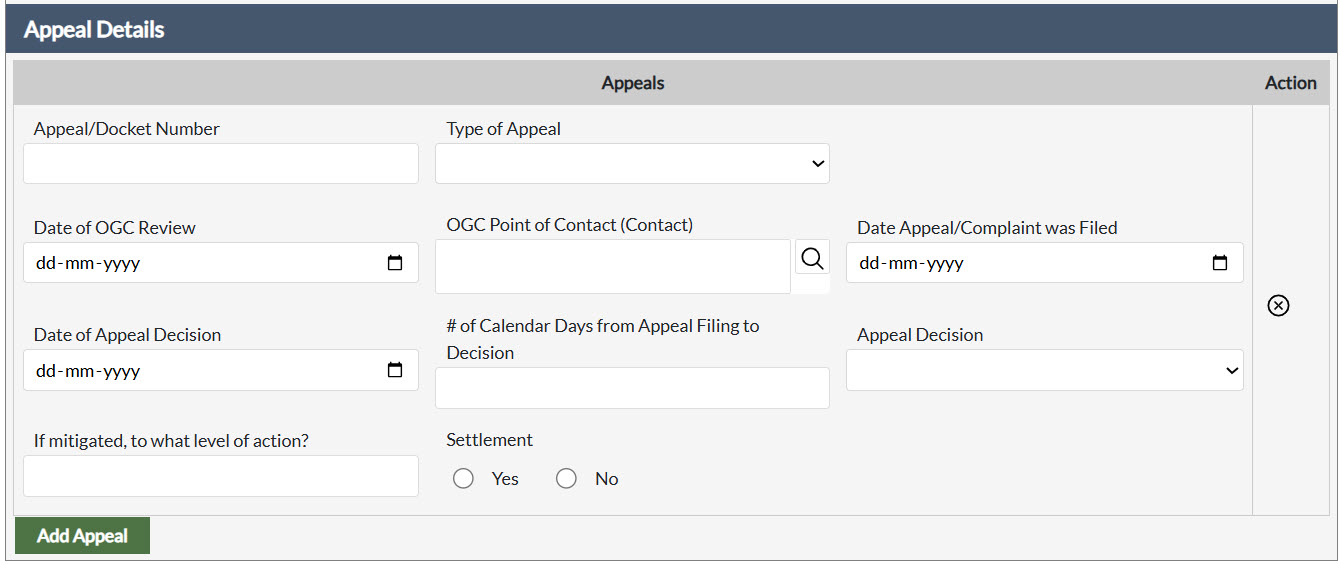
Click Add Appeal to insert a new entry into the Appeals table. Each entry must be saved individually before proceeding.
3.8 Performance Adverse Actions
The Performance Adverse Actions case type is used to document and manage formal personnel actions initiated in response to an employee's sustained failure to meet one or more critical performance elements. This form supports the full lifecycle of a performance-based adverse action, from issuance of the proposed action through the final decision, including tracking employee responses, WIGI eligibility considerations, and any subsequent appeal activity.
3.8.1 Create a Performance Adverse Actions Case
Follow the steps below to create a new Performance Adverse Actions case:
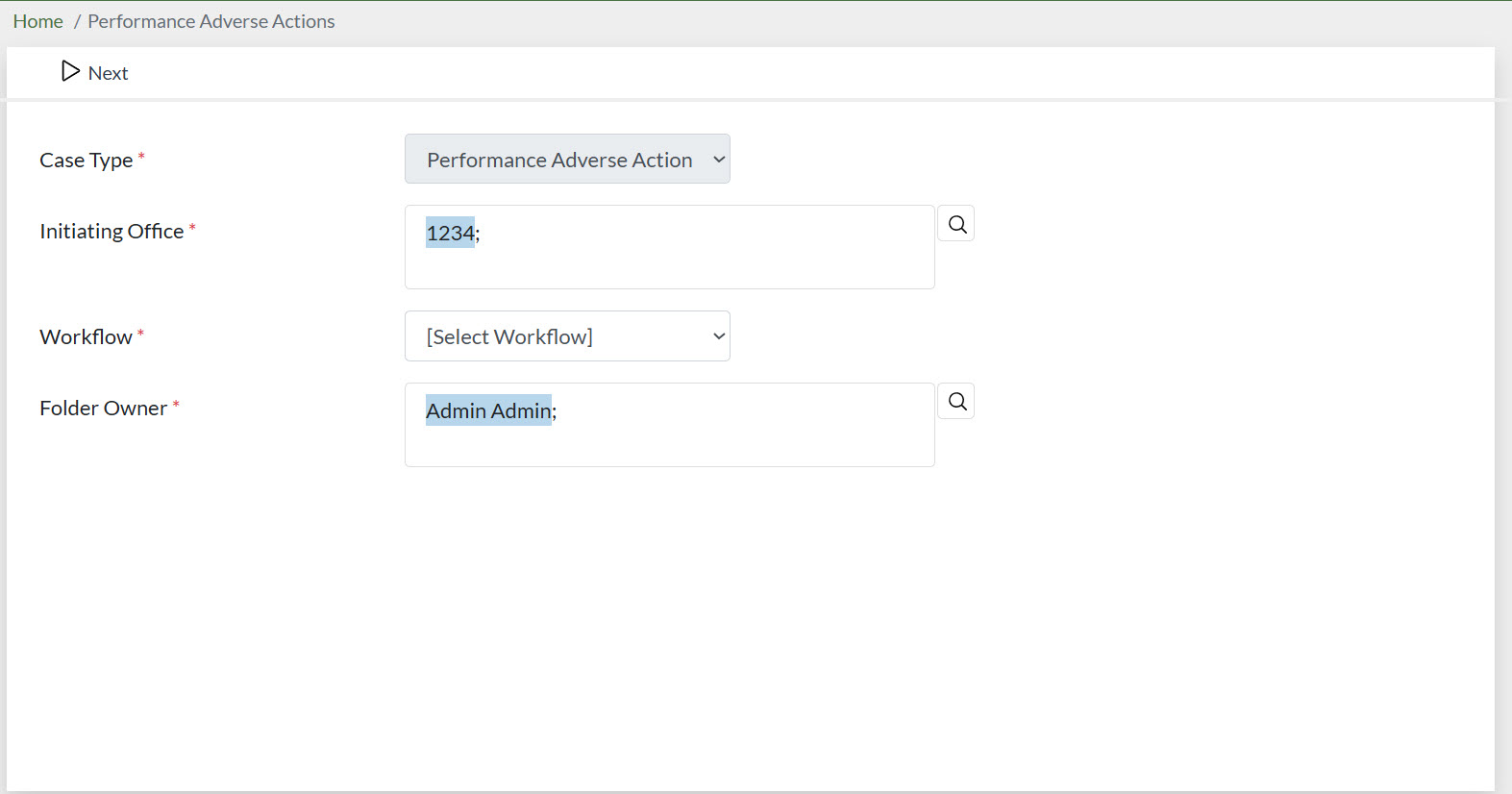
Within the Launch Pad, select Main Menu > Employee Relations > Performance Adverse Actions. The New Folder screen appears.
1. The New Folder screen requires the completion of several configuration fields prior to proceeding. Complete all required fields as described below:
Case Type: Pre-populated as Performance Adverse Actions. This field is not editable.
Initiating Office: Click the Lookup icon to search for and select the office initiating the adverse action.
Workflow: Select the applicable processing workflow from the drop-down list.
Folder Owner: Click the Lookup icon to designate the folder owner. Defaults to the currently authenticated user.
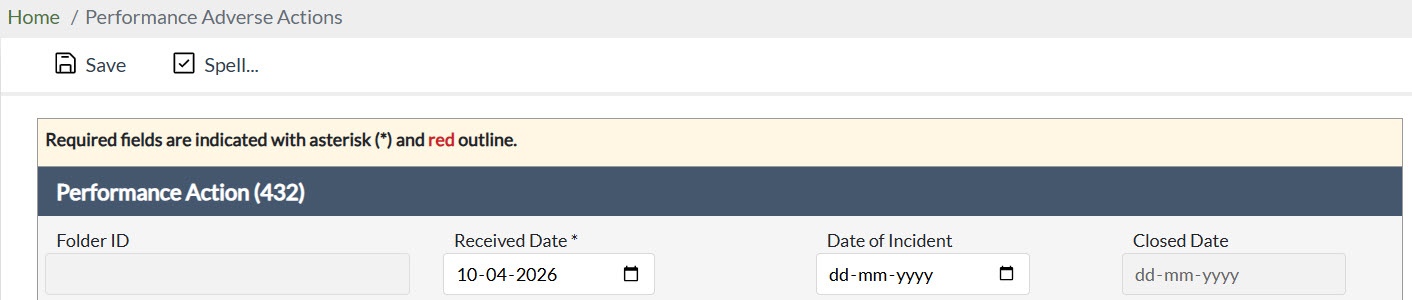
Click Next. The Performance Adverse Actions case form appears.
In the Employee Information section, click the Lookup icon adjacent to the Full Name field.
The Search for Contact screen appears. Enter any relevant identifying data into the available search fields.
Click Search. The Select Contact screen appears, displaying all results that satisfy the entered criteria.
Select the applicable employee and click Select. The Performance Adverse Actions form reappears with the selected Contact populating the Full Name field. All available contact details are automatically populated into the corresponding fields.
Complete any additional required or applicable fields across all form sections.
Click Save. The Performance Adverse Actions case folder appears and is assigned a unique Folder ID. The folder is now ready for further action.
3.8.2 Filing a Performance Adverse Actions Case
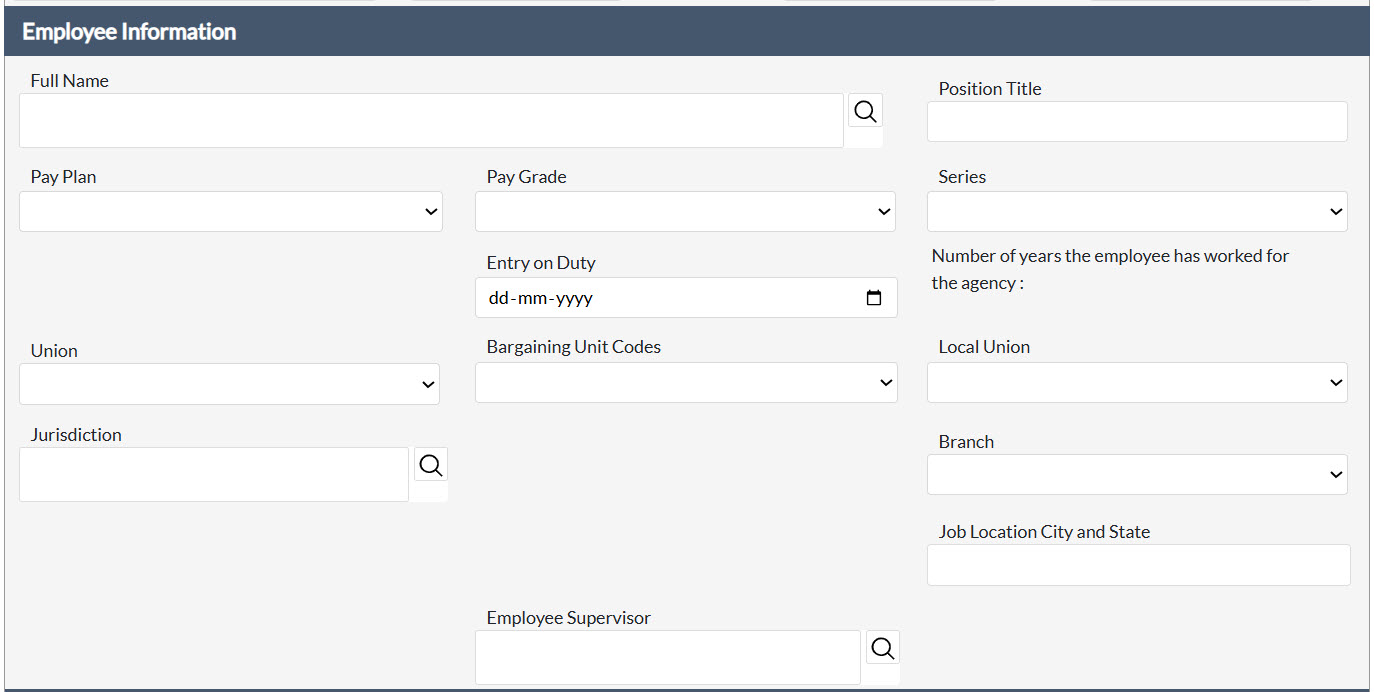
In addition to the Contact-related fields, the Performance Adverse Actions form contains fields to capture additional case-specific information. Complete these fields as the case folder progresses through the workflow. The fields are described in the tables below
Field | Description |
Full Name | The legal full name of the employee. Click the Lookup icon to search for and select an existing system Contact. |
Position Title | The employee's official position title within the agency. |
Pay Plan | The pay plan associated with the government employee. |
Pay Grade | The grade level associated with the government employee. |
Series | The occupational series associated with the employee's position. |
Entry on Duty | The date on which the employee commenced duty at the current agency. |
Number of Years the Employee Has Worked for the Agency | The total number of years the employee has been continuously employed by the agency. |
Union | The labor union to which the employee belongs, if applicable. |
Bargaining Unit Codes | The bargaining unit code(s) applicable to the employee's position. |
Local Union | The local chapter of the union representing the employee, if applicable. |
Jurisdiction | The jurisdictional office responsible for the employee's position. Use the Lookup icon to search for a Jurisdiction. |
Branch | The branch within the agency to which the employee is assigned. |
Job Location City and State | The city and state of the employee's official duty station. |
The Employee Information section captures details pertaining to any representative designated by the employee in connection with the adverse action proceedings.
Field | Description |
Employee Representative | The name of the individual designated to represent the employee. Click the Lookup icon to search for and select a system Contact. |
Employee Rep Email | The electronic mail address at which the employee representative may be contacted. |
Employee Rep Phone | The telephone number at which the employee representative may be contacted. |
The Performance Action Details section captures the substantive information pertaining to the adverse action, including the basis for the proposed action, associated dates, and the outcome of the decision-making process.
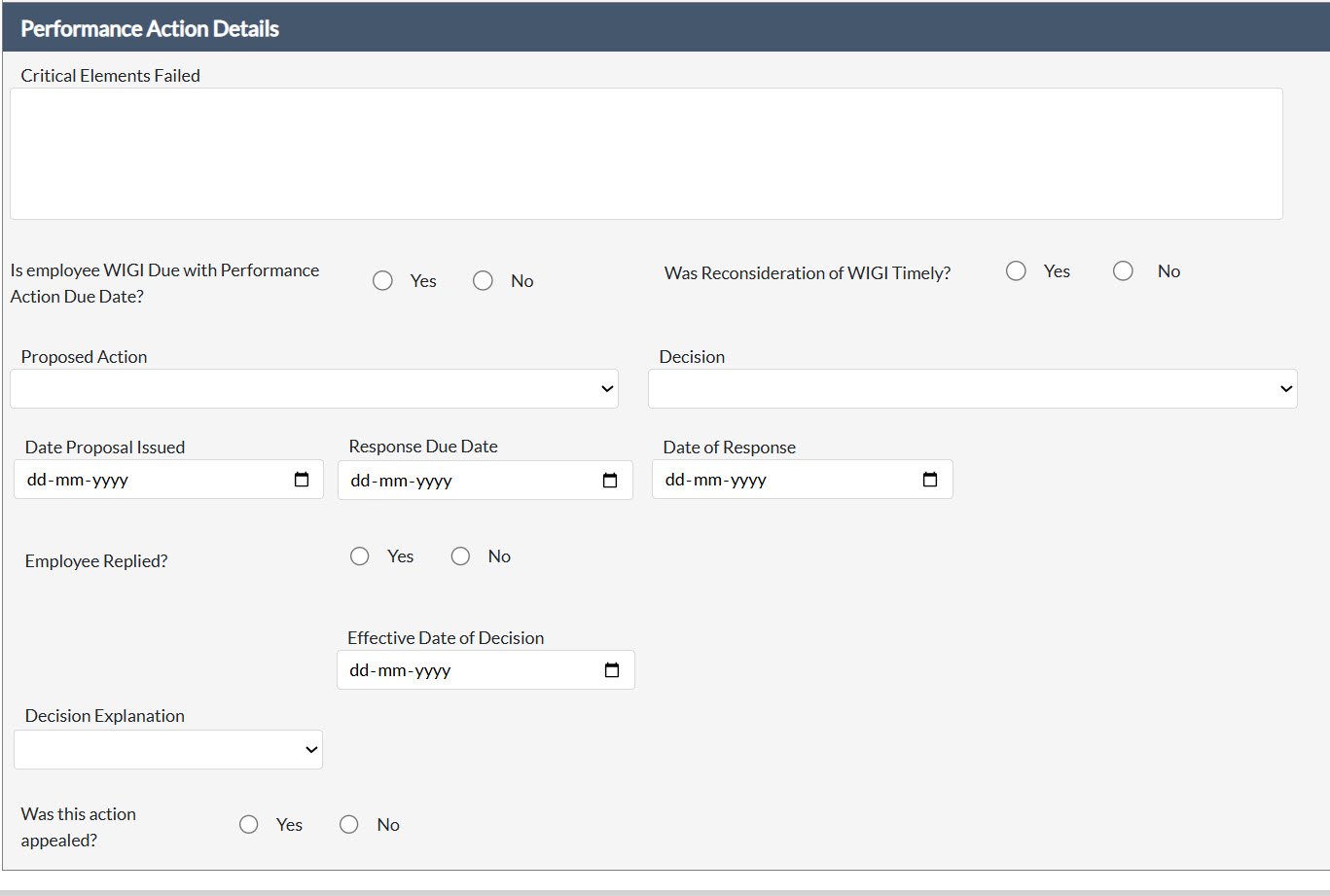
Field | Description |
Critical Elements Failed | A narrative description of the critical performance element(s) within the employee's performance plan that have not been met, thereby triggering the adverse action. |
Is Employee WIGI Due with Performance Action Due Date? | Indicates whether the employee is due a Within-Grade Increase (WIGI) that coincides with the performance action due date. This determination may affect the processing timeline. |
Was Reconsideration of WIGI Timely? | Indicates whether the reconsideration of the employee's Within-Grade Increase eligibility was conducted within the required timeframe. |
Proposed Action | The disciplinary or adverse action proposed in response to the documented performance deficiencies. Options may include removal, demotion, or other available personnel actions. |
Decision | The final agency determination regarding the action to be taken following review of the proposed action and any employee response. |
Date Proposal Issued | The date on which the proposed adverse action was formally issued to the employee. |
Response Due Date | The deadline by which the employee must submit a written or oral response to the proposed action. |
Date of Response | The date on which the employee submitted a response to the proposed adverse action. |
Employee Replied? | Indicates whether the employee submitted a formal response to the proposed adverse action. |
Effective Date of Decision | The date on which the final adverse action decision takes effect. |
Decision Explanation | A summary explanation of the rationale supporting the final adverse action decision. |
Was This Action Appealed? | Indicates whether the employee has elected to appeal or grieve the final adverse action decision. Selecting Yes may prompt additional fields to capture appeal-related information. |
3.9 Leave Administration
The Leave Administration case type is used to document and manage employee leave requests that require formal agency review and adjudication. This form captures comprehensive employee information alongside the details of the leave request, including the type of leave requested, the agency's determination, and all associated notification and tracking data.
3.9.1 Create a Leave Administration Case
Follow the steps below to create a new Leave Administration case:
Within the Launch Pad, select Main Menu > Employee Relations > Leave Administration. The New Folder screen appears.
The New Folder screen presents both required and optional data fields. Required fields are denoted with a red outline. Click the Lookup icon adjacent to the Full Name field.
The Search for Contact screen appears. Enter any relevant identifying data into the available search fields.
Click Search. The Select Contact screen appears, displaying all results that satisfy the entered criteria.
Select the applicable employee and click Select. The Leave Administration form reappears with the selected Contact populating the Full Name field. All available contact details are automatically populated into the corresponding fields.
Complete any additional required or applicable fields.
Click Save. The Leave Administration case folder appears and is assigned a unique Folder ID. The folder is now ready for further action.
3.9.2 Filing a Leave Administration Case
In addition to the Contact-related fields, the Leave Administration form contains fields to capture additional case-specific information. Complete these fields as the case folder progresses through the workflow. The fields are described in the tables below.
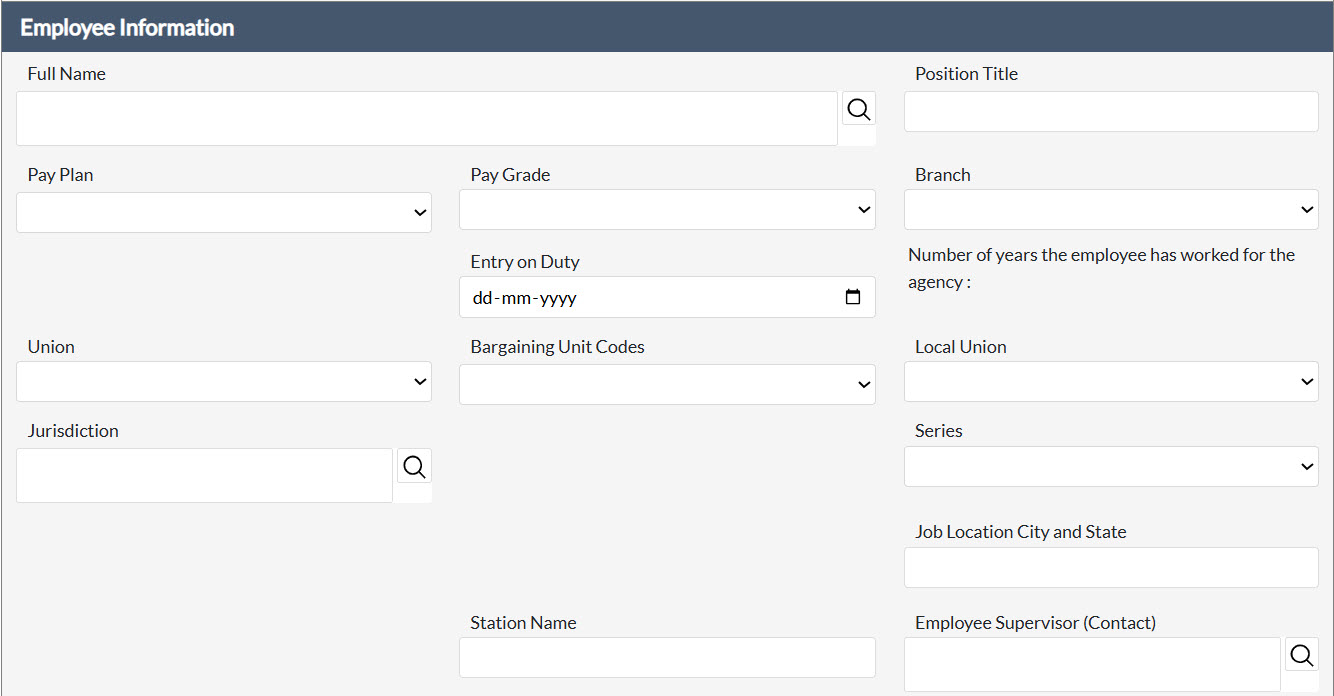
Field | Description |
Full Name | The legal full name of the employee. Click the Lookup icon to search for and select an existing system Contact. |
Position Title | The employee's official position title within the agency. |
Pay Plan | The pay plan associated with the government employee. |
Pay Grade | The grade level associated with the government employee. |
Series | The occupational series associated with the employee's position. |
Entry on Duty | The date on which the employee commenced duty at the current agency. |
Number of Years the Employee Has Worked for the Agency | The total number of years the employee has been continuously employed by the agency. |
Union | The labor union to which the employee belongs, if applicable. |
Bargaining Unit Codes | The bargaining unit code(s) applicable to the employee's position. |
Local Union | The local chapter of the union representing the employee, if applicable. |
Jurisdiction | The jurisdictional office responsible for the employee's position. Use the Lookup icon to search for a Jurisdiction. |
Branch | The branch within the agency to which the employee is assigned. |
Job Location City and State | The city and state of the employee's official duty station. |
Station Name | The name of the duty station at which the employee is assigned. |
Employee Supervisor (Contact) | The employee's direct supervisor. Click the Lookup icon to search for and select a system Contact. |
The Leave Request section captures the substantive details of the employee's leave request, including the type of leave sought, the agency's determination, and all associated administrative tracking information.
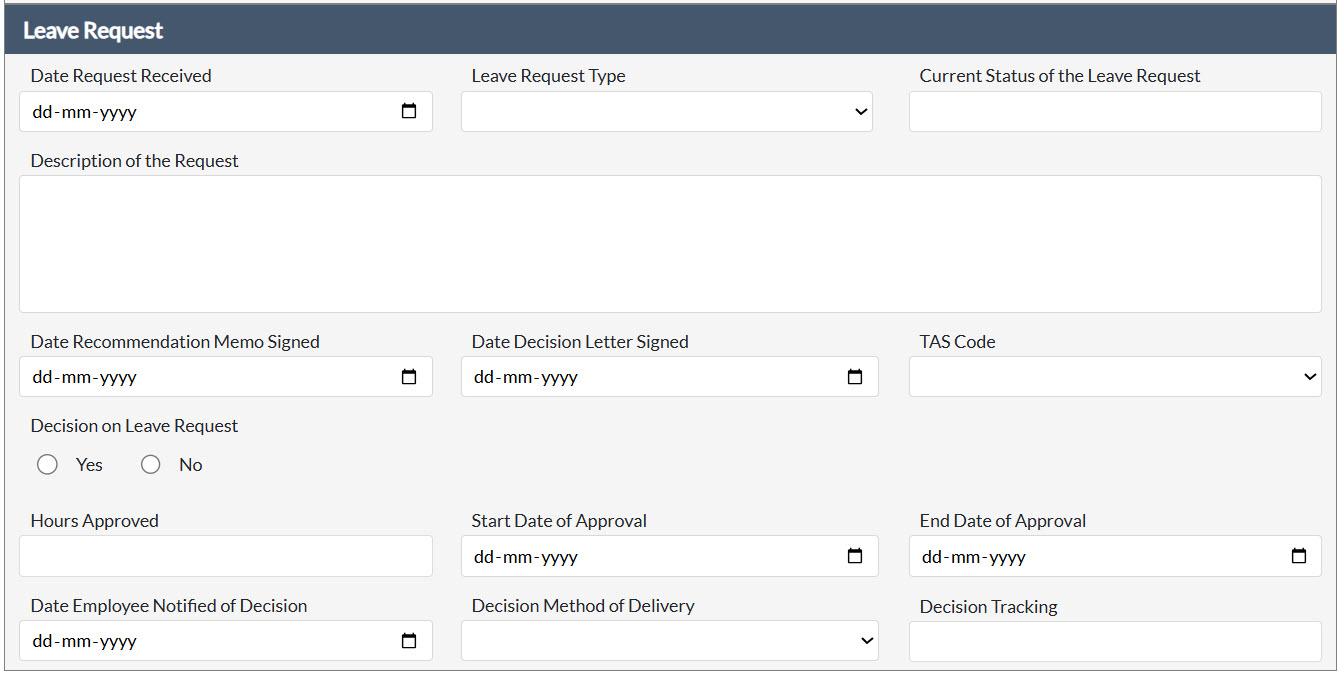
Field | Description |
Date Request Received | The date on which the employee's leave request was formally received by the agency. |
Leave Request Type | The category of leave being requested by the employee (e.g., FMLA, LWOP, Sick Leave, Annual Leave). |
Current Status of the Leave Request | A brief description of the current processing status of the leave request. |
Description of the Request | A narrative description of the leave request, including the purpose and any relevant context provided by the employee. |
Date Recommendation Memo Signed | The date on which the recommendation memorandum associated with the leave request was executed. |
Date Decision Letter Signed | The date on which the official decision letter regarding the leave request was executed. |
TAS Code | The Time and Attendance System (TAS) code associated with the leave request, used for payroll and recordkeeping purposes. |
Decision on Leave Request | The agency's formal determination regarding the employee's leave request. |
Hours Approved | The total number of leave hours approved by the agency, if applicable. |
Start Date of Approval | The first date of the approved leave period. |
End Date of Approval | The last date of the approved leave period. |
Date Employee Notified of Decision | The date on which the employee was formally notified of the agency's determination regarding the leave request. |
Decision Method of Delivery | The method by which the agency's decision was communicated to the employee (e.g., in-person, email, certified mail). |
Decision Tracking | Additional tracking information or reference numbers associated with the leave decision. |
3.10 Tracker
The Tracker case type provides a flexible, general-purpose mechanism for monitoring and documenting employee relations matters that may not require the initiation of a dedicated formal case type. It is designed to serve as a structured log for tracking the status, responsible personnel, nature of action, and a synopsis of issues associated with miscellaneous ER matters from the point of intake through resolution.
3.10.1 Create a Tracker Case
Follow the steps below to create a new Tracker case:
Within the Launch Pad, click Main Menu > Employee Relations > Tracker. The Tracker is displayed.
In the Employee Information section, click the Lookup icon adjacent to the Full Name field to search for and select the applicable employee.
The Search for Contact screen appears. Enter any relevant identifying data into the available search fields.
Click Search. The Select Contact screen appears, displaying all results that satisfy the entered criteria.
Select the applicable employee and click Select. The Tracker form reappears with the selected Contact populating the Full Name field. All available contact details are automatically populated into the corresponding fields.
Complete all applicable fields within the Tracker section.
Click Save. The Tracker case folder is saved and may be retrieved at any time for status updates or closure.
3.10.2 Filing a Tracker Case
The Tracker form contains two primary sections: Employee Information and Tracker. Complete these fields as the matter progresses. The fields are described in the tables below.

Field | Description |
Full Name | The legal full name of the employee. Click the Lookup icon to search for and select an existing system Contact. |
Position Title | The employee's official position title within the agency. |
Pay Plan | The pay plan associated with the government employee. |
Pay Grade | The grade level associated with the government employee. |
Series | The occupational series associated with the employee's position. |
Entry on Duty | The date on which the employee commenced duty at the current agency. |
Number of Years the Employee Has Worked for the Agency | The total number of years the employee has been continuously employed by the agency. |
Union | The labor union to which the employee belongs, if applicable. |
Bargaining Unit Codes | The bargaining unit code(s) applicable to the employee's position. |
Local Union | The local chapter of the union representing the employee, if applicable. |
Jurisdiction | The jurisdictional office responsible for the employee's position. Use the Lookup icon to search for a Jurisdiction. |
Branch | The branch within the agency to which the employee is assigned. |
Job Location City and State | The city and state of the employee's official duty station. |
The Tracker section captures the administrative and substantive details of the matter being monitored, including the assigned personnel, case classification, and a synopsis of the issues under review.

Field | Description |
Case Initiator | The individual or role responsible for initiating the Tracker case within the system. |
Specialist Assigned | The HR or ER/LR specialist assigned to manage and monitor the tracked matter. Click the Lookup icon to search for and select a system Contact. |
Directorate | The directorate or organizational unit within which the matter originates or has primary jurisdiction. |
Date Case Opened | The date on which the matter was formally entered into the Tracker. |
Case Type | The classification of the matter being tracked, used to categorize the nature of the ER issue. |
Nature of Action | The specific nature of the personnel or employee relations action associated with the tracked matter. |
Synopsis of Issues | A narrative summary of the key issues, facts, and circumstances associated with the matter under review. This field should be updated as the matter progresses. |
3.11 Corrective Actions
The Corrective Actions case type is used to document informal corrective measures undertaken prior to the initiation of formal disciplinary proceedings. Corrective actions are typically consultative in nature and are intended to address and remediate employee conduct or performance concerns at the earliest opportunity. This form captures the essential employee information, the date of the underlying incident, the reason for the consultation, and the HR specialist assigned to advise on the matter.
3.11.1 Create a Corrective Actions Case
Follow the steps below to create a new Corrective Actions case:
Within the Launch Pad, select Main Menu > Employee Relations > Corrective Actions. The New Folder screen appears.
The New Folder screen presents both required and optional data fields. Required fields are denoted with a red outline. Click the Lookup icon adjacent to the Full Name field.
The Search for Contact screen appears. Enter any relevant identifying data into the available search fields.
Click Search. The Select Contact screen appears, displaying all results that satisfy the entered criteria.
Select the applicable employee and click Select. The Corrective Actions form reappears with the selected Contact populating the Full Name field. All available contact details are automatically populated into the corresponding fields.
Complete any additional required or applicable fields.
Click Save. The Corrective Actions case folder appears and is assigned a unique Folder ID. The folder is now ready for further action.
3.11.2 Filing a Corrective Actions Case
In addition to the Contact-related fields, the Corrective Actions form contains fields to capture additional case-specific information. Complete these fields as the case folder progresses through the workflow. The fields are described in the tables below.
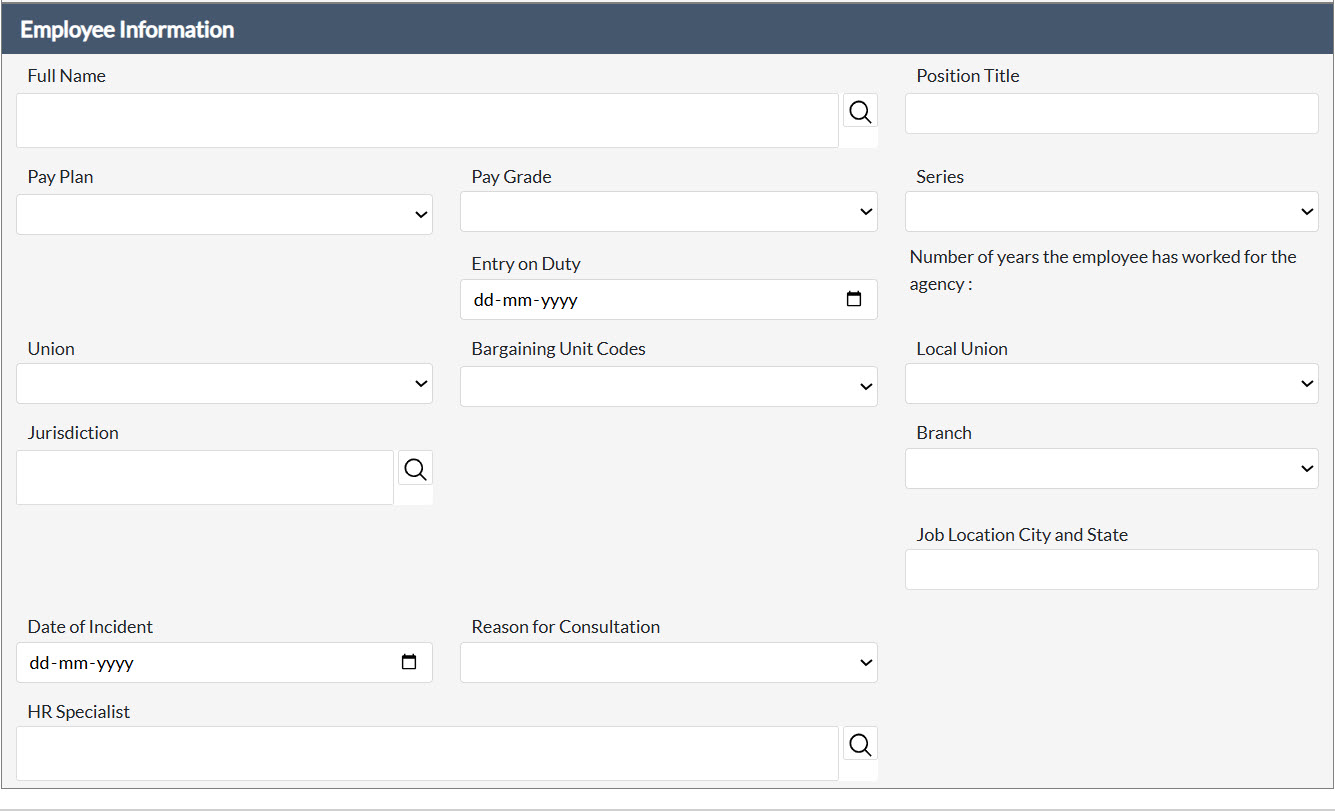
Field | Description |
Full Name | The legal full name of the employee. Click the Lookup icon to search for and select an existing system Contact. |
Position Title | The employee's official position title within the agency. |
Pay Plan | The pay plan associated with the government employee. |
Pay Grade | The grade level associated with the government employee. |
Series | The occupational series associated with the employee's position. |
Entry on Duty | The date on which the employee commenced duty at the current agency. |
Number of Years the Employee Has Worked for the Agency | The total number of years the employee has been continuously employed by the agency. |
Union | The labor union to which the employee belongs, if applicable. |
Bargaining Unit Codes | The bargaining unit code(s) applicable to the employee's position. |
Local Union | The local chapter of the union representing the employee, if applicable. |
Jurisdiction | The jurisdictional office responsible for the employee's position. Use the Lookup icon to search for a Jurisdiction. |
Branch | The branch within the agency to which the employee is assigned. |
Job Location City and State | The city and state of the employee's official duty station. |
The fields below capture the details of the corrective action consultation, including the precipitating incident and the nature of the advisement provided.
Field | Description |
Date of Incident | The date on which the conduct or performance incident occurred that prompted the corrective action consultation. |
Reason for Consultation | The basis or rationale for the corrective action consultation, selected from the available options (e.g., conduct, attendance, performance). |
HR Specialist | The Human Resources specialist assigned to provide guidance and advisory support for the corrective action. Click the Lookup icon to search for and select a system Contact. |
4 Labor Relations
The Labor Relations menu allows LR Specialists and LR Managers to file forms related to Labor Relations. The Labor Relations menu employs five out-of-the-box Case Types for filing LR related forms. These case types include:
Arbitration
Request to Bargain
Information Requests
Unfair Labor Practice
Grievance
FLRA Petitions
Union Notice
Pre-Decisional Involvement
Each of these standard case types is described in the following sections.
4.1 Arbitration
An Arbitration case is the escalation of an unresolved Grievance. An Arbitration must be attached to a Grievance, and some Grievance-related data remains associated to the case when escalating to Arbitration.
This section provides guidance on creating and working with Arbitration cases.
4.1.1 Create an Arbitration
Arbitration cases are created in one of two ways:
From the Launch Pad
Escalated from an existing Grievance
For details on escalating a Grievance, see the Escalate to Arbitration section. Follow the steps below to create a new Arbitration:
Within the Launch Pad, click Main Menu > Labor Relations > Arbitration. The New Folder screen.
An Arbitration must be associated with a preceding Grievance. Click the Assignments tab.
Click Link Folders.

The Search Folders pop up window appears. Configure the search criteria and click Search.
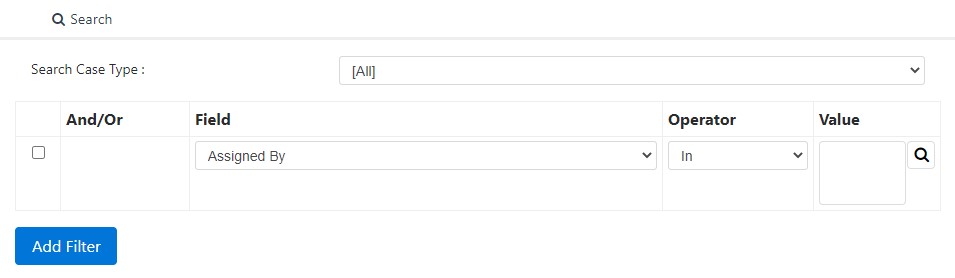
The system returns a list of case folders matching the search criteria. Select a folder and click Select.
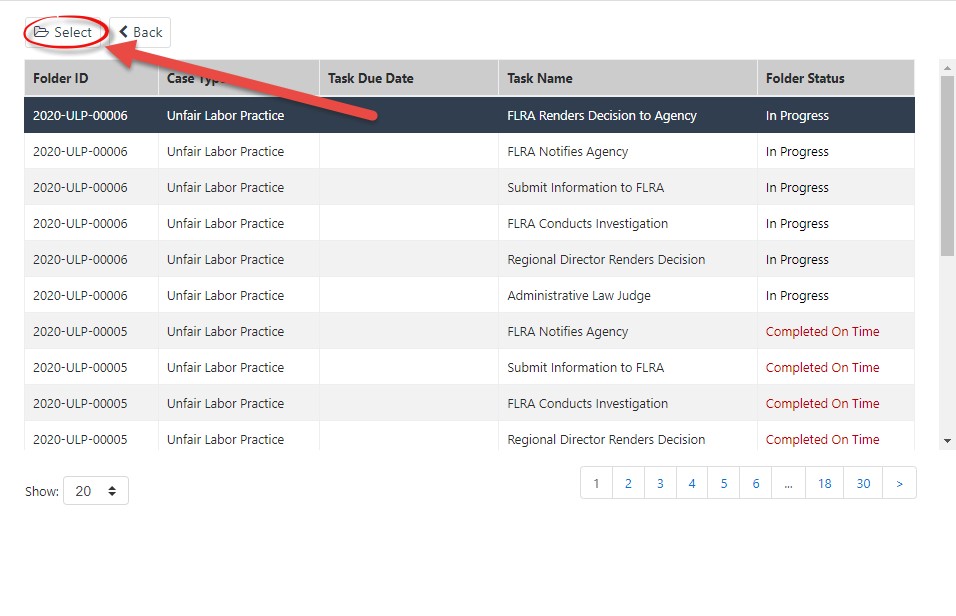
The newly selected case folder appears in the Linked Folders section.
Select the Management Representative using the lookup.
NOTE: The Management Representative lookup is a Contact Search. Users must exist as a Contact to be selected.
The Search for Contact screen appears. Enter any relevant data in the available search fields.
Click Search. The Select Contact screen appears, listing search results which meet the criteria.
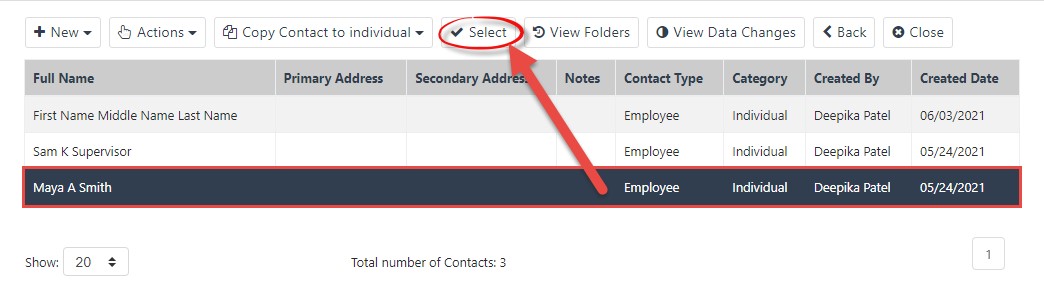
Select the employee for whom to file Administrative Grievance, then click Select. The Arbitration screen reappears with the selected Contact populating the Employee Name field. In addition, the contact’s details are automatically populated:
Click Save. The Arbitration folder appears.
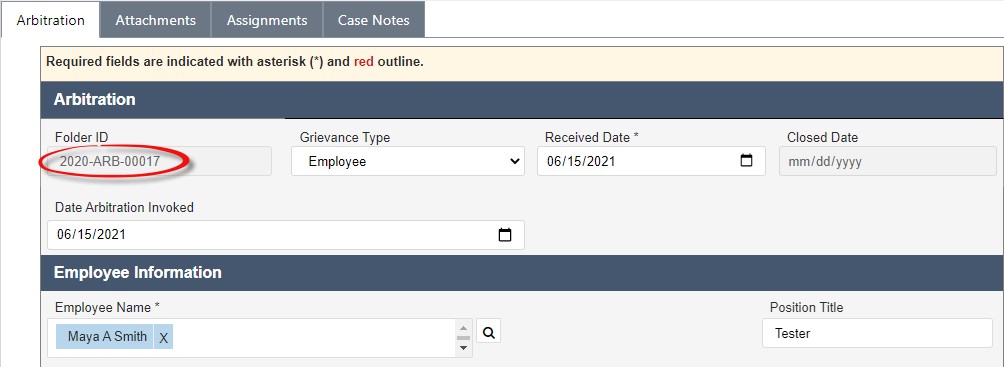
The folder is assigned a Folder ID, as highlighted above. The folder is now ready for further action. See the following subsections for more information about completing an Arbitration case folder.
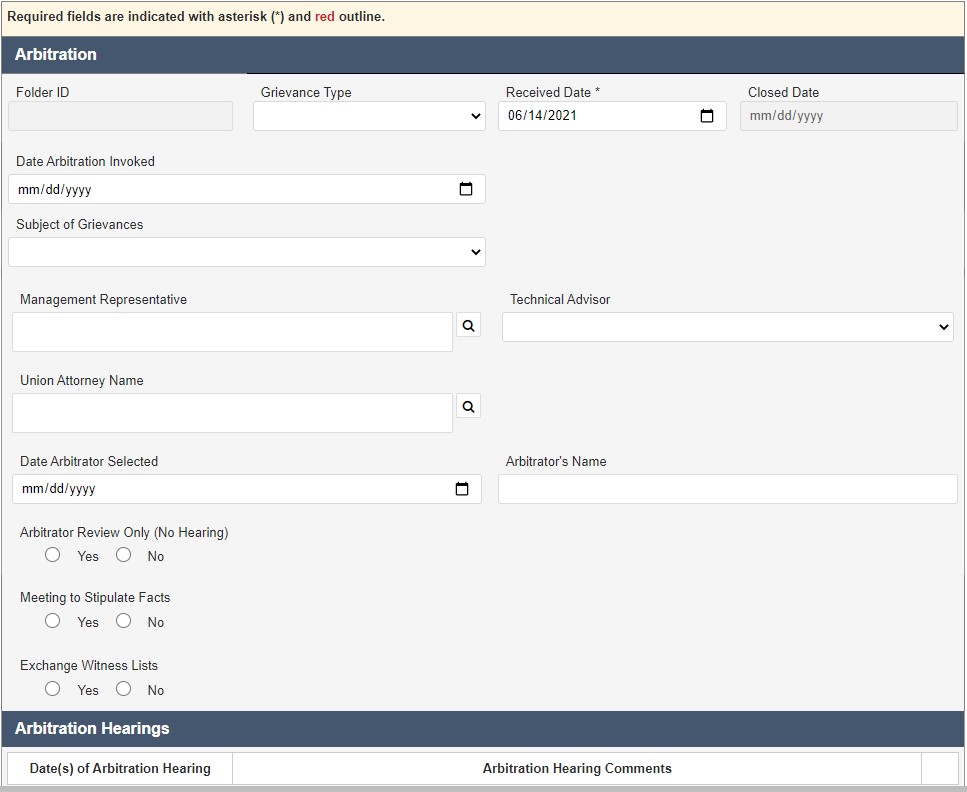
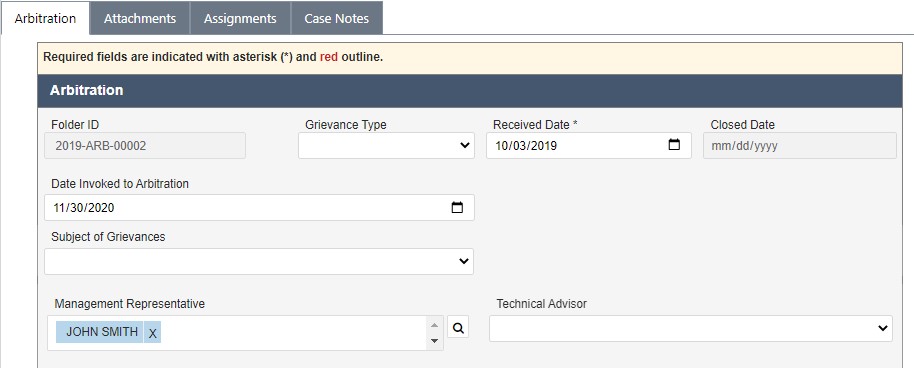
4.1.2 Filing an Arbitration
In addition to contact-related fields, the Arbitration form has fields to capture additional case folder information. Complete these fields as the case folder progresses through the workflow.
The fields are described in the following table:
Field | Description | Data Type |
Grievance Type | Select the nature of the issue being arbitrated. | Drop-down list. Select one. |
Received Date | Date the Arbitration was received in-office. | Calendar select. Choose one day. |
Date Arbitration Invoked | Select the date that the Arbitration was filed. | Calendar select. Choose one day. |
Subject of Grievances | Select the matter being grieved. | Drop-down list. Select one. |
Management Representative | Responsible Management representative associated with the Arbitration action. | Contact search. Click the Lookup icon to search for a system Contact. |
Technical Advisor | Name of HR specialist assisting the case. | Contact search. Click the Lookup icon to search for a system Contact. |
Union Attorney Name | Union Attorney involved in the Arbitration action. | Contact search. Click the Lookup icon to search for a system Contact. |
Date Arbitrator Selected | Select the date that the arbitrator for this case was selected. | Calendar select. Choose one day. |
Arbitrator’s Name | Name of the Arbitrator assigned to the case. | Free text field. |
Arbitrator Review Only (No Hearing) | Use the radio buttons to indicate if a hearing will not be held, and the matter will be decided solely by an arbitrator. | Radio button. Select one. |
Meeting to Stipulate Facts | Use the radio buttons to indicate if a meeting will be held to stipulate the facts of the arbitration. | Radio button. Select one. |
Date of Meeting to Stipulate Facts | If a meeting is being held to stipulate the facts of the arbitration, use the date picker to indicate the date the meeting will be held. | Calendar select. Select one day. |
Exchange Witness Lists | Use the radio buttons to indicate if the arbitration witness lists will be exchanged. | Radio Button. Select one. |
Date Witness Lists Exchanged | If a meeting is being held to exchange the witness list, use the date picker to indicate the date the meeting will be held. | Calendar select. Select one day. |
Date of Arbitration Hearing | Use the date picker to indicate the date that the arbitration hearing will be held. | Calendar select. Select one day. |
Arbitration Hearing Comments | Use this field to enter information about the content of the arbitration hearing. | Free text field. |
Briefs Agreed To | Use the radio buttons to indicate if the arbitration briefs were agreed to. | Radio button. Select one. |
Arbitrators Award | Select the party for whom the arbitrator awarded the decision. | Drop-down list. Select one. |
Date of Decision | Use the date picker to indicate the date the arbitrator made their decision. | Calendar select. Choose one day. |
Date of Arbitrator’s Award | Use the date picker to indicate the date the arbitrator’s award is rendered to the aggrieved party. | Calendar select. Choose one day. |
Exceptions Filed | Use the radio buttons to indicate if a party filed an exception. | Radio button. Select one. |
Date Exceptions Filed | Indicate the date any exception was filed. | Calendar select. Choose one day. |
Exceptions Filed By | Select the party that filed the exception. | Calendar select. Choose one day. |
Exceptions Filed Explanation | Use the free text field to describe the manner of the exception being filed. | Free text field. |
FLRA Decision | Select the party that the Federal Labor Relations Authority (FLRA) ruled in favor of. | Drop-down list. Select one. |
Date of FLRA Decision | Indicate the date the FLRA made a decision. | Calendar select. Choose one day. |
FLRA Decision to Exceptions | Indicate the nature of the FLRA Decision to the filed exceptions. | Free text field. |
Settlement Discussed | Use the radio buttons to indicate if any party discussed a potential settlement. | Radio button. Select one. |
Settlement Reached | Use the radio buttons to indicate if the parties agreed to a settlement. | Radio button. Select one. |
Date Settled | Indicate the date the Settlement was reached. | Calendar select. Choose one day. |
Settlement | Describe the settlement that was reached. | Free text field. |
Comments | Enter any comments related to the arbitration. | Free text field. |
Costs | Select the nature of the Appeal/Grievance costs. | Drop-down list. Select one. |
Amount | Enter the amount of the Appeal/Grievance costs. | Free text field. |
After making any changes to the details on this tab, click Save to save the changes before navigating away from the page.
4.1.3 Arbitration UI
The Arbitration tab is used to capture Arbitration details. The standard eCASE Attachments, Assignments, and Case Notes tabs are also provided.
4.2 Request to Bargain
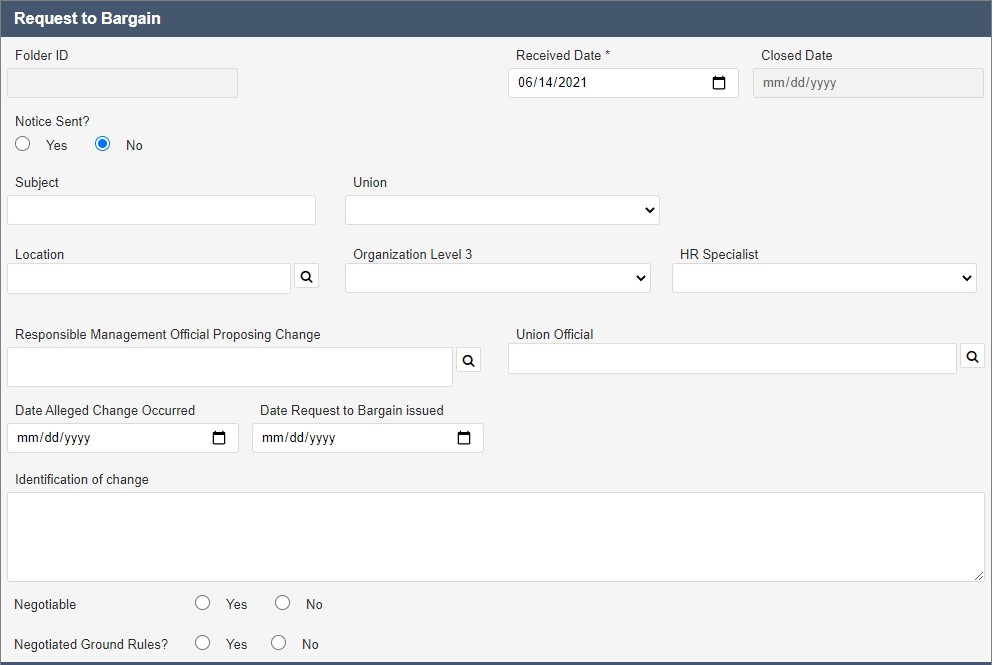
The Request to Bargain case type is utilized when a demand is submitted by a union, and this folder tracks the negotiations and outcome of the union demand.
4.2.1 Create a Request to Bargain
Follow the steps below to create a new Request to Bargain:
Within the Launch Pad, click Main Menu > Labor Relations > Request to Bargain. The New Folder screen appears.
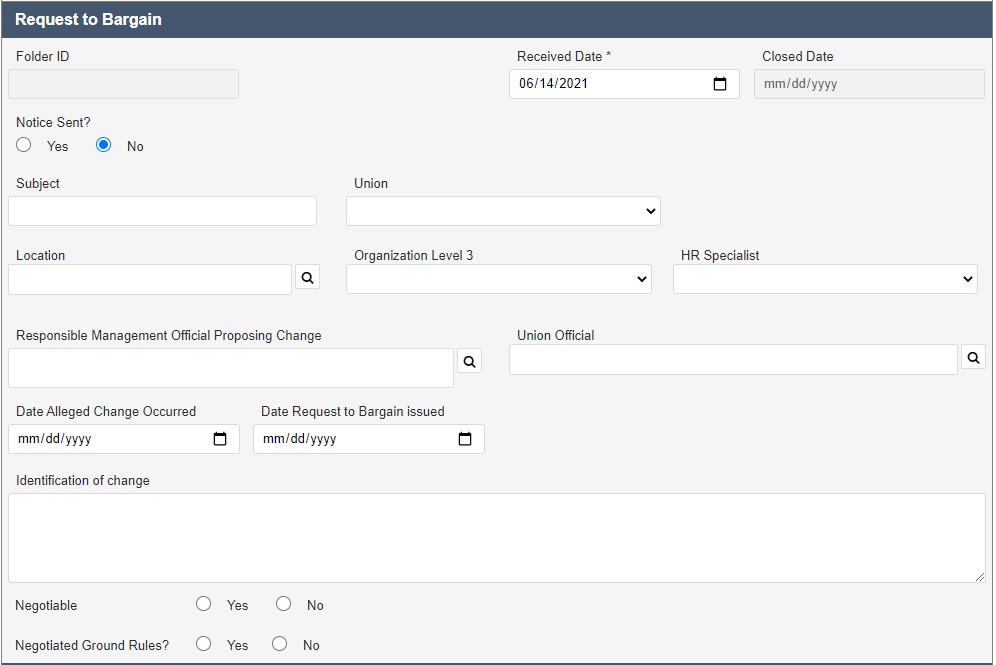
The New Folder screen appears. Select the Union Name from the drop-down list.
Enter information about the Identification of Change in the free text field.
Click Save to save the new Third Party Proceeding folder.
The folder is assigned a Folder ID, as highlighted above. The folder is now ready for further action. See the following section for more details.
4.2.2 Filing a Request to Bargain
In addition to contact-related fields, the Request to Bargain form has fields to capture additional case folder information. Complete these fields as the case folder progresses through the workflow. The fields on the form are described in the following table:
Field | Description | Data Type |
Received Date | Date the Request to Bargain was received. | Calendar select. Choose one day. |
Notice Sent? | Use the radio buttons to indicate if a notice was sent. | Radio button. Select one. |
Subject | Enter the Subject being bargained. | Free text field. |
Union | Select the name of the union filing the Request to Bargain. | Drop-down list. Select one. |
Location | Location of office proposing change. | Free text field. |
Organization Level 3 | Level of organizational structure for the office. | Drop-down list. Select one. |
HR Specialist | Name of HR Specialist associated with office. | Contact search. Click the Lookup icon to search for a system Contact. |
Responsible Management Official Proposing Change | Name of management official proposing change which prompted Request to Bargain. | Contact search. Click the Lookup icon to search for a system Contact. |
Union Official | Name of union official associated with Request to Bargain submission. | Contact search. Click the Lookup icon to search for a system Contact. |
Date Alleged Change Occurred | Date the change in operations began. | Calendar select. Choose one day. |
Date Request to Bargain Issued | Date the Request to Bargain was issued. | Calendar select. Choose one day. |
Identification of Change | Enter a description of the change that triggered Request to Bargain submission. | Free text field. |
Negotiable | Is this Request to Bargain negotiable? This selection may prompt additional fields. | Radio Button. Select one. |
Negotiated Ground Rules? | Indicate if the involved parties have negotiated the ground rules for bargaining. | Radio Button. Select one. |
Date Ground Rules Agreed to | Indicate the date the bargaining ground rules were agreed to. | Calendar select. Choose one day. |
Date(s) of Negotiations | Indicate the date the negotiations took place. | Calendar select. Choose one day. |
Proposals Submitted? | Use the radio buttons to indicate if any proposals were submitted. | Radio Button. Select one. |
Summary | Summarize the negotiations. | Free text field. |
Agreement Reached? | Indicate if the negotiations led to an agreement between the parties. | Radio Button. |
Date Agreement Reached | Indicate the date the agreement was finalized. | Calendar select. Choose one day. |
Summary of Agreement | Enter a summary of the agreement the parties negotiated. | Free text field. |
Comments | Enter any additional information about the Request to Bargain. | Free text field. |
After making any changes to the details on this tab, click Save to save the changes before navigating away from the page.
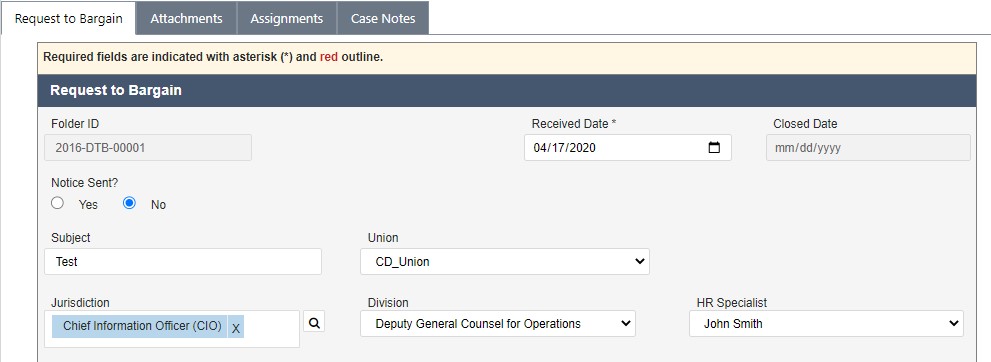
4.2.3 Request to Bargain UI
The Request to Bargain tab is used to capture Request to Bargain details. The standard eCASE Attachments, Assignments, and Case Notes tabs are also provided.
4.3 Information Request
While processing LR cases, information requests may be required to fully and successfully close these cases. The LR Module has a separate Information Request case type to handle these requests. This section provides information about creating and filing Information Requests.
4.3.1 Create an Information Request
Follow the steps below to create a new Information Request:
Within the Launch Pad, click Main Menu > Labor Relations > Information Request. The New Folder screen appears.
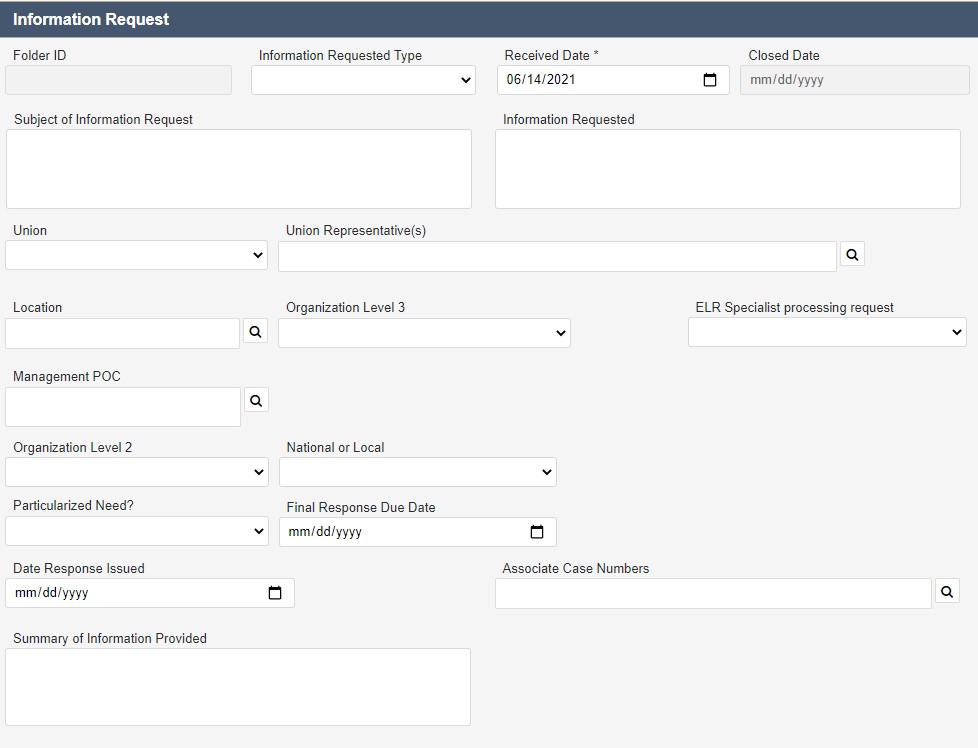
The New Folder screen includes various data fields, both required and optional. For the purpose of initiating the Information Request, only the required fields must be completed. These are denoted with a red outline.
NOTE: The Union Representative lookup is a Contact search. Users must exist as a Contact to be selected.
Click the Union Representative(s) lookup. The Search for Contact screen appears. Enter any relevant data in the available search fields.
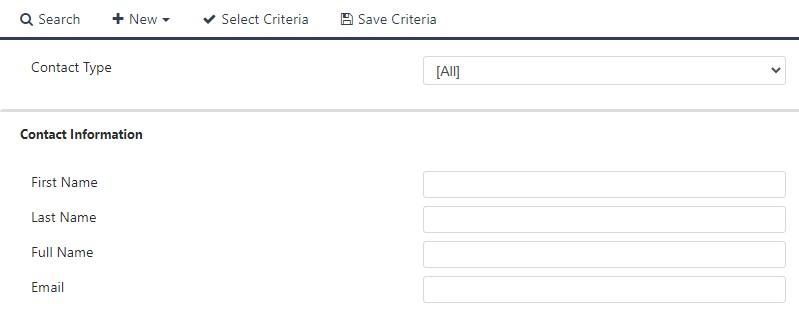
Click Search. The Select Contact screen appears.
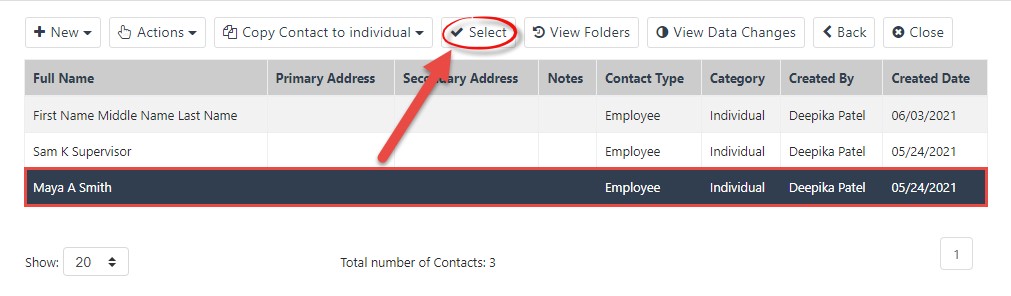
Select the specialist for whom to assign the request, and click Select. The New Folder screen reappears with the selected Contact populating the ER/LR Specialist field.
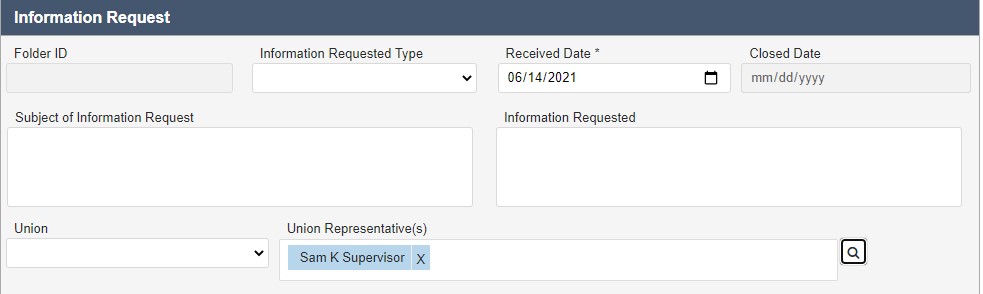
Select the Union that is submitting the Data Request from the drop-down list.
Complete the Information Requested field. Include as much information as possible to ensure the best results.
Click Save to save the new Information Request.
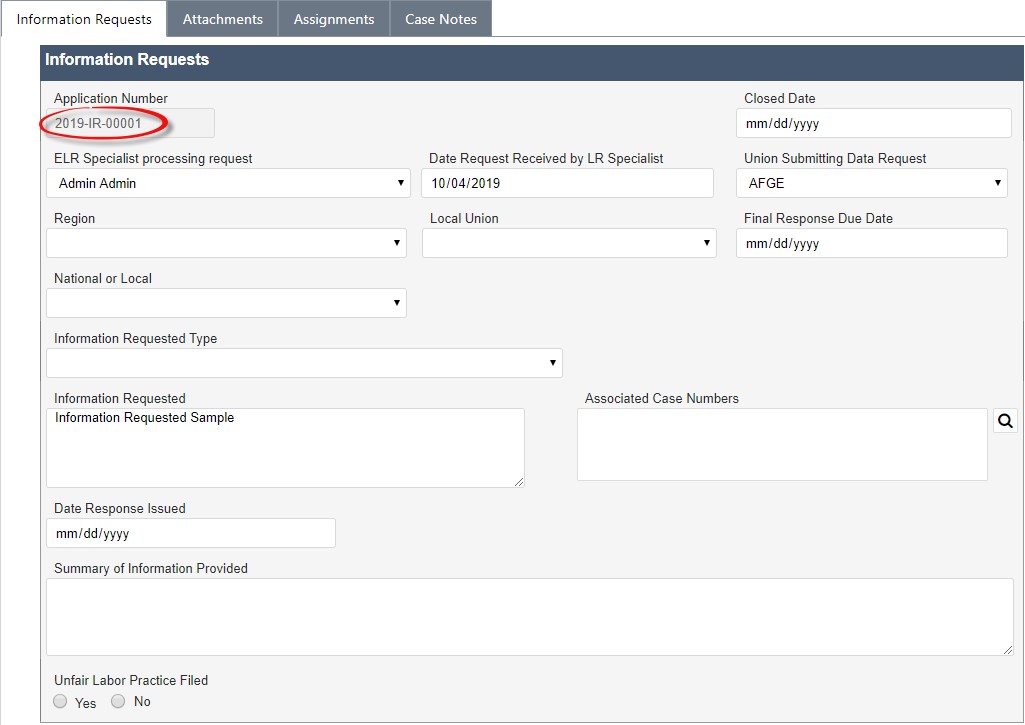
The folder is assigned a Folder ID, as highlighted above. The folder is now ready for further action. See the following section for more details.
4.3.2 Filing Information Requests
In addition to contact-related fields, the Information Request form has fields to capture case folder information. Complete these fields as the case folder progresses through the workflow.
These fields are described in the following table:
Field | Description | Data Type |
Information Requested Type | Type of information being requested. | Drop-down list. Select one. |
Received Date | Indicate the date the requested information was received. | Calendar select. Choose one day. |
Subject of Information Request | Enter information about the subject of the information request. | Free text field. |
Information Requested | Specify the information requested. | Free text field. |
Union | Local union involved in ULP reporting. | Drop-down list. Select one. |
Union Representative | Select the union representative personnel. | Contact search. Click the Lookup icon to search for a system Contact. |
Location | Region of the program office. | Free text field. |
Organization Level 3 | Select the location/code associated with organizational level 3. | Drop-down list. Select one. |
ER/LR Specialist processing request | Select the specialist processing the request. | Drop-down list. Select one. |
Management POC | Use the lookup to select the point of contact for the management team. | Contact search. Click the Lookup icon to search for a system Contact. |
Organization Level 2 | Select the location/code associated with organizational level 2. | Drop-down list. Select one. |
National or Local | Is this information being requested for a specific local organization, or is this in regards to a national organization. | Drop-down list. Select one. |
Particularized Need? | Indicate if the request is for a particularized need. | Drop-down list. Select one. |
Final Response Due Date | Due date for the final response to the Information Request. | Calendar select. Choose one day. |
Date Response Issued | Date management responded. | Calendar select. Choose one day. |
Associated Case Numbers | Folder IDs associated with the Information Request. | Free text field, enter all applicable cases. |
Summary of Information Provided | Enter a summary of the information provided by the request. | Free text field. |
Comments | Enter any additional information about the Request to Bargain. | Free text field. |
After making any changes to the information in this tab, click Save to save the changes before navigating away from the page.
4.3.3 Information Request UI
The Information Request tab is used to capture Information Request details. The standard eCASE Attachments, Assignments, and Case Notes tabs are also provided.
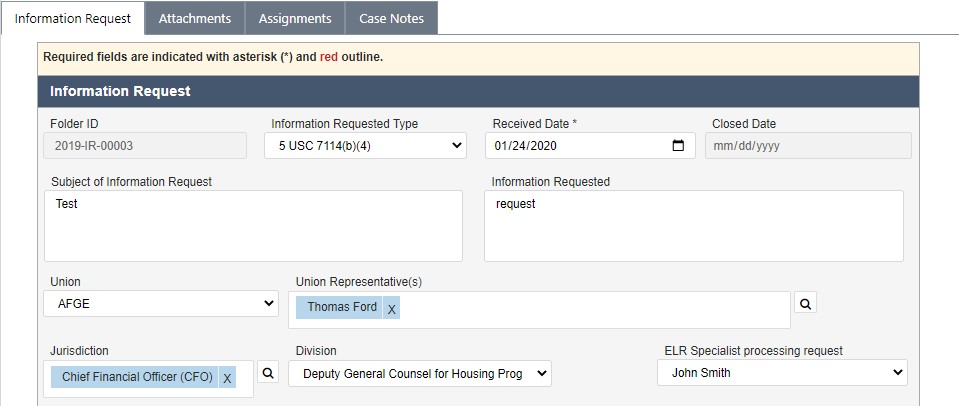
4.4 Unfair Labor Practice
An Unfair Labor Practice (ULP) case is the reporting and review of alleged unfair labor practices. This section provides information about creating and working with Unfair Labor Practice cases.
4.4.1 Create an Unfair Labor Practice Case
Unfair Labor Practice case folders are initiated from the Launch Pad. Follow the steps below to create a new ULP:
Within the Launch Pad, click Main Menu > Labor Relations > Unfair Labor Practice. The New Folder screen appears.
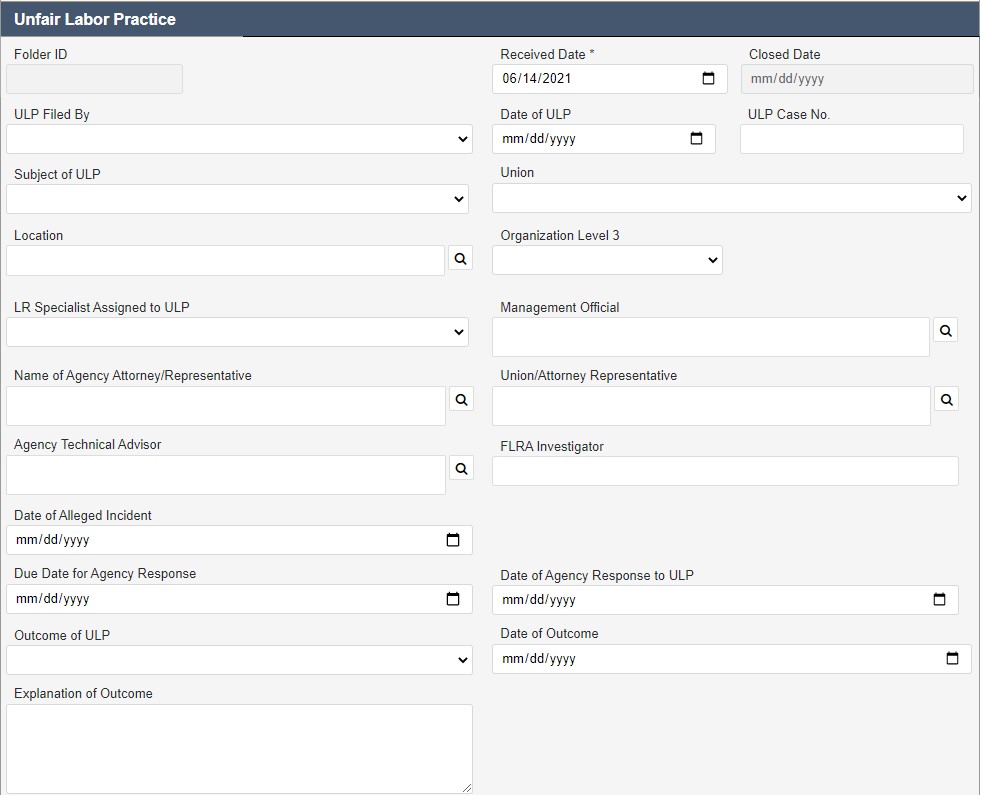
The New Folder screen includes various data fields, both required and optional. For the purpose of initiating the ULP, only the required fields must be completed. These are denoted with a red outline, for example on Employee Name in the example above. Click the Lookup.
NOTE: The Employee Name lookup is a Contact search. Users must exist as a Contact to be selected.
The Search for Contact screen appears. Enter any relevant data in the available search fields.
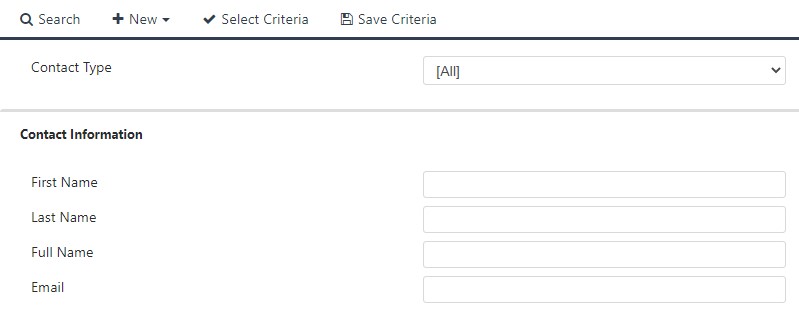
Click Search. The Select Contact screen appears, listing search results which meet the entered criteria.
Click the employee for whom to file a ULP, and then click Select.
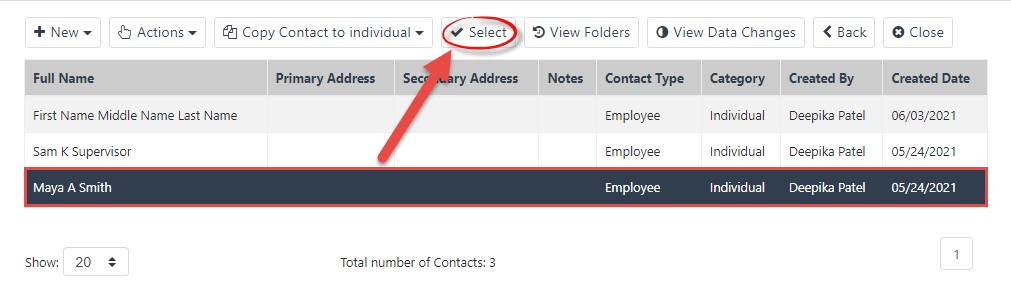
The Unfair Labor Practice screen reappears with the selected contact populating the Employee Name field. In addition, the contacts details are automatically populated.
Click Save. The Unfair Labor Practice folder appears.
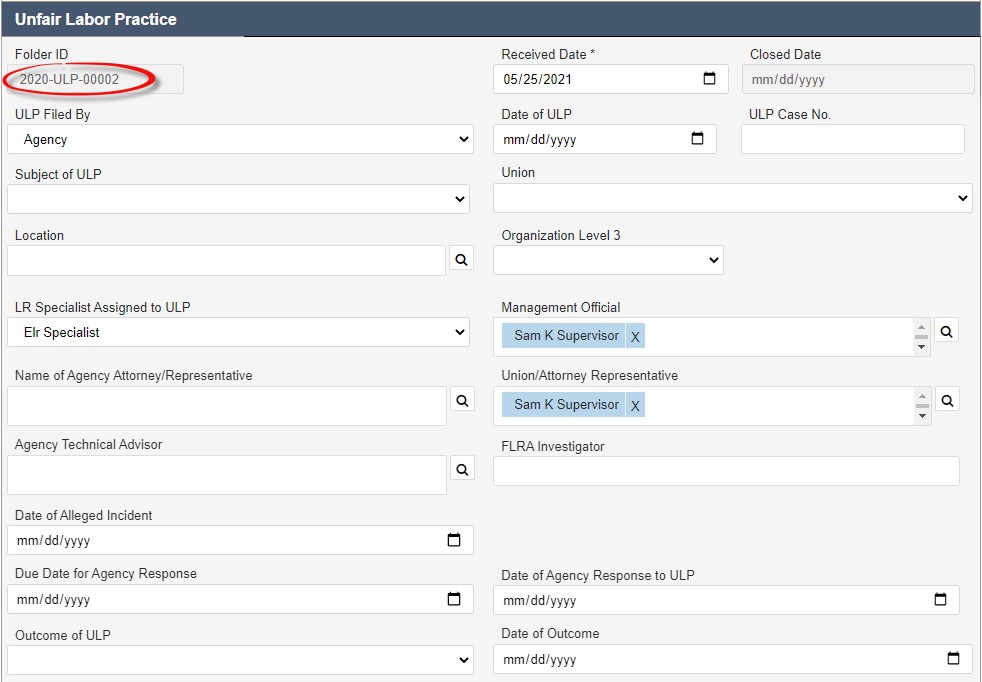
The folder is assigned a Folder ID, as highlighted above. The folder is now ready for further action. See the following section for more details.
4.4.2 Filing an Unfair Labor Practice
In addition to contact-related fields, the Unfair Labor Practice form has fields to capture additional case folder information. Complete these fields as the case folder progresses through the workflow. These fields are described in the following table:
Field | Description | Data Type |
Received Date | Date the ULP was received inoffice. | Calendar select. Choose one day. |
ULP Filed By | Select Agency/Employee/Union. | Drop-down list. Select one. |
Date of ULP | Date of alleged ULP. | Calendar select. Choose one day. |
ULP Case No. | Number of the referring ULP Case. | Free text field. |
Subject of ULP | Select the subject of the unfair labor practice protest. | Drop-down list. Select one. |
Union | The union involved in ULP reporting. | Drop-down list. Select one. |
Location | Office where Program Office involved in ULP is located. | Drop-down list. Select one. |
Organization Level 3 | Select the location/code associated with organizational level 3. | Free text field. |
LR Specialist Assigned to ULP | LR Specialist assigned to handle this ULP. | User Lookup. Click the Lookup icon to search for a credentialed user. |
Management Official | Point of contact in the impacted Program Area. | Contact search. Click the Lookup icon to search for a system Contact. |
Name of Agency Attorney/Representative | Select the name of the attorney representing the Agency. | User Lookup. Click the Lookup icon to search for a credentialed user. |
Union Attorney/Representative | Select the name of the attorney representing the Union. | User Lookup. Click the Lookup icon to search for a credentialed user. |
Agency Technical Advisor | Select the technical advisor associated with the agency. | User Lookup. Click the Lookup icon to search for a credentialed user. |
FLRA Investigator | Enter the name of the FLRA Investigator associated with the ULP. | Free text field. |
Date of Alleged Incident | Program Office involved in the alleged ULP. | Drop-down list. Select one. |
Due Date for Agency Response | Select the date by which the agency must respond. | Calendar select. Choose one day. |
Date of Agency Response to ULP | Date the agency ultimately responds to the Employee/Union ULP. | Calendar select. Choose one day. |
Outcome of ULP | Result of the FLRA Decision. | Drop-down list. Select one. |
Date of Outcome | Select the date that the ULP Decision was rendered. | Calendar select. Choose one day. |
Explanation of Outcome | Enter information explaining the outcome of the ULP case. | Free text field. |
FLRA Conducted | Indicate whether an FLRA investigation is conducted in response to the ULP. | Radio button. Select one. |
Date of FLRA Decision | Date the FLRA Decision is issued. | Calendar select. Choose one day. |
Agency Complied with FLRA Decision | Has the agency complied with the FLRA Decision? | Radio button. Select one. |
Attempts to Informally Resolve ULP | Description of any attempts to resolve ULP without the assistance of FLRA. | Free text field. |
Appeal | Is the ULP being appealed? This selection may prompt additional fields. | Radio button. Select one. |
Settlement Discussed | Indicate if a Settlement was discussed between the involved parties. | Radio button. Select one. |
Information Request Filed? | Indicate if an Information Request has been filed in relation to the ULP. | Radio button. Select one. |
Comments | Enter any additional information relevant to the case folder. | Free text field. |
Costs | Select the nature of the ULP costs. | Drop-down list. Select one. |
Amount | Enter the numeric value of the ULP cost. | Free text field. |
After making any changes to the details on this tab, click Save to save the changes before navigating away from the page.
4.4.3 ULP UI
The ULP tab is used to capture Unfair Labor Practice details. The standard eCASE Attachments, Assignments, and Case Notes tabs are also provided.
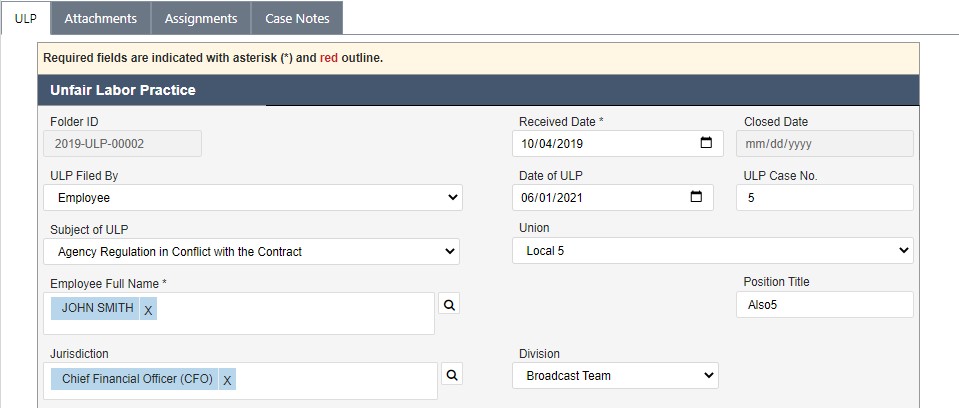
4.5 Grievance
Employee Grievances can be files through eCASE Labor Relations. Credentialed LR users can start and process a Grievance case. The Grievance form allows for qualified users to create an Arbitration case for use during the processing an employee grievance.
4.5.1 Create a Grievance
NOTE: A grievance can also be created from a Conduct Action or Performance Action case folder if the case folder is grieved by a union employee.
Follow the steps below to create a new Grievance:
Within the Launch Pad and select Main Menu > Labor Relations > Grievance. The New Folder screen appears.
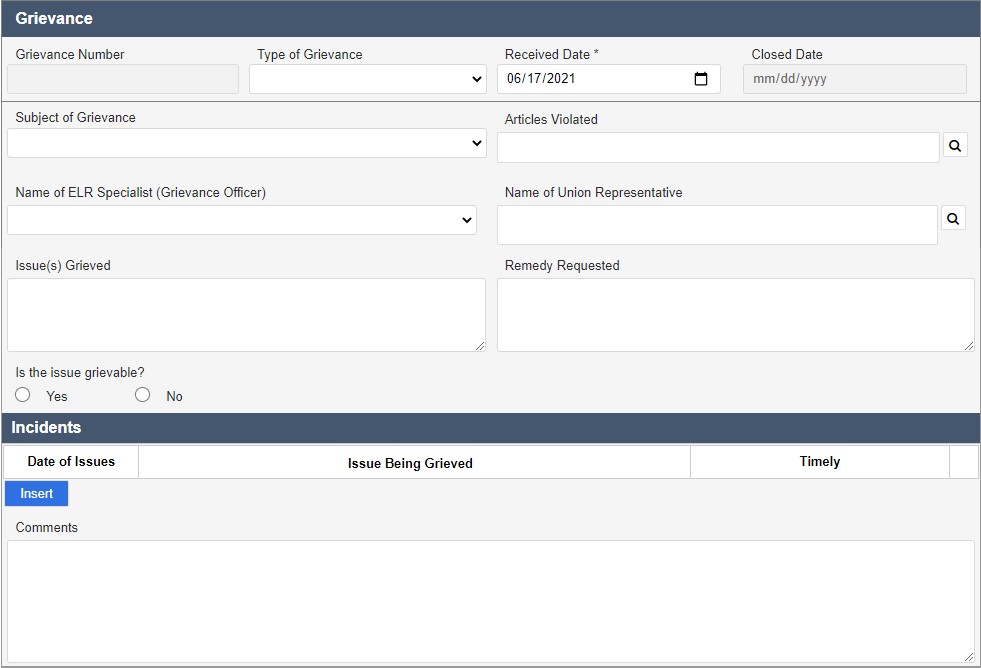
Select the Type of Grievance from the drop-down list.
NOTE: The selection made in the Type of Grievance drop-down determines the fields available in the case form. The following procedure will utilize the Employee selection.
Complete the remaining fields.
NOTE: The Employee Name lookup is a Contact search. Users must exist as a Contact to be selected.
Click the Name of Union Representative lookup.
The Search for Contact screen appears. Enter any relevant data in the available search fields.
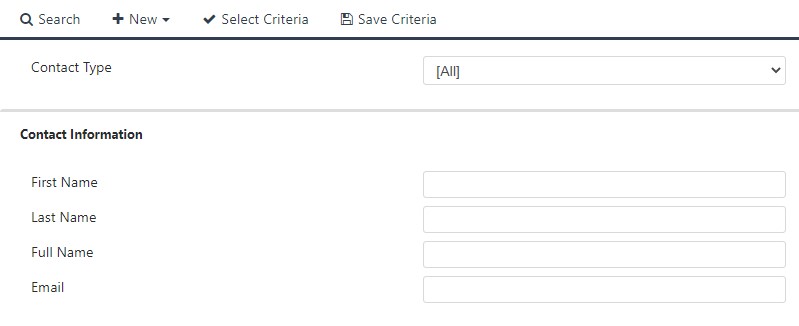
Click Search. The Select Contact screen appears, listing search results which meet the entered criteria.
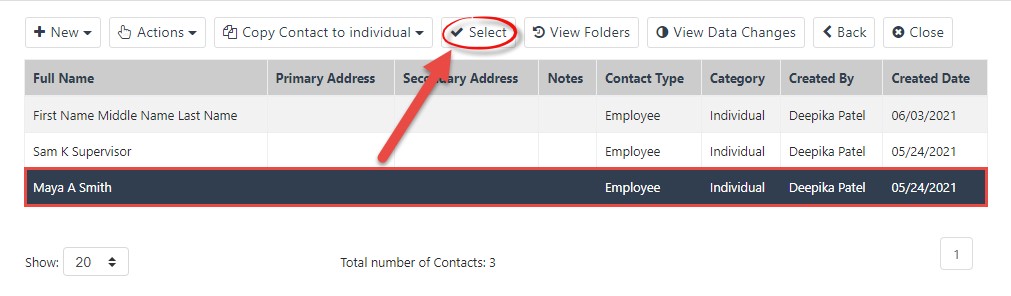
Select the employee for whom to file a Grievance, and then click Select. The Grievance screen reappears with the selected contact populating the Name of Grievant field. In addition, the contact’s details are automatically populated into the corresponding fields:
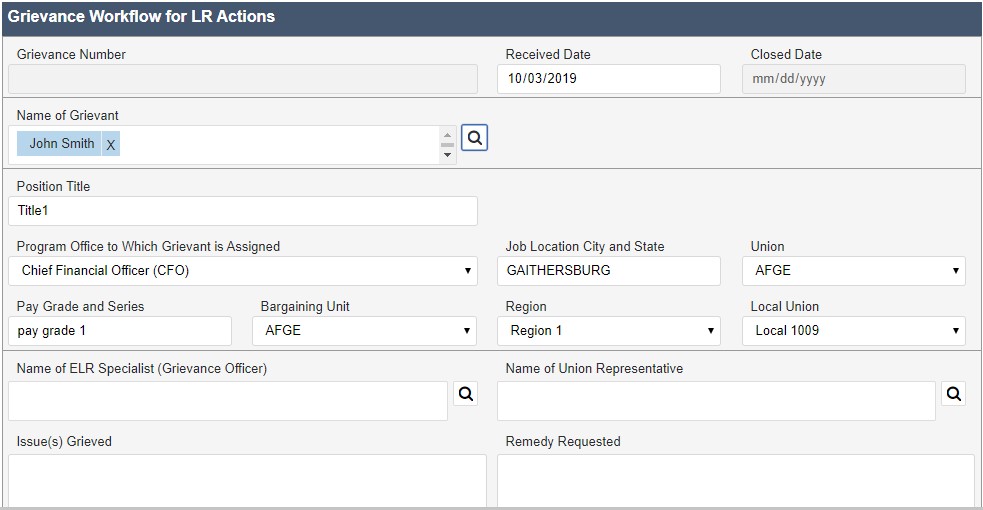
Click Save. The Grievance folder appears.
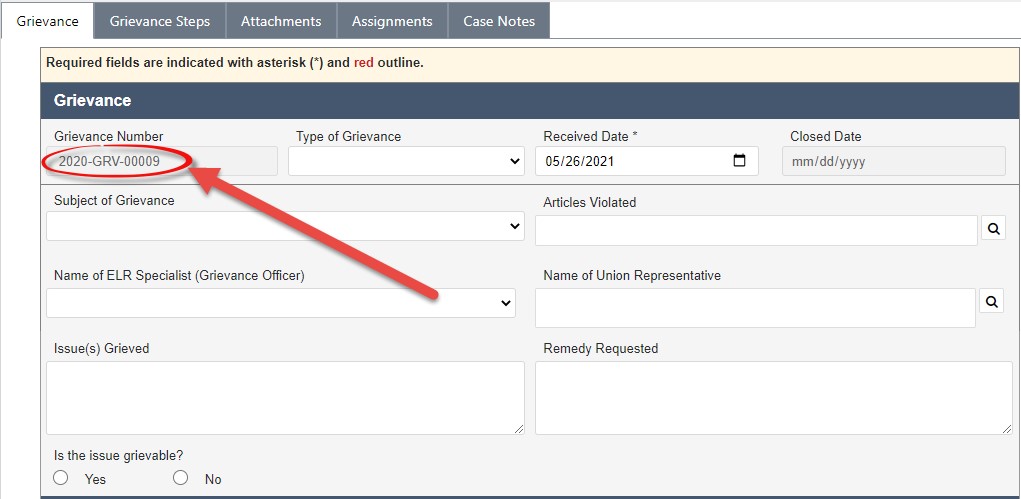
The folder is assigned a Folder ID, as highlighted above. The folder is now ready for further action. See the following section for more details.
4.5.2 Filing a Grievance
In addition to contact-related fields, the Grievance form has fields to capture additional case folder information. Complete these fields as the case folder progresses through the workflow.
These fields are described in the following table:
Field | Description | Data Type |
Type of Grievance | Type of grievance to be filed in response to the employee’s issue. | Drop-down list. Select one. |
Received Date | Date the Grievance was received in-office. | Calendar select. Choose one day. |
Subject of Grievance | Select the subject for which the grievance is being raised. | Drop-down list. Select one. |
Article Violated | Specific article violated according to the employee’s grievance. | Drop-down list. Select one. |
Name of ER/LR Specialist (Grievance Officer) | Name of ER/LR Specialist assigned to the case. | Contact search. Click the Lookup icon to search for a system Contact. |
Name of Union Representative | Name of the employee’s union representative. | Contact search. Click the Lookup icon to search for a system Contact |
Issue(s) Grieved | Description of the issues which prompted the Grievance submission. | Free text field. |
Remedy Requested | What kind of remedy is being requested? | Free text field. |
Is this issue Grievable? | Does the issue qualify for a grievance submission? | Radio button. Select one. |
Date of Issues | Select the date of the issue being grieved. | Calendar select. Choose one day. |
Issue Being Grieved | Enter information describing the issue being grieved. | Free text field. |
Timely | Select the radio button to indicate if the subject of the grievance is time sensitive. | Radio button. Select one. |
Information Request Filed | Indicate if an Information Request has been filed. | Radio button. Select one. |
Date Information Request Filed | Use the date picker to select the date that the Information Request was filed. | Calendar select. Choose one day. |
Comments | Any additional comments related to the Grievance. | Free text field. |
NOTE: The Grievance tab also includes a Create Arbitration button. This escalates the case to Arbitration.
4.5.3 Grievance Steps
A Grievance Steps tab is present under each Grievance folder, allowing you to log steps in a multi-part Grievance filing process. These steps account for actions, meetings, and decisions in the filing process.
To access Grievance Steps, open an existing Grievance and navigate to the Grievance Steps tab, highlighted below:
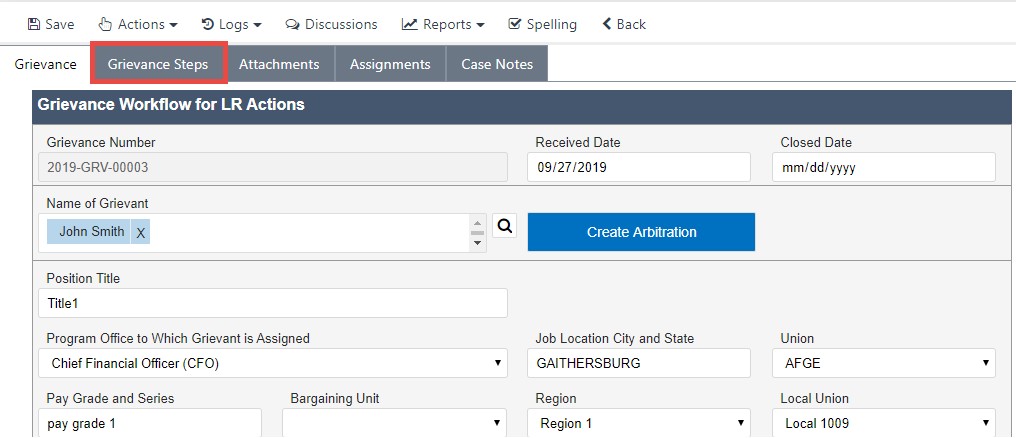
The Grievance Steps tab appears. This tab allows you to log up to three Grievance Steps. Each Grievance Step will be completed by a different member of management. The fields under Step 1 are described in the table below.
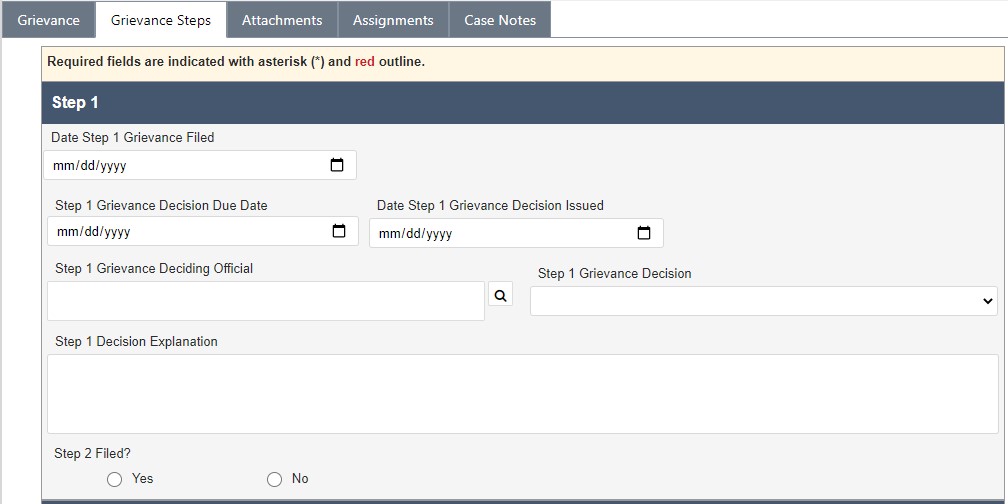
The following table displays a list of fields available within the tab:
Field | Description | Data Type |
Date Step 1 Grievance Filed | Date the first Grievance step is filed. | Calendar select. Choose one day. |
Step 1 Grievance Decision Due Date | Date that management is required to respond to the grievance. | Calendar select. Choose one day. |
Date Step 1 Grievance Decision Issued | Date a decision was issued in response to Grievance Step 1. | Calendar select. Choose one day. |
Step 1 Grievance Deciding Official | Management representative involved in Grievance Step 1. | Contact search. Click the Lookup icon to search for a system Contact. |
Step 1 Grievance Decision | Decision reached in response to Grievance Step 1. | Drop-down list. Select one. |
Step 1 Decision Explanation | Explanation of the results of the grievance. | Free text field. |
Step 2 Filed | Select Yes to open the Step 2 workspace. | Radio button. Select one. |
In addition to Step 1, there are spaces to file Step 2 and Step 3. Fields under these steps have the same attributes as Step 1, however are applied to the second and third Grievance Steps, respectively.
NOTE: The base of the Grievance Steps tab features the Appeal section, which contains the Invoke to Arbitration radio button, and a hyperlink to any arbitrations created from this case folder. Selecting Yes in the Invoke to Arbitration radio button can be used to create an Arbitration case folder from this Grievance folder.
Click Save after completing or editing any fields under Grievance Steps.
4.5.4 Escalate to Arbitration
In some cases, a Grievance may lead to Arbitration. The Grievance Steps tab includes a Create Arbitration button to easily move Grievances to Arbitration without recreating existing case information. Follow the steps below to escalate a Grievance:
In an existing Grievance, open to the Grievance Steps tab, then select Yes radio button in the Invoke to Arbitration field.
The workspace refreshes, and displays additional fields within the Appeal workspace. Use the date picker to select the date written request for Arbitration was submitted.
Clicking Create Arbitration.
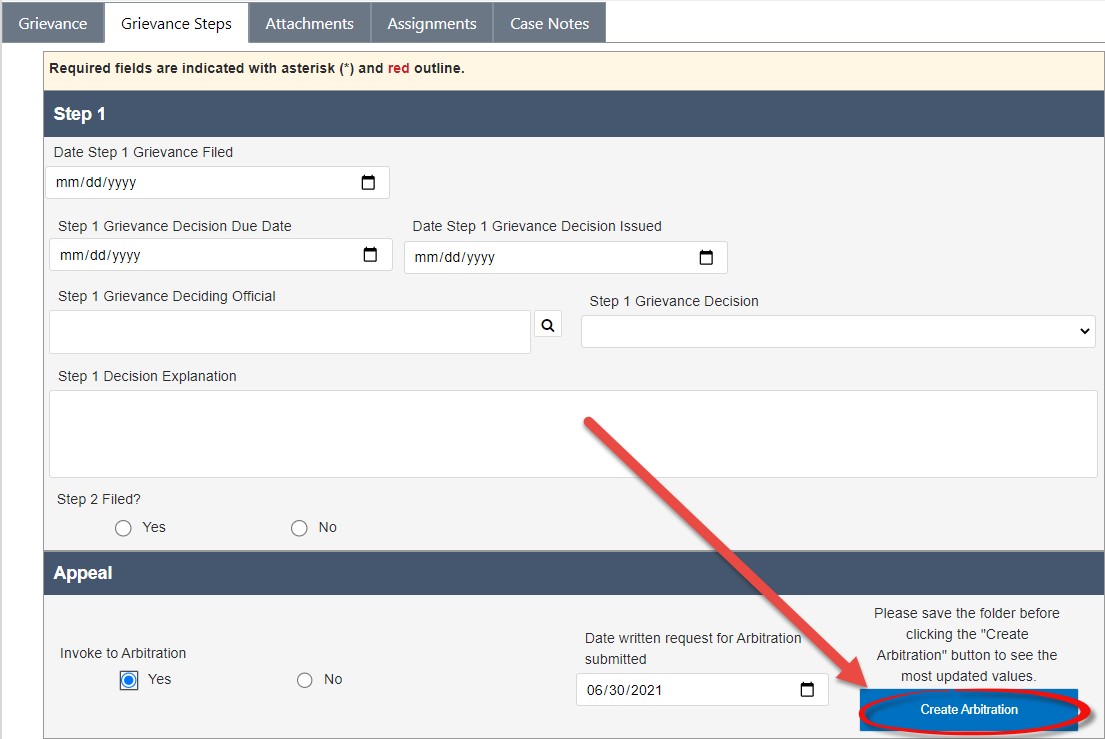
The following pop up confirmation appears. Click Yes.
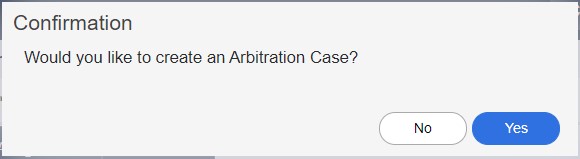
The workspace refreshes and the following pop up window appears. Click OK.
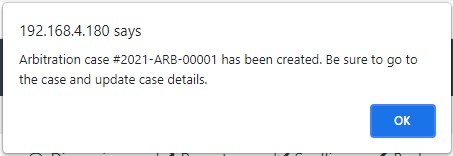
The new Arbitration case number is displayed in the Appeal section of the Grievance Steps. Click the Case Number to navigate to the new Arbitration case folder.

The new Arbitration case folder appears in a new tab. You can click the Grievance Case Number to return to the originating Grievance case folder.
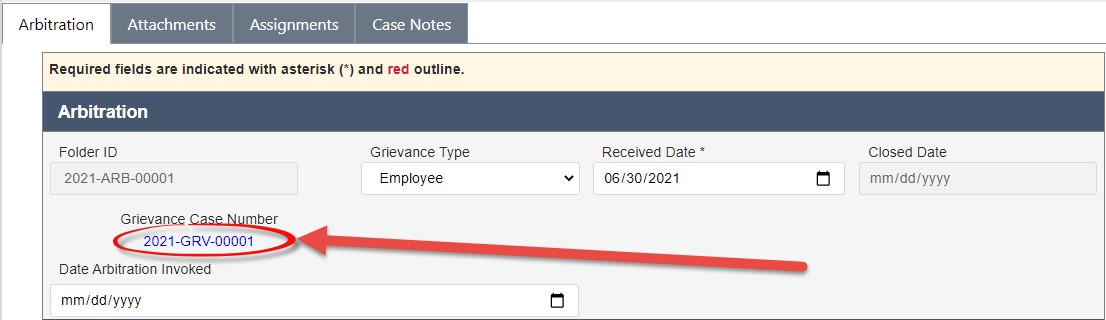
The Arbitration can now be advanced. See the Arbitration section for more information.
4.5.5 Grievance UI
The Grievance tab is used to capture Grievance details. The standard eCASE Attachments, Assignments, and Case Notes tabs are also provided.
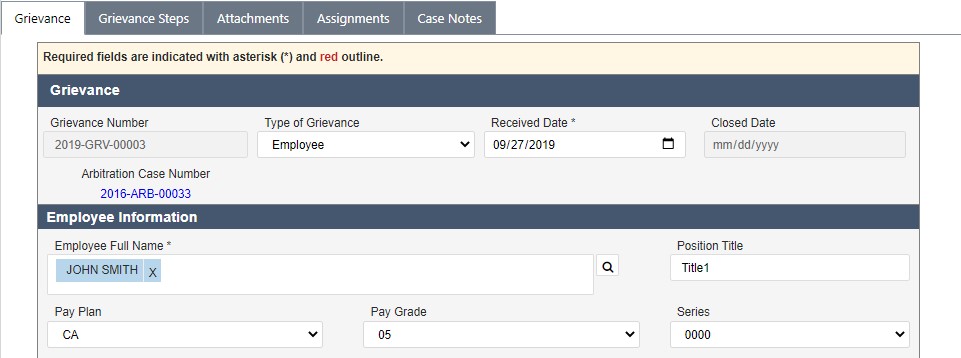
4.6 FLRA Petitions
Federal Labor Relations Authority (FLRA) Petitions are used to track the filing and completion of a petition to resolve any matter related to the representation of employees, such as elections, unit clarifications/amendments/decertification and accretions. FLRA petitions can be filed by Unions, Agencies, or by the employee themselves.
4.6.1 Create an FLRA Petition
Follow the steps below to create a new FLRA Petition:
Within the Launch Pad, click Main Menu > Labor Relations > FLRA Petitions. The New Folder screen appears.
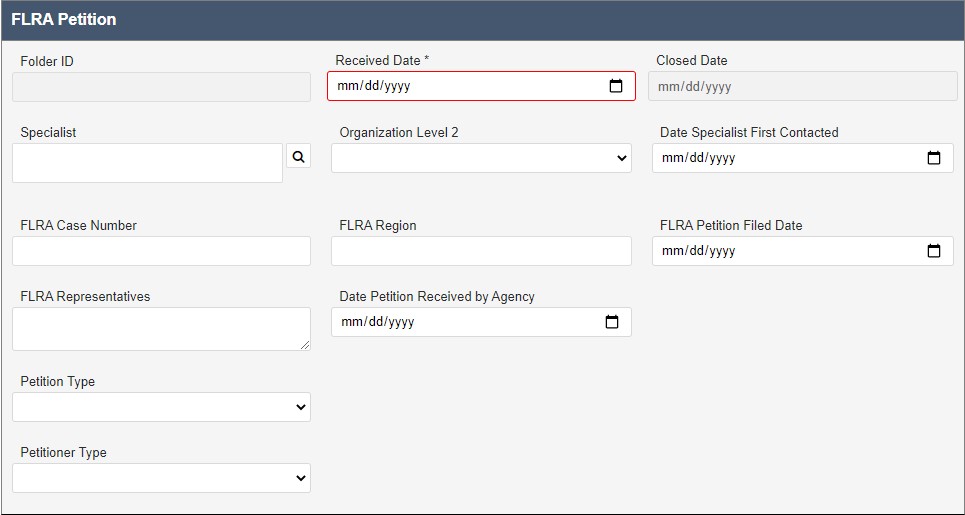
NOTE: The FLRA Folder ID is an identifier used to track the petition as it progresses through an external tracking system.
The New Folder screen includes various data fields, both required and optional. For the purpose of initiating the FLRA Petition only the required fields must be completed. These are denoted with a red outline, for example on Received Date in the screen above. Select the Received Date using the date picker.
Click the Specialist lookup.
The Select Item screen appears. Select a Specialist radio button and click OK.
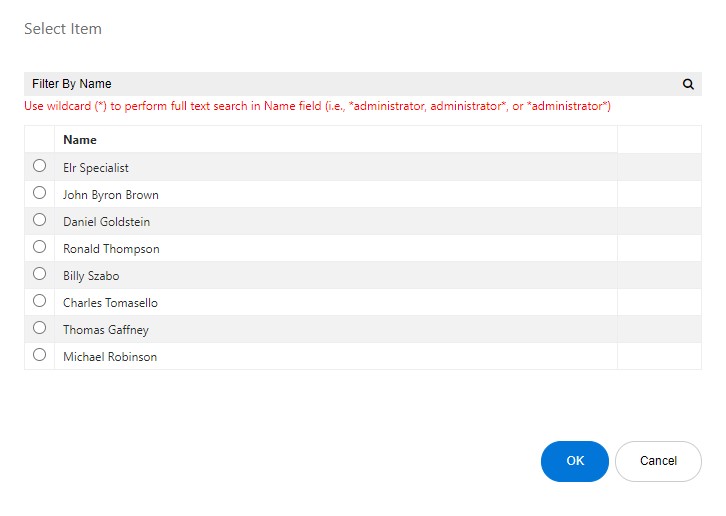
The pop up window closes and the selected Specialist appears in the field. Complete any remaining required fields and click Save. The FLRA Petition folder appears.
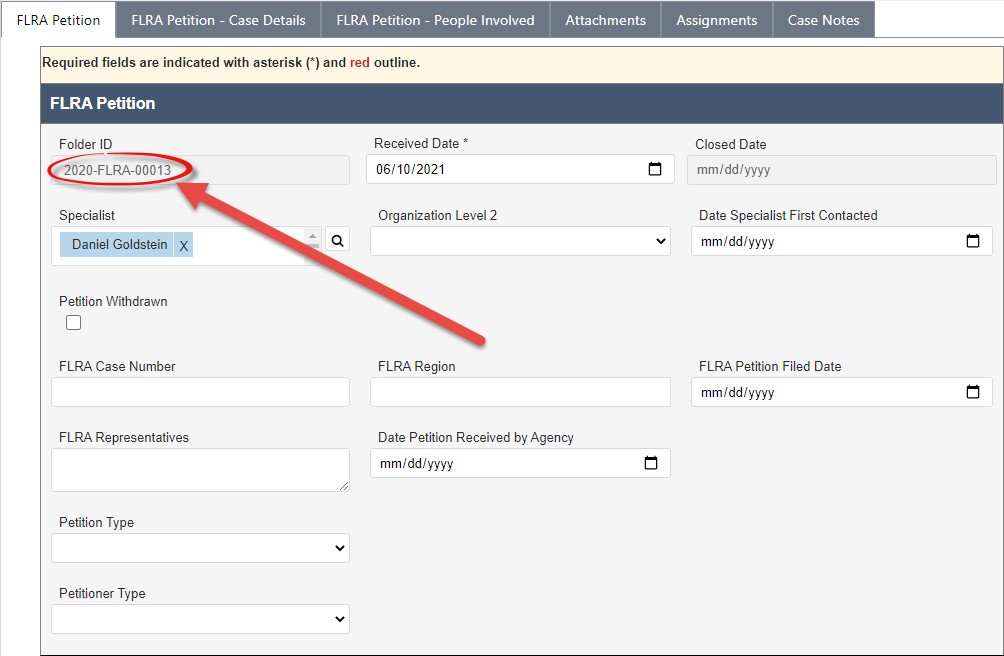
The folder is assigned a Folder ID, as highlighted above. The folder is now ready for further action. See the following section for more details.
4.6.2 Filing FLRA Petitions
In addition to contact-related fields, the FLRA Petition form has fields to capture additional case folder information. Complete these fields as the case folder progresses through the workflow. These fields are described in the following table:
Field | Description | Data Type |
Received Date | Select the date that the FLRA Petition was received. | Calendar select. Choose one day. |
Specialist | The name of the representation of the employee, typically legal representation. | Contact search. Click the Lookup icon to search for a system Contact. |
Organization Level 2 | Field used to identify lower levels of the organization, if needed. | Drop-down list. Select one. |
Date Specialist First Contacted | The date that the FLRA Specialist was first contacted regarding the case. | Calendar select. Choose one day. |
FLRA Folder ID | The identifier associated with the FLRA case. | Free text field. |
FLRA Region | Indicate the geographic FLRA region associated with the case. | Free text field. |
FLRA Petition Filed Date | Indicate the date that the case was filed with the FLRA. | Calendar select. Choose one day. |
FLRA Representatives | Indicate the FLRA Personnel assigned to the case. | Free text field. |
Date Petition Received by Agency | Indicate the date that the formal FLRA Petition was received by your agency. | Calendar select. Choose one day. |
Petition Type | Use this drop-down list to indicate the type of petition. Selecting Other enables the Other Petition Type field. | Drop-down list. Select one. |
Petitioner Type | Use this drop-down list to select the entity beginning the petition. This selection enables other fields. | Drop-down list. Select one. |
4.6.3 FLRA Petition UI
The FLRA Petition tab is used to capture FLRA Petition details.
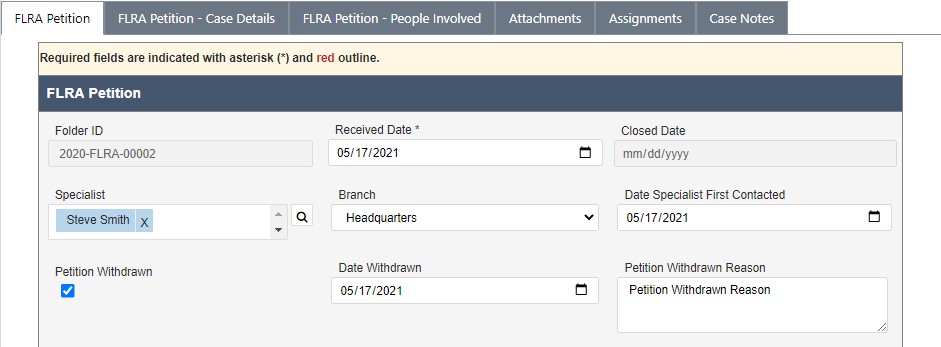
The FLRA Petition – Case Details tab is used to capture information about the decision of the petition/actions completed after the decision.
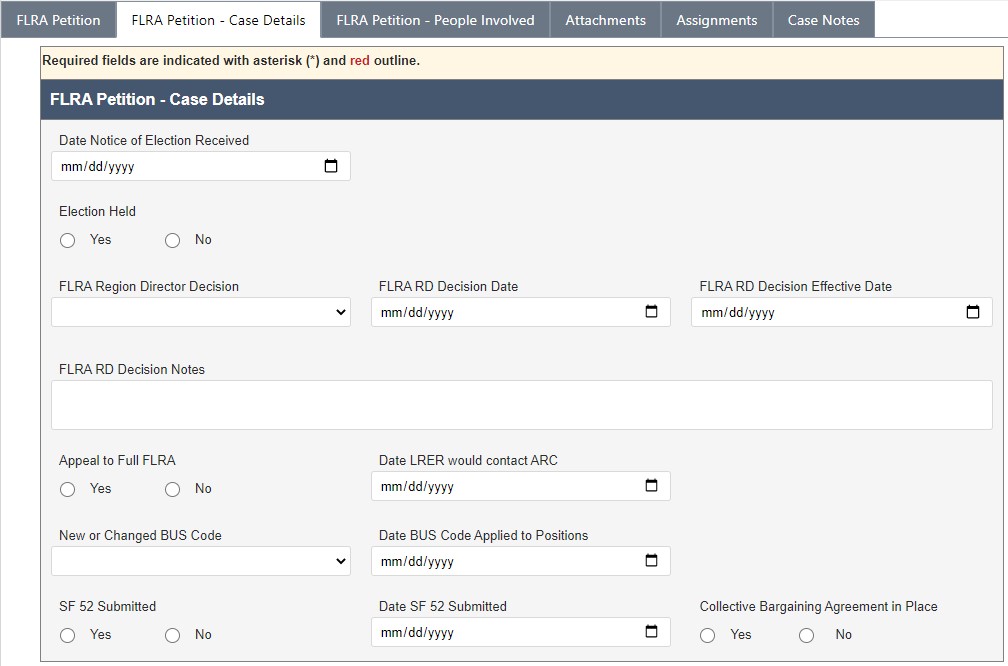
The FLRA Petition – People Involved tab is used to capture information about individuals involved with the FLRA petition as the case progresses. This tab contains a repeating table, allowing you to add as many users as necessary. You can add a new row to the workspace by clicking Add Person.
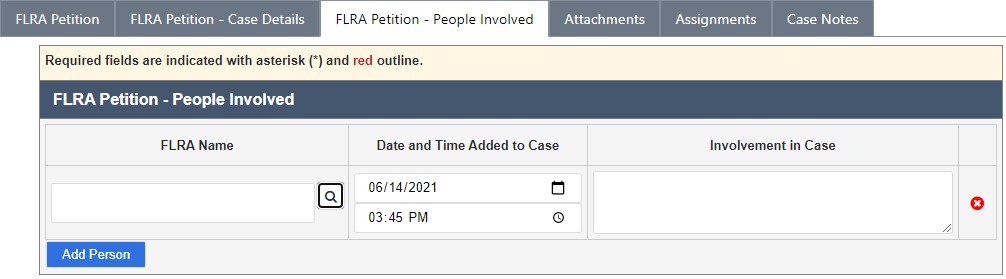
The standard eCASE Attachments, Assignments, and Case Notes tabs are also provided.
4.7 Union Notice
A Union Notice is an official notification sent to a union to notify them about an upcoming change in policy.
4.7.1 Create a Union Notice
Follow the steps below to create a new Union Notice:
Within the Launch Pad, click Main Menu > Labor Relations > Union Notice. The New Folder screen appears.
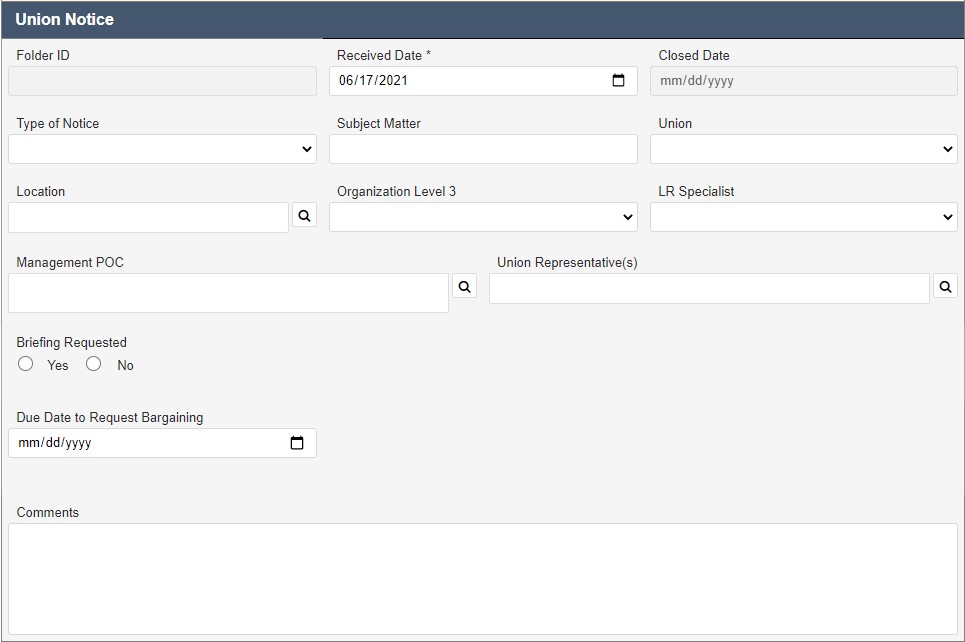
NOTE: There are no required fields associated with a Union Notice.
Complete the fields in the blank form and click Save. The Union Notice folder appears.
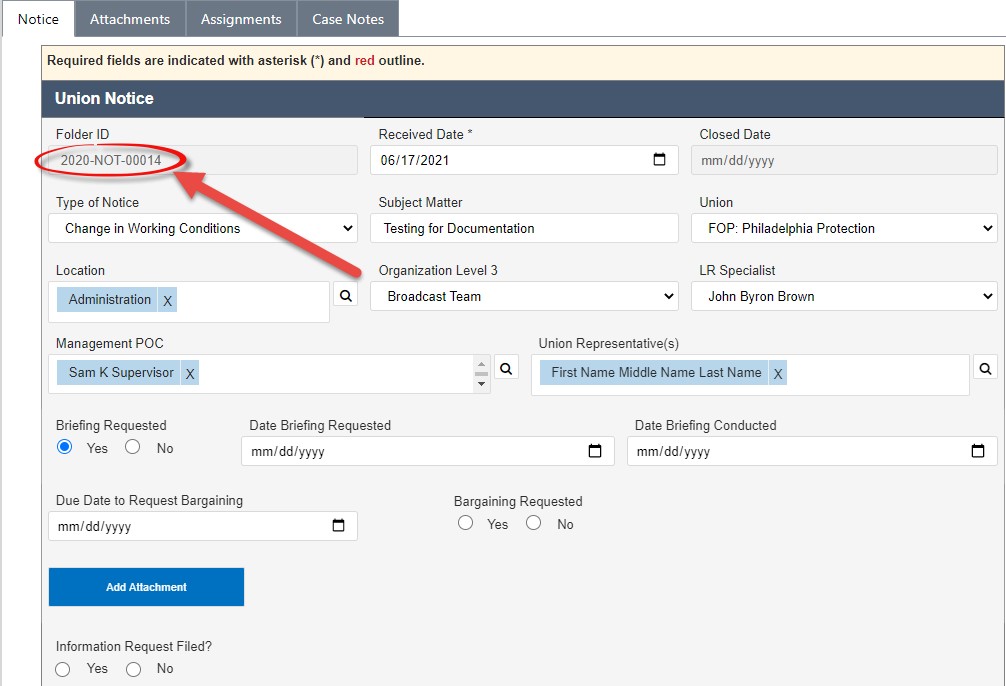
The folder is assigned a Folder ID, as highlighted above. The folder is now ready for further action. See the following section for more details.
4.7.2 Filing Union Notices
In addition to contact-related fields, the Union Notice form has fields to capture additional case folder information. Complete these fields as the case folder progresses through the workflow. These fields are described in the following table:
Field | Description | Data Type |
Received Date | Select the date the union notice was received. | Calendar select. Choose one day. |
Type of Notice | Select the type of Union Notice filed. | Drop-down list. Select one. |
Subject Matter | Enter a brief synopsis of the subject matter of the Union Notice. | Free text field. |
Union | Select the Union that filed the notice. | Drop-down list. Select one. |
Location | Use the lookup tool to select the Location. | Lookup. Select one. |
Organization Level 3 | Select the location/code associated with organizational level 3. | Drop-down list. Select one. |
LR Specialist | Select the LR specialist from the drop-down list. | Drop-down list. Select one. |
Management POC | Use the lookup to execute a search for and select the Management POC. | Contact search. Click the Lookup icon to search for a system Contact. |
Union Representative | Use the lookup to execute a search for and select the Union Representative. | Contact search. Click the Lookup icon to search for a system Contact. |
Briefing Requested | Use the Radio buttons to indicate if a briefing has been requested. | Y/N Radio button. Select one. |
Date Briefing Requested | This field appears if the Yes radio button was selected. Use the date picker to indicate the date that the briefing was requested by an involved party. | Calendar select. Choose one day. |
Date Briefing Conducted | This field appears if the Yes radio button was selected. Use the date picker to indicate the date that the requested briefing was conducted. | Calendar select. Choose one day. |
Due Date to Request Bargaining | Use the date picker to indicate the last date that bargaining can be requested. | Calendar select. Choose one day. |
Bargaining Requested | Use the radio buttons to indicate if bargaining was requested. | Y/N Radio Button. Select one. |
Date Bargaining was requested | Use the date picker to indicate the date that bargaining was requested. | Calendar select. Choose one day. |
Information Request Filed? | Use the radio buttons to indicate if an information request has been filed. | Y/N Radio Button. Select one. |
Date Information Request Filed | Use the date picker to indicate the date the information request was filed. | Calendar select. Choose one day. |
Comments | Use this free text field to enter any comments about the Union Notice, or information that exists outside the fields provided. | Free text field. |
4.7.3 Union Notice UI
The Union Notice tab is used to capture Union Notice details. See previous sections for details on this tab. The standard eCASE Attachments, Assignments, and Case Notes tabs are also provided.
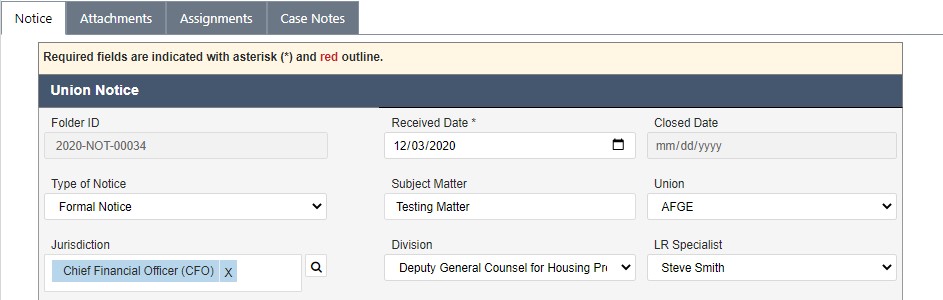
4.8 Pre-Decisional Involvement
A Pre-Decisional Involvement (PDI) is the voluntary involvement of a union prior to a final decision being made on a matter by management. Changes in policies that affect an employee will be sent to the union and they have the right to request changes to the policies.
4.8.1 Create a Pre-Decisional Involvement Case Folder
Follow the steps below to create a new Pre-Decisional Involvement:
Within the Launch Pad and select Main Menu > Labor Relations > Pre-Decisional Involvement. The New Folder screen appears.
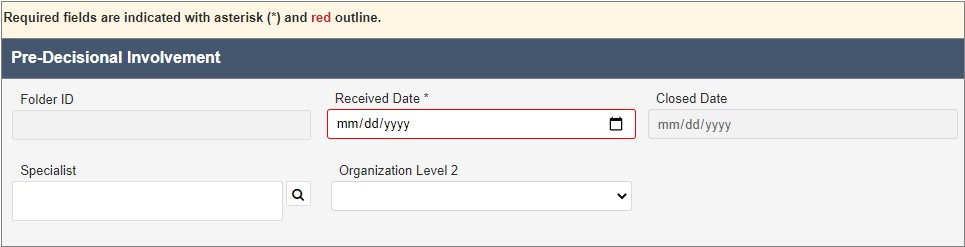
Select the Received Date using the date picker.
The New Folder screen includes various data fields, both required and optional. For the purpose of initiating the Pre-Decisional Involvement, only the required fields must be completed. These are denoted with a red outline, for example on Received Date in the example above. Click the Specialist Lookup.
NOTE: The Employee Name lookup is a Contact search. Users must exist as a Contact to be selected.
The Select Item pop up window appears. Select a specialist radio button and click OK.
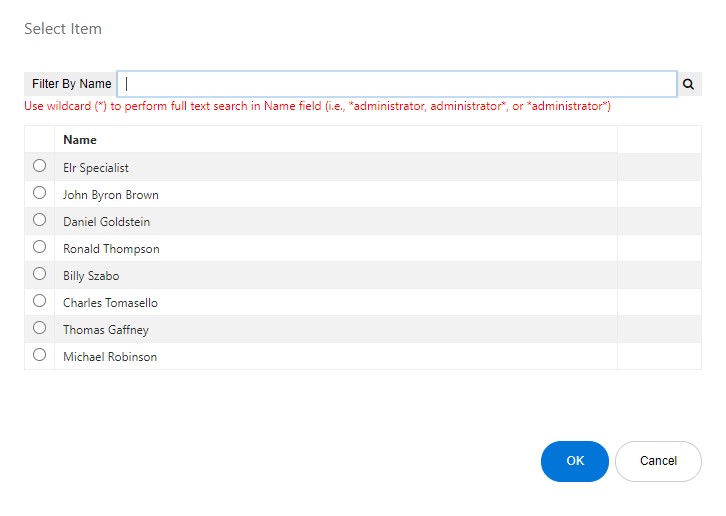
Click Save. The Pre-Decisional Involvement folder appears.
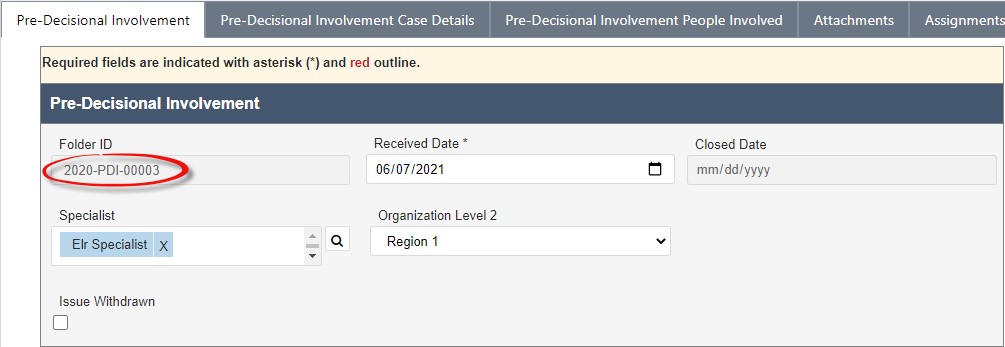
The folder is assigned a Folder ID, as highlighted above. The folder is now ready for further action. See the following section for more details.
4.8.2 Filing Pre-Decisional Involvement Case Folder
In addition to contact-related fields, the Pre-Decisional Involvement case folder features the Pre-Decisional Involvement Case Details tab, which is used to capture the progress of the case.
The fields contained in this tab are described in the following table:
Field | Description | Data Type |
Union | Select the Union associated with the Pre-Decisional involvement case. | Drop-down list. Select one. |
Bargaining Unit Codes | Select the bargaining unit codes associated with the Pre-Decisional Involvement Case. | Drop-down list. Select one. |
Date Specialist First Contacted | Use the date picker to select the date the specialist was first contacted. | Calendar select. Choose one day. |
Initiated By | Select who initiated by the PreDecisional Involvement Case. | Drop-down list. Select one. |
Forum or Method | Use the lookup to select the forum or method that the pre-decisional involvement case was initiated. | Lookup. Click the Lookup icon to search for a system Contact. |
Issues Involved | Enter information about the issues associated with the Pre-Decisional Involvement case. | Free-text field. |
Date Union Contacted | Use the date picker to select the date that the union was contacted. | Calendar select. Choose one day. |
Union Point of Contact Agency Employee | Use the lookup to select the agency employee that is the point of contact for the union. | Lookup. Click the Lookup icon to search for a system Contact. |
Union Point of Contact Non Agency Employee | Use the lookup to select the nonagency employee that is the point of contact for the union. | Free Text field. |
Union Response Due Date | Use the date picker to select the date that the response is due from the union. | Calendar select. Choose one day. |
Adjusted Union Response Due Date | Use the date picker to select the date that the response is due from the union, if the due date has been altered. | Calendar select. Choose one day. |
Union Responded | Use the radio buttons to indicate if the union has responded. | Y/N Radio buttons. Select one. |
Date Union Responded | Use the date picker to select the date that the union provided their response. | Calendar select. Choose one day. |
Date Response Received | Use the date picker to select the date that the union’s response was received by the agency. | Calendar select. Choose one day. |
Union Response Timely | Use the radio buttons to indicate if the union’s response was received within the designated time period. | Radio buttons. Select one. |
Employee Participation Method | Select the method in which the employees participated with the case. | Drop-down list. Select one. |
PDI Outcome | Use the drop-down list to select the outcome of the pre-decisional involvement case. | Drop-down list. Select one. |
PDI Outcome Notes | Enter information about the outcome of the PDI. | Free-text field. Select one. |
Date Responses Forwarded to Appropriate Manager | Use the date picker to indicate the date when the responses were forwarded to the appropriate recipient. | Calendar select. Choose one day. |
Responses Forwarded To (Contact) | Use the lookup to indicate who received the forwarded responses. | Contact search. Click the Lookup icon to search for a system Contact. |
Agreement Drafting Responsibility | Use the drop-down list to indicate who is responsible for drafting the final agreement. | Drop-down list. Select one. |
Agreement Signed | Indicate if the drafted agreement has been signed by all parties. | Drop-down list. Select one. |
Future Bargaining Obligation | Use the drop-down list to indicate if a future bargaining obligation exists, or may exist. | Drop-down list. Select one. |
4.8.3 Pre-Decisional Involvement UI
The Pre-Decisional Involvement People Involved tab is used as a repository to store the contacts and people involved with the Pre-Decisional Involvement case folder. This tab contains a repeating table, allowing you to add as many users as necessary.
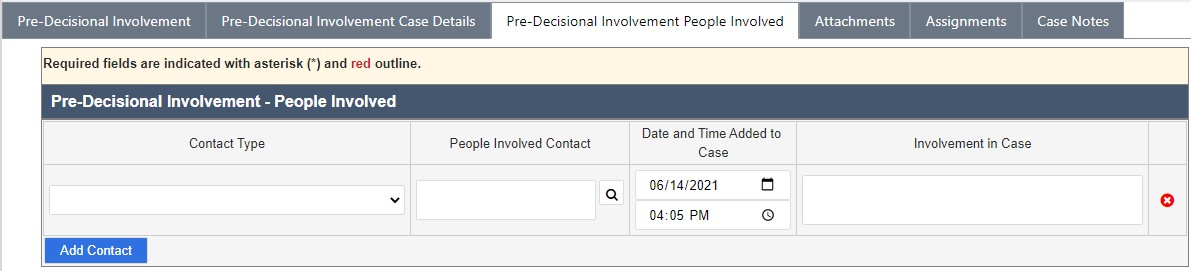
The standard eCASE Attachments, Assignments, and Case Notes tabs are also provided.
4.9 Bargaining
The Bargaining case type is used to document and manage formal requests to bargain submitted by a recognized employee union in response to a proposed change in working conditions, agency policy, or operational procedures. It captures the subject matter of the request, the responsible management official, the union official involved, and the complete record of negotiations, including any agreement reached as an outcome of the bargaining process.
4.9.1 Create a Bargaining Case
Follow the steps below to create a new Bargaining case:
Within the Launch Pad, select Main Menu > Labor Relations > Bargaining. The New Folder screen appears.
The New Folder screen presents both required and optional data fields. Required fields are denoted with a red outline. Complete all required fields, including the applicable Union, Jurisdiction, and Subject matter of the bargaining request.
Complete any additional optional fields as available information permits.
Click Save. The Bargaining case folder appears and is assigned a unique Folder ID. The folder is now ready for further action.
4.9.2 Filing a Bargaining Case
In addition to the initial configuration fields, the page contains fields to capture the full details of the request and the resulting negotiations. Complete these fields as the case folder progresses through the workflow. The fields are described in the tables below.
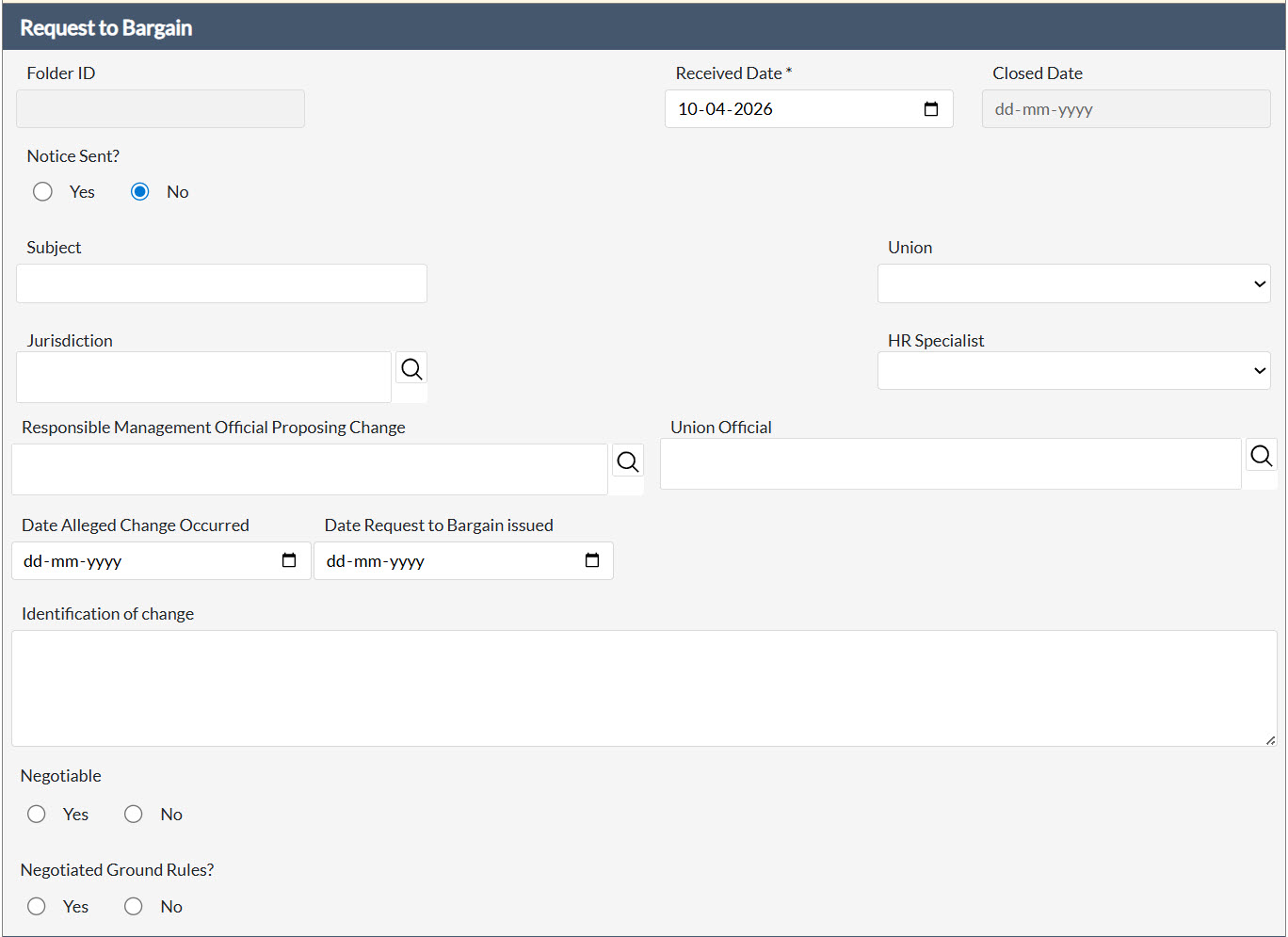
Field | Description |
Received Date | The date on which the formal request to bargain was received by the agency. |
Notice Sent? | Indicates whether a formal notice was dispatched to the union in acknowledgment of the request to bargain. |
Subject | A concise description of the subject matter or proposed change that has prompted the union's request to bargain. |
Union | The recognized labor union submitting the request to bargain. |
Jurisdiction | The jurisdictional office responsible for the change or matter subject to the bargaining request. Click the Lookup icon to search. |
HR Specialist | The Human Resources specialist assigned to support and advise on the bargaining matter. |
Responsible Management Official Proposing Change | The management official responsible for proposing the change that has triggered the request to bargain. Click the Lookup icon to search for and select a system Contact. |
Union Official | The union official associated with the submission of the request to bargain. Click the Lookup icon to search for and select a system Contact. |
Date Alleged Change Occurred | The date on which the change in working conditions or agency operations that prompted the bargaining request allegedly took effect. |
Date Request to Bargain Issued | The date on which the union formally issued the request to bargain to the agency. |
Identification of Change | A detailed narrative description of the proposed or implemented change in conditions of employment that forms the basis of the union's bargaining demand. |
Negotiable | Indicates whether the agency has determined that the subject matter of the request is negotiable under applicable law and the governing collective bargaining agreement. |
Negotiated Ground Rules? | Indicates whether the parties have negotiated and agreed upon the procedural ground rules governing the conduct of bargaining sessions. |
The Negotiations section provides a dynamic table for recording the dates, proposals, and summary outcomes of each bargaining session conducted between the parties. Additional fields below the table capture the overall agreement status and any supplementary comments.
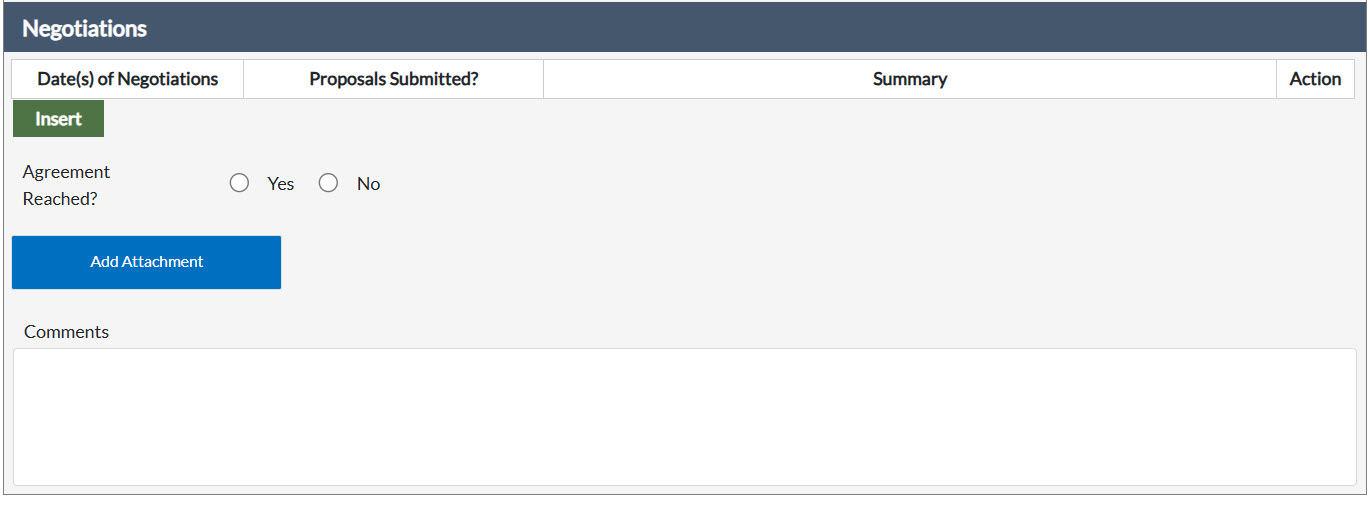
Field | Description |
Date(s) of Negotiations | The date(s) on which formal bargaining sessions were conducted between agency representatives and the union. |
Proposals Submitted? | Indicates whether any written proposals were submitted by either party during the negotiation session. |
Summary | A narrative summary of the substantive content and outcomes of the negotiation session. |
Action | Allows the user to manage individual negotiation session entries within the table. |
Agreement Reached? | Indicates whether the parties reached a mutually acceptable agreement as a result of the bargaining process. |
Comments | Any additional information, observations, or context relevant to the bargaining matter not captured elsewhere in the form. |
Click Insert within the Negotiations table to add a new bargaining session entry. Use the Add Attachment button to associate relevant supporting documents, proposals, or agreements with the Bargaining case folder.
4.10 Official Time
The Official Time case type is used to document, track, and manage the use of official time granted to union representatives for authorized representational activities conducted during regularly scheduled duty hours. Official time is governed by applicable collective bargaining agreements and regulatory requirements, including 5 U.S.C. § 7131. This form captures the employee and union representative details, the nature and duration of the official time requested and used, and the supervisory approval determination.
4.10.1 Create an Official Time Case
Follow the steps below to create a new Official Time case:
Within the Launch Pad, select Main Menu > Labor Relations > Official Time. The New Folder screen appears.
The New Folder screen presents both required and optional data fields. Required fields are denoted with a red outline. Click the Lookup icon adjacent to the Full Name field.
The Search for Contact screen appears. Enter any relevant identifying data into the available search fields.
Click Search. The Select Contact screen appears, displaying all results that satisfy the entered criteria.
Select the applicable employee and click Select. The Official Time form reappears with the selected Contact populating the Full Name field. All available contact details are automatically populated into the corresponding fields.
Complete all applicable fields within Official Time, including the official time request details.
Click Save. The Official Time case folder appears and is assigned a unique Folder ID. The folder is now ready for further action.
4.10.2 Filing an Official Time Case
In addition to the Contact-related fields, Official Time contains fields to capture the specifics of the official time request. Complete these fields as the case folder progresses through the workflow. The fields are described in the tables below.
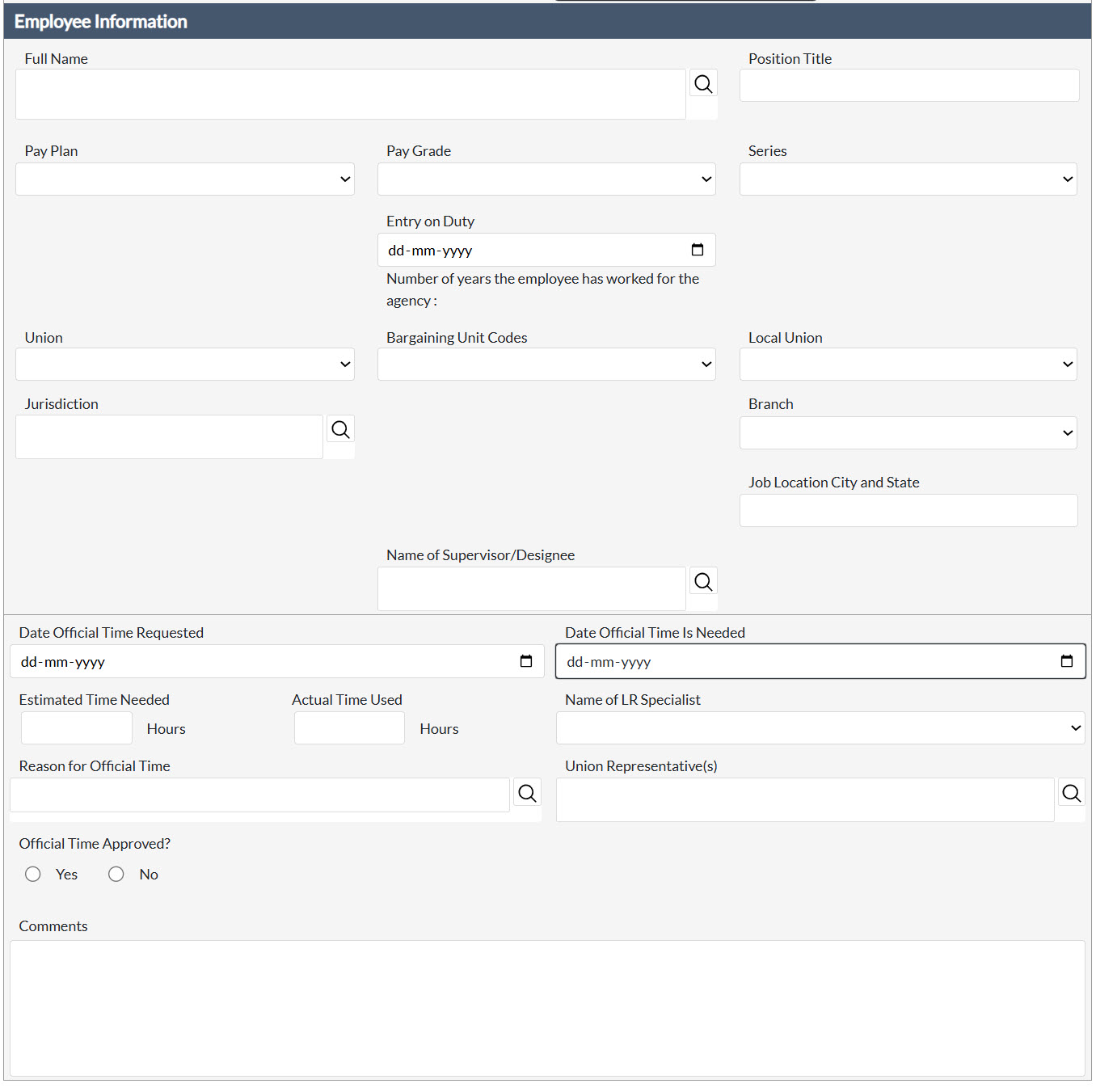
Field | Description |
Full Name | The legal full name of the employee. Click the Lookup icon to search for and select an existing system Contact. |
Position Title | The employee's official position title within the agency. |
Pay Plan | The pay plan associated with the government employee. |
Pay Grade | The grade level associated with the government employee. |
Series | The occupational series associated with the employee's position. |
Entry on Duty | The date on which the employee commenced duty at the current agency. |
Number of Years the Employee Has Worked for the Agency | The total number of years the employee has been continuously employed by the agency. |
Union | The labor union to which the employee belongs, if applicable. |
Bargaining Unit Codes | The bargaining unit code(s) applicable to the employee's position. |
Local Union | The local chapter of the union representing the employee, if applicable. |
Jurisdiction | The jurisdictional office responsible for the employee's position. Use the Lookup icon to search for a Jurisdiction. |
Branch | The branch within the agency to which the employee is assigned. |
Job Location City and State | The city and state of the employee's official duty station. |
Name of Supervisor/Designee | The name of the employee's direct supervisor or designated approving official responsible for authorizing the official time request. Click the Lookup icon to search for and select a system Contact. |
The Official Time Details section captures the specifics of the official time request, including the timeframe, estimated and actual hours, the authorizing LR specialist, and the outcome of the approval determination.
Field | Description |
Date Official Time Requested | The date on which the union representative formally submitted the official time request to the agency. |
Date Official Time Is Needed | The specific date on which the union representative requires the use of official time to conduct authorized representational activities. |
Estimated Time Needed (Hours) | The number of hours of official time estimated to be required by the union representative to complete the representational activity. |
Actual Time Used (Hours) | The actual number of official time hours utilized by the union representative upon completion of the representational activity. |
Name of LR Specialist | The Labor Relations specialist responsible for reviewing and advising on the official time request. |
Reason for Official Time | The stated purpose or nature of the representational activity for which official time is being requested (e.g., grievance processing, collective bargaining, labor-management forum participation). Click the Lookup icon to search. |
Union Representative(s) | The union representative(s) designated to utilize the approved official time. Click the Lookup icon to search for and select one or more system Contacts. |
Official Time Approved? | The supervisory or agency determination regarding the official time request. Selecting Yes confirms that the request has been authorized. |
Comments | Any additional information, context, or relevant notes pertaining to the official time request or the approval determination. |
5 Investigation Inquiry
The Investigation Inquiry case type is a newly added case folder within ER/LR. An
Investigation Inquiry case folder is used to capture an investigation into an employee prior to an action being taken against them. An Investigation Inquiry case folder can be changed into 3 different sub case types:
Anti-Harassment: This case type is used for cases with individual founds to be harassing employees/ or need to be investigated as they are not guilty yet.
Administrative Investigations: This case type is used for major conduct actions reported that need to be investigated.
Management Inquiry: This is for suspected wrongdoing of an employee, but is less serious.
The sub case type is determined by selecting the Yes radio button adjacent the Should an inquiry be launched field. Selecting yes prompts a new field to appear, allowing you to select a sub case type from the Type of Inquiry drop-down list. Select a sub case type, and click Save.
5.1 Create an Investigation Inquiry
Follow the steps below to create a new Pre-Decisional Involvement:
Within the Launch Pad and select Main Menu > Investigation Inquiry > Inquiry Intake. The New Folder screen appears.
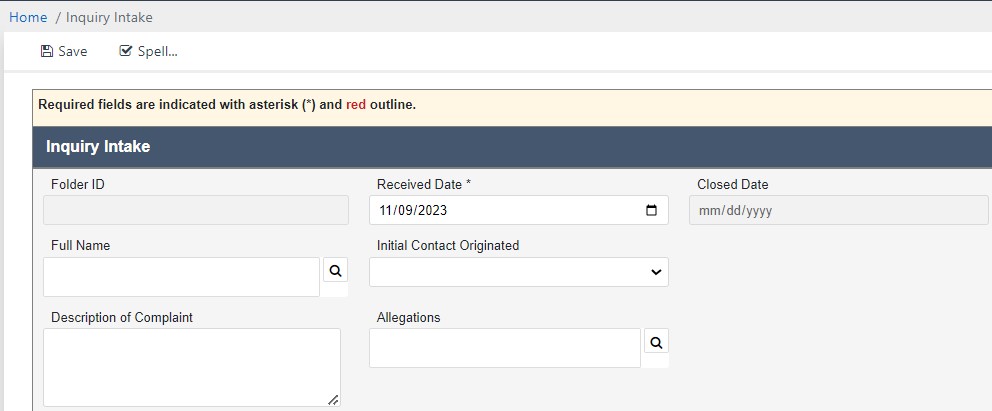
Select the Received Date using the calendar select.
Complete as many additional fields as possible.
If you select Yes under (A) Should an Inquiry be Launched?, you can also select the (B) Type of Investigation.
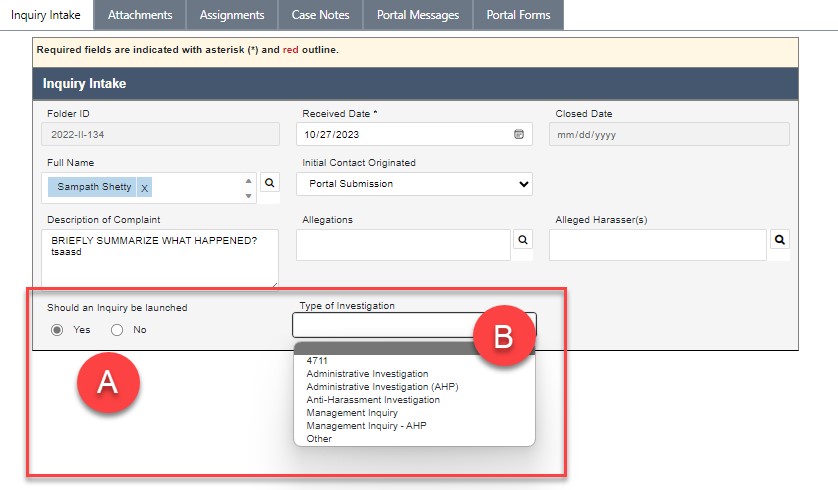
Click Save. The Investigation Inquiry folder appears.
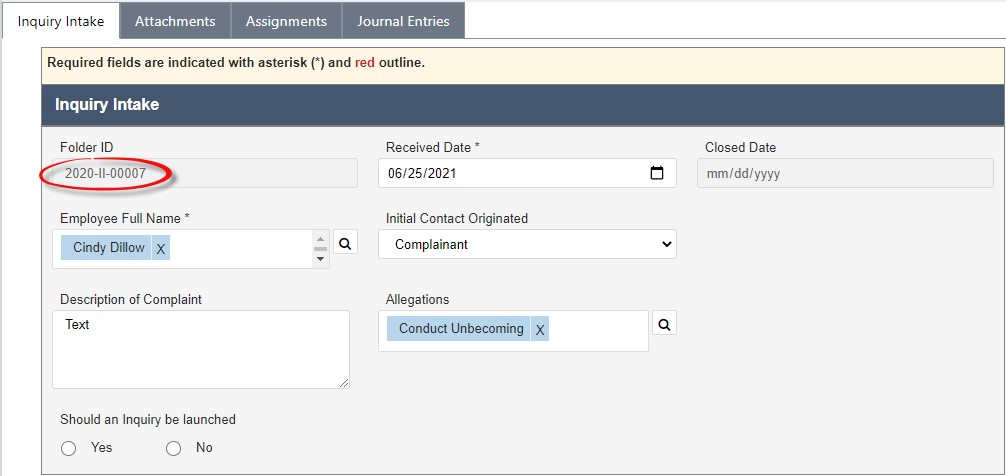
The folder is assigned a Folder ID, as highlighted above.
5.2 Launching an Inquiry
After creating an Investigation Inquiry, the folder is now ready for further action.
Additional fields appear after creating the Investigation Inquiry case folder. Select the Yes radio button in the Should an Inquiry be launched field to create an Inquiry. The workspace refreshes and the Type of Inquiry drop-down list appears.
Select the Type of Inquiry from the drop-down list. This selection will govern what workflow the Inquiry completes.
Click Save. A button appears to create the sub-case type selected from the Type of Inquiry drop-down list. Each of these case folders are captured in the following sections.
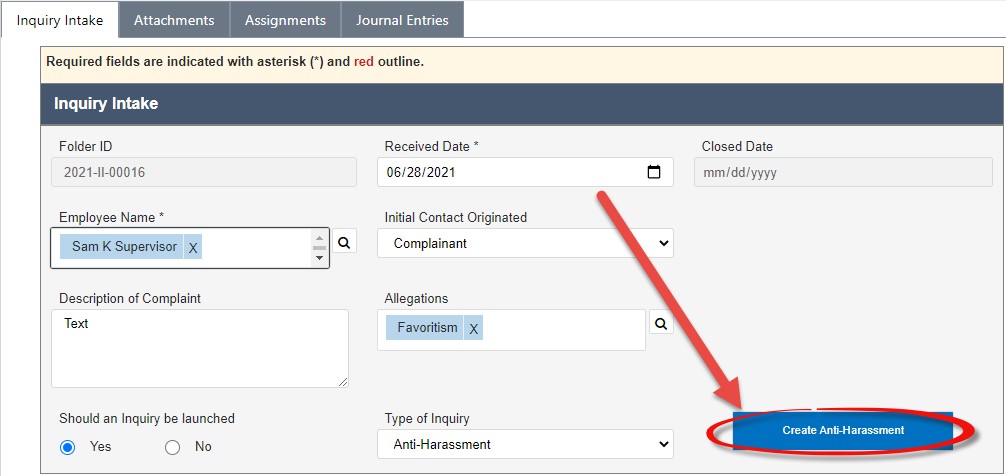
5.3 Anti-Harassment
5.3.1 Create an Anti-Harassment Inquiry
The Anti-Harassment sub case type is created by selecting Anti-Harassment from the Type of Inquiry drop-down list and clicking Create Anti-Harassment.
NOTE: The Type of Inquiry drop-down list appears within an Inquiry case folder after selecting Yes in the Should an Inquiry be launched radio button field.
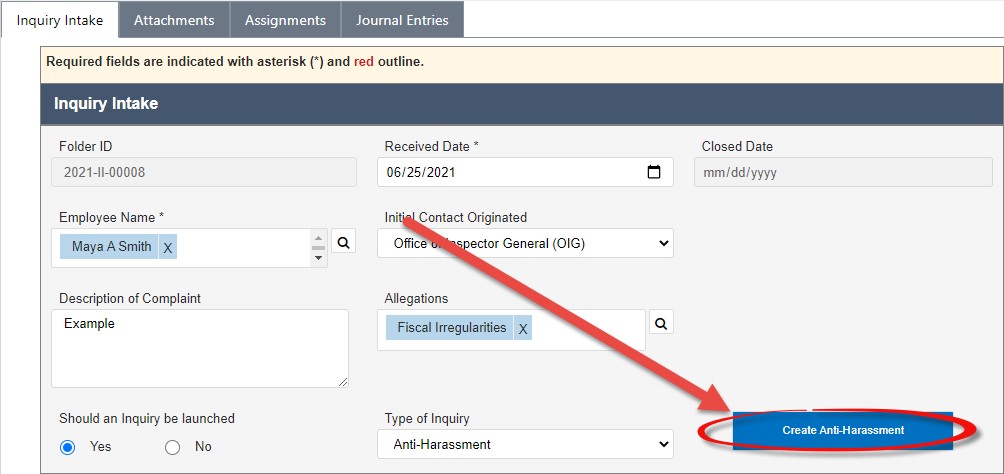
After clicking Create Anti-Harassment, a confirmation window appears. Click Yes to create an Anti-Harassment case folder.
The workspace refreshes and a pop up window appears, indicating the Anti-Harassment case folder has been created and indicating the case number. Click OK.
The pop up window closes, and the application displays a link to the new AntiHarassment case folder. Click the Case Number.
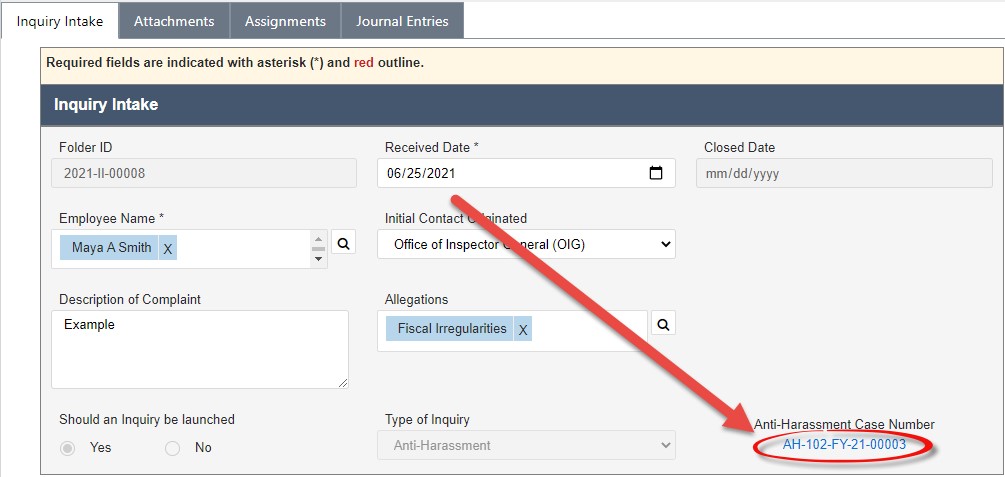
The workspace refreshes to display the Anti-Harassment case folder, containing the case information inherited from the Harassment Inquiry.
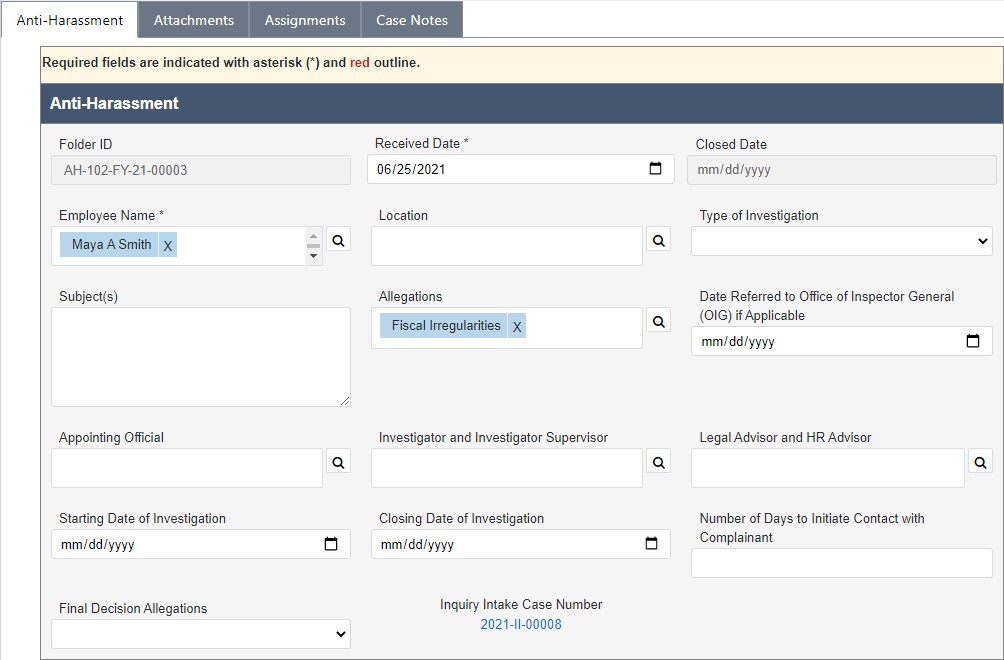
5.3.2 Anti-Harassment UI
The Anti-Harassment tab is used as a repository to store the case information and personnel associated with the Anti-Harassment case folder. Complete fields within this tab as the case progresses. Additionally, the base of this tab features a hyperlink back to the originating Harassment Inquiry case folder.
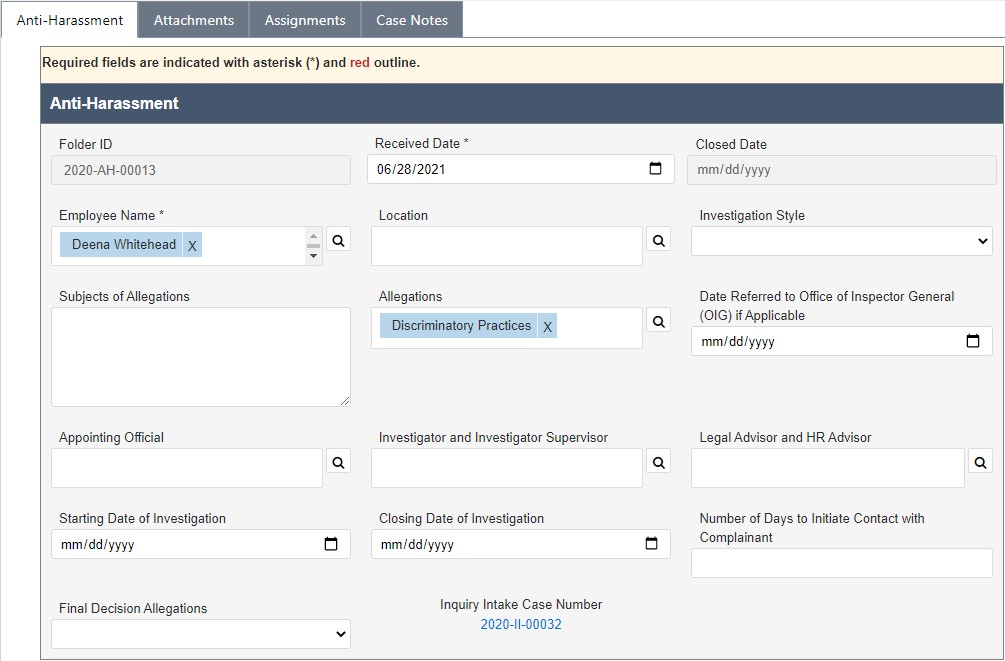
The standard eCASE Attachments, Assignments, and Case Notes tabs are also provided.
5.4 Management Inquiry
5.4.1 Create a Management Inquiry
The Management Inquiry sub case type is created by selecting Management Inquiry from the Type of Inquiry drop-down list and clicking Create Management Inquiry.
NOTE: The Type of Inquiry drop-down list appears within an Inquiry case folder after selecting Yes in the Should an Inquiry be launched radio button field.
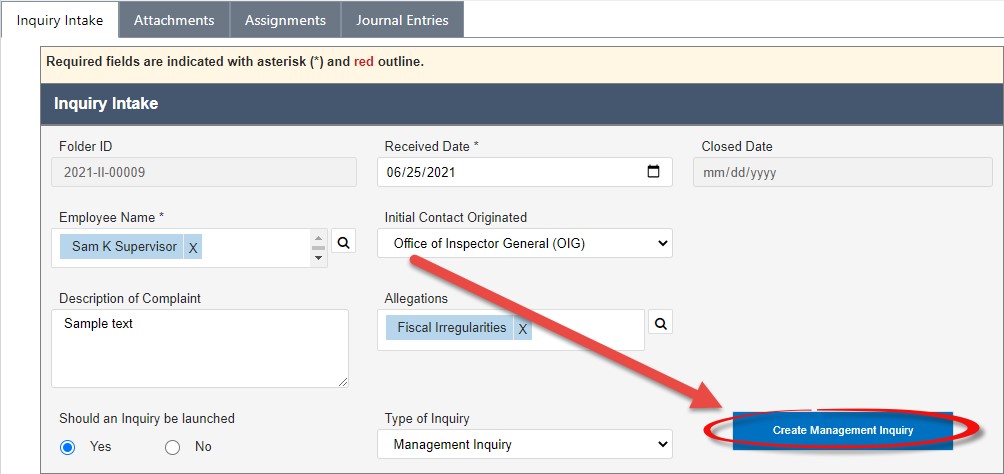
After clicking Create Management Inquiry, a confirmation window appears. Click Yes to create a Management Inquiry case folder.
The workspace refreshes and a pop up window appears, indicating the Management Inquiry case folder has been created and indicating the case number. Click OK.
The pop up window closes, and the application displays a link to the new Management Inquiry case folder. Click the Case Number.
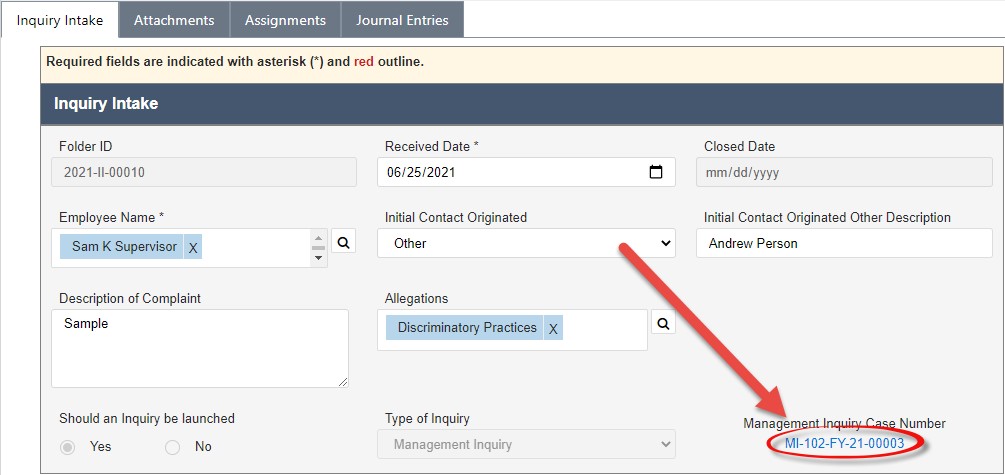
The workspace refreshes to display the Management Inquiry case folder, containing the information inherited from the Investigation Inquiry.
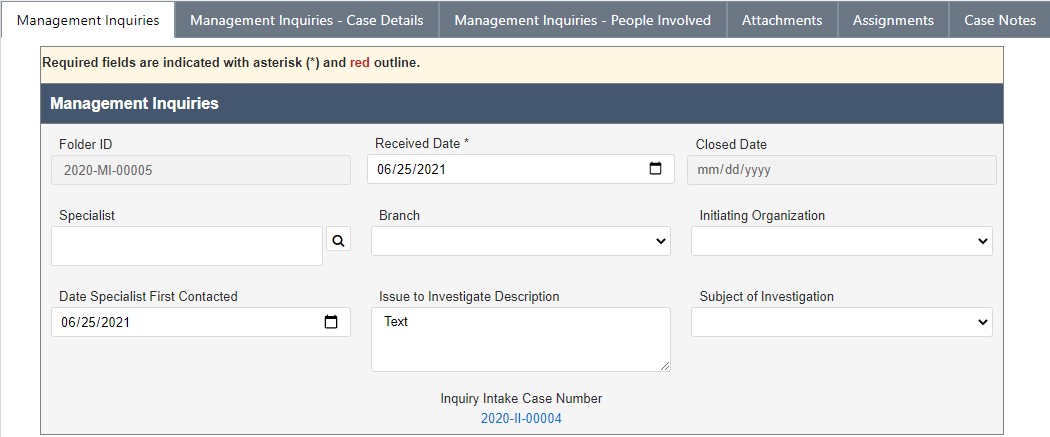
5.4.2 Management Inquiry Intake
The Management Inquiry Intake tab is used as a repository to store the case information and information associated with the initiation of the Management Inquiry case folder. Complete fields within this tab as the case progresses. The base of this tab features a hyperlink back to the originating Investigation Inquiry case folder.
Additionally, Agency Employees relevant to the case are tracked within this tab within the Subject(s) Information workspace. See the procedure below for instructions on how to add contacts to this case folder.
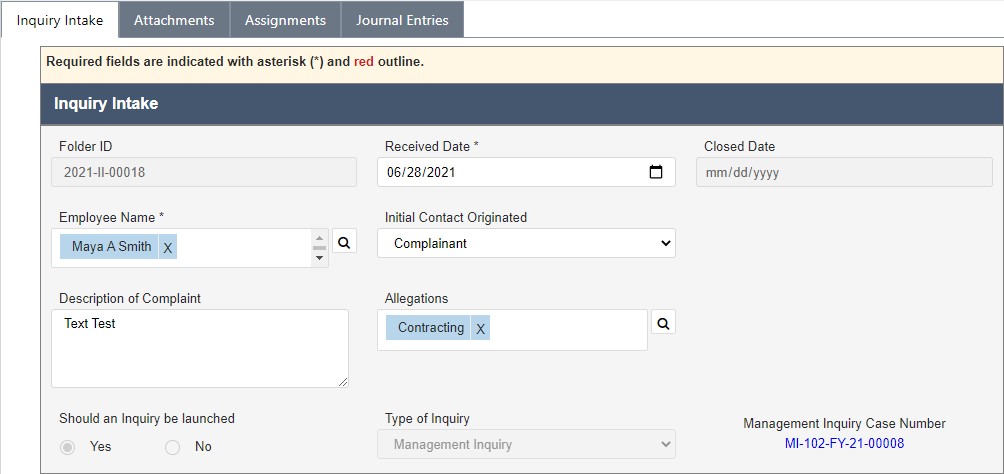
The Management Inquiry Intake tab features a workspace in which to track the Subjects of the inquiry. To add a new subject to the case folder:
Navigate to a case folder and click the Management Inquiry Intake tab.
Click Add Employee.
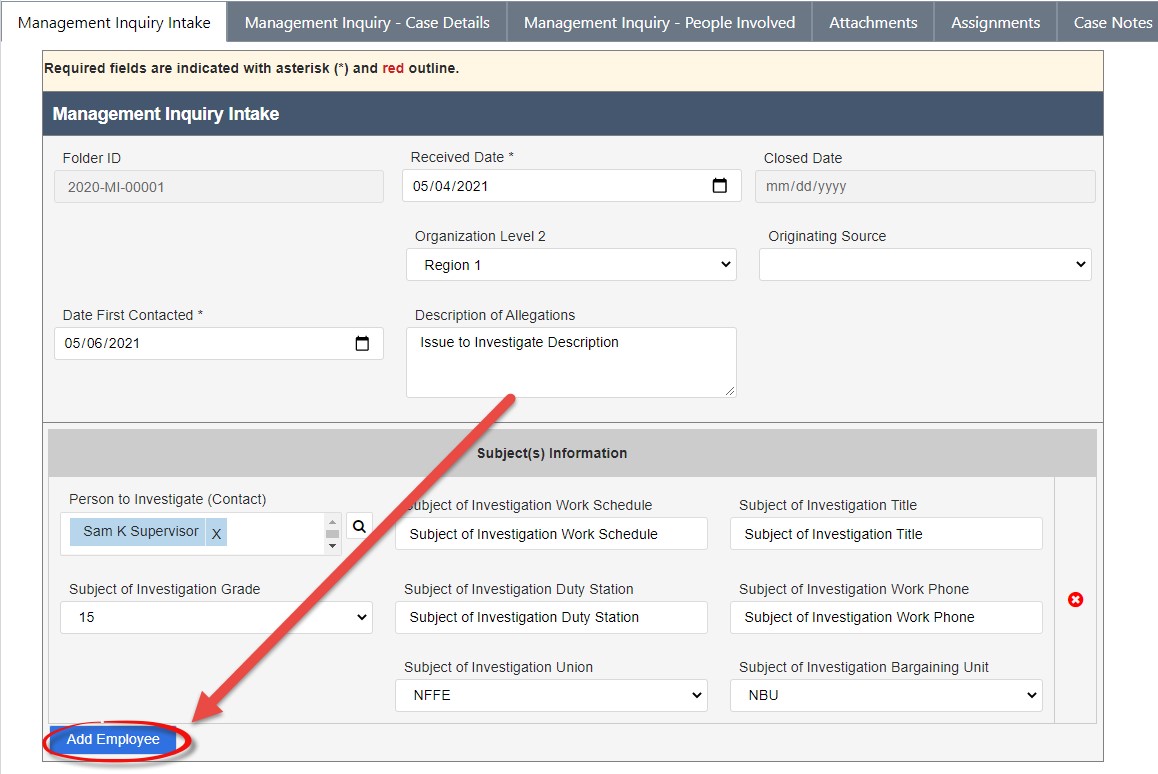
The workspace refreshes to display an additional Subject Entry workspace. Click the Person to Investigate (Contact) lookup and select a contact.
Fill in the remaining fields with the inquiry details
Click Save. The newly added Subject Entry is recorded within the case folder.
NOTE: Repeat this process until all Subjects have been added to the case folder via the Add Employee button. Click the red X adjacent the Subject entry to delete the entry from the case folder.
5.4.3 Management Inquiry – Case Details
The Management Inquiry – Case details tab is used as a repository to store the case information of the Management Inquiry. Complete the relevant fields as the case progresses through the workflow.
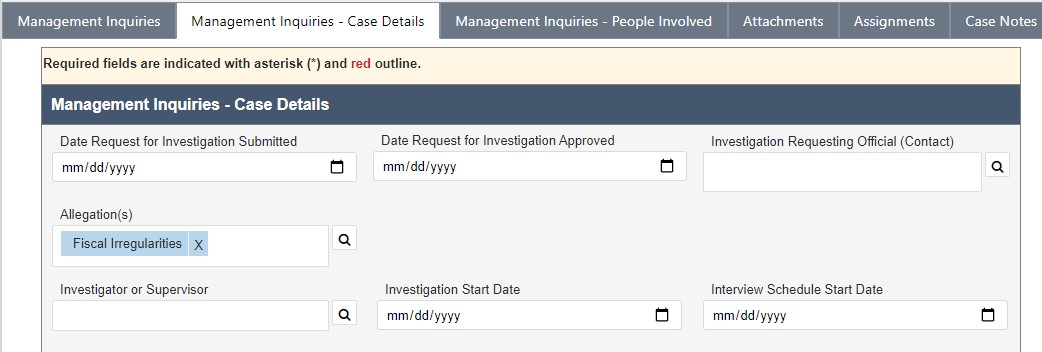
5.4.4 Management Inquiry – People Involved
The Management Inquiry – People Involved tab is used as a repository to store the information about the personnel associated with the Management Inquiry. This tab contains a repeating table, allowing you to add as many users as necessary. To add an entry to the table:
Navigate to a case folder and click the Management Inquiries – People Involved tab.
Click Add Contact.
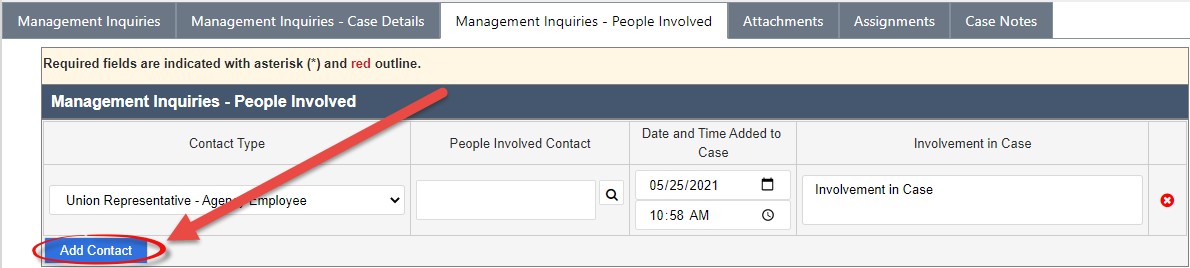
The workspace refreshes to display a blank People Involved entry row. Select the Contact Type from the drop-down list.
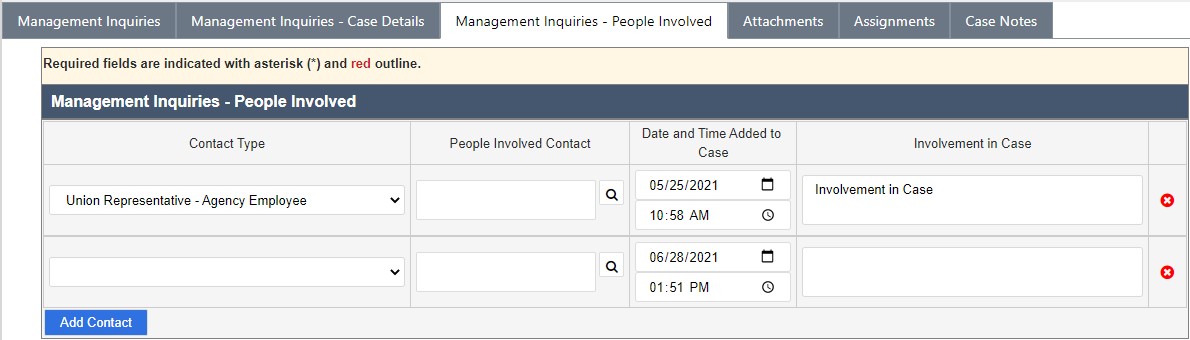
Click the People Involved Contact lookup and search for a contact.
The Date and Time Added to the Case fields are prepopulated with the time and date when the Add Contact button was clicked.
Enter any additional information about the person in the Involvement in Case field.
Click Save to record the changes to the case folder.
5.5 Administrative Investigation
5.5.1 Create an Administrative Investigation
The Administrative Investigation sub case type is created by selecting Administrative Inquiry from the Type of Inquiry drop-down list and clicking Create Management Inquiry.
NOTE: The Type of Inquiry drop-down list appears within an Inquiry case folder after selecting Yes in the Should an Inquiry be launched radio button field.
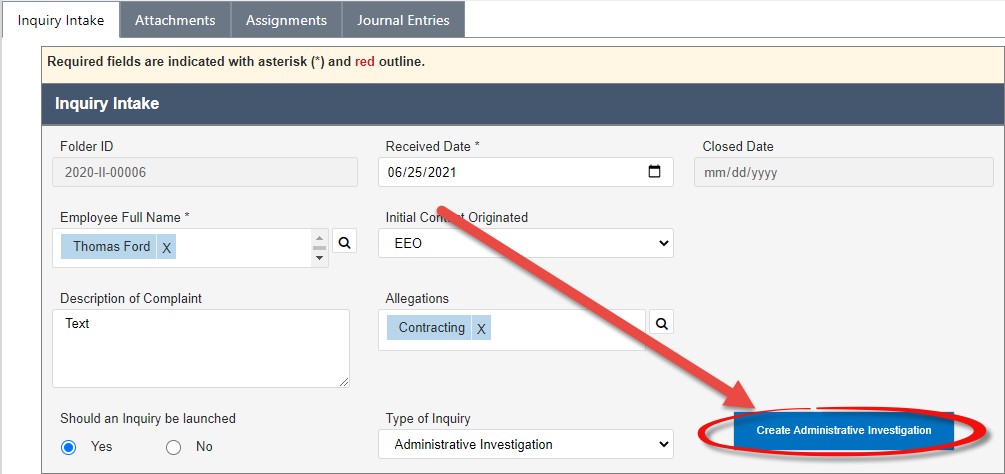
After clicking Create Administrative Investigation, a confirmation window appears. Click Yes to create the Administrative Inquiry case folder.
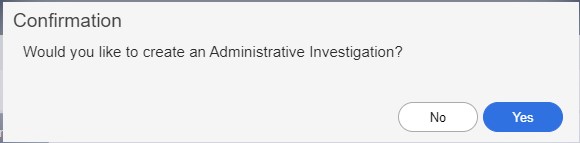
The workspace refreshes and a pop up window appears, indicating the Administrative Inquiry case folder has been created and indicating the case number. Click OK.\
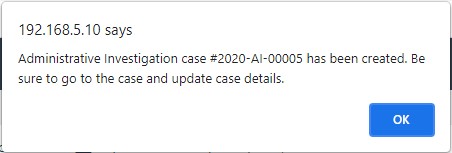
The pop up window closes, and the application displays a link to the new Administrative Inquiry case folder. Click the Case Number.
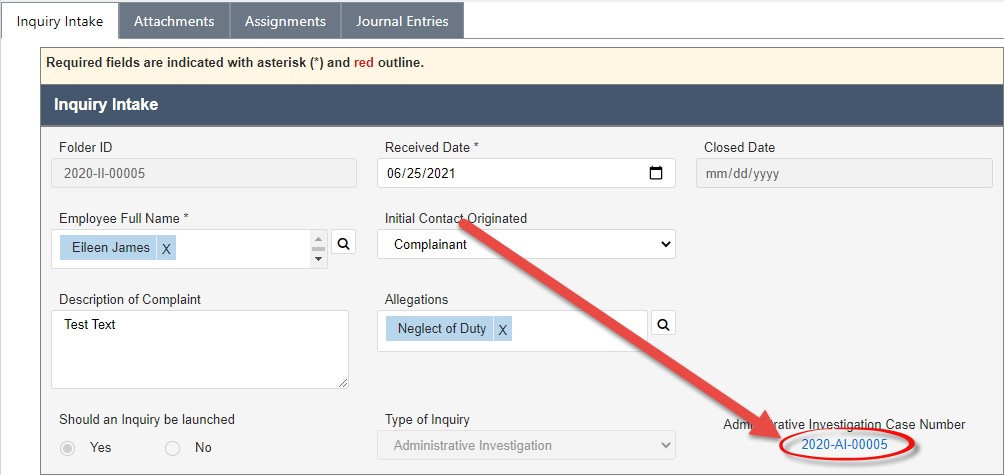
The workspace refreshes to display the Administrative Inquiry case folder, containing the information inherited from the Investigation Inquiry.
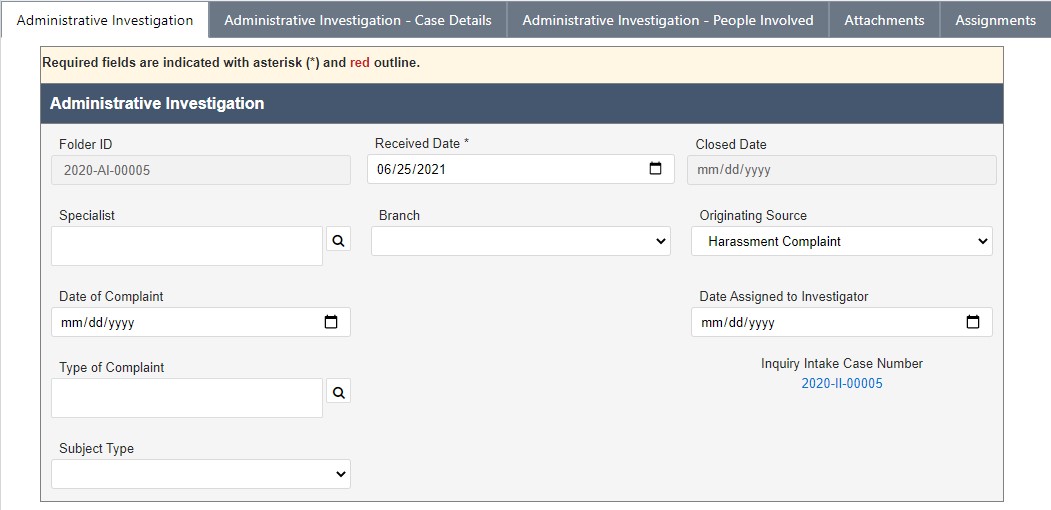
5.5.2 Administrative Investigation Tab
This tab is used as a repository to store the case information and information associated with the initiation of the Administrative Investigation case folder. Complete fields within this tab as the case progresses. The workspace in this tab features a hyperlink back to the originating Investigation Inquiry case folder.
Additionally, Agency Employees relevant to the case are tracked within the Subject(s) Information workspace. See the procedure below for instructions on how to add subjects to this case folder.
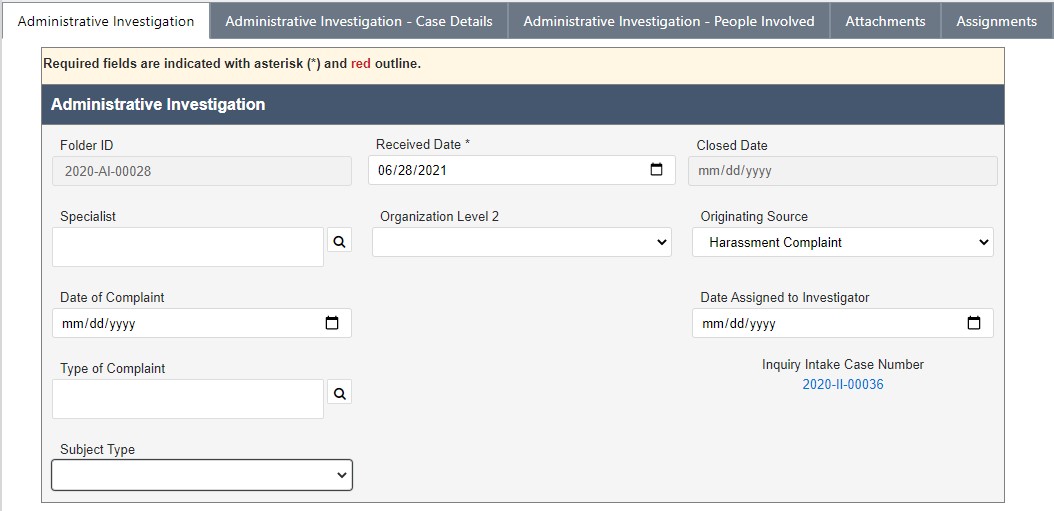
The Administrative Investigation tab features a workspace in which to track the Subjects of the Investigation. To add a new subject to the case folder:
Navigate to the Administrative Investigation case folder and click the Administrative Investigation Intake tab.
Select the Subject Type from the drop-down list.
NOTE: Selecting either Agency Employee or Organizational Unit enable the Subjects of the Investigation workspace. These can be either Organizational Units or Employees, however they function the same. The procedure below will utilize the Agency Employee selection.
Click Add Employee.
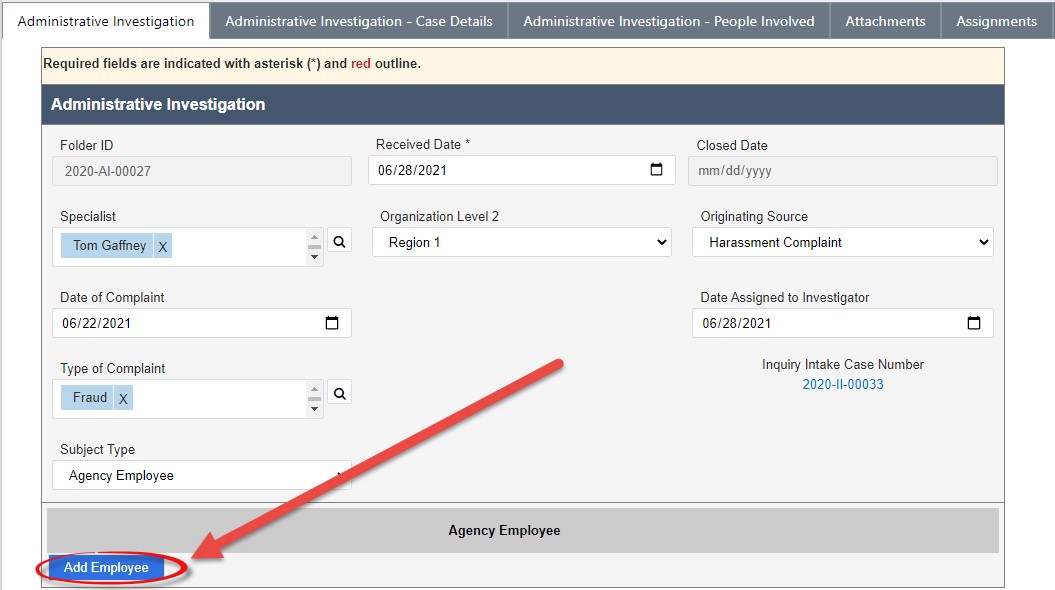
The workspace refreshes to display an additional subject entry workspace. Click the Person to Investigate (Contact) lookup and select a contact.
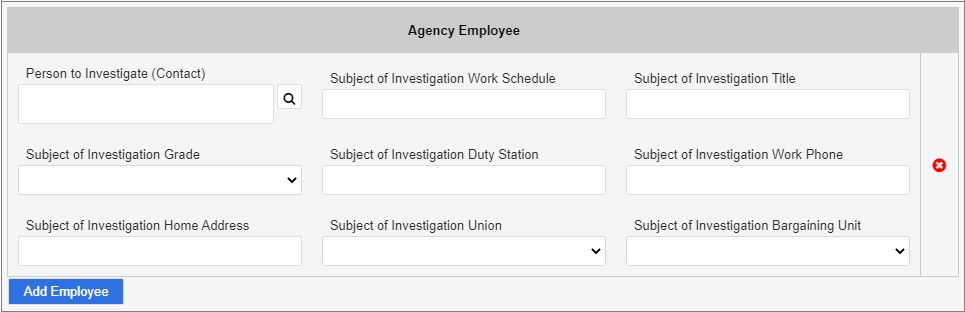
Fill in the additional Administrative Investigation details.
Click Save. The newly added Agency Employee entry is recorded within the case folder.
NOTE: Repeat this process until all Subjects have been added to the case folder. Click the red X adjacent the Subject entry to delete the entry from the case folder.
5.5.3 Administrative Investigation – Case Details
This tab is used as a repository to store the case information of the Administrative Investigation case folder.
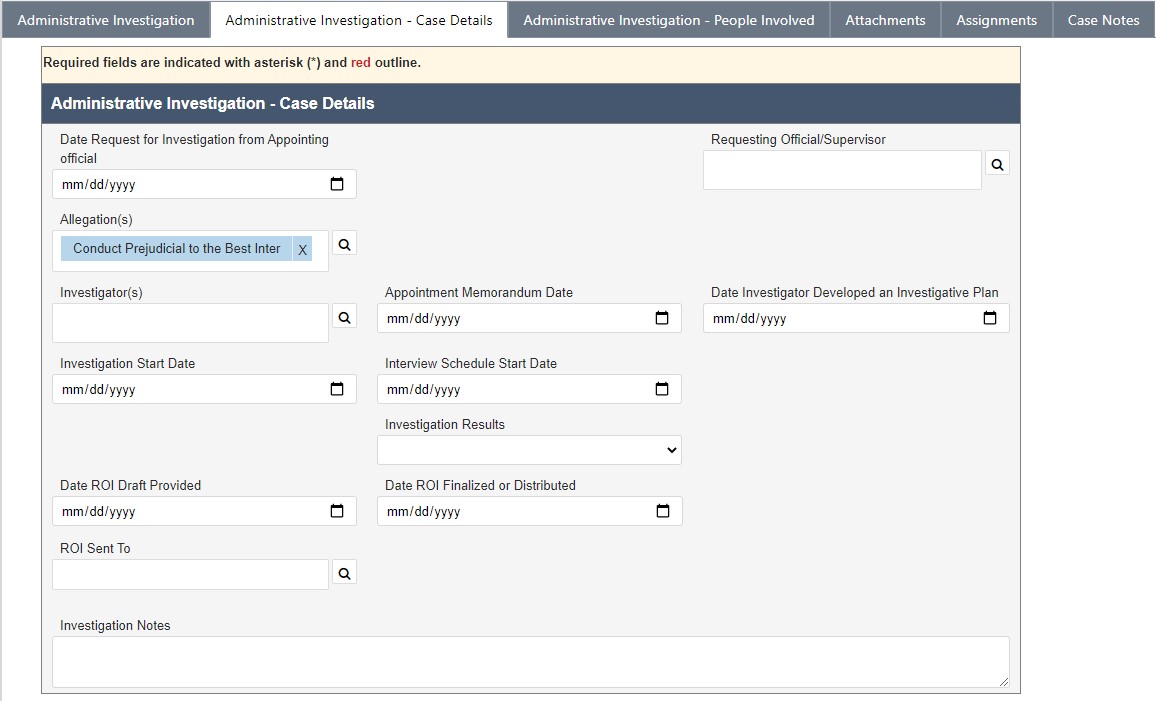
5.5.4 Administrative Investigation – People Involved
This tab is used as a repository to store the information about the personnel associated with the Administrative Investigation case folder. This tab contains a repeating table, allowing you to add as many users as necessary. Click Add Contact to add a new entry to the People Involved workspace.
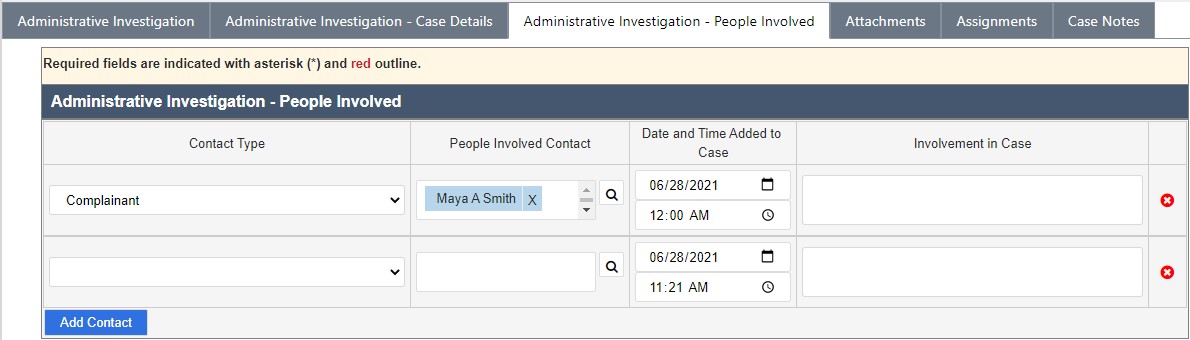
6 ER/LR Configuration
6.1 Accessing ER/LR Configuration
To access the Configuration folder, select Main Menu > Configuration > Configuration.
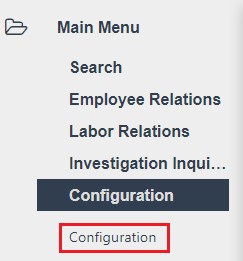
eCASE ER/LR refreshes and displays the Configuration folder, with the Common Fields tab selected.
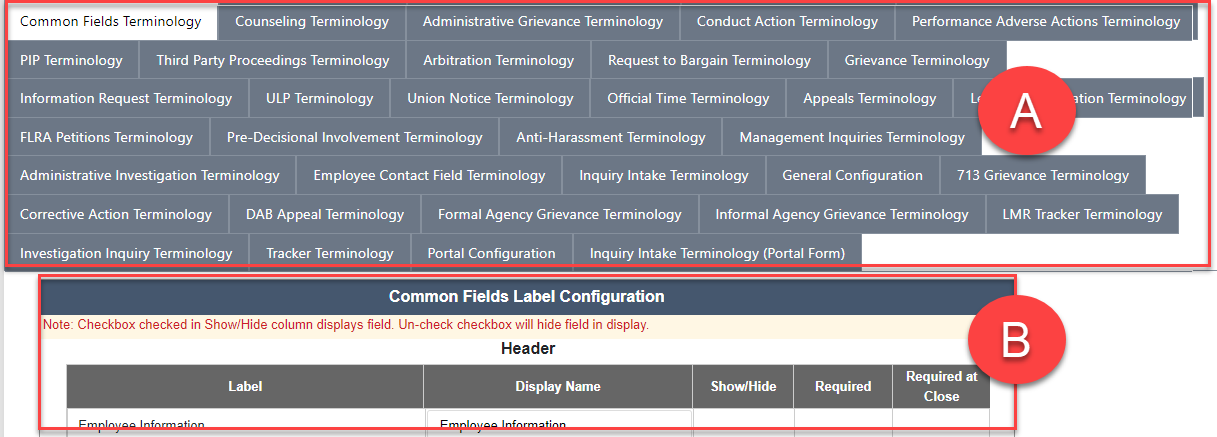
The various (A) Tabs are listed at the top of the interface. After selecting a tab, the (B) Configuration settings appear in the workspace. A full list of tabs is included in the following section.
6.2 ER/LR Configuration Tabs
The eCASE ER/LR Configuration folder allows administrators to configure how fields appear and behave within each ER/LR Case Folder. The Configuration folder consists of the following tabs:
Tab | Description |
Common Fields Terminology | Use this tab to configure how many basic/common eCASE fields appear. |
Administrative Grievance Terminology | Use this tab to configure how the fields within the Administrative Grievance case folder appear and behave. |
Administrative Investigation Terminology | Use this tab to configure how the fields within the Administrative Investigation case folder appear and behave. |
Anti-Harassment Terminology | Use this tab to configure how the fields within the AntiHarassment case folder appear and behave. |
Appeals Terminology | Use this tab to configure how the fields within the Appeals case folder appear and behave. This case type is not automatically enabled. |
Arbitration Terminology | Use this tab to configure how the fields within the Arbitration case folder appear and behave. |
Conduct Action Terminology | Use this tab to configure how the fields within the Conduct Action case folder appear and behave. |
Counseling Terminology | Use this tab to configure how the fields within the Counseling case folder appear and behave. |
FLRA Petitions Terminology | Use this tab to configure how the fields within the FLRA case folder appear and behave. |
Grievance Terminology | Use this tab to configure how the fields within the Grievance case folder appear and behave. |
Information Request Terminology | Use this tab to configure how the fields within the Information Request case folder appear and behave. |
Leave Administration Terminology | Use this tab to configure how the fields within the Leave Administration case folder appear and behave. This case type is not automatically enabled. |
Management Inquiries Terminology | Use this tab to configure how the fields within the Management Inquiry case folder appear and behave. |
Performance Action Terminology | Use this tab to configure how the fields within the Performance Action case folder appear and behave. |
PIP Terminology | Use this tab to configure how the fields within the Performance Improvement Plan case folder appear and behave. |
Portal Configuration | Use this tab to configure Portal text and appearance, including the Disclaimer and Form Headers. |
Pre-Decisional Involvement Terminology | Use this tab to configure how the fields within the PreDecisional Involvement case folder appear and behave. |
Request to Bargain Terminology | Use this tab to configure how the fields within the Request to Bargain case folder appear and behave |
Third Party Proceedings Terminology | Use this tab to configure how the fields within the ThirdParty Proceedings case folder appear and behave. |
ULP Terminology | Use this tab to configure how the fields within the Unfair Labor Practice case folder appear and behave. |
Union Notice Terminology | Use this tab to configure how the fields within the Union Notice case folder appear and behave. |
Employee Contact Field Terminology | Use this tab to configure how the fields within an employee contact appear and behave. |
Inquiry Intake Terminology | Use this tab to configure how the fields within the Investigation Inquiry case folder appear and behave. |
Inquiry Intake Terminology (Portal Form) | Use this tab to configure how the fields within the Inquiry Intake Portal page appear and behave. |
General Configuration | This tab contains miscellaneous and general eCASE configuration options. |
Employee File Import | Use this tab to configure and run an employee-data Excel import. Define column-to-field mappings, upload the import file, configure email notifications, and review past imports. This tab appears only when Employee Source is set to eCase Contact in the General Configuration tab. |
6.3 Configuration Functionality
This section provides basic instructions on how to complete the fields available within the eCASE ER/LR Configuration folder.
The example below shows the Grievance Terminology tab. Here, the interface lists various (A) form sections. For these items, there are options to (B) Show/Hide each field (select the checkbox to display the field), as well as the option to make each field (C) Required:
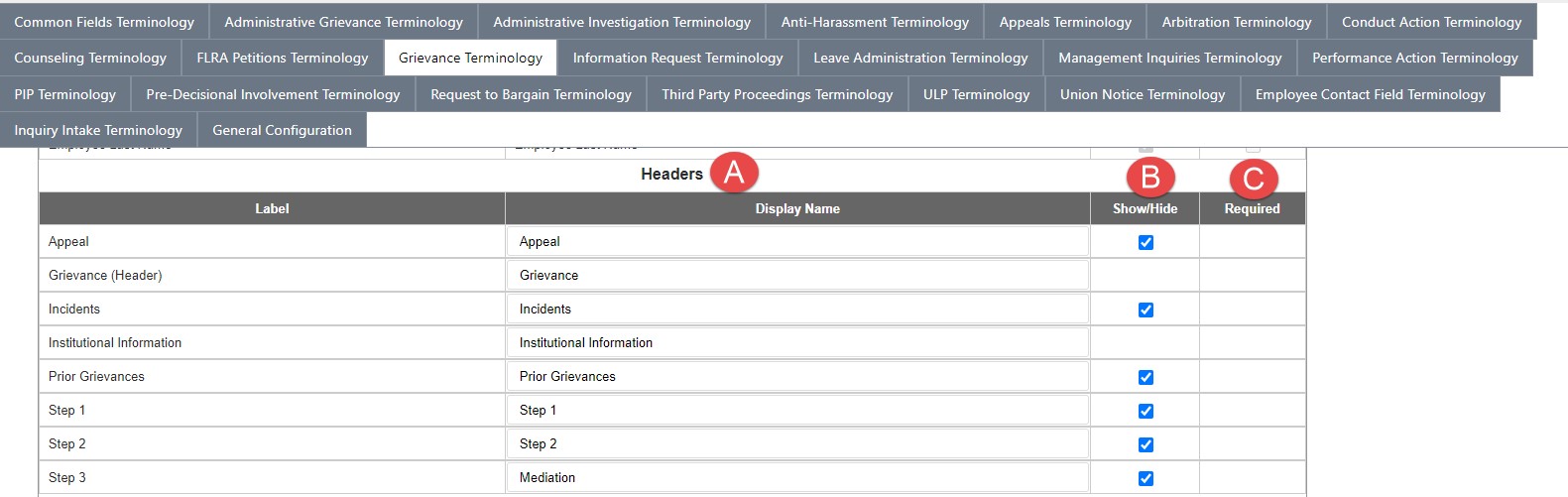
6.4 Employee File Import
The Employee File Import tab allows ERLR administrators to configure and run an employee-data Excel import directly from ERLR Configuration. Use this tab to define the column-to-field mapping, upload the import file, configure email notifications, and review past imports.
The Employee File Import tab is displayed in the Configuration tabs only when the Employee Source in the General Configuration tab is set to eCase Contact and you have the Employee File Import View permission. Access to the ERLR Configuration module alone does not grant access to this tab.
6.4.1 Template Columns
.png?sv=2026-02-06&spr=https&st=2026-10-10T13%3A35%3A34Z&se=2026-10-10T15%3A20%3A34Z&sr=c&sp=r&sig=SjZcCtD%2BH59GYrHoudoXZM%2BwbnMN6uGgUZx7vx9MYyc%3D)
The Template Columns grid defines which Excel columns appear in the import template and how they map to employee contact fields:
Column | Description |
|---|---|
Excel Column | The header name that appears in the downloadable Excel template. |
Maps to field | The employee contact field that this column maps. |
Is Unique? | Indicates whether this column is the unique match key. |
Required? | Indicates whether a value is required. |
Actions | Edit or Remove the column. |
6.4.2 Adding a Column
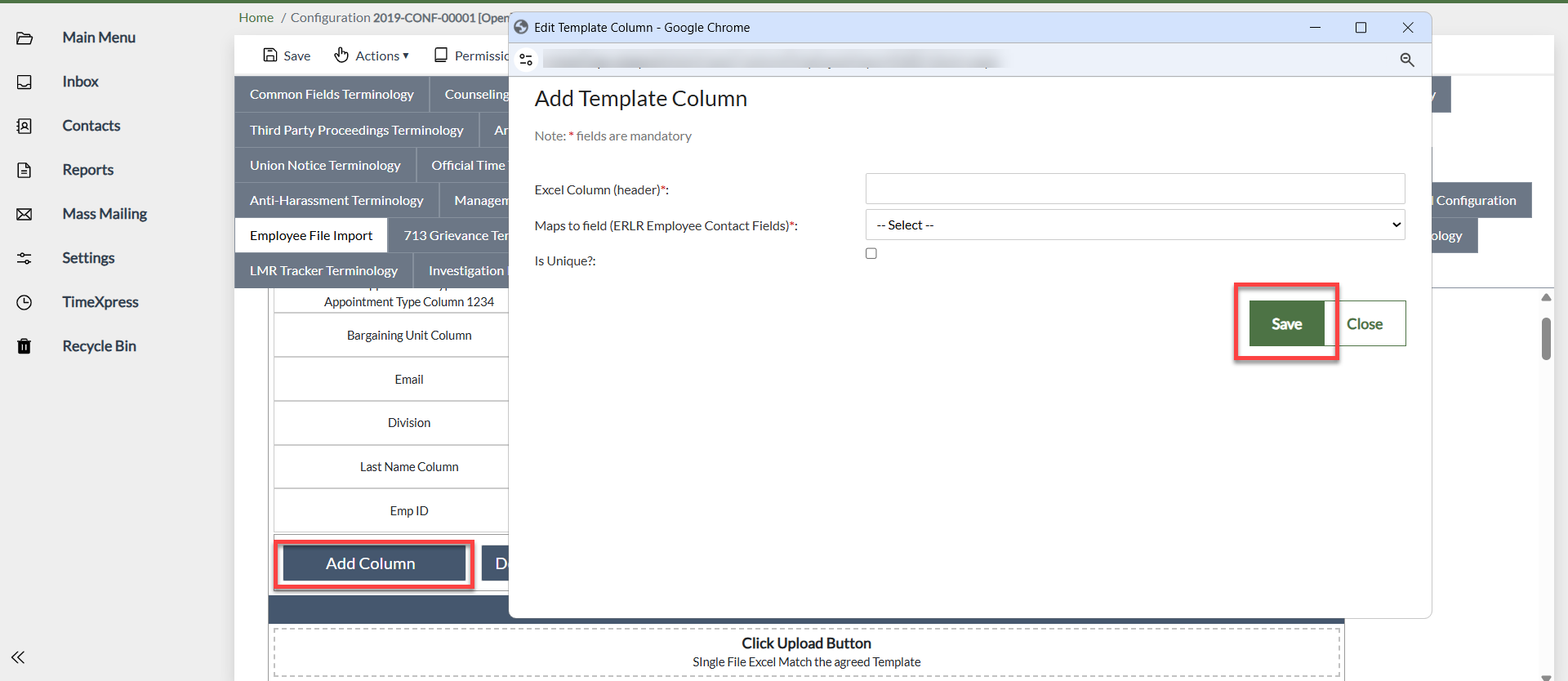
To add a column to the template:
Click Add Column. The Add Column dialog appears
Enter the mandatory Excel Header Name
From Maps to field (ERLR Employee Contact Fields) dropdown, select the employee contact field
Select the Is Unique checkbox if this is the primary match key
Click Save
6.4.3 Editing a Column
Click Edit in the Actions column. The Edit dialog opens pre-filled.
6.4.4 Removing a Column
Click Remove in the Actions column.
NOTE: A column cannot be removed if it is mapped to a required field. In addition, a column marked as Is Unique must remain in the template unless another column has been designated as Is Unique.
6.4.5 Saving the Configuration
Click Save to save the configuration. Before saving, ensure that:
Exactly one column is marked as Is Unique
All required contact fields are mapped
6.4.6 Download Template
Click Download Template to download an Excel template containing only the configured column headers.
NOTE: The template can be downloaded only after the configuration has been completed successfully.
6.4.7 Email Notifications
Use the Send Notification toggle to control whether email notifications are sent after the upload process is completed. When enabled, specify one or more recipient email addresses. When disabled, no notification emails are sent.
6.4.8 Uploading a File
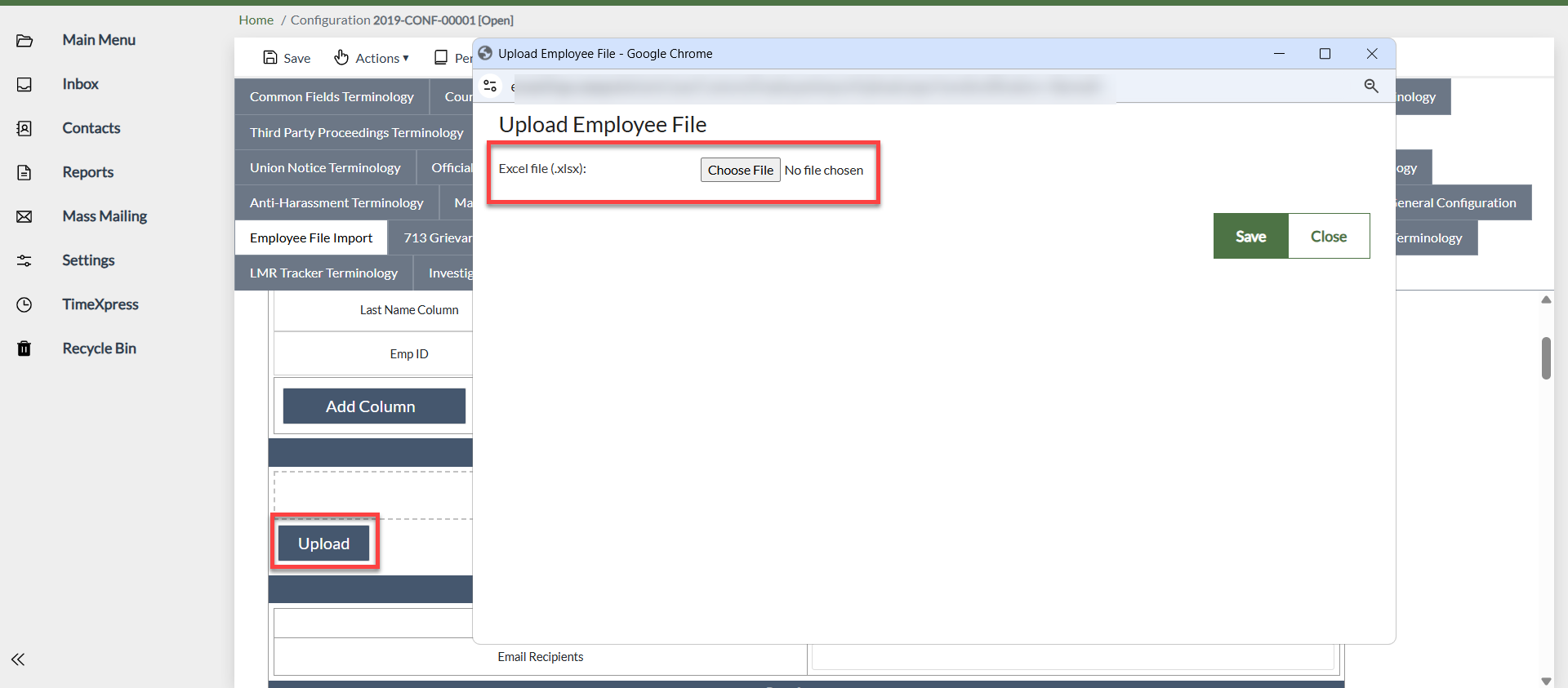
Click Upload
Select an .xlsx file that matches the configured template
Click Save
Once the file is uploaded, it is submitted for processing and appears with a Pending status until processing is complete.
6.4.9 Import Behavior
The import process adds new employee records and updates existing records that match the value configured as Is Unique. Employees that are not included in the file are not removed or deactivated.
If a matching employee record contains updated values, those values are applied. If no changes are detected, the existing record remains unchanged.
For updates, blank values in optional fields do not overwrite existing values. However, rows containing blank values in required or, Is Unique fields fail validation and are not imported.
6.4.10 Past Imports
History of all import runs:
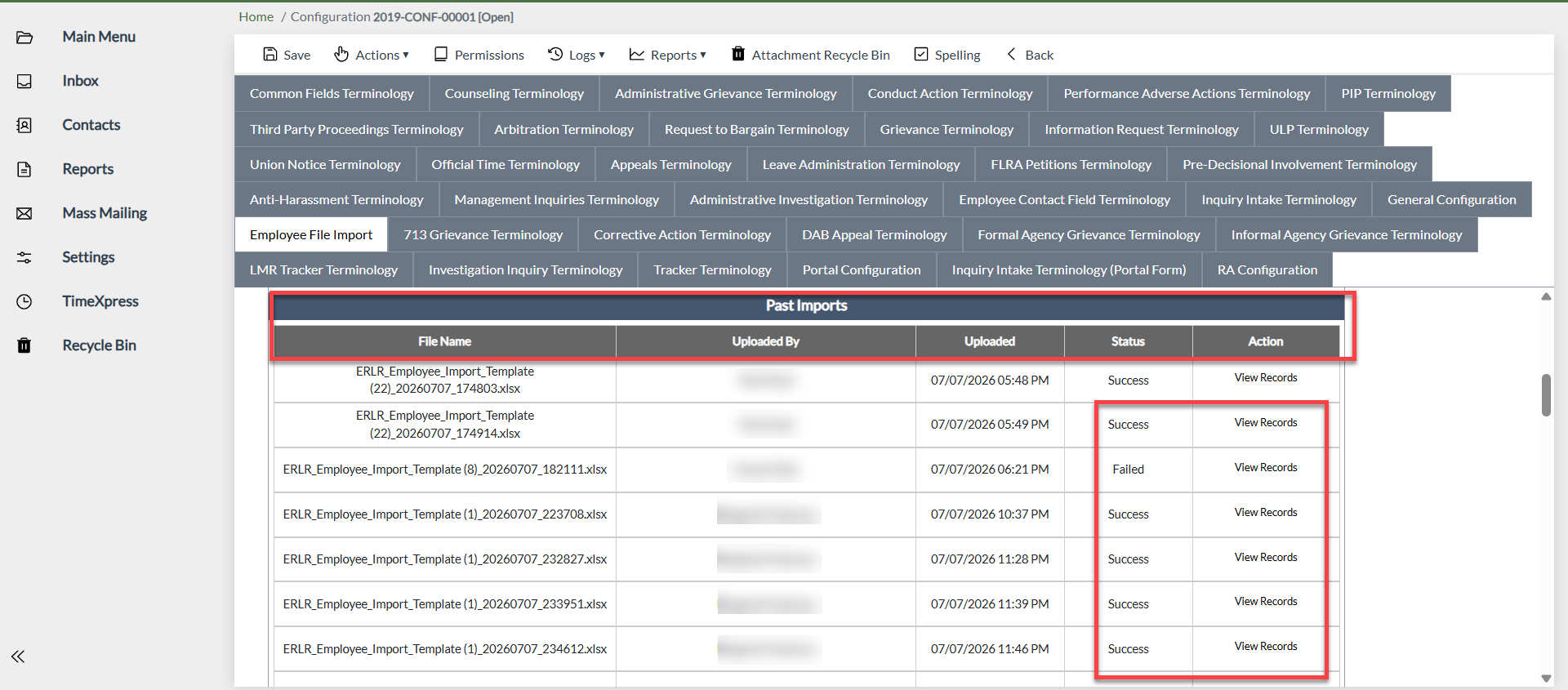
Column | Description |
|---|---|
File Name | Name of the uploaded file. Same name can appear multiple times. |
Uploaded By | The user who uploaded the file. |
Uploaded | Date and time the file was uploaded. |
Status | Displays the current status of the import. A status of Pending indicates the import is queued for processing, Processing indicates the file is being processed, Success indicates the import has completed, and Failed indicates that the import was unsuccessful. The View Records option becomes available only after the import reaches a Success or Failed status. |
Actions | View Records link to view the record-level import results. Available only when the import status is Success or Failed. |
The original uploaded file is available for re-download from Past Imports based on the configured retention policy. Import results remain available even if the original file is no longer available.
6.4.11 View Records
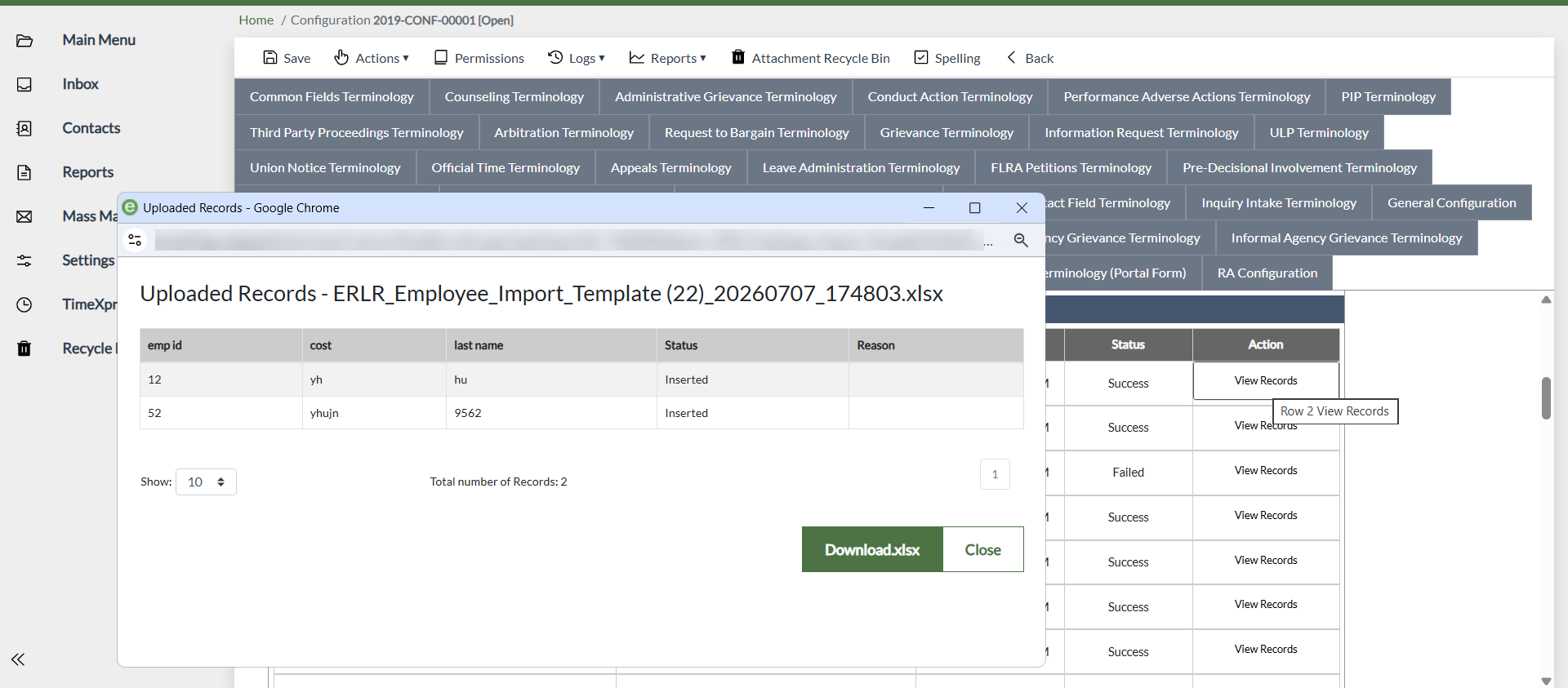
Click View Records to review the results of a completed import. The grid displays all imported columns along with the Status and Reason columns.
The Reason column is populated only for records with a Failed status.
7 Administration
This chapter covers certain administrative functions of the eCASE ER/LR. Administrative functions are limited to Admin users, and cover the following:
Organization/Users/User Group Management: Add and remove users and user groups.
Choice List Values: Manage the values in choice lists, such as the selection of available ALJs to assign to complaints.
Admin users can access the Administration functions by clicking Settings in the Launch Pad. After clicking Administration, the user must enter login credentials. The Administration page appears as shown below:
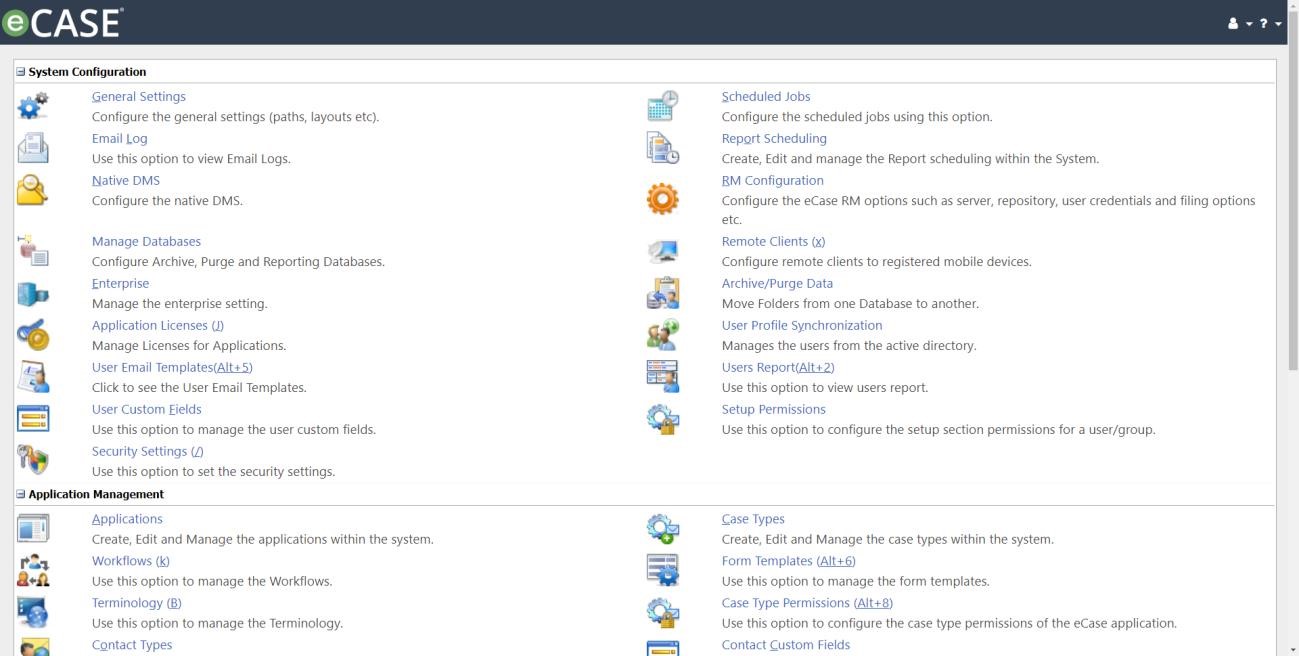
NOTE: Screens in this section are not specific to eCASE ER/LR. Administrative functions are common to all eCASE applications.
The additional functions and features under Administration are covered in greater detail in the eCASE Administrator Manual. You can access this manual at any time by clicking Help > eCASE Administrator Manual.
7.1 Organization
Organization Setup concerns administration of users and user groups. These features are described in the following sections.
7.1.1 Create User
To create a new user, navigate to Administration > Users, and click New. The New User screen appears as shown below:
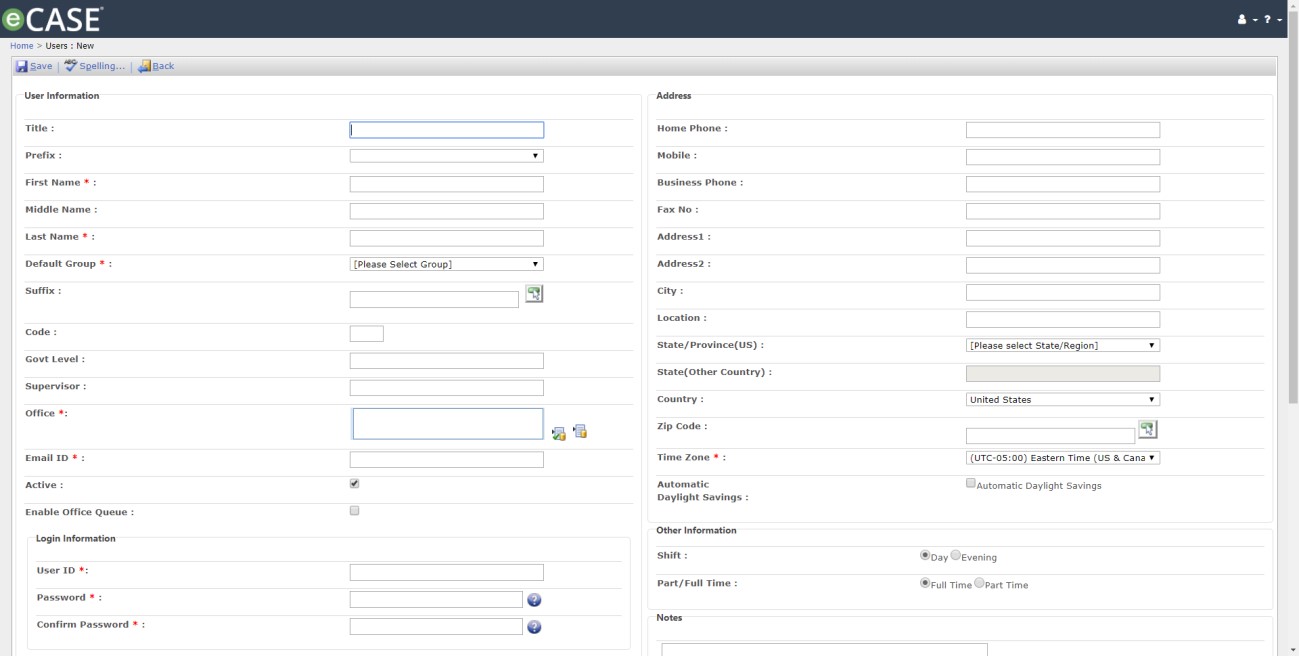
Complete all required fields on this page. Required fields are marked with a red asterisk.
NOTE: The Default Group field determines which group the user belongs to, and matches their job responsibilities.
In addition to required fields, add as much additional information as possible. You can also set the System Notification settings on this screen.
After all required information is added, click Save to save the new user to the System.
NOTE: If any errors are present on the form, the system alerts to the error and prompts to correct on the form.
7.1.2 Manage Users
To view a full list of all eCASE Users, navigate to Administration > Users, and click Search without adding any search data. This returns the full list of system users, as shown in the sample below:

From the Users List, select a (1) User from the list, and select an action from the (2) Operations menu to take action on the user. Actions in the Operations menu include:
Action | Description |
New | Create a new user. |
View | View the details for the selected user. |
Edit | Alter the selected user information. |
Search Again | Refresh the search results to view any recent changes in the data. |
View Groups | View any groups the selected user is assigned to. |
Activate/Inactivate | Toggle the selected Active or Inactive user’s status. |
Delete | Delete the selected user. |
Click Back to return to the Search screen.
7.1.3 User Groups
User Groups determine each user’s role within the eCASE System. View and manage these groups from Administration > User Groups. After clicking User Groups, the Groups screen appears as shown below:

From the Groups screen, select a (1) Group from the list, and select an action from the (2) Operations menu to take action on the group. Actions in the Operations menu include:
Action | Description |
New | Create new User Group. |
View | View the details for the selected user group. |
Edit | Alter the selected group information. |
View Users | View a list of users assigned to the selected group. Administrators can add and remove users from the selected group. |
Delete | Delete the selected group. |
Click Back to return to the Administration screen.
7.2 Choice List Values
Choice Lists are the lists that appear in drop-down list in the various forms used in the eCASE System. Here, we’ll discuss how to maintain the values in choice lists.
To manage Choice Lists, navigate to Administration > Setup > Choice Lists. The Choice List page appears as shown below:
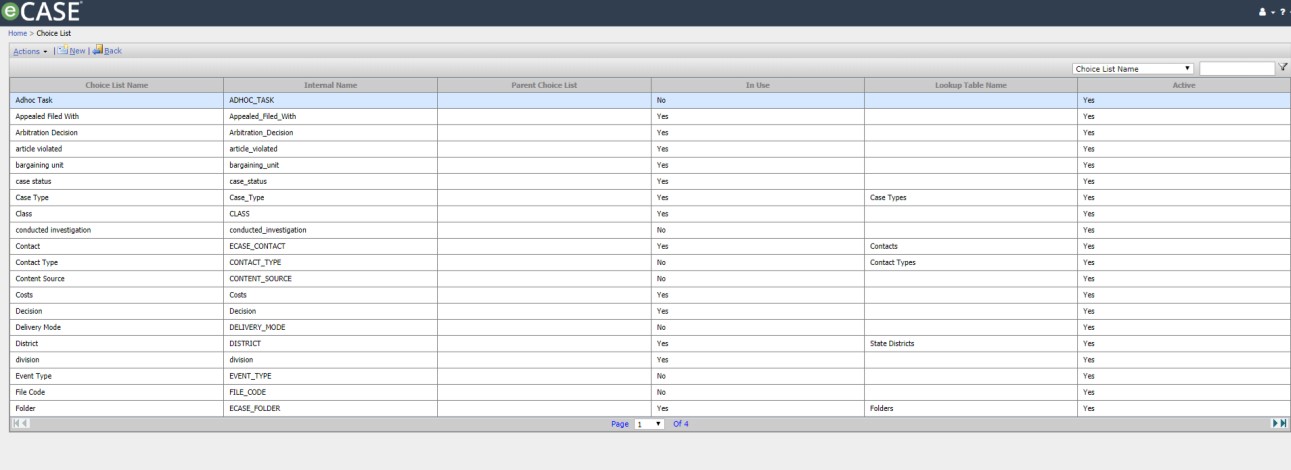
All of the choice lists in the system are listed in this window. To view and manage values in a list, select a Choice List and click (1) Actions > (2) Manage Values.
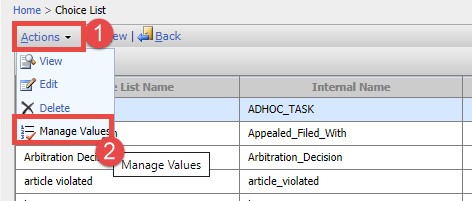
After clicking Manage Values, the Choice List screen for the selected choice list appears as shown in the example below:

All of the values under the selected choice list are listed here.
7.2.1 New Choice List Value
From the Manage Values page for a selected choice list, click New to create a new choice list value:
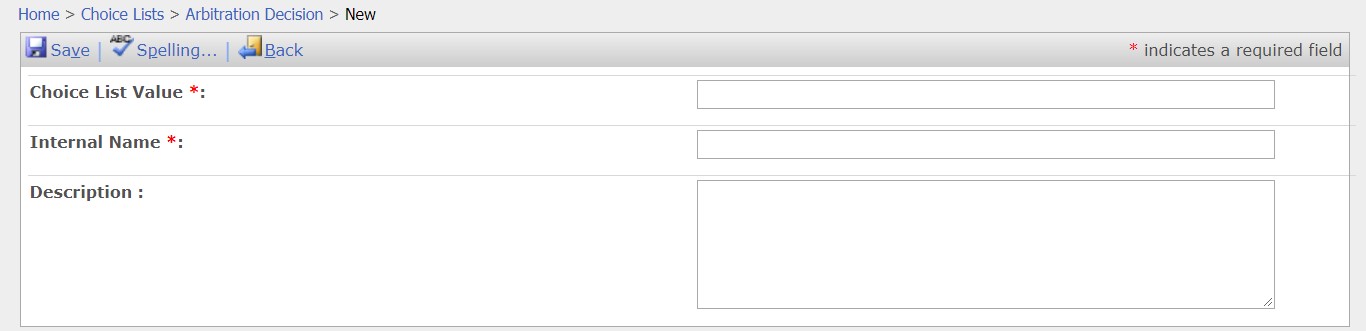
Add a Choice List Value (name of the entry in the drop-down list), Internal Name (only used within the system database), and a description if needed. Click Save. After the value is created, there is the option to change the order where that value appears in the list, as well as marking the value as active or inactive.
7.2.2 Manage Values
There are a few options for managing existing values in choice lists. From the Manage Values screen (Administration > Choice Lists > Select > Actions > Manage Values), authorized users can edit the value details, change the order of values in the list, and mark the choice list as active.
To edit an existing value, from the Manage Values screen, select a value, and click Actions > Edit. Authorized users can edit the details, or use the checkbox to mark the field as Active.
You can also select a value, and click Actions > Move Up or Move Down to change the ordering of values in the list. The ordering is reflected in the Order column on the values list. You can click Actions > Delete to delete the selected value.