Overview
FOIAXpress PAL facilitates the submission of FOIA (Freedom of Information Act) requests over the internet and allows information to be published to the Electronic Reading Room. FOIAXpress PAL is only supported on SQL Databases.
Getting Started
Before proceeding with the installation, it is necessary to do the following:
Install and setup the FOIAXpress application and related components
Install the PAL application and related components
Configure the SMTP Server to relay email to the email server while using FOIAXpress PAL. The SMTP server must be configured to relay email messages to other domains
FOIAXpress Online Manual
Enabling PAL Options in FOIAXpress
To configure PAL for use, it is necessary to enable PAL and its associated options (Action Offices, Request Types, Custom Fields, Requester Categories and Miscellaneous Fields) in the FOIAXpress application. By doing this, the information displays in the PAL application.
NOTES: The information in this section expects the FOIAXpress application to be installed and configured for use. You must be a member of the Admin group to enable PAL options. For further information concerning PAL options, please refer to the FOIAXpress Online Manual.
Follow the steps below to enable the FOIAXpress PAL:
Log in to the FOIAXpress application as an Administrator
Click Administration > System Configuration > PAL Configuration. The PAL Configuration screen appears
Select the Enable PAL (Public Access Link) Options checkbox
Select the Show Add to Reading Room Prompt When Closing Request checkbox
Select a Default Document Publishing Format
Click Save to retain your modified settings, and then click OK within the confirmation window
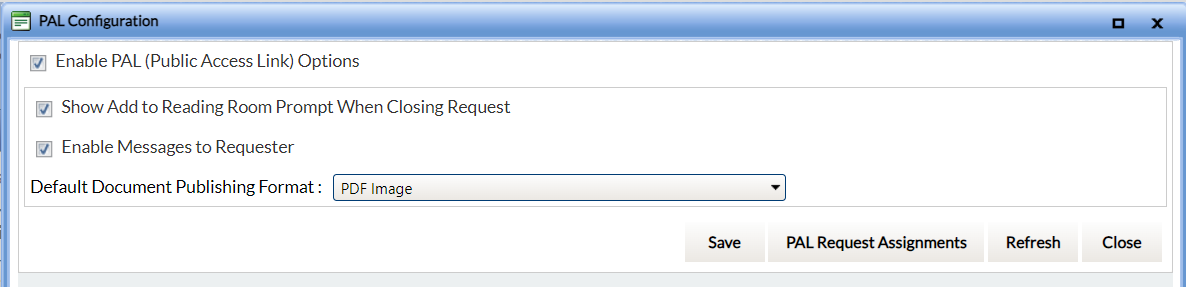
NOTES: An option to Show in PAL becomes visible for all PAL objects.
NOTES: When custom request types are configured with portal availability enabled, they will appear in the PAL request submission form. Requesters selecting a custom request type in the portal will see the portal form version configured for that type. See Administration > Request Management > Request Types for portal availability settings.
Action Offices
An Action Office is a location (region or department) that shares your instance of FOIAXpress for receiving and responding to FOIA/PA requests. Complete the steps below to configure Action Offices for the PAL:
Select Administration > Organization Setup > Action Offices. The Action Offices screen appears
In the list, click the Office Code you want to configure to Show in PAL, and then click the Show in PAL (Public Access Link) checkbox, as shown in the image below

Click Save
Click OK to retain your settings
Click OK
Repeat steps 2 through 5 for each Action Office to show in PAL, or click Close when Action Offices are fully configured
Custom Fields
Custom Fields are user-defined fields that can be used as an index for search and retrieval of records, as filter criteria in a custom report or used to include information specific to a request, requester, or document that is not covered elsewhere in the application to avoid
redundancy. By default, FOIAXpress provides built-in Custom Tabs for Request, Requester and PAL Reading Room, that can be renamed and customized.
Select Administration > Document Management > PAL Reading Room Custom Fields. The PAL Reading Room Custom Field Groups window appears
In the list of PAL Reading Room Custom Field Group names, click the row of the group containing one or more field names you want to configure to Show in PAL, and then click Fields
You can also create a new custom field group, or add fields to an existing custom field groups within this screen
In the list of field names, click the field Name to configure, and then select the Show in PAL (Public Access Link) check box, as shown in the picture below

NOTE: You can click the Move Up and Move Down arrows to configure the order of the Custom Fields that displays in PAL.
Click Save
Click OK
Repeat steps 3 through 5 for each field to configure to Show in PAL (Public Access Link), or click Close
Lookups
Lookups are pre-defined fields configured for most drop down lists in FOIAXpress. Of the different types of fields, the following are used in PAL:
Appeal Sub Types
Delivery Modes
List Options
Payment Modes
Requester Prefixes
Requester Suffixes
Within the Appeal Sub Types and Delivery Fields menu options, you can create, edit or enable lookups to appear in PAL.
NOTE: List Options are values used in conjunction with Custom Fields in FOIAXpress. For the purposes of these instructions, Requester Prefixes will be the type of Lookup used.
Follow the steps below to configure Lookups for PAL:
Select Administration > Lookups > Requester Prefixes. The Requester Prefixes screen appears
In the list of prefixes, click the Prefix to show in PAL, and then click the Show in PAL (Public Access Link) checkbox, as shown in the picture below
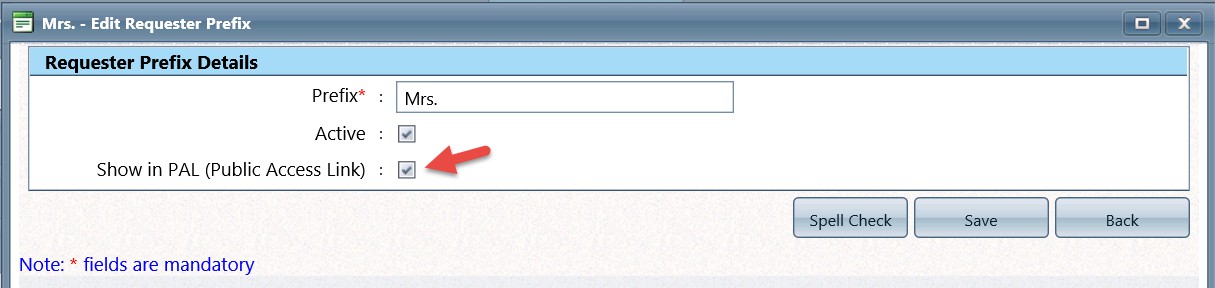
Click Save
Click OK
Repeat steps 2 through 4 for each prefix you want to Show in PAL or click Close
Request Types
FOIAXpress provides you with default request types such as FOIA, PA, or FOIA/PA. Your agency can create new request types, edit existing request types, and delete request types based on their needs.
Select Administration > Request Management > Request Types. The Request Types
screen appears.
In the list of Request Type names, click the Name you want to configure, and then click the Show in PAL (Public Access Link) checkbox, as shown below.

Click Save
Click OK to retain your modifications
Repeat steps 2 through 4 for each Request Type you want to show in PAL, or click Close
Requester Categories
A requester must be classified in a specific category, known as a Requester Category. The category to which a requester belongs is a qualifying factor for granting a request for waiving the fee and/or expediting a request. FOIAXpress provides default requester categories. Your agency can create new requester categories, edit an existing requester category, and delete requester categories based on their needs.
Select Administration > Request Management > Requester Categories. The Requester Categories screen appears
In the list, click the Name of the Requester Category you want to configure to show in PAL
Click the Show in PAL (Public Access Link) checkbox, and click Save
A verification message appears. Click OK to retain the settings
Repeat steps 2 through 4 for each additional Requester Category to show in PAL, or click Close

Setting Up the PAL Application
Once the PAL objects have been enabled in FOIAXpress, are synchronized and you can begin setting up the PAL environment.
NOTE: Users must be a member of the Admin group to log into the PAL Configuration application. Users must reboot the server once the configurations are completed to reflect the settings in the application.
Database Configuration
The information presented on this screen is automatically populated with data taken from the PAL installation. Updating this screen is unnecessary unless a new PAL database needs to be configured.

General Settings
The information provided on this screen is specific to your agency.

Enter general information details based on your agency’s requirements as outlined in the table below.
Click Save
A verification message displays. Click OK to retain the settings
Field Name | Description |
Application Title | The name of the PAL application as it appears in the title bar of the browser program. “PAL Application” is the default value. |
Application URL | The web address for the PAL application. This address appears in the address bar of the browser program. |
Field Name | Description |
Application Version | The version of the installed application. This field is read-only and not editable. |
Enterprise Hours | The time period (in hours) for accepting FOIA requests. Requests submitted after this period will be received the next day the office is open for business. |
Number of Records Per Page | The number of lines a requester is able to view after a search is executed. An example is searching documents in the Reading Room. |
Error Log Path | Select an output path for the error log file. |
Enable SMTP Server | This option allows requesters to receive messages in PAL. When selected, you must enter the SMTP Server Name/Address and Port. |
Enable Send Email | When selected, displays the Send Email link in the left panel of the PAL application. This link allows requesters to send a message to the contact email address for the enterprise. |
Enable Support Admin | Select this checkbox to Enable break-glass support account access for PAL Config. When enabled, authorized support personnel can log in with their individual support accounts and access PAL Config with view-only permissions. All action buttons that could modify data are hidden for support users. |
508 JAWS Instructions Note | A brief narrative that directs users to the location for assistance with JAWS. |
Save | Accepts and retains the submitted information. |
Clear | Removes information entered in the screen. |
NOTE: This setting is disabled by default. Only a Client Administrator can enable or disable this setting. Support personnel cannot activate this feature. The Client Administrator should disable this setting once the support need is resolved.
Enterprise
The information on this screen represents the agency’s mailing and contact information. Administrators can upload the agency’s logo if one exists. By default, the Enterprise Configuration screen appears when PAL Configuration is launched.
Enter enterprise details, as outlined in the table below:
Field Name | Description |
Enterprise Name | The identity of the agency. |
Address | The street location of the agency. |
City | The name of the city where the agency is located. |
State | The name of the state where the agency is located. |
Country | The name of the country where the agency is located. |
Zip Code | The five or nine digit postal code for the agency. |
Phone | The telephone number assigned to the agency. |
Fax | The telephone number assigned to the agency's facsimile machine. |
Contact Name | The name of the representative for the agency. |
Contact Email | The electronic address for all automated email messages sent from PAL. |
Field Name | Description |
Clear Logo | Prompts the user to verify if the logo should be removed. When acknowledged by the user, the logo is removed, the field is reset and the button becomes disabled. |
Select Logo | Allows the user to browse the system for an image file, uploads the file, then displays a portion of the image in the available field. The acceptable file formats are JPG, GIF or BMP. |
Save | Accepts information entered on the screen. |
Clear | Removes information entered on the screen. |
A verification message appears. Click OK to retain the settings
Click Save
A verification message appears. Click OK to retain the settings

Modules
PAL has two modules: Requester Interface and PAL Reading Room. The Requester Interface allows requesters to submit requests, check the status of a request, create a profile and receive documents. The Electronic Reading Room allows FOIA Specialists to publish documents for searching and viewing by the public from within FOIAXpress. The Dashboard module allows requesters to generate reports and graphs of data based on pre-configured queries and filtered criteria configured by the PAL administrator.
Enter the locations for Delivered and Electronic Reading Room Documents
Click the Enable send message to office option, if required. This option displays the Compose Message link in the submitted request which allows requesters to send messages to the FOIA office
Enter the web address for the Dashboard Administration and Dashboard modules
Click Save
A verification message appears. Click OK to retain the settings
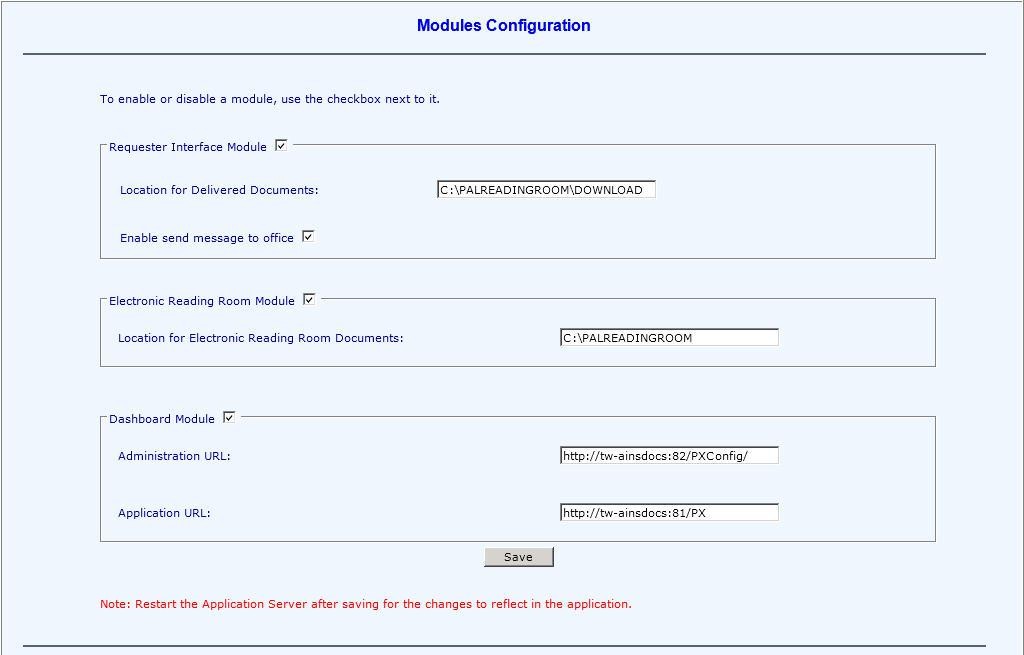
The Dashboard Administration link appears in the left panel of the PAL Configuration application and the Dashboard link appears in the Main Menu of the PAL application
NOTE: The Dashboard option in Main Menu Links Configuration must be enabled for the link to appear in the Main Menu of the PAL application.
.png?sv=2026-02-06&spr=https&st=2026-10-10T04%3A43%3A40Z&se=2026-10-10T05%3A45%3A40Z&sr=c&sp=r&sig=lUvfEaBzOotYCIxI52IB1BujOiVoK%2FJWXU3Um%2FO7sRk%3D)

Web API
By August 31, 2023 all agencies with automated systems must achieve full interoperability via an API to the National FOIA Portal. Casepoint released the API as an add-on to the FOIAXpress Public Access Link (PAL) as part of its v10.3 release. The API integrates with the FOIAXpress Public Access Link to seamlessly receive a FOIA request from the National FOIA Portal into your Public Access Link, which then populates the request into FOIAXpress where it is processed by your staff. As the request is processed in PAL the requester receives automated status updates and is notified the response is posted for viewing in their private reading room and/or available for download.
Since the API is an add-on, it must be purchased along with PAL if your agency is not currently using PAL. Once purchased, Casepoint provides the agency with the API submission details to populate in the fields below within your agencies Portal Submission Option configuration. Please remember that you may also need to make some changes to your National FOIA Portal profile when you enable this submission format to ensure requesters submitting their requests through the National FOIA Portal are informed of the new process.
Use the Web API screen to configure settings for Web API integration. The Web API screen is shown below:
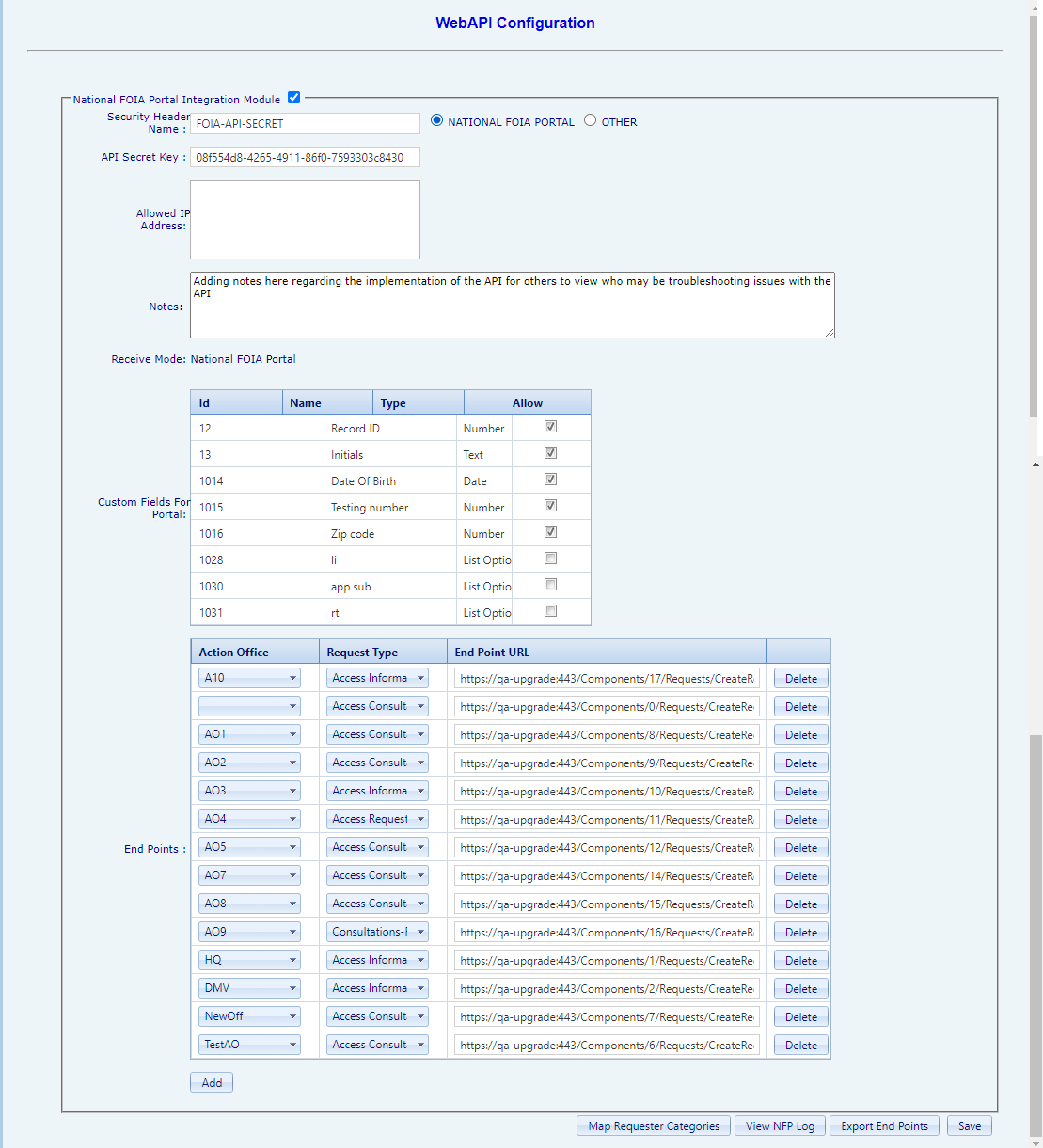
The fields on this screen are described in the table below:
Field | Description |
National FOIA Portal Integration Module | Select this checkbox if this configuration is applied to the National FOIA Portal Integration.
|
Security Header Name | Security Header Name associated with the National FOIA Portal.
|
API Secret Key | The API Secret Key (use the Generate option for key generation.) |
Allowed IP Address | The IP address associated with the portal integration. |
Notes | Free-text field to capture notes regarding the configuration that is useful to include on this screen. |
Custom Fields for Portal | Select the custom fields to enable for the portal. Mark the checkbox in the Allow column next to each field to be enabled. |
End Points | Use the Action Office, Request Type, and End Point URL fields to configure the Web API End Points information. Users can click delete to delete an existing row of End Point information. |
After the fields have been completed, click Save to save the Web API configuration. Alternatively, click Export End Points to export the configuration as an XML document.
Map Requester Categories
The Web API configuration allows for mapping requester categories to sync with the NFP. The map these categories, navigate to the Web API screen, then click Map Requester Categories at the bottom of the screen. The NFP Requester Category Mapping screen appears as shown below:

The NFP Requester Category corresponds to categories used in the NFP. You can also add Internal Name and select a PAL Requester Category to map. There is also a button to Delete a mapping if needed.
Click Add to create additional mappings. Click Save to retain any changes made to this screen.
View NFP Log
The View NFP Log option allows you to view a log originating from the National FOIA Portal. To view the NFP log, access the Web API configuration screen, then click View NFP Log at the bottom of the screen. The National FOIA Portal Log screen appears as shown below:

Select a date range to display in the log using the (A) Received From Date and (B) Received To Date fields. Also select a (C) Status from the drop-down list. Click (D) Search to show the results. The log displays as shown in the sample below:

Security
Since PAL is accessed by the public sector, it is necessary to provide requesters with a secure environment. The Security Configuration screen allows the PAL administrator to establish a Password Policy for requesters accessing PAL information and data.
To change default values, enter the following information outlined in the table below:
Field Name | Description |
Display Visual verification image (reCAPTCHA) after unsuccessful sign-in attempts | Displays the configured visual verification method (CAPTCHA or reCAPTCHA, based on deployment type and configuration) after the specified number of unsuccessful sign-in attempts. See Visual Verification (CAPTCHA/ reCAPTCHA) below for deployment-specific behavior. |
Login fails after | Sets how many times a user can unsuccessfully attempt to access the system. If the number of attempts exceeds this value, the user account is inactivated by the system. |
Session time-out after | Sets how long a user can remain logged into FOIAXpress (in minutes) before the application terminates. The user must login to the application again to continue any activity currently in progress. |
Alert user before Session expires for | Sets the time period (in minutes) to remind the user before the session expires. The system will prompt the user when the session is to terminate and provide options to continue or end the session. |
User Account Inactivation | Disables a user account for use in PAL. This field becomes disabled when the Password Never Expires option is selected. |
Inactive user account after | This field is enabled if the User Account Inactivation option is selected. This field sets the number of days the account is to remain unusable in PAL. |
Username and Password allowed to Match (Partial or Full) | Allows the username and password to have some or all of the same string of characters. |
Field Name | Description |
Require Temporary Password Update after Login | Allows new users to change the temporary password after logging into PAL for the first time with the temporary password. |
Display Visual verification image (reCAPTCHA) in Forgot Password page | Turns on the configured visual verification method (CAPTCHA or reCAPTCHA, based on deployment type and configuration) on the Forgot Password page. |
Allow Change Password every | Sets the minimum number of hours allowed between password change attempts. |
Apply Password Policy to Administrator | Employs the password policy to the PAL Administrator. |
OTP Type for Pal Admin Login | Sets the method through which PAL Configuration users receive OTP. The recommended method is Email. |
Admin Login OTP Expiry Time | Sets the number of minutes an OTP will remain active. The recommended time is 10 minutes. |
Save | Saves information entered on the screen. |
Clear | Removes information entered on the screen. |
Field Name | Description |
Default values | Administers the system default values and disables the Password Never Expires and User Account Inactivation options. |
Passwords never expire | This checkbox permits passwords to not become invalid. |
Passwords are valid for | Specifies how long (in days) the current password can be used. This field becomes disabled when the Passwords Never Expire checkbox is selected. |
Remind user | Provides a system prompt for a specified number of days before a password is to expire and provides the user the option to change the password. This field becomes disabled when the Passwords Never Expire checkbox is selected. |
Do not allow reuse of last | This option limits the use of previous passwords used to access PAL. |
Password can contain up to | Sets the character length for recurring characters in a password. |
Minimum Password length | Sets the lowest number of characters a password can contain. |
Password must contain at least (4) | Sets the number of uppercase letters, lowercase letters, special characters and numeric characters that make up the password. |
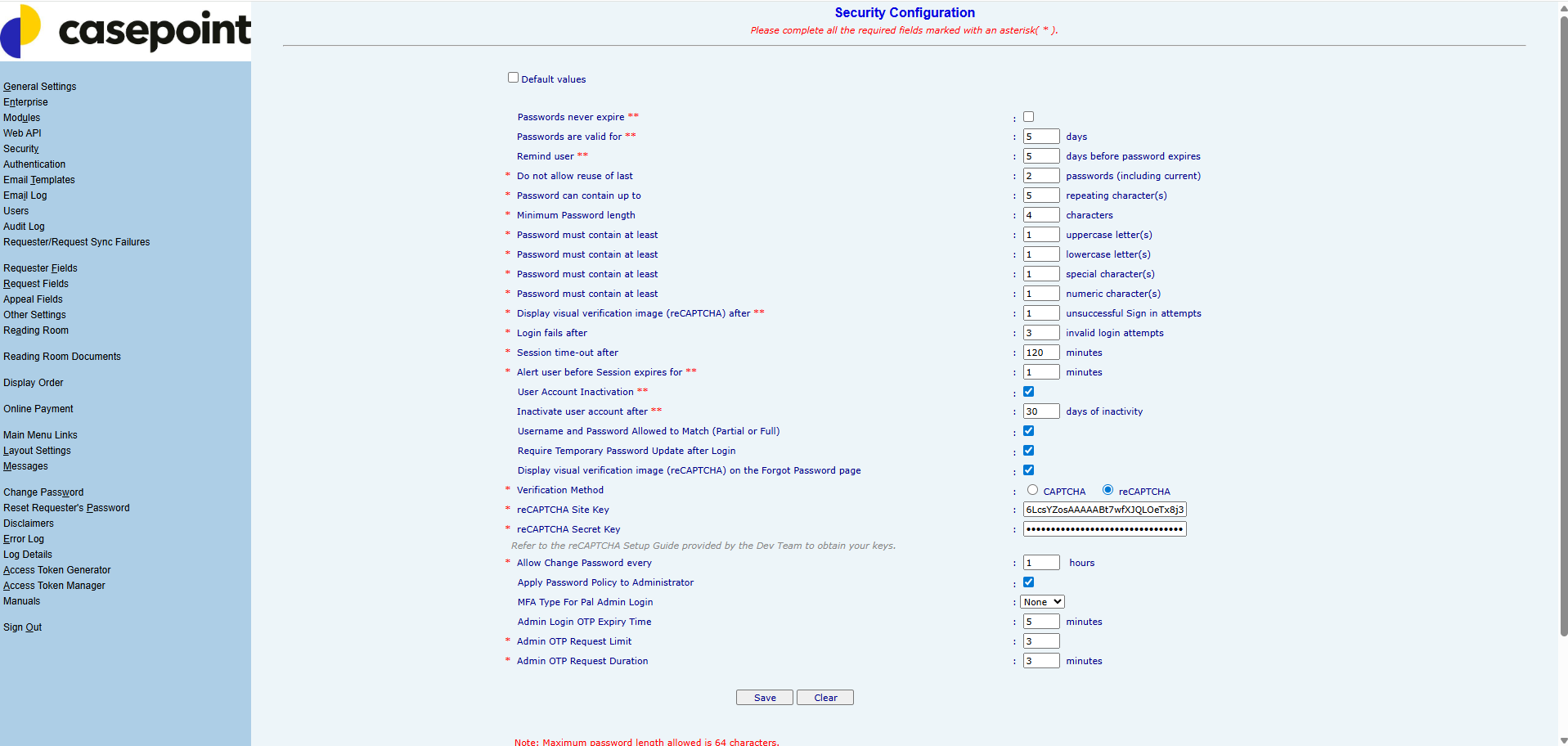
Configure Google reCAPTCHA in PAL
Google reCAPTCHA helps protect the Public Access Link (PAL) Sign In and Forgot Password pages from unauthorized access attempts.
To use reCAPTCHA, you register your PAL site with Google to obtain a Site Key and a Secret Key and then enter those keys in the PAL Security Configuration. This guide describes how to obtain the keys, configure them in PAL, set up the required network access, and troubleshoot common issues.
NOTE: You must have a Google account to register your site and generate the reCAPTCHA Site Key and Secret Key. A Google Cloud account is only required when using reCAPTCHA Enterprise.
Obtain Google reCAPTCHA
To register your PAL site with Google and generate a Site Key and Secret Key, follow these steps:
Navigate to Google reCAPTCHA Admin Console at https://www.google.com/recaptcha/admin/site/{ProjectID}.
.png?sv=2026-02-06&spr=https&st=2026-10-10T04%3A43%3A40Z&se=2026-10-10T05%3A45%3A40Z&sr=c&sp=r&sig=lUvfEaBzOotYCIxI52IB1BujOiVoK%2FJWXU3Um%2FO7sRk%3D)
To register for a new site, click the Create icon
Configure the key details:
Label — Enter a descriptive name
reCAPTCHA type — Select the type required by your PAL configuration
Domains — Enter the fully qualified domain names where PAL is hosted (for example, customer.com). Do not include https://
.png?sv=2026-02-06&spr=https&st=2026-10-10T04%3A43%3A40Z&se=2026-10-10T05%3A45%3A40Z&sr=c&sp=r&sig=lUvfEaBzOotYCIxI52IB1BujOiVoK%2FJWXU3Um%2FO7sRk%3D)
Click Submit
Copy the generated keys:
Site Key — used on the client side of your site
Secret Key — used for server-side verification. Do not share this key
.png?sv=2026-02-06&spr=https&st=2026-10-10T04%3A43%3A40Z&se=2026-10-10T05%3A45%3A40Z&sr=c&sp=r&sig=lUvfEaBzOotYCIxI52IB1BujOiVoK%2FJWXU3Um%2FO7sRk%3D)
Configure the Keys in PAL Security Configuration
After you obtain the keys, enter them in the PAL Security Configuration. Follow these steps:
In the PAL Configuration Admin site, select Security from the left navigation
For Verification Method, select reCAPTCHA
In the reCAPTCHA Site Key field, paste the Site Key from the Google Console
In the reCAPTCHA Secret Key field, paste the Secret Key
Click Save and then refresh the PAL application
.png?sv=2026-02-06&spr=https&st=2026-10-10T04%3A43%3A40Z&se=2026-10-10T05%3A45%3A40Z&sr=c&sp=r&sig=lUvfEaBzOotYCIxI52IB1BujOiVoK%2FJWXU3Um%2FO7sRk%3D)
To enable reCAPTCHA, the following Google URLs must be whitelisted: https://www.google.com/recaptcha/ and https://www.gstatic.com/recaptcha/. If the reCAPTCHA URL is blocked, the system automatically falls back to CAPTCHA. If the reCAPTCHA service usage limit is reached, the system automatically switches to CAPTCHA.
.png?sv=2026-02-06&spr=https&st=2026-10-10T04%3A43%3A40Z&se=2026-10-10T05%3A45%3A40Z&sr=c&sp=r&sig=lUvfEaBzOotYCIxI52IB1BujOiVoK%2FJWXU3Um%2FO7sRk%3D)
Network and Firewall Requirements
Your servers must be able to communicate with Google’s verification servers. Ensure your firewall allows outbound traffic to the following:
Requirement Type | Value(s) |
|---|---|
Primary Domains | |
API Endpoints | https://www.google.com/recaptcha/api.js (frontend) |
Port | 443 (HTTPS) |
NOTE: Google does not provide a static list of IP addresses. Whitelist domains instead of IP addresses.
Troubleshooting
If the reCAPTCHA widget fails to load or verification fails, follow these steps:
Check the browser console — Look for errors such as Invalid Site Key or Domain Not Allowed
Verify the domain configuration — Ensure the domain in the address bar exactly matches the domain registered in the Google Admin Console
Verify network connectivity — From the browser, confirm access to www.google.com and ensure the firewall is not blocking outbound requests
Check browser extensions — Disable ad blockers or privacy extensions that may block the api.js script
Confirm clock synchronization — Ensure the server’s system time is accurate. Time drift can cause token validation failures
Confirm JavaScript is enabled — Ensure the end user's browser has JavaScript enabled, as reCAPTCHA requires it
Deployment-Based Behavior
Deployment | Default Verification | Administrator Action Required |
|---|---|---|
SaaS | Google reCAPTCHA (using Casepoint-owned reCAPTCHA keys) | None. SaaS customers do not need to configure or provide their own reCAPTCHA keys. |
On-Prem | CAPTCHA (default); reCAPTCHA available | To use reCAPTCHA, configure the Verification Method, Site Key, and Secret Key in the Security Configuration screen (see fields below) and whitelist the required Google URLs. |
Verification Method Fields (On-Prem only)
The following fields are available in the Security Configuration screen for On-Prem deployments. They are not displayed for SaaS deployments, which always use Casepoint-managed reCAPTCHA.
Field Name | Description |
|---|---|
Verification Method | Radio button to select between CAPTCHA (default) and reCAPTCHA. Controls which visual verification method is applied to the FX Portal actions listed above. |
reCAPTCHA Site Key | Google reCAPTCHA Site Key provided to your organization by Google. Visible and enabled only when Verification Method is set to reCAPTCHA. Required before the configuration can be saved. |
reCAPTCHA Secret Key | Google reCAPTCHA Secret Key provided to your organization by Google. Visible and enabled only when Verification Method is set to reCAPTCHA. Required before the configuration can be saved. |
NOTE: When the Verification Method is set to CAPTCHA, the Site Key and Secret Key fields are hidden. When it is set to reCAPTCHA, both fields are required; the system will not save the configuration until both keys are entered.
NOTE: To enable reCAPTCHA, the following Google URLs must be whitelisted on the customer network / firewall: https://www.google.com/recaptcha/ and https://www.gstatic.com/recaptcha/. This applies to both SaaS and On-Prem deployments. If these URLs are blocked or unreachable, PAL automatically falls back to CAPTCHA.
PRO TIP: Guidance on how to obtain Google reCAPTCHA Site and Secret Keys is provided separately in the On-Prem setup documentation.
What the Requester Sees
When reCAPTCHA is the active method, the requester clicks the I'm not a robot checkbox on the applicable FX Portal screen. Google may display an image challenge (for example, select all images containing fire hydrants, motorcycles, or buses); the requester completes the challenge as instructed. The requester then clicks Verify to submit the response. PAL confirms the response with Google before allowing the action to proceed.
When CAPTCHA is the active method (On-Prem default), the existing CAPTCHA behavior continues unchanged: the requester types the characters shown in the distorted-text image and clicks Verify.
If the verification token expires before the requester submits the form or performs the action, PAL prompts the requester to complete verification again and blocks submission until a valid verification exists.
Authentication
The Authentication configuration allows users to enable SAML SSO authentication with Identity Provider for login, as well as form authentication using OTP. Please see the SAML Login and Proof of Identity Configuration manual for more information on integrating SAML SSO Authentication in PAL.
The Authentication Configuration is shown below:
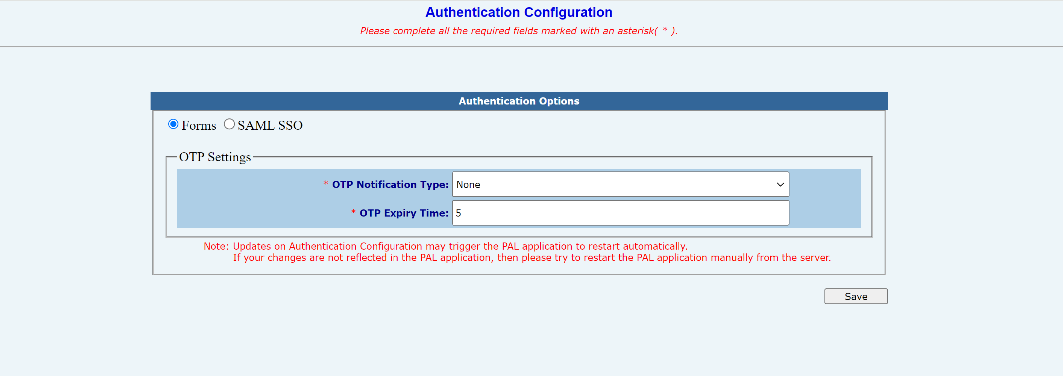
To enable login using Forms Authentication, select the Forms option. There are additional fields to configure OTP Settings, and you are required to select an OTP Notification Type (select None to disable OTP), as well as the OTP Expiry Time (in minutes).
To enable Login with SAML Authentication, select the SAML SSO option, then use the fields on this screen to complete the SAML configuration process:
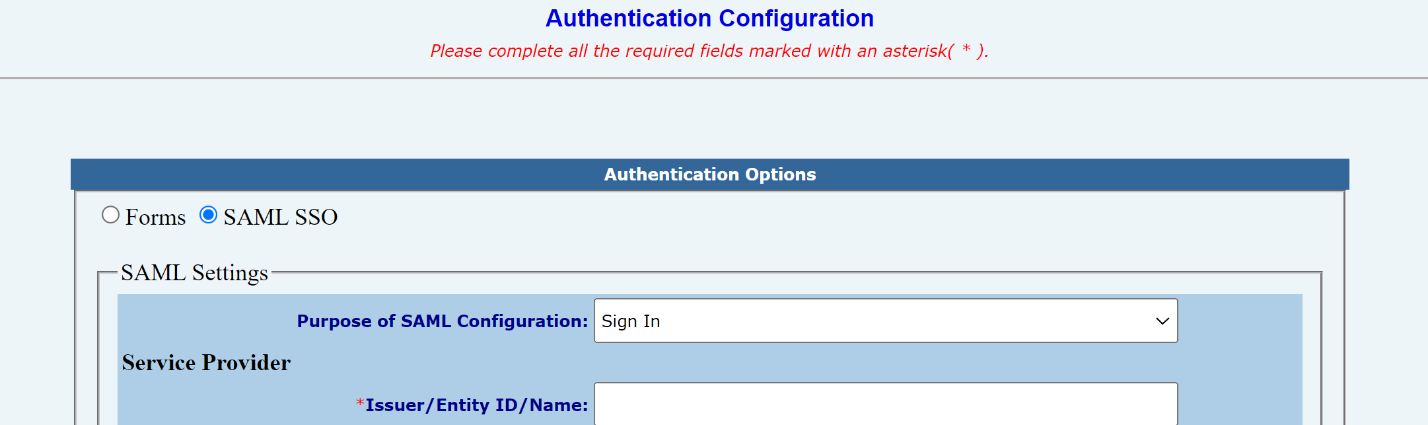
NOTE: To configure the SAML SSO from PAL Configuration, the PAL configuration application must have permission to the PAL application folder with full control. If this is not applicable, use the PAL SAML Configuration Tool.
See the SAML Login and Proof of Identity Configuration document for steps to configure PAL for SAML SSO.
Authentication Configuration & Identity Validation
Identity Validation (i.e., Login.gov or ID.me) integration is used to authenticate a requester’s proof of identity when submitting a request through PAL. There are two methods of authentication which can be utilized by FX PAL: Identity Assurance Level 1 (IAL1) and Identity.
Assurance Level 2 (IAL2). IAL1 authenticates via standard Username and Password entry, whereas IAL2 leverages an additional Identity Validation Solution to provide proof of identity.
IAL1 authentication is recommended for general login to PAL to ensure requesters are not required to submit proof of identity, unless they are submitting a request type that requires it. The second level of configuration, IAL2, is enabled only when a request type requiring Proof of Identity is selected.
To configure the SAML authentication method for requesters, see the SAML Login and Proof of Identity Configuration manual.
Identity Validation Options
If a request type within FX is configured to require proof of identity, requesters are forced to submit a proof of identity form. A Proof of Identity and Consent form can be found on every submitting Agency website. A hyperlink to the Agency’s Proof of Identity and Consent form can be hosted within the request submission form. Per OMB M-21-04, Agencies must be willing to accept this form in electronic format as sufficient proof of identity. Once completed and saved, this authentication form can be uploaded in the Proof of Identity attachment workspace in the PAL Submission Form.
If the Digital Authentication radio button is selected, a link appears and redirects the requester to Login.gov to login with existing credentials or to create a new user profile. An IAL1 (Username and Password) login is not sufficient to authenticate a requester identity. To provide digital authentication, Login.gov will require an IAL2 profile and will assist the requester with the process of providing their user authentication information. After the requester submits their information, they receive a security code via email or authentication via phone. After successfully completing their validation, the requester is returned to the request submission page, which now has the Proof of Identity validated and will share the validation with the agency upon request submission.

If one of the above Proof of Identity methods is satisfied, the system permits the requester to complete submission of a request.
After a request is received from PAL, the Request Information tab features the Proof of Identity/Consent workspace, which displays the date the requester’s identity validation was received, as well as any attachments provided during request submission. If the request is received via any other submission method, the proof of identity section in FX can be manually updated with the received date and required attachments. If the required information is not provided, the FX requester can use PAL Messages, Email, and/or Letter Templates to request this required information from the requester and stop the clock until Proof of Identity validation is received.
Typically, organizations will satisfy identity requirements using Username and Password or IAL1. If an organization will only be using the application to process FOIA Requests and they do not require proof of identification, they only need to utilize IAL.2.
NOTE: For more information about how proof of identity solutions authenticates a requesters identity or how to partner with an identity proofing solution, visit the solutions providers website (Login.gov or ID.me)
Email Templates
Certain events in PAL trigger an email notice sent to a requester or the FOIA office. These email notices are created from email templates, which represent the automated messages that are sent from PAL. Users with sufficient privileges are able to update the subject and body of the template to suit their agency’s requirements.
Click Email Templates
Select the type of template from the available list. For an explanation of each template, click the Question Mark button
Make any necessary modifications to the subject or body of the template using the available tools provided by the Editor program and preset fields found on the Insert Fields menu
Click Save to retain the edits to the template

Email Log
The Email Log tracks messages sent from PAL and is used for reporting and administrative purposes. Administrators can view and print a report of all messages sent based on search criteria.
View & Export
Follow the steps below to view and export items from the email log:
Navigate to Administration > Jobs
Click Email Log

Enter search criteria based on the available fields, as described below the following image:
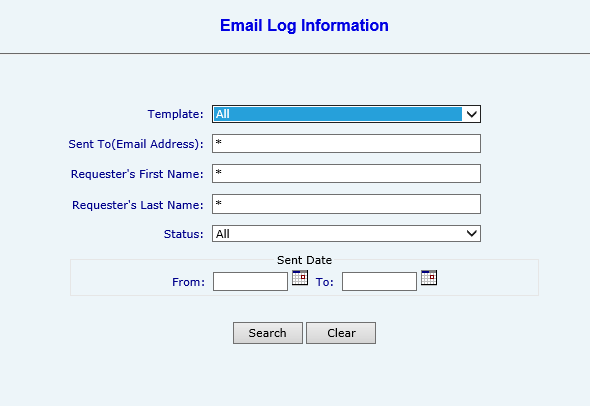
Field | Description |
Template | See logs using the specific templates used, from the drop down list. |
Sent To (Email Address) | See emails sent to a specific email address. |
Requester’s First Name | See emails exchanged from a specific requester (using requester’s first name.) |
Field | Description |
Requester’s Last Name | See emails exchanged from a specific requester (using requester’s last name.) |
Status | Select an email status from the drop down list. |
Sent Date | Use the From and To fields to narrow down log results to a specific date range. |
Click Search. The system executes the search and the screen refreshes to display records that satisfied the search criteria

Click a link in the Date & Time column to view the message, or double click the desired search result. The screen adjusts to display the sent message
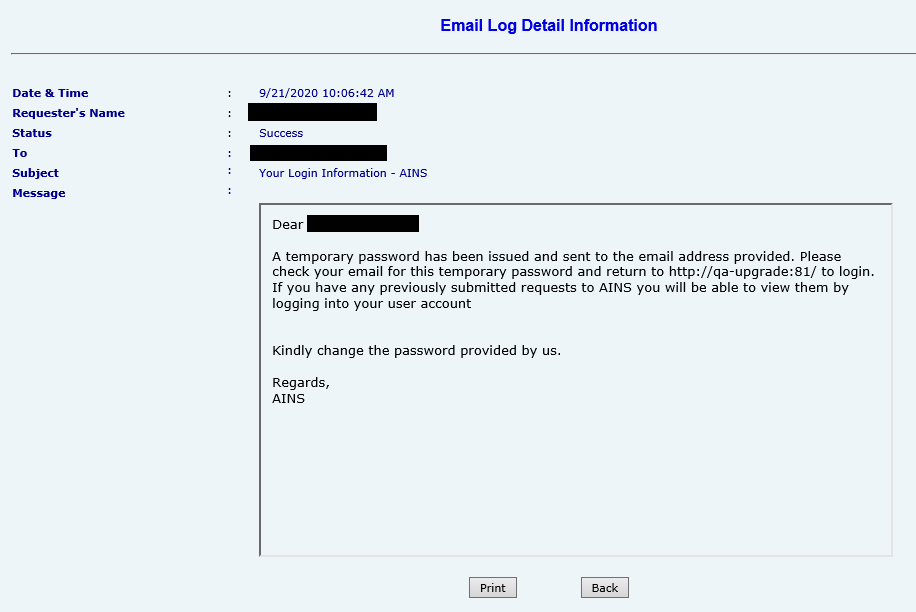
Click Back to return to the previous screen or click Print to send a copy of the message to the local or network printer
Click the Resend link to a corresponding message to send the message to the requester again

Click Export to download a copy of the report to the local or network drive using one of the available formats (Export Options radio buttons)
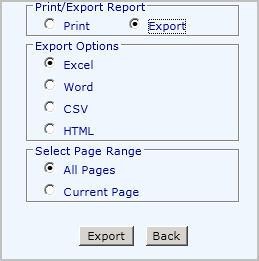
NOTE: Users are not able to download the Email Log if they are using a secured environment.
Clear Log
Follow the steps below the clear the email log:
Navigate to the Email Log Information screen and click Clear

The system displays a confirmation message, asking if the user would like to export the log prior to clearing it
To export the log, click OK and follow the steps as outlined in the previous section
Click Cancel to proceed without exporting

After clicking Cancel the system displays a verification message, confirming you’d like to clear the log. Click OK.
After clicking OK, the log is automatically cleared. If you selected to export the log, it is automatically downloaded after starting the clear process.
Users
Provisioned PAL users are managed from the Users screen, as shown below:

Administrators can use the New, Edit and Delete buttons to manage PAL users. Follow the steps below to create a new user:
Click New. The Create User screen appears

Complete the required fields and click Create. The new user is created
NOTE: Fields with a red asterisk (*) are mandatory and must be completed.
Audit Log
FX PAL maintains a record which tracks information for requests where payments are made, and requests are not submitted through sync. The Audit Log allows authorized users to complete audit queries based on their desired search criteria, displayed in the images below:

To execute an audit log search:
Login to the PAL Configuration page using the administrator account. Click Audit Log

The Audit Log page appears. Select the desired Activities radio button
NOTE: Selecting an Activities radio button may change the Audit Objects listed in the workspace.

Select the desired Audit Object from the list
Select the Administrator(s) from the drop down list
Select the Requester Login Date Range radio button
NOTE: The Requester Login Date Range radio button selection may change the type of Date Range inputs. This procedure uses date picker fields.
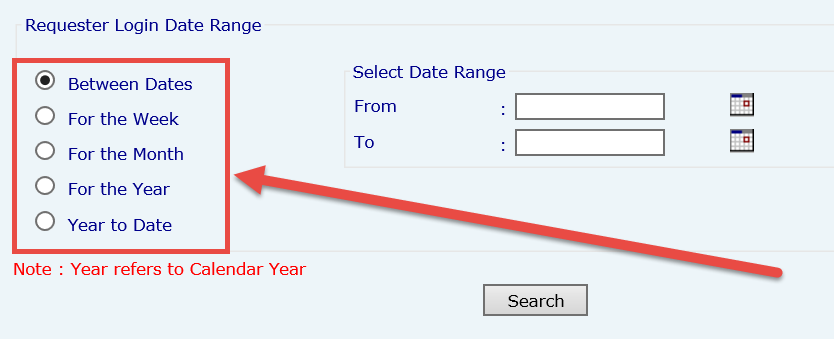
Complete the Select Date Range inputs
Click Search. The page refreshes to display results matching the search criteria. Within the search results page you can print or export the results
After a search has been executed, the application returns results in the format below. The pictured search has returned search results to display the following information:
Action Taken By
Action Time
Workstation
Comments

Requester Fields
The Requester Fields screen allows administrators to control which fields are presented to a requester when creating a profile. Fields with a red asterisk (*) are mandatory and must be completed. These fields are not editable and are read-only. Fields with a drop down list can be configured to have a standard value.
Click Requester Fields
Indicate the Required and Visible fields and Default values based on your agency’s requirements.
Enter Tooltip information, if required
NOTE: Tooltip information are prompts that users can view when seeking additional information about a field or selection.
Click Save
A verification message appears. Click OK to retain the settings
Click Refresh to reload information on the screen

Request Fields
This screen allows administrators to control which fields are presented to a requester when creating a request. Fields with a red asterisk (*) are mandatory and must be completed to successfully submit a request. These fields are not editable and are read-only. Fields with a drop down list can be configured to have a set of standard values.
Click the Request Details on the left panel. The Request Fields Configuration screen appears
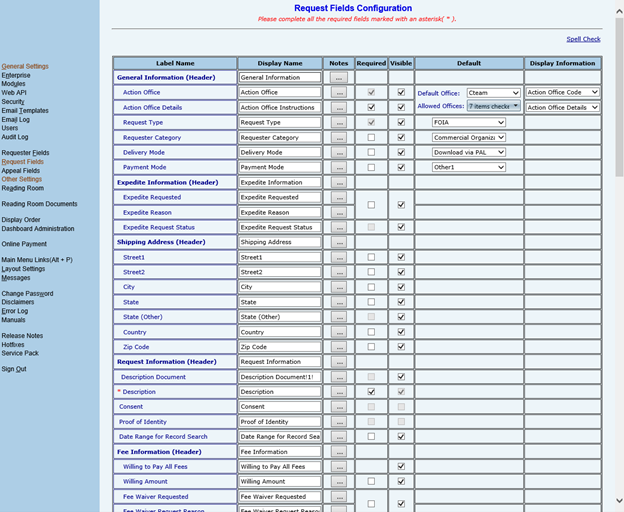
Use the checkboxes to indicate Required and Visible fields, and select any Default values based on your agency’s requirements for the General Information, Shipping and Billing Addresses, Request, Appeal, Fee Information and Other Information sections
Click the Ellipsis button to enter Notes, where applicable. Notes provide a brief explanation of information to the requester
Select options for the Attachment Permissions as outlined in the table below. PAL can accept document uploads from requesters in the formats specified, but only if the options are enabled

Field Name | Description |
Automatically attach request form as a request letter | This creates an XML file as the Request Description Letter in the FOIAXpress Correspondence Log. When selected, reveals the Allow Additional attachments to be included option. |
Allow Additional attachments to be included | This option activates the Add Attachments link in the Request Details section of PAL. The document uploaded by the requester is saved as the Request Description Letter in the FOIAXpress Correspondence Log. All Formats allows requesters to submit any file type. Specific Formats allows administrators to specify the types of files accepted from a requester. |
Field Name | Description |
Enable Expedite Requested Attachment | This option activates the Add Attachments link in the Expedite Requested section of PAL. The document uploaded by the requester is saved as the Expedite Description Letter in the FOIAXpress Correspondence Log. All Formats allows requesters to submit any file type. Specific Formats allows administrators to specify the types of files accepted from a requester. |
Enable Fee Waiver Requested Attachment | This option activates the Add Attachments link in the Fee Waiver Requested section of PAL. The document uploaded by the requester is saved as the Fee Waiver Description Letter in the FOIAXpress Correspondence Log. All Formats allows requesters to submit any file type. Specific Formats allows administrators to specify the types of files accepted from a requester. |
Enable Consent Attachment | This option activates the Add Attachments link in the Consent section of PAL. The document uploaded by the requester is saved as the Consent Letter in the FOIAXpress Correspondence Log. All Formats allows requesters to submit any file type. Specific Formats allows administrators to specify the types of files accepted from a requester. |
Field Name | Description |
Enable Proof of Identity Attachment | This option activates the Add Attachments link in the Proof of Identity section of PAL. The document uploaded by the requester is saved as the Proof of Identity Letter in the FOIAXpress Correspondence Log. All Formats allows requesters to submit any file type. Specific Formats allows administrators to specify the types of files accepted from a requester. |
Click Refresh to reload the original settings
Click Save to retain the settings. A verification message appears
Click OK to accept the settings and close the message window
Configure Action Offices for Web API End Points
Click Request Fields on the left panel
Open the Action Office field and select the required offices in Allowed Offices

Save the configuration
Click Web API
.png?sv=2026-02-06&spr=https&st=2026-10-10T04%3A43%3A40Z&se=2026-10-10T05%3A45%3A40Z&sr=c&sp=r&sig=lUvfEaBzOotYCIxI52IB1BujOiVoK%2FJWXU3Um%2FO7sRk%3D)
In the End Points section, click Add
Select an office from the Action Office drop-down menu
The list includes the offices configured in Allowed Offices.
Appeal Fields
This screen provides administrators the ability to control which fields are presented to a requester when creating an appeal. Fields with a red asterisk (*) are mandatory and must be completed to successfully submit an appeal. These fields are not editable and are read-only. Fields with a drop down list can be configured to have a set of standard values.
Click the Appeal Fields link on the left panel. The Appeal Fields screen appears as shown below (a sample portion of the fields are shown):

Use the checkboxes to indicate Required and Visible fields, and any Default values based on the agency’s requirements for the General Information, Shipping and Billing Addresses, Appeal, Fee Information and Other Information sections
Click the Elipses (…) button to enter Notes where applicable. Notes provide a brief explanation of information to be provided by the requester
Select options for Attachment Permissions as outlined in the table below. PAL can accept document uploads from requesters in formats specified only if the option is enabled

Field Name | Description |
Automatically attach request form as a request letter | This will create an XML file as the Request Description Letter in the FOIAXpress Correspondence Log. When selected, reveals the Allow Additional attachments to be included option. |
Allow Additional attachments to be included | This option activates the Add Attachments link in the Request Details section of PAL. The document uploaded by the requester will be saved as the Request Description Letter in the FOIAXpress Correspondence Log. All Formats allows requesters to submit any file type. Specific Formats allows administrators to specify the types of files accepted from a requester. |
Field Name | Description |
Enable Expedite Requested Attachment | This option activates the Add Attachments link in the Expedite Requested section of PAL. The document uploaded by the requester will be saved as the Expedite Description Letter in the FOIAXpress Correspondence Log. All Formats allows requesters to submit any file type. Specific Formats allows administrators to specify the types of files accepted from a requester. |
Enable Fee Waiver Requested Attachment | This option activates the Add Attachments link in the Fee Waiver Requested section of PAL. The document uploaded by the requester will be saved as the Fee Waiver Description Letter in the FOIAXpress Correspondence Log. All Formats allows requesters to submit any file type. Specific Formats allows administrators to specify the types of files accepted from a requester. |
Enable Consent Attachment | This option activates the Add Attachments link in the Consent section of PAL. The document uploaded by the requester will be saved as the Consent Letter in the FOIAXpress Correspondence Log. All Formats allows requesters to submit any file type. Specific Formats allows administrators to specify the types of files accepted from a requester. |
Enable Proof of Identity Attachment | This option activates the Add Attachments link in the Proof of Identity section of PAL. The document uploaded by the requester will be saved as the Proof of Identity Letter in the FOIAXpress Correspondence Log. All Formats allows requesters to submit any file type. Specific Formats allows administrators to specify the types of files accepted from a requester. |
Click Refresh to reload the original settings
Click Save to retain the settings. A verification message appears
Click OK to accept the settings and close the message window
Other Settings
Some settings are shared between both Requests and Appeals submitted via PAL. Use the Other Settings screen to adjust these shared settings. The Other Settings screen contains settings Request Status Information, Payment Information and more. The Other Settings screen is shown below:


Select the desired options for the Request Status Information. This section allows administrators to control which fields are available when checking the status of a submitted request if the requester is registered or not. Fields that are grayed-out cannot be modified and are the default fields displayed on the Request Status screen. The total width of the displayed fields must equal 100%

Indicate whether to Enable Non PAL Requests Status Information. This option allows requests submitted to the FOIA office via mail, email, or fax to be tracked online by PAL users that do not have registered profiles

Indicate whether to display Verification Fields while checking the Request Status information without registering. This option allows requests submitted to the FOIA office via mail, email, or fax to be tracked online by PAL users that do not have registered profiles, by requiring the case tracking number, requester last name and characters displayed in the distorted image to ensure the request was not submitted by a computer. Non-registered users will have restricted access to fee information and responsive records

Indicate whether to Show Requester Details on Request Submission Form. This option displays the Requester Details section with contact information of the registered requester

Indicate whether to Send Email Notification to Requester. This option enables automated notifications sent to the requester when the request is updated to the selected status (es)
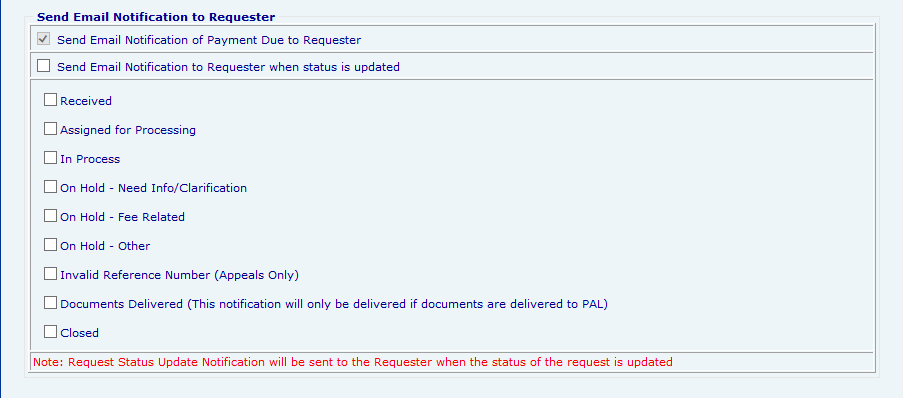
Click Refresh to reload the original settings
Click Save to retain the settings. A verification message appears
Click OK to accept the settings and close the message window
Reading Room
Reading Room Fields Configuration
To access documents in the reading room, requesters must first perform a search. The Reading Room screen contains the searchable fields requesters need to complete to retrieve documents.
Click Reading Room
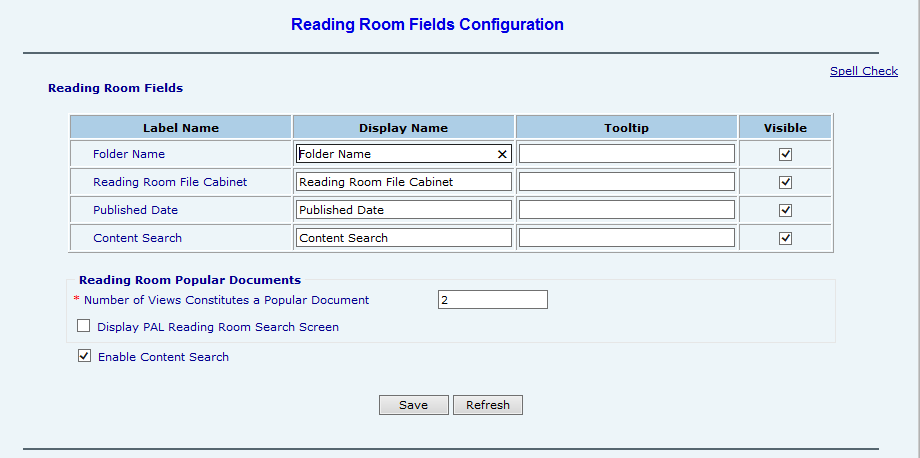
Indicate the Reading Room Fields you want to be visible in the application
Enter any Tooltip information, if required
Accept the default value for the Number of Views Constitutes a Popular Document or enter a value. This value represents the number of times a document is viewed before it is considered popular or a frequently requested document
Indicate whether you want to Display PAL Reading Room Search Screen for popular documents. This option displays the search screen for the Reading Room Popular Documents section in the application. The search information displayed is the same as the information configured for the Reading Room. To view the search screen, the Reading Room Popular Documents label must be enabled in the Main Menu Links Configuration screen
Indicate whether you want to Enable Content Search. This option displays the Content Search field in the reading room and popular documents search screens. This feature allows users to find a specific string of characters, words, or phrases
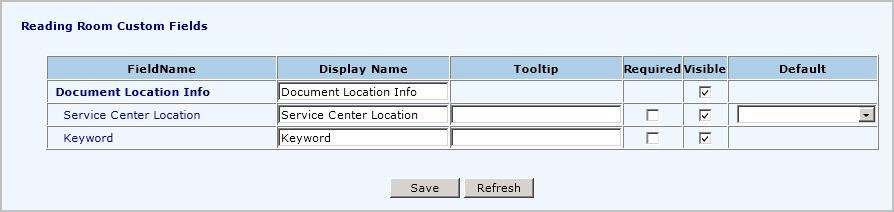
The PAL Reading Room can be configured to display custom fields in the search screen. These fields are created and activated for PAL in the FOIAXpress application
Remote Content Search
The Content Search for the PAL Reading Room can be configured to exist on a separate file repository from the application server. Follow the steps below to enable remote content search:
Enable content search per the instructions in the previous section
Create a share folder (UNC path) for PAL Reading Room documents
Add the PAL application pool account to the UNC path created in the previous step, including Modify permissions
NOTE: If the PAL website is running with the Network Service account, add the system account (domain/computer name$) to the UNC path, including Modify permissions.
Update the path in the Reading Room tab under PAL Configuration
Reading Room Documents
Search Reading Room Documents
The Reading Room Documents search configuration allows you to search for documents added to the Reading Room. To search existing Reading Room documents:
Click Reading Room Documents. The Search for Documents in Reading Room screen appears as shown below:

Use the fields on this screen to locate existing documents. You can refine your search using the Refine Your Search fields
Select Reading Room Filing Cabinet(s) to search from the list
Use the Folder Name field to locate a specific folder name
Use the Published Date fields to search using a specific date range
Search document content using the Content Search field
Click Search to locate any documents matching the search criteria. The Reading Room Documents screen appears as shown in the following example:
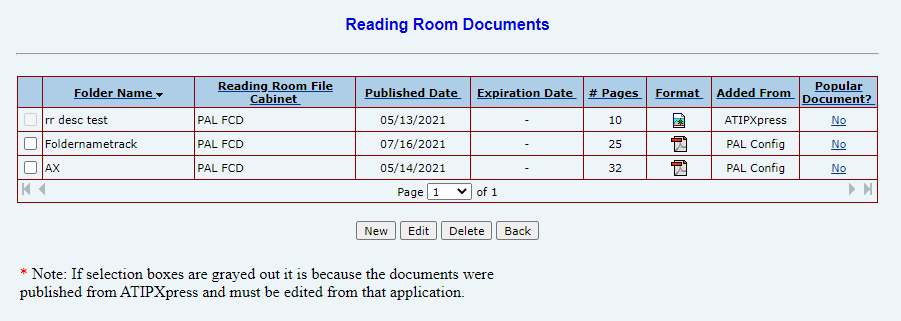
You can select any of the results from the list and use the buttons to add New documents, Edit the selected documents, or Delete the selected document
Add Reading Room Documents
You have the option to create and save Reading Room document searches for later use.
Click Reading Room Documents
Click New. The Add Reading Room Documents screen appears

Enter the required elements outlined in the table below
Click Save when completed
Field Name | Description |
Folder Name | The title given to the document. |
Reading Room File Cabinet | Reading Room File Cabinet where the document should be uploaded. Select from the listed options. |
Browse Document | Allows the users to locate the file from their local/network drive. The acceptable file formats are PDF, TIFF, ZIP, DOC, XLS, DOCX and XLSX. |
Number of Pages | Indicates the size of the document (in pages). |
Published Date | Indicates the date the document was published to the Reading Room. Today’s date is the default. |
Show in Reading Room | Indicates if the document is available in the Reading Room. |
Never Expires | Indicates whether the document remains in the Reading Room. If unselected, the Administrator can determine the date the document expires. |
Comments | A brief narrative describing the document. |
Refresh | Reloads the screen to its original settings prior to saving. |
Back | Returns to the previous screen. |
Display Order
This screen allows administrators the ability to determine the order for Request, Requester, or Reading Room section headers and fields in the application.
Click Display Order
Select the desired Module from the drop down list
Accept the default option to Configure Headers or select Configure Fields
The Headers Display Order list updates to display only headers based on the selected module
The Fields Display Order field is revealed when the Configure Fields option is selected and automatically adjusts to display fields based on the selected module and header
Use the Up and Down arrows to reposition the headers and/or fields
Click Refresh to reload the screen with the default settings
Click Save to retain the settings

Dashboard Administration
This link launches the Dashboard Administration application. Please refer to the PAL Dashboard User Manual for further information concerning this link.
Online Payment
The online payment option is used to configure the integration between the PAL and an agencies’ existing online payment solution (i.e., Pay.gov). When the Enable Online Payment option is checked, the drop down list includes the name of the integrated PAL online payment solution and, upon selection, displays the configuration fields required to communicate between PAL and the payment solution.
The online payment integration provides the ability for agencies to require payment prior to accepting a request submission and/or providing requesters a method of submitting payment for charges billed to them related to their record request.
In addition, the information the requester sees on their receipt (as triggered by the application) is also configured here. Follow the steps below to configure Online Payments:
NOTE: Each PAL integration is different, so different fields may be available for configuration purposes.
Click Online Payment
Select the Enable Online Payment checkbox to enable the online payment option for your PAL
Under the Payment Option drop down list, select the Payment Option to enable for PAL. These options are based on the integrated payment solution(s) you have connected to your FOIAXpress application
After selecting an available Payment Option, additional configuration fields appear to configure the selected payment method
NOTE: The screen below is presented as an example. The fields shown here may not apply to your online payment configuration.

After configuring the desired fields as needed, click Save
Main Menu Links
This screen is used to configure the links available to the requester in the left panel.
Click Main Menu Links
Click the checkboxes next to the options to enable in the Main Menu of the application
Accept the default Display Name and Access Key or modify the information based on your agency’s requirements. The Access Key is the keyboard combination used to select a link
For example, <Alt> + <R> will select the Request Status link

To access additional options to open a link
Select the checkbox next to a label name. The Open In drop down list becomes available
Click the drop-down list and select Right Panel to display the link on the right panel or New Window to launch a new window when the link is selected
NOTE: Although Administrators have the option to specify an alternate location for opening links, it is not recommended to do so. Keeping the links in the main menu makes it easier for users to navigate within the application.
Enabling Links
Administrators can determine whether a user must be registered in order to submit a request or an appeal and when the Submit Request, Submit Appeal, Request Status and Appeal Status links should appear in the application.
Select the desired options based on the information outlined in the table below, as per your agency’s requirements
Click Refresh to load the screen with the default settings
Click Save to retain the updated settings
Field Name | Description |
Enable Request Link | Determines when to display the Submit Request link. If Always is selected, the link displays at all times. If Only after Sign In is selected, the link displays after the user successfully completes registration. |
Enable Appeal Link | Determines when to display the Submit Appeal link. If Always is selected, the link displays at all times. If the Only after Sign In radio button is selected, the link displays after the user successfully completes registration. |
Enable Request Status Link | Determines when to display the Request Status link. If Always is selected, the link displays at all times. If the Only after Sign In radio button is selected, the link displays after the user successfully completes registration. |
Field Name | Description |
Enabling Sub Links (When Requester is not logged in): | This option becomes enabled if Always is selected as the preferred method to display any of the above links. Administrators can opt to have all or some of the sub links appear. By default, selecting the Check Request Status without registering link checkbox appears in the Request/Appeal Status screen if no sub links are selected. |

Layout Settings
This screen provides guidelines for administrators to customize the appearance of the PAL application theme. Administrators can select one of several predetermined themes, or they can customize their own theme using a custom style sheet.
Standard Theme
The PAL configuration offers several out-of-the-box themes to easily select and apply. Follow the steps below to use a built-in theme.
Click Layout Settings

Select the theme to apply from the Select theme for Application drop down list
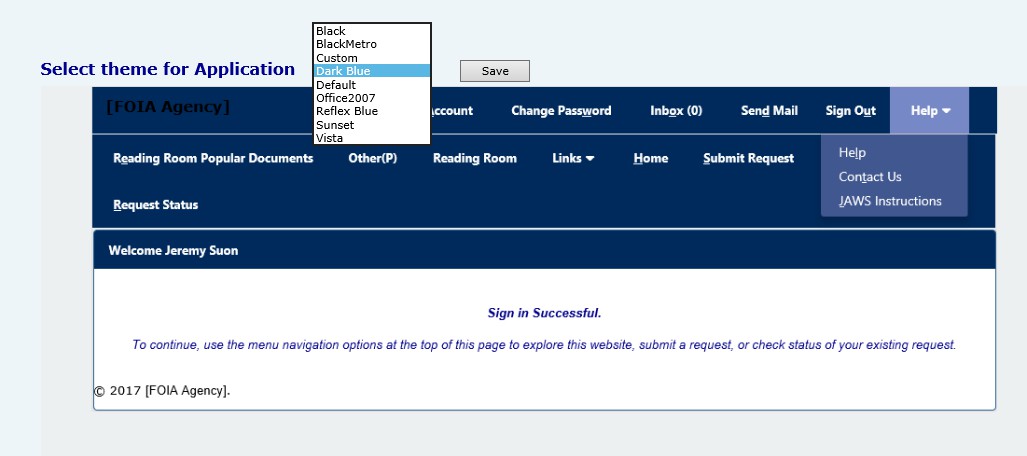
If satisfied with the selected theme, click Save to apply the changes to the application
A confirmation message displays. Click OK
Custom Theme
You have the option to customize your own theme using a Cascading Style Sheet (CSS) file. You’ll first download the Custom.css file, then edit the contents as needed to customize the look and feel of your application. Follow the steps below to design a custom PAL theme.
NOTE: You will need a working knowledge of CSS in order to create a custom PAL theme
Click Layout Settings
Select Custom from the Select theme for Application drop down list
After selecting Custom, buttons will appear with options to Save or Download. Click Download to save the Custom.css file to your local drive
NOTE: This file must keep the name Custom.css. If the name is changed, PAL will not be able to read the file and apply custom settings.
Open the Custom.css file and edit the style sheet file as needed to apply a custom theme. You will need a working knowledge of CSS to fully customize the style, however a basic guide is included on the Layout Settings screen with examples of where and how the CSS file should be edited to produce the desired results. A sample of the Main Menu customization options are shown below.

When you have configured your Custom.css file and are ready to apply the layout updates, navigate to Layout Settings and select the Custom theme from the Select theme for Application drop down list.

Click Browse and navigate to and select the Custom.css file to upload
NOTE: This file must be named Custom.css. PAL will not accept a custom theme with any other name.
The file path for the selected file appears. Click Upload to upload the custom CSS file.
NOTE: After a custom theme has been uploaded, you can download this custom style sheet file by clicking Download.
Click Save to apply the customized theme to your PAL application
A confirmation message appears. Click OK to close this window and complete the updates to the layout settings
Messages
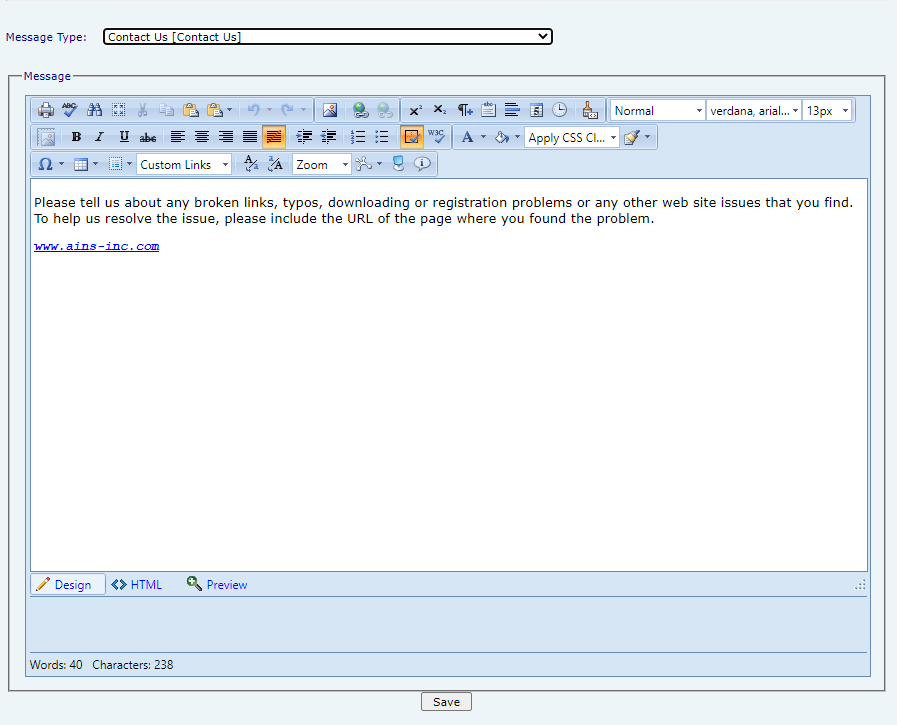
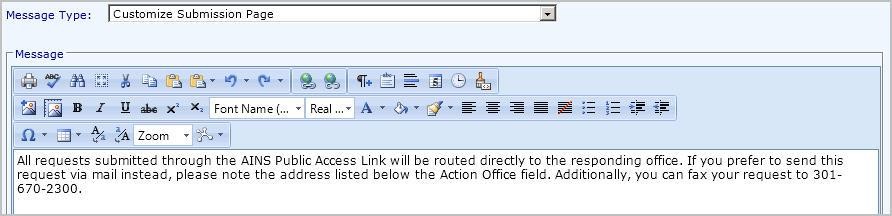
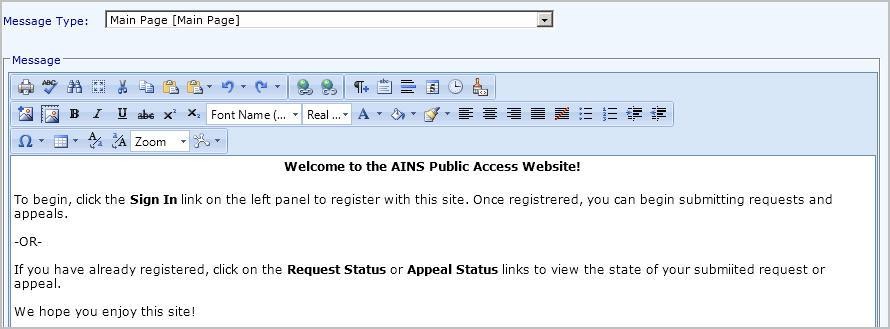
Messages Configuration provides a means for administrators to customize content on various screens within the PAL application. Additionally, the header and footer can be customized to suit your agency.
Select a Message Type from the Message Type drop-down list
Add or modify content based on agency requirements using the available tools provided by the Editor program
Click Save. A verification message appears
Click OK to accept the content and/or settings
Repeat steps 1 – 4 for each message to configure
NOTE: The Help message displays the PAL Configuration online manual, and is used by administrators as a reference. The information on this screen is provided by Casepoint and should not be altered.
You must reboot the application server or reset IIS to update the content and settings reflected in the application.
If your system is configured with more than one server, e.g. load balancing servers, make sure messages are configured on both servers.





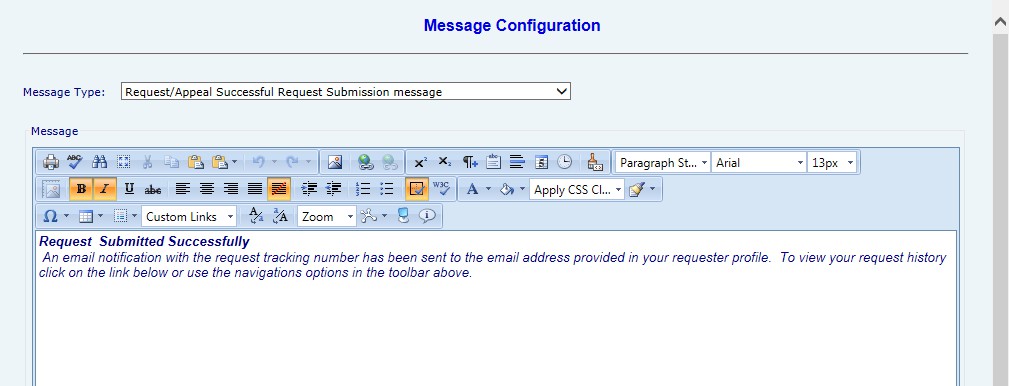


Login. gov Verification Failure Page
The Login.gov Verification Failure Page message type lets PAL Config administrators customize the content shown to a requester when Login.gov redirects them back to the PAL portal after a failed or cancelled identity verification (Proof of Identity flow). The system automatically detects the identity provider from the Login.gov redirect URL.
URL- https://fxqa.casepoint.in/app/ValidationFailure.aspx
A requester who selects Cancel during the Login.gov identity verification flow is returned to this same page when Login.gov redirects back to the portal. The redirect that follows a verification failure is unchanged.
.png?sv=2026-02-06&spr=https&st=2026-10-10T04%3A43%3A40Z&se=2026-10-10T05%3A45%3A40Z&sr=c&sp=r&sig=lUvfEaBzOotYCIxI52IB1BujOiVoK%2FJWXU3Um%2FO7sRk%3D)
Navigate to PAL Configuration, then select Messages.
From the Message Type drop-down list, select Login.gov Verification Failure Page.
The WYSIWYG editor is pre-populated below the note.
On first-time selection, the editor displays the system-defined default body content shown below.
On subsequent selections, the editor displays the most recently saved body content.
4. Edit the body content using the available tools provided by the Editor program. Replace the placeholders Agency Help Desk, Agency Portal, Phone Number, Email ID, AGENCY, and LINK TO SITE with your agency’s information.
5. Click Save.
6. If the save operation fails (for example, due to a network error, server timeout, or backend error), the existing PAL Config error notification is displayed. The body content you entered is retained in the editor, so no work is lost — fix the issue and click Save again.
System-defined Default Body Content
When the message type has never been configured, the editor is pre-populated with the following default content, which is also rendered to the requester if no custom content has ever been saved
We were unable to verify your identity through Login.gov
This may have occurred because the information provided could not be verified, your session expired, or a technical issue occurred during the verification process
What you can do next:
Try again — Return to the portal and restart the identity verification process
Review the Login.gov Help Center or contact Login.gov support for assistance with your Login.gov account.
If you continue to experience issues, contact the department’s [Agency Help Desk]
Department of Education users can access the [Agency Portal] and submit a support ticket
All other users can contact the Help Desk at [Phone Number]
You can also email the Help Desk at [Email ID]
When contacting the Help Desk, specify that you are experiencing an issue with an ICAM service
If you are unable to verify your identity through Login.gov, you can still submit a FOIA request directly through [AGENCY] by visiting [LINK TO SITE]
NOTE: The failure page is not navigable from the PAL portal. It does not appear in the portal menu, navigation, or any publicly accessible link. It is rendered exclusively when Login.gov redirects a requester following a failed or cancelled identity verification attempt.
Change Password
There may come a time when it is necessary to change the Administrator’s password. The Change Administrator’s Password screen allows authorized users to create a new password for the PAL Configuration application.
NOTES: The Password Policy created in the Security module must be followed to successfully change the password.
Changing the password will affect access to the Dashboard Administration application.
Follow the steps below to change the Administrator password for PAL:
Click Change Password
Enter the Old Password in the Old Password field
Enter the New Password in the New Password field
Re-enter the New Password in the Confirm Password field
Click Submit

Reset a Requester Password
If a requester has requested a password reset, complete the following:

If you have received requester password reset request, log in to the PAL Configuration page
Log in using the administrator login and password
Click Reset Requesters Password. The Search Requester to Reset Password screen appears

Using the available fields, enter available search information that will help locate the desired requester

After locating the desired requester within the search results page, click the Reset button in the Action column for the desired requester
NOTE: You can click an entry in the search results table to highlight it.
The screen refreshes, and the banner indicates that the password reset was successful and the desired requester will receive a password reset email. From this point the user will be prompted to reset their password information.

The requester must now access their email and complete the password reset process, using their login and temporary password. If password verification questions were set up during account creation the requester will need to answer them to verify their account complete the password reset.

Disclaimers
Administrators can provide disclaimer information to notify requesters of their agency’s policy
for collecting personal information.
Click Disclaimers
Add Requester Privacy Disclaimer text based on your agency’s requirements using the available tools provided by the Editor program
Select the position for the text to appear on the screen (Top or bottom)
Select which screens you want the text to appear on (My Account, Request, and Appeal)

Select the display options for the Login Page Disclaimer (Banner, Organization Name, or both). Selecting any one of these items automatically populates the Priority Order field
Enter Login Page Disclaimer Text based on your agency’s requirements. The Disclaimer option automatically appears in the Priority Order field once text is entered
Use the Up or Down arrows to select the Priority Order of the items to appear on the Login screen
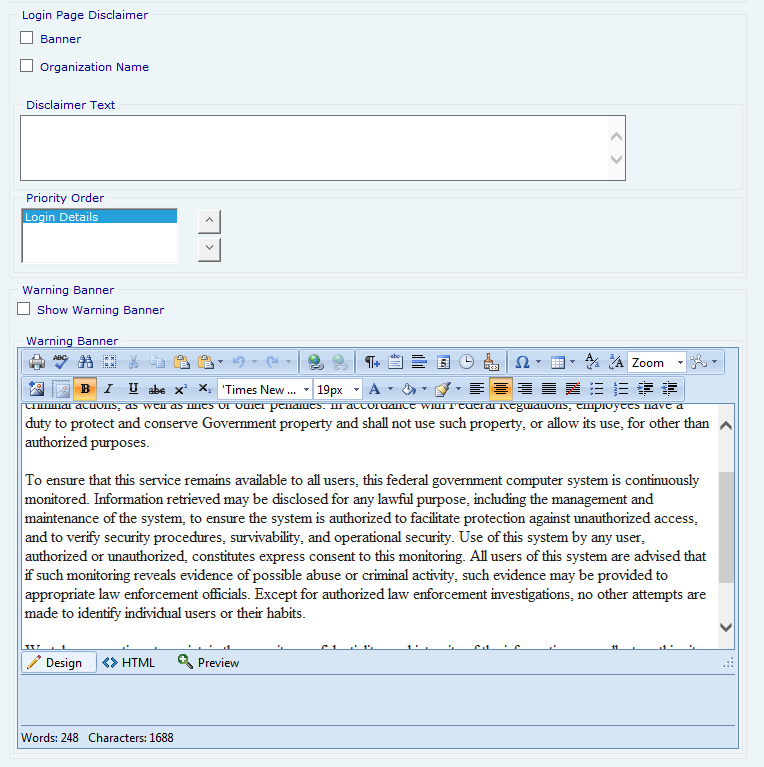
Select the option to Show Warning Banner, if required
If the Warning Banner is displayed, enter the Warning Banner text based on your agency’s requirements using the Editor program

Click Save to retain the settings.
Error Log
The Error Log provides details to help identify problems and for troubleshooting issues that may arise while using the PAL application.
Click Error Log
Click Clear to remove the Error Log contents. Make any desired alterations to the Error Log display
Click Save to store a copy of the Error Log to your local or network drive

Manuals
The information presented on this screen is the PAL Configuration online manual. Administrators can utilize this information as a reference when configuring the PAL application. This information is provided by Casepoint and should not be altered.

National FOIA Portal
The procedures below describe the two halves of the National FOIA Portal Integration with PAL. First, users must generate the XML file, which determines values which are useful in the later stages of the configuration process. Next, users must use the information contained in this XML file to complete the National FOIA Portal Configuration.
NOTE: Only users with Administrator access to the PAL Configuration portal can perform this work.
Integrating PAL with the National FOIA Portal
If your agency purchases a National FOIA Portal integration license, it can perform the integration using the procedures described below:
Navigate to your organization’s PAL Configuration portal
Enter the Login ID into the field
Enter the Password into the field
Click Sign In

Click Web API. The WebAPI Configuration screen appears
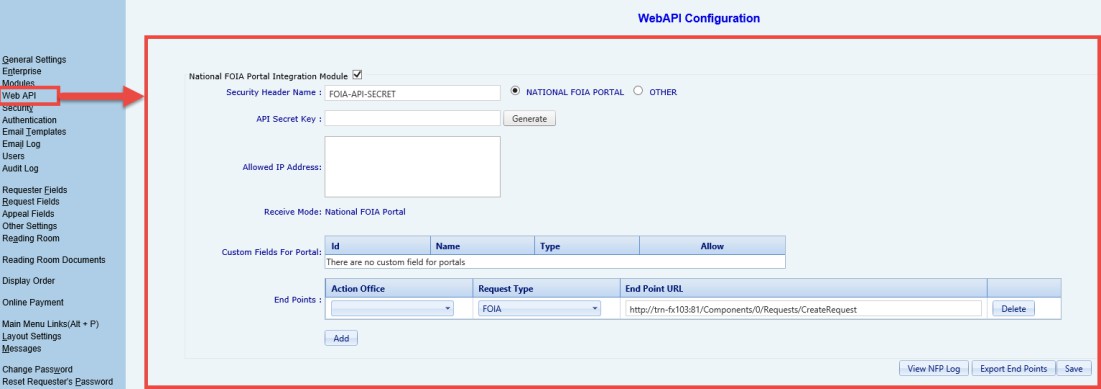
Complete the fields described in the table below:
Field | Description |
Security Header Name | National FOIA Portal sends a header that reads FOIA-API-SECRET with every request. If the header does not match, the request is rejected. |
API Secret Key | Clicking the Generate button creates a new secret key. This key is used by National portal to submit a FOIA request securely. If the secret key present in the request does not match with the agency’s secret key, the request is rejected. |
Allowed API Address | Configure the desired IP addresses. Typically, these are National Portal’s IP addresses. |
Custom Fields for Portal | If administrators want to capture additional data from the National Portal, they can include Request Custom Fields. Your administrators must work with National FOIA Portal administrators to configure any additional custom fields. |
End Points | This is the Action Office receiving the selected request type. Click Add to create additional end point workspace entries. Click Delete to remove a selected end point workspace entry. |
Click Save.
Click Export Service. An XML file is generated.
NOTE: This XML file contains information such as service end points, action office details, secret key, etc. This content is required for National FOIA Portal Configuration.
National FOIA Portal Configuration
Administrators must use the information contained in the XML file generated in the Integrating PAL with the National FOIA Portal section to complete the National FOIA Portal Configuration. To complete the National FOIA Portal Configuration:
Login into National FOIA Portal Configuration page using the Administrator profile
Within the left navigation panel, click Web API. The WebAPI Configuration screen appears as shown below

Click the National FOIA Portal Integration Module checkbox. The page refreshes and the WebAPI Configuration fields are now enabled
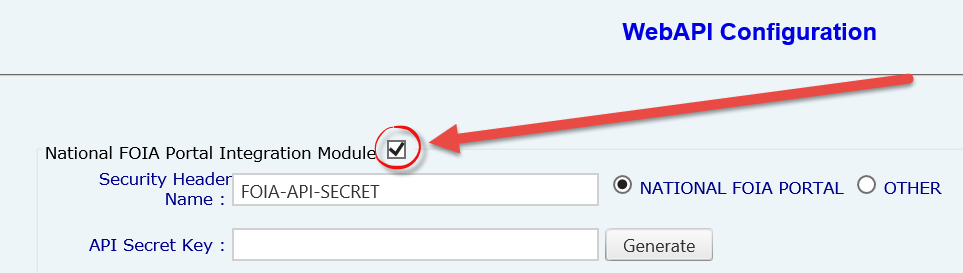
Ensure the National FOIA Portal radio button is selected

Enter the Security Header Name in the field
Click Generate to create a new API Secret Key. Copy this key to your clipboard
NOTES: The Submission API URL is generated in the PAL Configuration page for each action office. You can locate this information within the XML file exported from PAL configuration.
The API Secret Key is used by National Portal to submit FOIA requests securely. Enter the key in the Submission API Shared Secret field in the Portal Submissions Options page of the National FOIA Portal.
Enter the five IP Addresses provided by DOJ in the Allowed IP Addresses field
Select the desired Request Type from the drop down list. Selections in this field permit ingestion of additional non-FOIA request types
Enter any desired Notes in the field
Enter any Custom Fields for the Portal in the Custom Fields for Portal workspace
NOTE: This can only be performed after the custom fields are configured in FX.
Configure the End Points by selecting the Action Office, Request Type, and End Point URL. Click Add to enter new End Points within the workspace
If desired, click Export End Points to export an XML file containing the shared secret key and end point URL required to complete the configuration
Click Save. The configuration information is updated
NOTE: The above process needs to be completed for each action office.

Sign Out
Click the Sign Out link on the left panel to exit PAL Configuration application and return to the login screen. A verification message appears. Click OK to continue signing out or Cancel to abort exiting the application.
NOTE: It is necessary to sign out and reboot the server or reset IIS to have the configurations reflected in PAL.
Release Notes
Release notes are communication documents shared with customers and clients of Casepoint, and they detail the changes or enhancements made to the features of PAL. The number of documents varies depending on the type of installation performed. If you have a new installation of PAL, release notes for version 10.1 and above are displayed. However, if PAL was upgraded from one version to another, users may see earlier versions of release notes. Click the document link to open or save a copy to your local/network drive.
The instructions in this section assist administrators in the event images must be inserted into messages such as in the Header. The recommended file type for images are JPG or JPEG.
Add the image(s) to the C:\inetpub\wwwroot\PublicAccess Link\Pal\images folder

Click Add Image within the Editor’s toolbar. The Picture window appears
Enter the URL for public use in the Picture Source field. (This is not the PAL Configuration URL.)
For example, https://hudpal.efoia-host.com
Add a forward slash and the word “images”
For example https://hudpal.efoia-host.com/images
Add a forward slash and the name of the image to insert into a message. This must be one of the images copied into the location in Step 1
For example, https://hudpal.efoia-host.com/images/testimage.jpg
Click OK. The image is inserted into the message
.jpg?sv=2026-02-06&spr=https&st=2026-10-10T04%3A43%3A40Z&se=2026-10-10T05%3A45%3A40Z&sr=c&sp=r&sig=lUvfEaBzOotYCIxI52IB1BujOiVoK%2FJWXU3Um%2FO7sRk%3D)
Resolution | |
PAL Reading Room documents published as .TIF files are not having OCR correctly performed, and the content is not returned in matching search results | To resolve the issue, follow these steps.
|
PAL Administrator account is locked | Run the following script to unlock a PAL Admin account. Before running the script, replace <user name> with the login name of the account you want to unlock: update tblUsers set cIsLocked = 'N', cIsActive = 'Y' where vcLogin = '<user-name>' |