Product Enhancements
Report Generation Warning for the Requests Report
#ID 1639731
FOIAXpress now warns you before it generates the Requests custom report on screen with criteria that are likely to make the report slow. Reports with no date filter, a very long date range, or advanced select fields combined with a long date range can time out and affect system performance for other users. The new Report Generation Warning pop-up recommends generating these reports in the background, and you can still continue on screen if you prefer. The warning never prevents you from generating the report.

The pop-up displays after you click Generate if the report criteria meet any of the following conditions:
None of the six Request Date Options rows contains a date range or a drop-down menu selection
A date range in any Request Date Options row spans more than 366 days
A date range in any Request Date Options row spans more than 183 days and Include Advanced Select Fields is selected
A Request Date Options row uses a current year or previous year option (calendar or fiscal) from the drop-down menu and Include Advanced Select Fields is selected
The same check applies if you generate the report from saved report criteria on the Load Criteria screen.
Click Generate. If the report criteria meet any of the conditions above, the Report Generation Warning pop-up displays. Click No - Continue Generating to generate the report on screen, or click Yes - Generate in Background to generate it as a background job.
If you clicked Yes - Generate in Background, select the export format and schedule in the Background Custom Report pop-up, and then click Export.
NOTE: Closing the pop-up without selecting an option does not generate the report, and the report criteria remain as entered. Clicking Generate in Background on the toolbar displays the Background Custom Report pop-up directly, without the warning. Filters in the Advanced section, Request Age, and Remaining do not count as date filters for this check. The warning applies only to the Requests custom report and does not apply to scheduled reports.
Page Count Failure Reasons and Retry in EDR
#ID 1639732
You can now find out why the page count of an Electronic Document Review (EDR) document failed and retry it directly from the All Documents tab. Previously, a document with a failed page count showed NA, and recovering the count required processing the data source again or contacting support. A failed page count no longer affects the availability of the document, which remains available for review.
A document with a failed page count shows NA in the Pages column with a retry icon beside it. Hover over the NA cell to see the reason for the failure, such as an unsupported file type, a document that could not be retrieved, a file that is damaged or password protected, or processing that was interrupted.

NOTE: If the retry fails again, the document continues to show NA, and the reason shown on the NA cell is updated to the latest failure. The retry icon cannot be used while a page count is already in progress for the document, and retrying one document does not affect the page counts of other documents. The retry option uses the existing EDR permission.
Date and Time of Ingested Emails Without Time Zone Information
#ID 1666100
The date and time of emails added to the Review Log are now displayed more accurately for email files that do not include time zone information. Previously, FOIAXpress displayed the sent time of these emails in Coordinated Universal Time (UTC), so the time could appear several hours off from the original email and, for emails sent late in the day, could move the date to the next day. These emails now display the sent date and time in the local time zone of the FOIAXpress server.
Emails that include the sender's time zone continue to display their date and time as before.
Review Layers in Consultation Packages
#ID 1617779
You can now choose which review layers are applied to the pages of a consultation. When the same pages must be sent to more than one Program Office, you can include a different review layer for each recipient, so that information pertaining to other parties is redacted before the pages are sent.
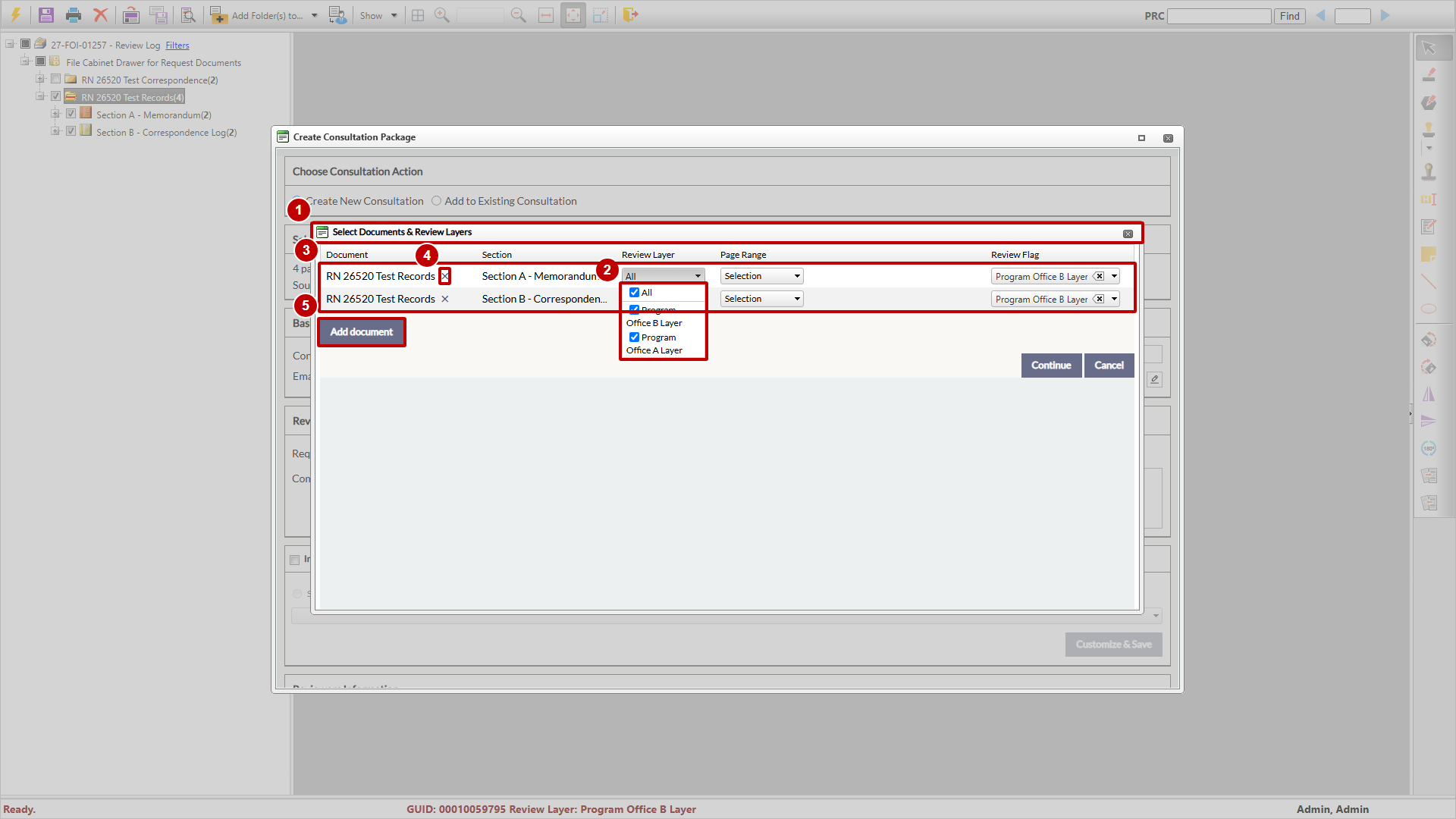
Review layers do not change which pages are included in a consultation; they determine the redactions and review objects that accompany the selected pages.
Structured Consultation Records
#ID 1617775
Each consultation is now managed as a complete record on a single screen. The Manage Consultation screen, available from the Consultations page of a request, displays all of the information about a consultation and the actions available for it, in place of the separate inline fields, dialog boxes, and menu options used previously.
The Consultation Details record shows the review ID and status of the consultation, together with the following sections:
Summary: The Marked Pages and Final Pages counts of the consultation.
Consultation Information: The consultation name, email template, request ID, sender comments, and correspondence options.
Document Details: The File Cabinet Drawer, Folder Name, and Review Layer Name of each document. When several review layers are included, they are listed as a comma-separated value.
Reviewers Information: The Action Office, Program Office, contact, consultation type and mode, review due date, and the audit dates of the record. Click Edit Pages to review the page range, review flag, and review layer criteria used to calculate the page counts.
Reviewer Comments: The comments returned by the reviewer.
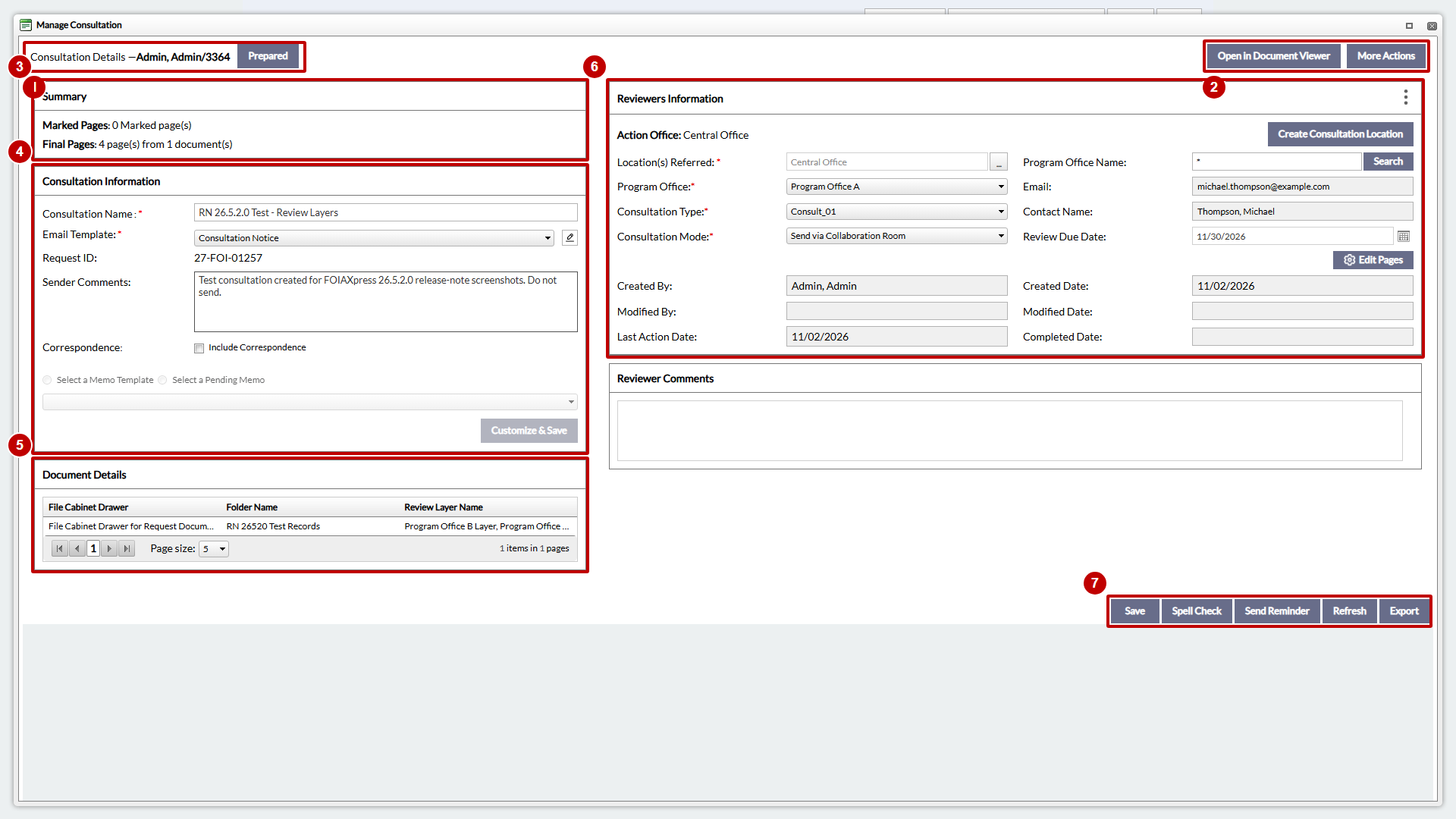
Use Open in Document Viewer to open the consultation documents, and More Actions to Send or Delete the consultation, add an Internal Note, or open Messages, the Actions Log, or Take Action. The fields you can change depend on the status of the consultation. After a consultation is sent, its details are displayed as read-only, so the record of what was sent is preserved while its full status and details remain visible.
Page Count Progress and Failed Documents Report in EDR
#ID 1681347
The EDR- Request Populate Page Counts job now displays its progress while it runs and identifies the documents whose page count could not be calculated, so you can see how far the job has progressed and follow up on any failures.
The Job Status window of the job shows the Total Documents, Page Counts Completed Documents, Page Counts Failed Documents, and Pending Documents counts, which are updated after each document while the job runs, along with the ID of the document currently being processed. When the job runs on its schedule across all requests, the window shows only the completed and failed counts, because the total number of documents is not known in advance. To open the window, click the status in the Job Status column of the job request.
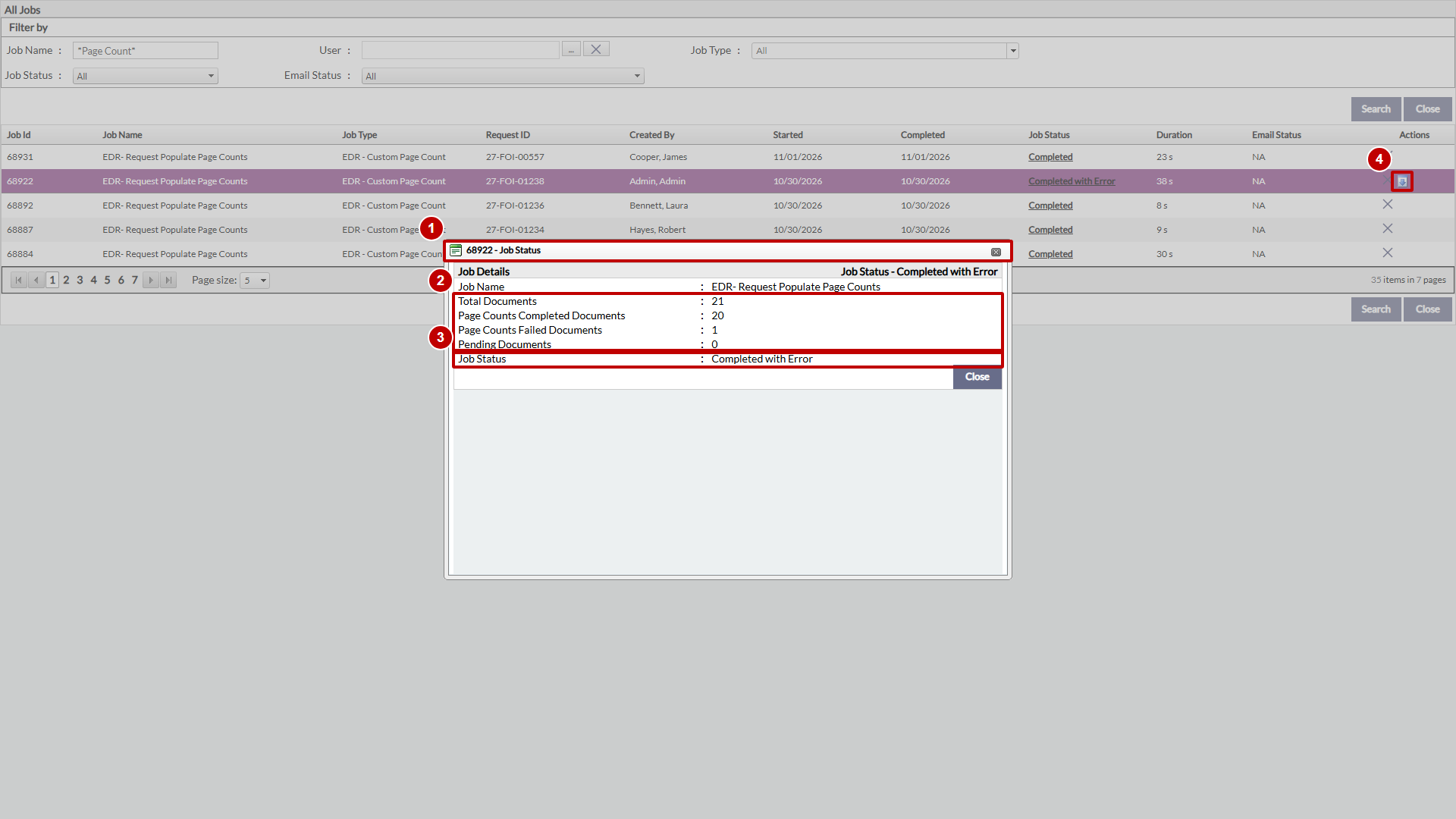
The job status now reflects the outcome of each run:
Completed: Page counts were calculated for all documents
Completed with Error: Page counts could not be calculated for some documents
Failed: Page counts could not be calculated for any document in the run
Security Updates
We’ve made the following security updates in this version of FOIAXpress:
ID | Description |
1679542 | Improved access control on several request management and custom report pages. Users without the Request Reports permission can no longer access these pages by entering the page address directly, and a not-authorized message displays instead. |
Bug Fixes
We’ve addressed the following bugs in this version of FOIAXpress:
ID | Description |
1677184 | Fixed an issue in Document Management where deleting a large number of pages from a folder failed with an error after about 500 pages. Large page selections can now be deleted as expected. |
1665069 | Resolved an issue where saving a Report Scheduler entry replaced the From email address with the email address of the user who saved it, even though only the recipients or dates were changed. The From address set for the schedule is now kept after saving. |
1676898 | Fixed an issue where the Current Balance on the requester details screen included cost sheet amounts that had not been invoiced. The balance now includes only invoiced amounts less payments received, and matches the Total Pending Amount on the Request History tab. |
1676959 | Addressed an issue where Annual Report background jobs failed for large reporting periods, such as a full fiscal year, without producing the report. These jobs now run to completion and the report is available for download. |
1673376 | Fixed an issue where insert fields in email templates, such as Action Office, Enterprise, Security, User, and Today's Date, were left blank in the email content and in the email sent. These fields now populate with the correct values. |
1681282 | Resolved an issue where the Send Report by Email pop-up for EDR reports was displayed out of alignment when the sender's default email address was set to the user's email address in an SMTP mail server configuration. The pop-up now displays all fields correctly. |
1678909 | Fixed an issue where a modified AI redaction template could not be saved under its existing name, so users had to save it under a new name. Templates can now be saved under the same name after changes, and duplicate names across different templates are still prevented. |
1640663 | Resolved an issue where system jobs, such as the Task Reminder Notification job, failed to send email notifications when the sender's default email address was set to the user's email address and the system user account had no email address. These jobs now use the Enterprise contact email address as the sender. |
1650119 | Fixed an issue where blank rows within an Excel file were removed when the file was added to the Review Log, so the layout and spacing of its tables were lost. Blank rows within the content are now kept, and only leading and trailing empty rows are removed. |
1692697 | Addressed an issue where attachments larger than 2 GB, such as large ZIP files, sent through the Collaboration Portal were incomplete after they were downloaded in FOIAXpress and could not be used. These attachments now download completely. |
1695133 | Fixed an issue where embedded objects in the headers and footers of uploaded Word documents disappeared or moved to extra pages when the document was converted to PDF. Visible embedded objects in headers and footers now keep their original positions. |
1695054 | Resolved an issue where the column headers on the Edit Consultation screen flickered and did not stay aligned with the rows while scrolling horizontally. The headers now scroll in sync with the rows. |
1666006 | Fixed an issue where image-only documents, such as Word documents that contain only an image and scanned PDFs, were displayed only as images in the EDR document viewer, without their OCR text. The OCR text of these documents is now available in EDR. |
1675859 | Resolved an error that occurred when you entered non-numeric text in the EDR Quick Search with Doc ID selected and pressed Enter. The Doc ID search now accepts only numeric values. |
1678926 | Fixed an issue where clicking on the status of a running EDR load documents job did not show its progress. The job details, including the job ID, name, and status, are now displayed for the running job. |
1663476 | Fixed an issue where FOIAXpress did not load correctly after login when a dashboard was opened directly from its URL. Dashboards assigned to the user now load as expected when accessed directly by URL. |
1671088 | Resolved an error that occurred when saving a request after a keyword typed in the Request Type search field was added to the selected value. If a valid Request Type is not selected, FOIAXpress now displays the Required validation message beside the field instead of an error, so you can select a Request Type from the list and save the request. |
1673191 | Fixed an issue in Document Management where the zoom in and zoom out controls stopped working after a zoom percentage was entered manually. A manually entered zoom percentage is now applied when you press Enter or move out of the field, and zoom in and zoom out continue from that value. |
1694171 | Addressed an issue where the Requester Category insert field in correspondence templates displayed an incorrect category, such as Private Individual instead of All Other. Correspondence now displays the requester category selected for the requester. |