The Correspondence Application Configuration page allows administrators to configure correspondence settings, including correspondence form fields, field requirements, and terminology used throughout the application.
The page includes the following options:
Configuration: Manage Email Reader settings and configure the visibility, labels, and requirements of correspondence form fields
Terminology: Customize the display labels used for system terms throughout the application
Prerequisites
To access and modify the Configuration page, you must have the Correspondence Configuration permission assigned to your role.
Accessing the Configuration Page
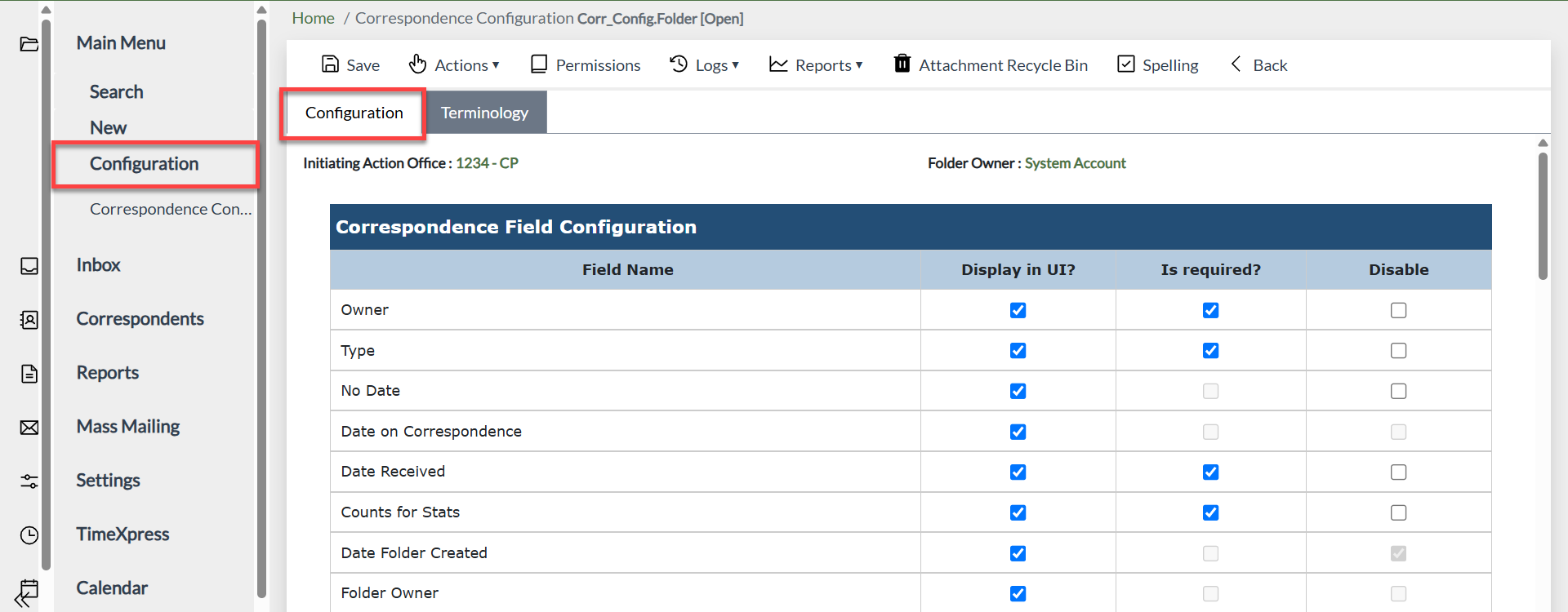
From the main navigation menu, select Configuration
The Configuration page opens with the Configuration tab selected by default
NOTE: The Configuration option is visible in the navigation menu only for users who have the Correspondence Configuration permission.
Configuration
The Configuration tab displays Correspondence Field Configuration.
Correspondence Field Configuration
The Correspondence Field Configuration section displays a list of all fields available on the correspondence form. Use this section to control which fields are visible to users, whether they are required, and how they are labeled.
NOTE: The list of fields is system-defined. You cannot add or remove fields from this list.
The field configuration list includes the following columns:
Column | Description |
|---|---|
Field Name | Displays the name of the correspondence field. |
Display in UI? | Controls whether the field is displayed on the correspondence form. |
Is Required? | Controls whether users must provide a value before saving the correspondence. |
Disable | Controls whether the field is available for use on the correspondence form. When selected, the field is disabled. |
The following fields have their Is Required checkbox disabled and cannot be toggled:
No Date
Assigned To
Date on Correspondence
Terminology
The Terminology tab allows you to customize the display labels used for system terms throughout the Correspondence Tracking application. Changes made here apply globally — including labels, headers, menus, page titles, and validation messages.
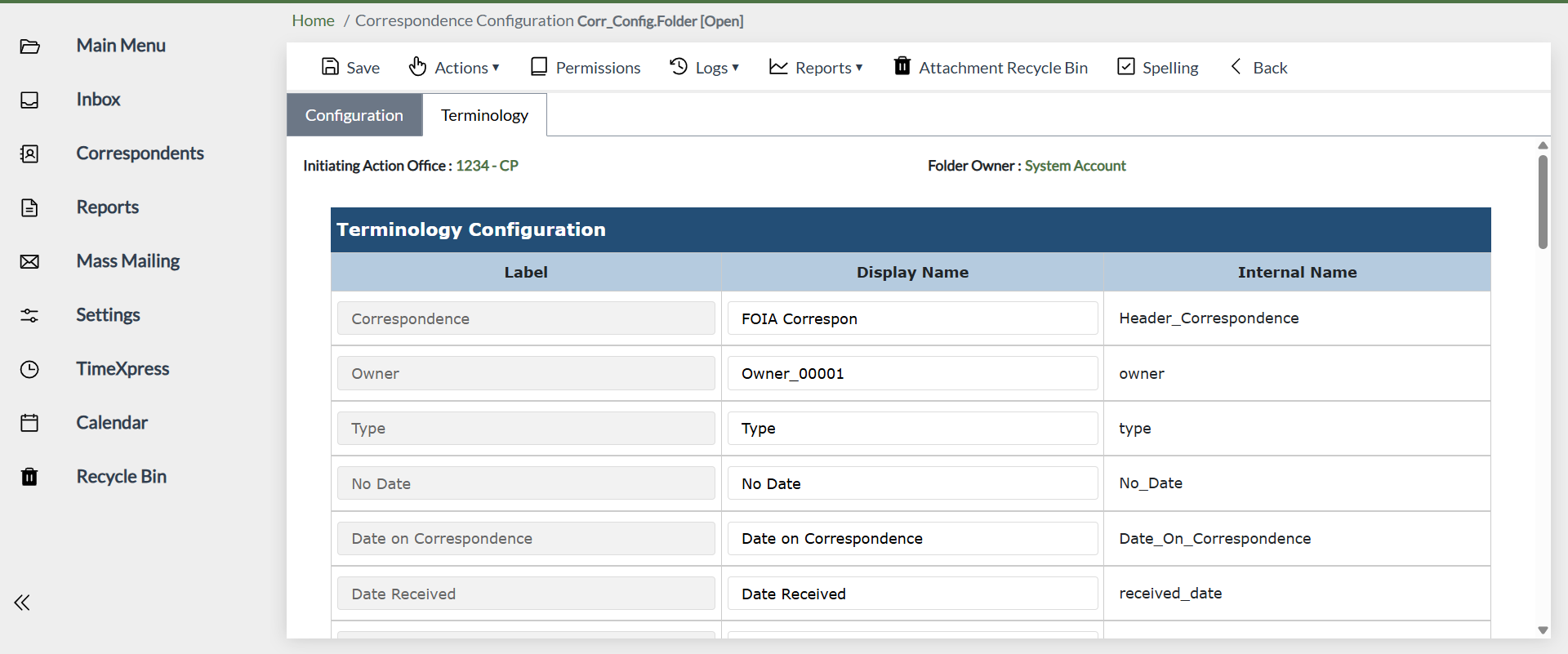
Select the Terminology tab. The following columns are displayed:
Column | Description |
|---|---|
Label | Displays the system label associated with the correspondence field. |
Display Name | Displays the name used throughout the application. You can modify this value to customize the displayed terminology. |
Internal Name | Displays the internal system name for the field. This value is read-only and cannot be changed. |
To customize a term, enter a new value in the Display Name field for the desired label.
NOTE: Leading and trailing spaces are removed automatically when terminology changes are saved. Each Display Name value has a maximum character limit. Values that exceed the allowed length cannot be saved.
NOTE: To restore a term to its default value, clear the Display Name field and save the changes. The default term is restored automatically.
Both the Configuration and Terminology tab include Save control.
Select Save to apply your changes
NOTE: Changes made in the Configuration or Terminology tab are not applied until you select Save.