Document Collaboration Interface
After selecting Collaborate from the Attachments tab, the collaboration interface will appear. Note that the collaboration interface appearance will change depending on the type of file used. A sample interface (Document Editor - opened from Microsoft Word) is shown in the screen below:
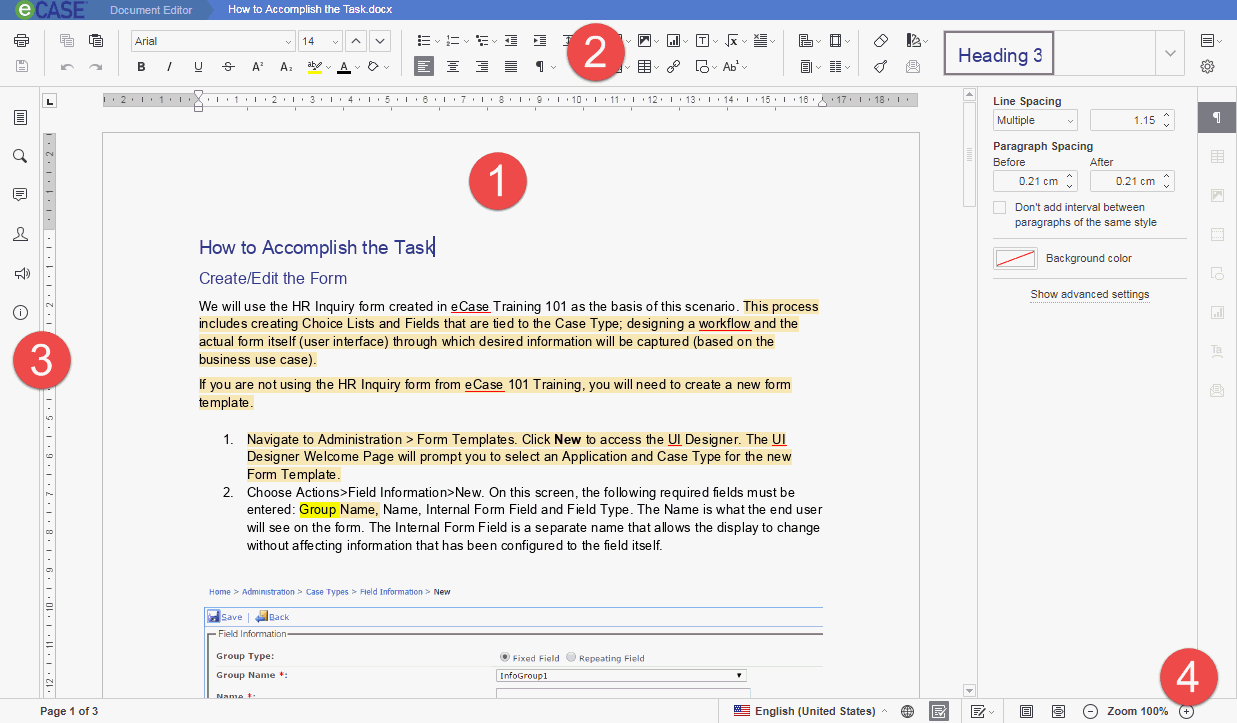
The interface is divided into four main areas:
Collaboration Space: The content of the file being collaborated on will appear in the space in the center of the screen. This field can be viewed and edited in the same manner of the original file
Editing Tools: Tools are provided here to edit the document as needed through the collaboration process. The selections here will reflect the file type, so MS Word documents will include the MS Word tools, Excel files Excel tools, and so on
Collaboration Tools: Collaboration tools are tools that assist with the collaboration process. This includes search, comments, and chat features
View Tools: Another toolbar is available at the bottom of the page to control page view options for the Collaboration too. These tools include both zoom, page fit, and language selection options
Each of these portions of the interface are described in greater detail in the sections below:
Collaboration Space
The Collaboration Space is at the center of the Collaboration interface, literally and figuratively. This is where the actual document content lives, and where you will make the bulk of your collaboration actions. Simply click inside the Collaboration Space then edit the document as you normally would in the native format (Word, Excel, etc.)
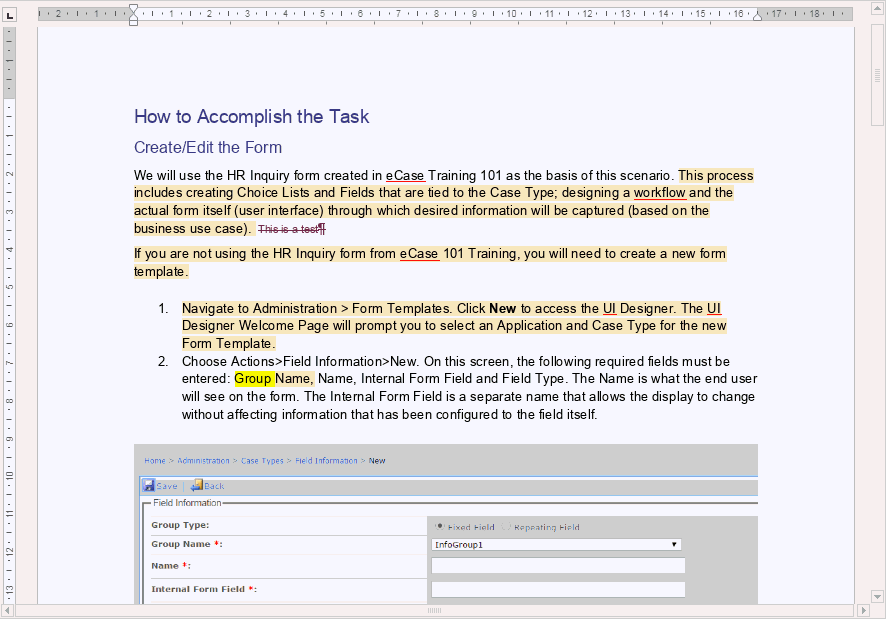
You can also view elements from the text, such as comments, by clicking these in the Collaboration Space. These will pop out within the pane for easy review.
.gif?sv=2026-02-06&spr=https&st=2026-11-24T11%3A40%3A13Z&se=2026-11-24T11%3A53%3A13Z&sr=b&sp=r&sig=%2B%2FJhksEMh6nM11f5aIIecACIkU%2F1W%2BXwVJX%2Fa3qoOto%3D)
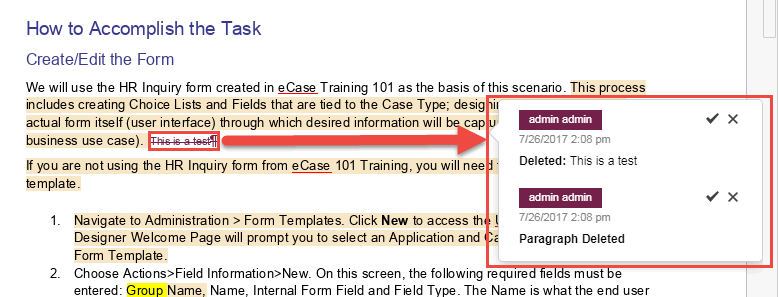
You can also review track changes (if this function is activated) within the Collaboration Space by clicking to see a history of the changes along with who made the change and when:
Editing Tools
A suite of editing tools will be available to assist in the collaboration process depending on the type of file you are working with. MS Word-based documents will contain tools for working with Word documents, while Excel documents will include spreadsheet tools.
Sample editing tools are shown below. First is the Editing Tools for the Document Editor (MS Word):

In addition, a separate set of tools is provided when working with spreadsheets. A sample of the Spreadsheet Editor (MS Excel) is shown below:

For details on how to use the various editing tools, see the Help page for the Collaboration Tool. Select Advanced Options ( ) from the Editing Tools, then select Help... as shown below:
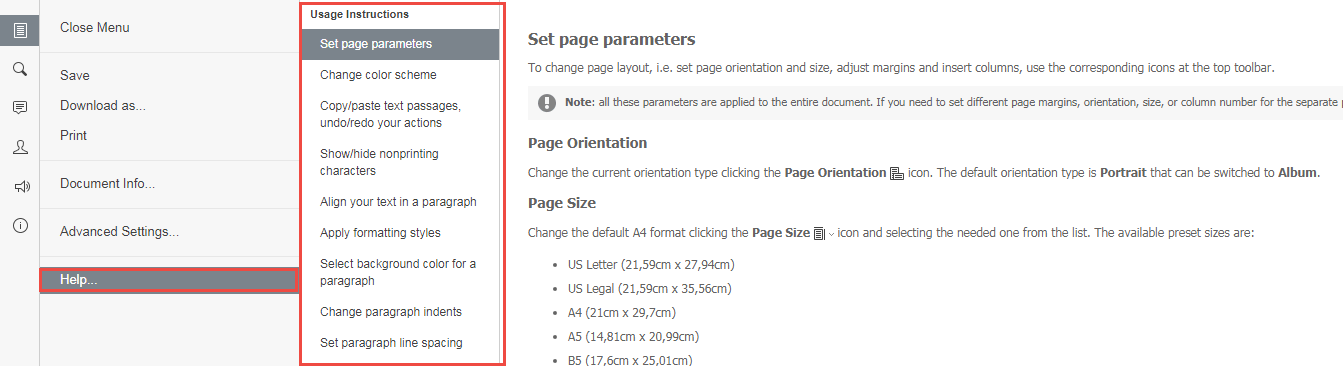
You can select from the various help topics listed on this page for help using the Editing Tools.
Collaboration Tools
In addition to standard editing tools, the Collaboration module provides tools to assist with document collaboration. These tools are available on the left-hand side of the screen, as shown below:
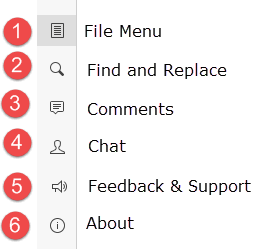
File Menu: The File Menu contains the following options
Close Menu: Close the File Menu
Save: Save changes to the current document
Download as: Select from one of the available file types and download a local copy of the current document
Print: Print the current document to a local or network printer
Document Info: See basic data about the document (page, paragraph, word and symbol counts)
Advanced Settings: Customize advanced settings including comment displays, spell check settings, auto save options and more
Help...: See descriptions of specific collaboration features and how-to guides for using these features
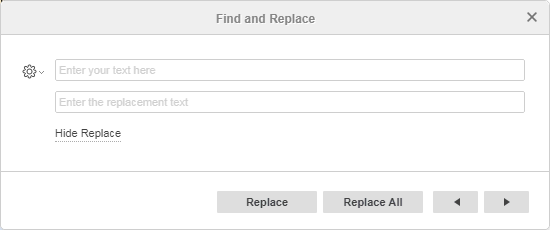
Find and Replace: Search for and replace specific text within the document, as shown in the image below:
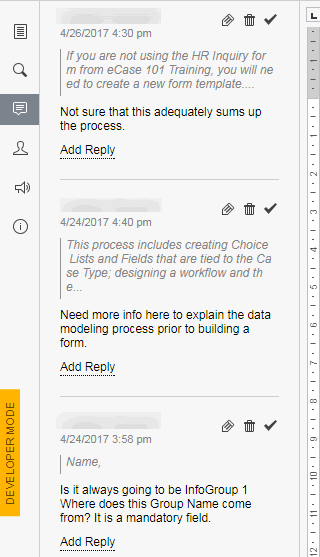
Comments: Open all comments within the documents in a separate pane, where these can be viewed, edited, responded to and deleted as needed. This also includes the person who commented and when the comment was added:
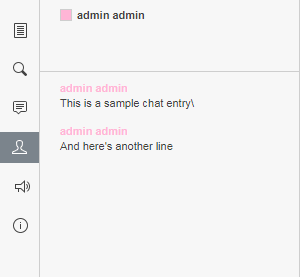
Chat: A running chat tool is included and open to all collaborators on that document. Chat logs are color-coded by user and include the user name for easy readability, even when multiple parties are collaborating simultaneously.
About: View details about the eCASE Collaboration tool
View Tools
In addition to editing and communication tools, the Collaboration module also allows you to change view settings for the document within the module itself. These options are present along the bottom of the workspace, as shown in the following image:

Set Text Language: Select from a list of available languages to set the document text language
Select Document Language: Select a language from the list to apply that language to the entire document
Spell Checking: Turn the spell check functionality on or off
Review: Turn track changes on or off, and open or close the Changes panel (to view changes made to the document)
Fit to Page: Fit the current page to the viewing space. The entire page will be visible in the Collaboration Space.
Fit to Width: Fit the current page to the width of the viewing space
Zoom: Choose a specific zoom factor to view the current page, or simply zoom closer in or further out.